Connect Wasabi
Last updated: November 9, 2026
BucketWorx works with Wasabi through its S3-compatible API, with settings made for Wasabi. You need three things from the Wasabi console: an access key, its secret key, and the region your buckets are in.

BucketWorx is a Wasabi Technology Alliance Partner. Questions about using BucketWorx with Wasabi come to us, at hello@bucketworx.com.
What you need from Wasabi
- An access key. Sign in to the Wasabi console, click Access Keys in the menu on the left, then Create Access Key. Choose Root User or a Sub-User and click Create. Wasabi shows the secret key only now: click Show, then copy both keys or download them as a CSV file.
- Your region. Each bucket belongs to a region, such as us-east-1 or eu-central-1, which you chose when you created it.
A sub-user's key needs a policy that lets it use the S3 API, which you can assign in the console under Users. Wasabi allows two access keys per user.
Add the account in BucketWorx
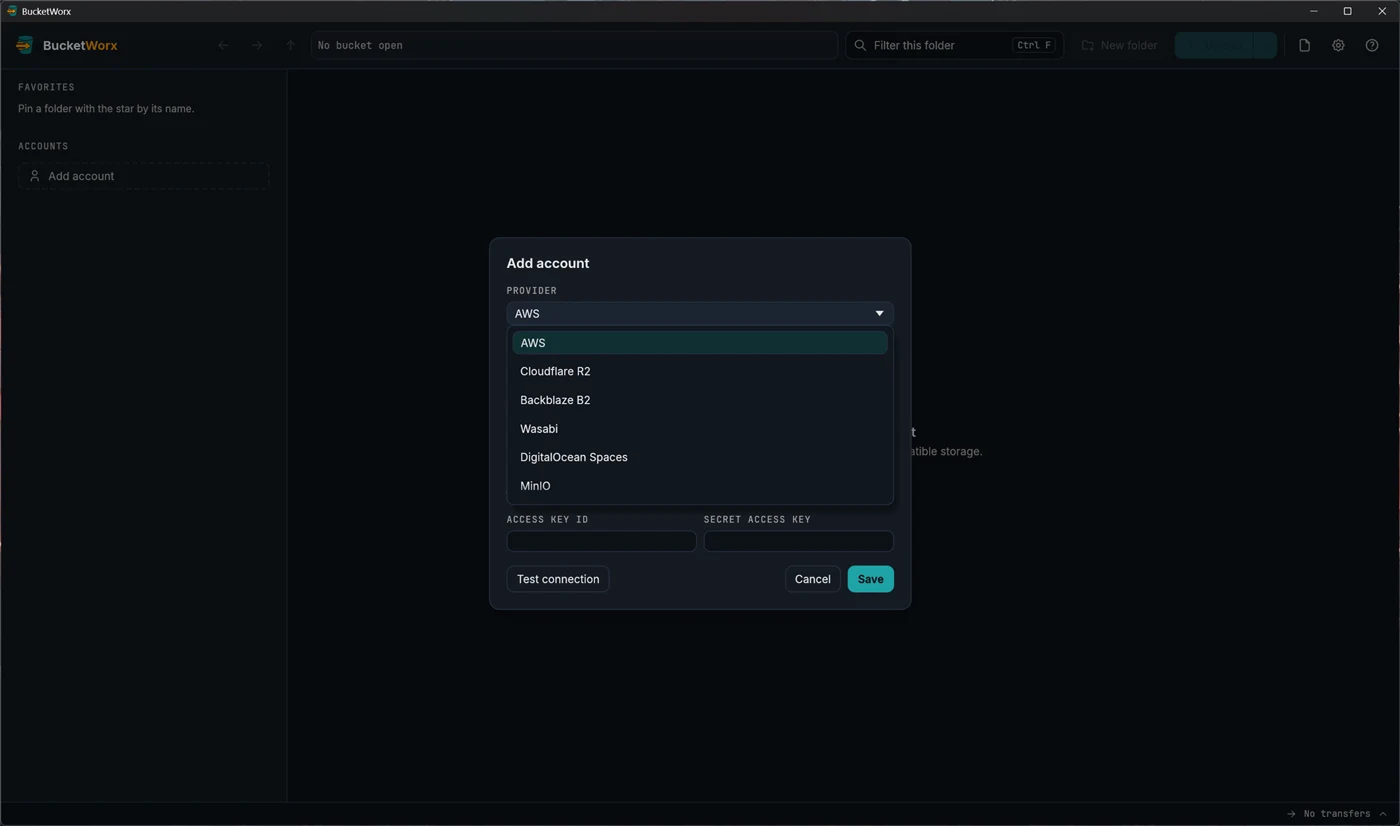
- Click Add account, in the middle of the first-launch window or in the sidebar.
- Open the Provider drop-down and choose Wasabi. BucketWorx fills in the settings Wasabi needs.
- Type a name you will recognise, such as "Wasabi archive".
- Type the region, for example us-east-1. BucketWorx fills in the endpoint from it.
- Paste the access key and the secret key.
- Press Test connection. Within about ten seconds it says "Connected. Found N buckets.", or tells you what is wrong.
- Press Save. The account appears in the sidebar. Click it to see its buckets.
Your secret key is kept in your operating system's keychain (Windows Credential Manager, the macOS Keychain, or the Secret Service on Linux), never in BucketWorx's settings file or its logs.
What's different on Wasabi
We run BucketWorx's full test suite against Wasabi. This is what we found, and what BucketWorx does about it. The provider notes compare every provider.
- Deletes in a bucket whose versioning is paused. If versioning was turned on and then paused, Wasabi says it deleted files written while versioning was on, and keeps them. BucketWorx checks after each delete and move there, and tells you which files are still there. To delete them, turn versioning back on and delete again, or delete their versions.
- No website redirects. Wasabi accepts a redirect on a file and keeps nothing, so BucketWorx hides that field.
- Versions, tags and Object Lock work as on Amazon S3. You can restore old versions, undelete files, and use Object Lock (we tested governance mode).
Common problems
- "Couldn't reach the server" or a wrong-region error. Check the region against the bucket's region in the Wasabi console.
- Access denied with a sub-user's key. Give the sub-user a policy that allows the S3 API, under Users in the Wasabi console.
- You lost the secret key. Wasabi can't show it again. Delete that access key in the console and create a new one.
- The key can't list buckets. Type the bucket names into the account's Bucket names field, or give the key permission to list buckets.
What you can do next
- Sync a folder to a Wasabi bucket, with a preview first.
- Copy files between buckets, including from Amazon S3 or Backblaze B2 into Wasabi.
- Share a file with a link that expires.
More help
Topics
- Accounts and providers
- Browsing your buckets
- Uploads, downloads and transfers
- Managing files
- Old versions, deleted files and undelete
- Buckets
- Settings and keyboard shortcuts
- The BucketWorx command line (CLI)
- AI agents (MCP)
- Free and Pro, and your licence key
- When something goes wrong
Step-by-step guides
- Connect Cloudflare R2
- Connect Backblaze B2
- Connect MinIO or another S3-compatible server
- Sync a folder to a bucket
- Share a file with a link
- Copy files between buckets and accounts
- How providers differ, and what BucketWorx does about it
All help, including installing BucketWorx.