Connect MinIO or another S3-compatible server
Last updated: October 28, 2026
Any server that speaks the S3 protocol works in BucketWorx, including MinIO and servers you run yourself. You give BucketWorx the server's address and a key, and it handles the rest.
Add the server
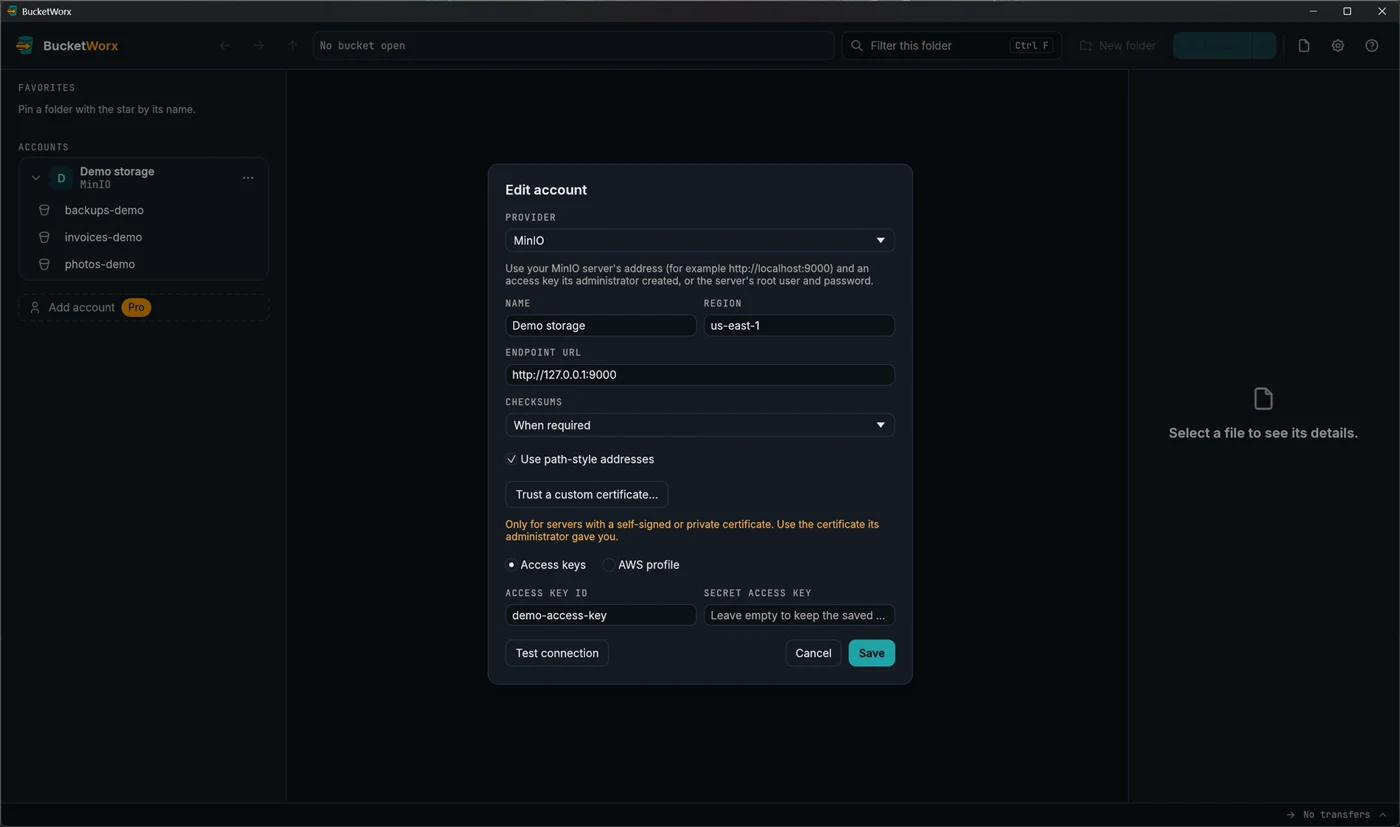
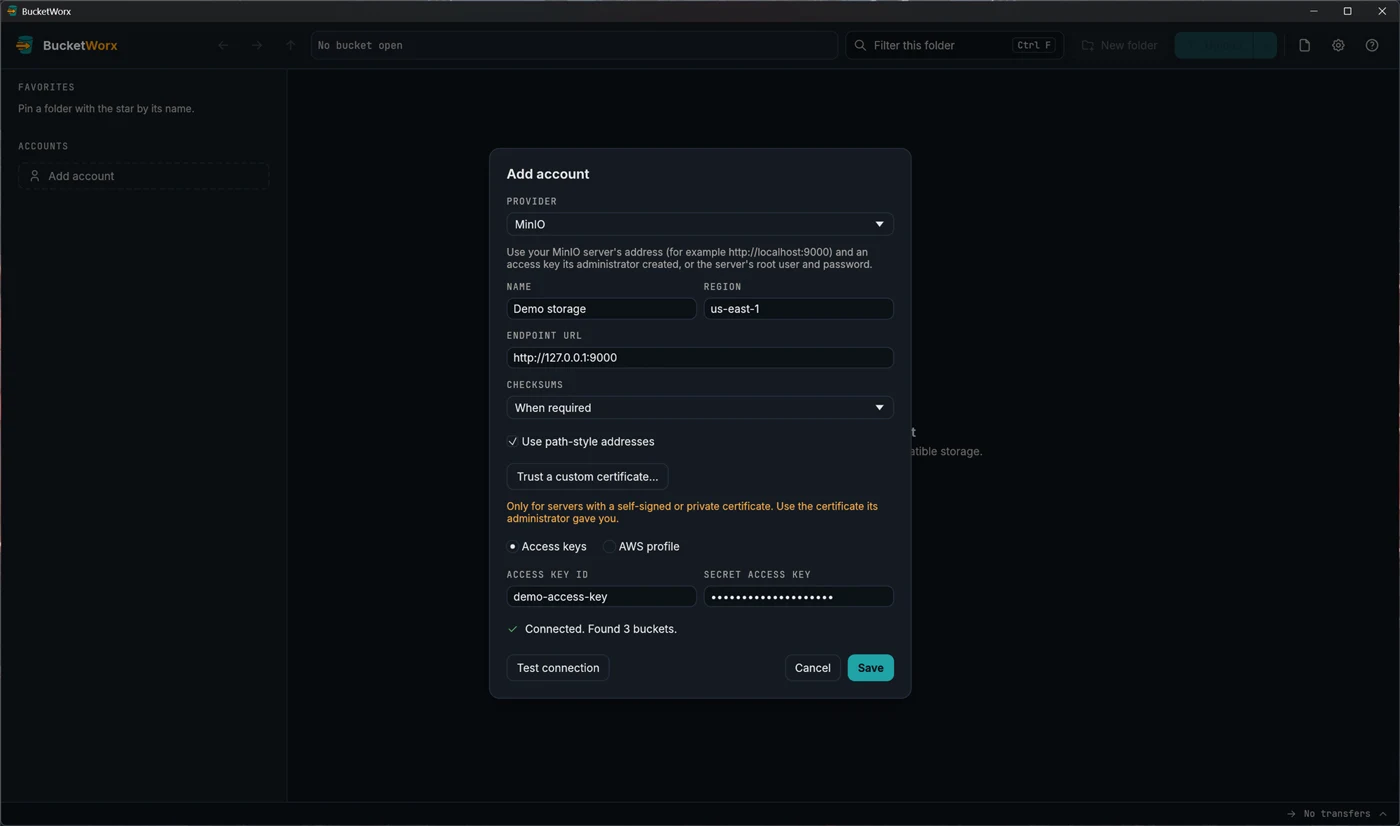
- Click Add account.
- Choose MinIO from the Provider drop-down. For another kind of S3-compatible server, choose the S3-compatible option instead. Both ask for the same things.
- Give the account a name.
- Type the server's address in Endpoint URL, for example http://localhost:9000 or https://storage.example.com.
- Check Use path-style addresses. MinIO and most self-hosted servers want it on, and choosing the MinIO provider turns it on for you.
- Enter the access key ID and secret access key an administrator created, or the server's root user and password.
- Press Test connection, then Save.
A self-signed or private certificate
If your server uses HTTPS with a self-signed certificate, or one from a private certificate authority, BucketWorx will refuse to connect. Press Trust a custom certificate… and choose the certificate file the server's administrator gave you (.pem, .crt or .cer). The usual security checks stay on. BucketWorx only adds your certificate to the ones it trusts for this account, and it refuses a file that contains a private key.
Common problems
- "Couldn't reach the server." Check the address, the port, and whether the server is running. An address that works in a browser on the same machine may need 127.0.0.1 instead of a name.
- Buckets don't list, or requests fail with odd errors. Make sure path-style addresses is ticked. Servers without wildcard DNS can't use bucket names as part of the address.
- The address has a path in it. BucketWorx shows a note. Keep the path only if your server really needs it.
- The key can't list buckets. Type the bucket names into the account's Bucket names field.
What you can do next
- Sync a folder to a bucket on your server, with a preview first.
- Copy files between buckets, including from your server to a cloud provider.
- Run MinIO on your own computer to try BucketWorx without a cloud account.