Copy files between buckets and accounts
Last updated: October 28, 2026
You can copy or move files and folders between folders, between buckets, and between accounts, for example from Cloudflare R2 to Amazon S3. BucketWorx asks you to confirm before it copies anything.
Copy to… and Move to…
- Select the files or folders. Use Ctrl+click or Shift+click to pick several.
- Right-click and choose Copy to… or Move to….
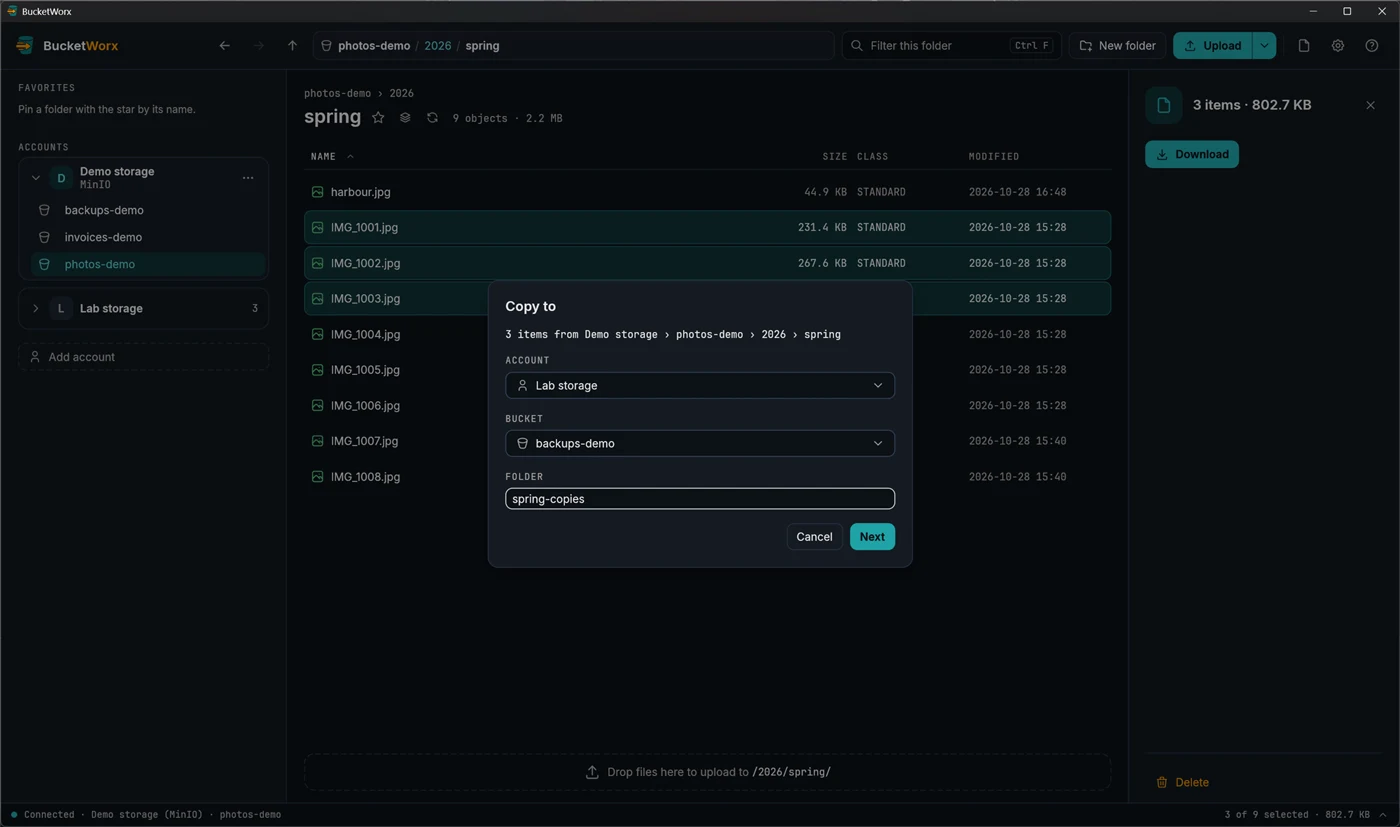
- Choose where they go: an account, one of its buckets, and a folder. Leave the folder empty for the top level. A folder that doesn't exist yet is created.
- Press Next.
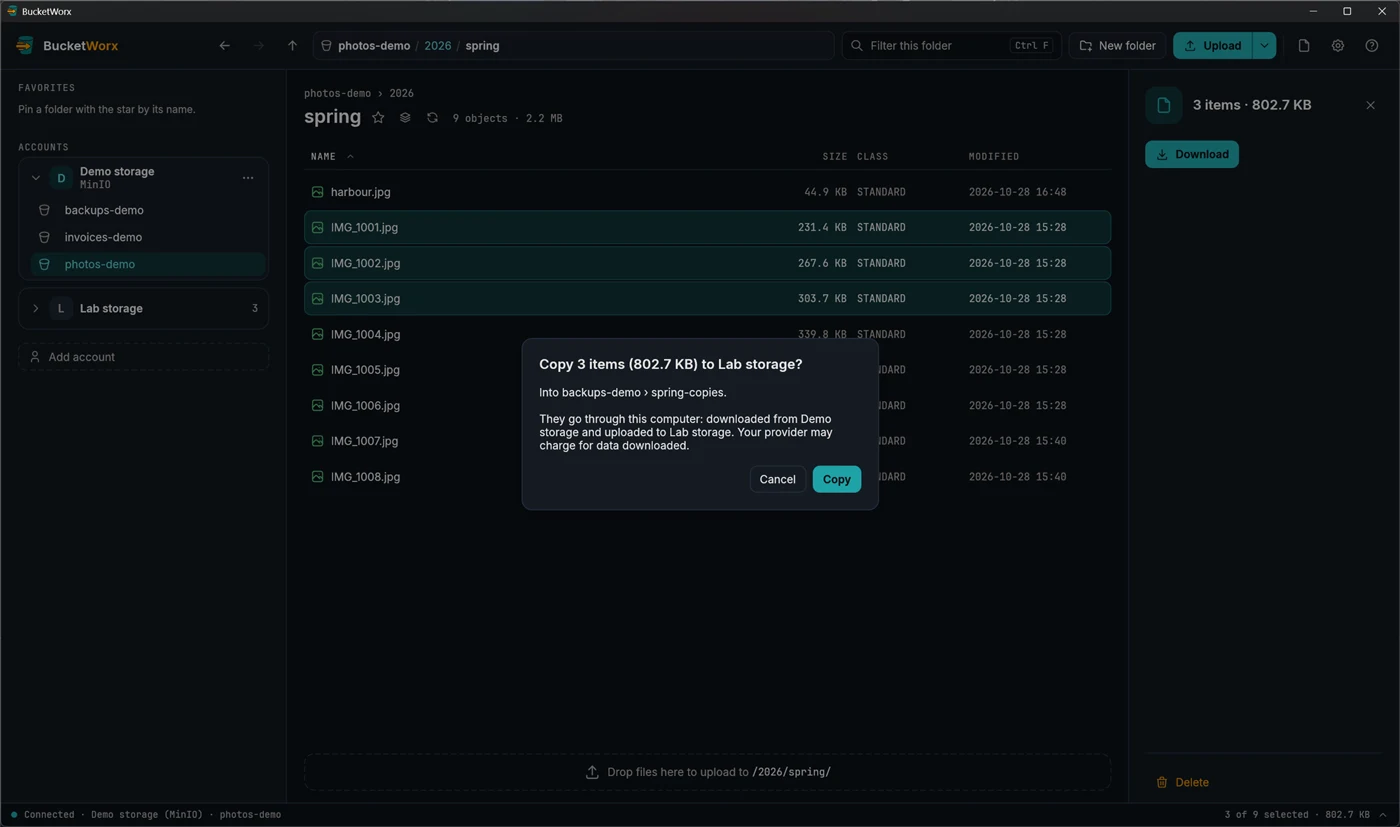
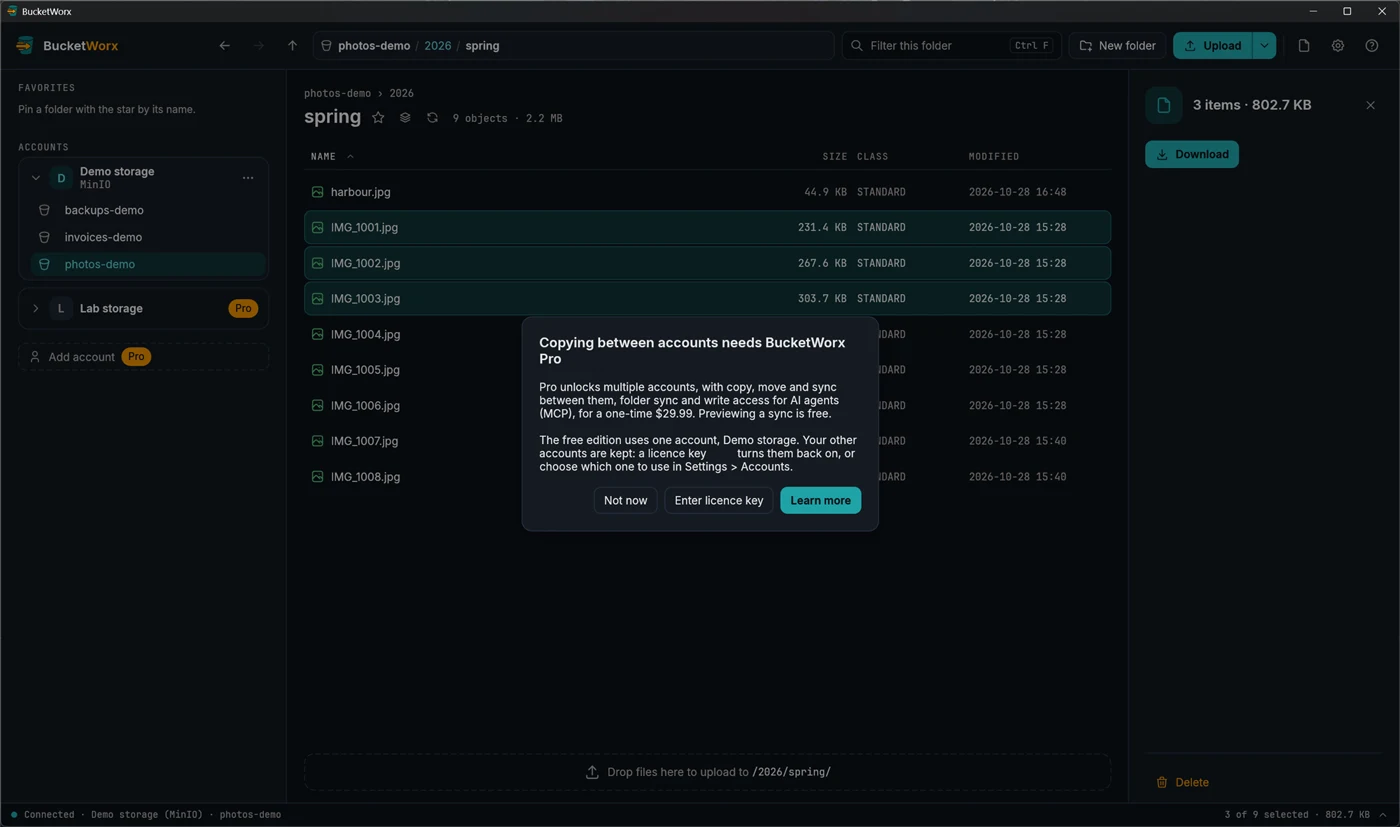
- BucketWorx lists what would be copied, then asks, for example "Copy 3 items (802.7 KB) to Lab storage?". Press Copy to go ahead, or Cancel to copy nothing.
Drag and drop
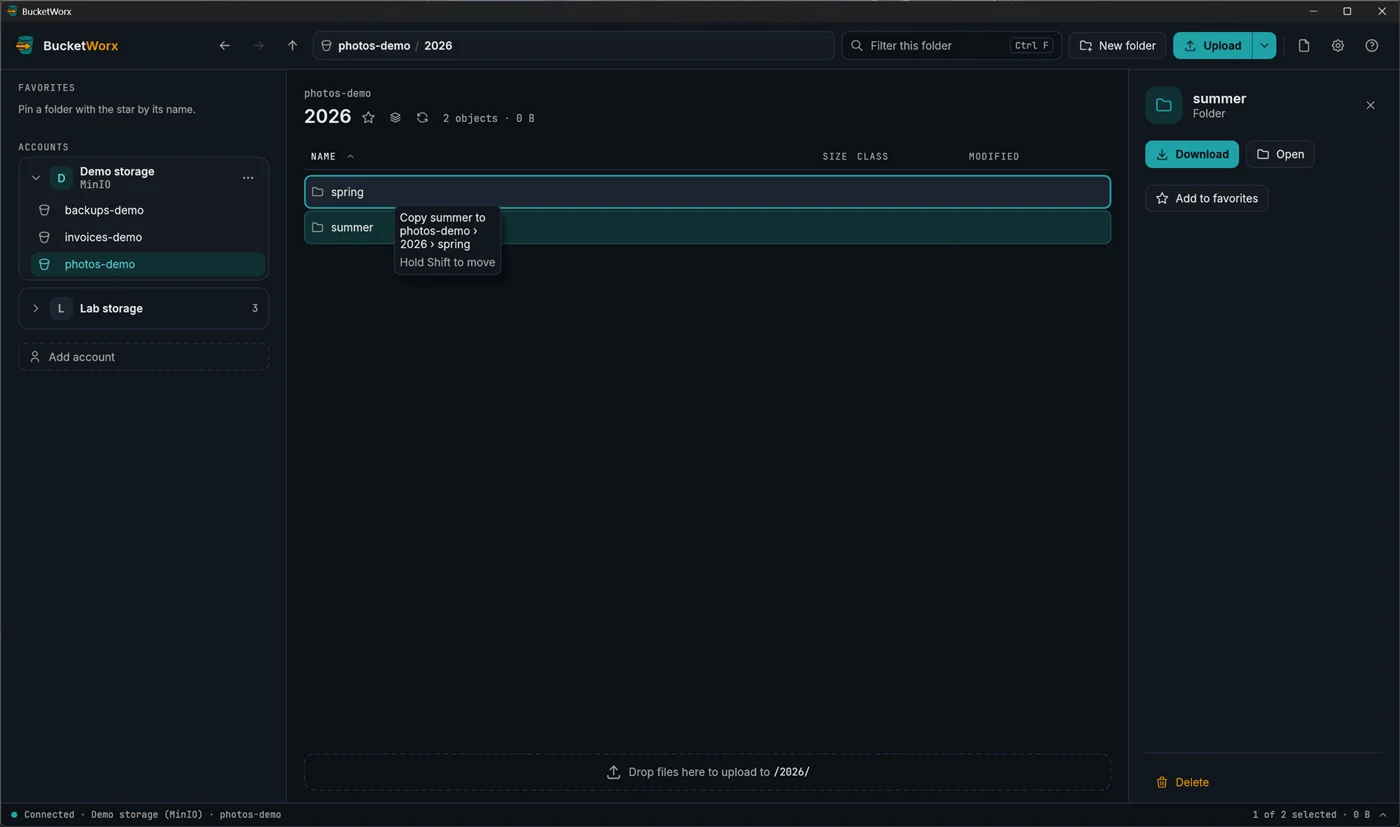
Drag rows from the list onto a folder row, or onto a bucket or favorite in the sidebar, to copy them there. Hold Shift as you let go to move them instead. A note by the pointer says what a drop would do, and the place under the pointer is outlined. Dropping opens the same confirmation as Copy to…. Press Esc to cancel a drag.
Copy, Cut and Paste
Select items and press Ctrl+C to copy or Ctrl+X to cut (use Cmd on a Mac). Open another folder, even in another bucket, and press Ctrl+V. Copied items can be pasted again in as many places as you like. Cut items stay where they are until you paste them, and then they move. A paste within one account starts straight away and appears in the transfers drawer.
Copy a whole bucket
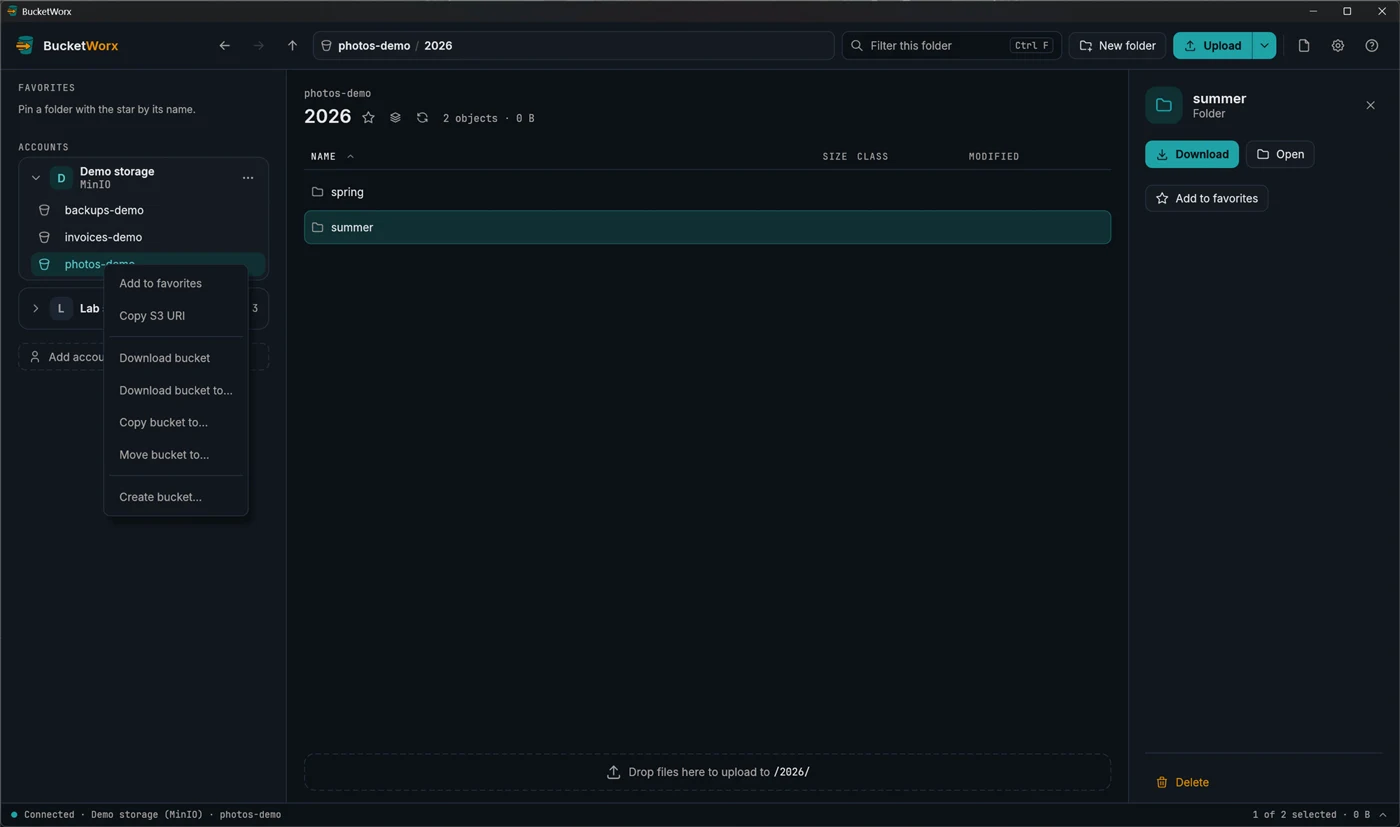
Right-click a bucket in the sidebar and choose Copy bucket to… or Move bucket to…. Everything goes straight into the folder you choose, keeping its paths, rather than into a folder named after the bucket. Moving empties the bucket but doesn't delete it. A bucket can't be copied into itself.
Between accounts
Copying between two accounts, say R2 and S3, sends the data through your computer: it is downloaded from one provider and uploaded to the other. The confirmation says so, because your provider may charge for the data that is downloaded. Copying between accounts needs BucketWorx Pro. Copying within one account doesn't need Pro.
- Moves between accounts are careful. The original is deleted only after the copy is in place and checked. If two accounts turn out to reach the same bucket, BucketWorx keeps the object rather than delete the only copy.
- Files that already exist. If a copy would replace something, BucketWorx asks what to do: overwrite, skip, keep both, or overwrite if newer. See when a file already exists.
- Big copies can be paused and resumed in the transfers drawer, and carry on after a restart. If something was written at the destination while a copy was stopped, it stops rather than overwrite it.
From the command line
bucketworx-cli cp s3://photos-demo/2026/spring/ s3://backups-demo/spring/ -r
bucketworx-cli mv s3://photos-demo/2026/summer/ s3://backups-demo/summer/ -r
bucketworx-cli cp s3://photos-demo/2026/ s3://archive/2026/ -r --to-account "R2 media"
-r copies a folder and everything in it. --to-account names the account of the destination, which needs Pro.