Sync a folder to a bucket
Last updated: October 28, 2026
Sync makes one folder match another, in one direction: a folder on your computer to a bucket, a bucket to your computer, or one bucket folder to another. BucketWorx always shows you a preview before anything changes.
Sync a folder on your computer with a bucket
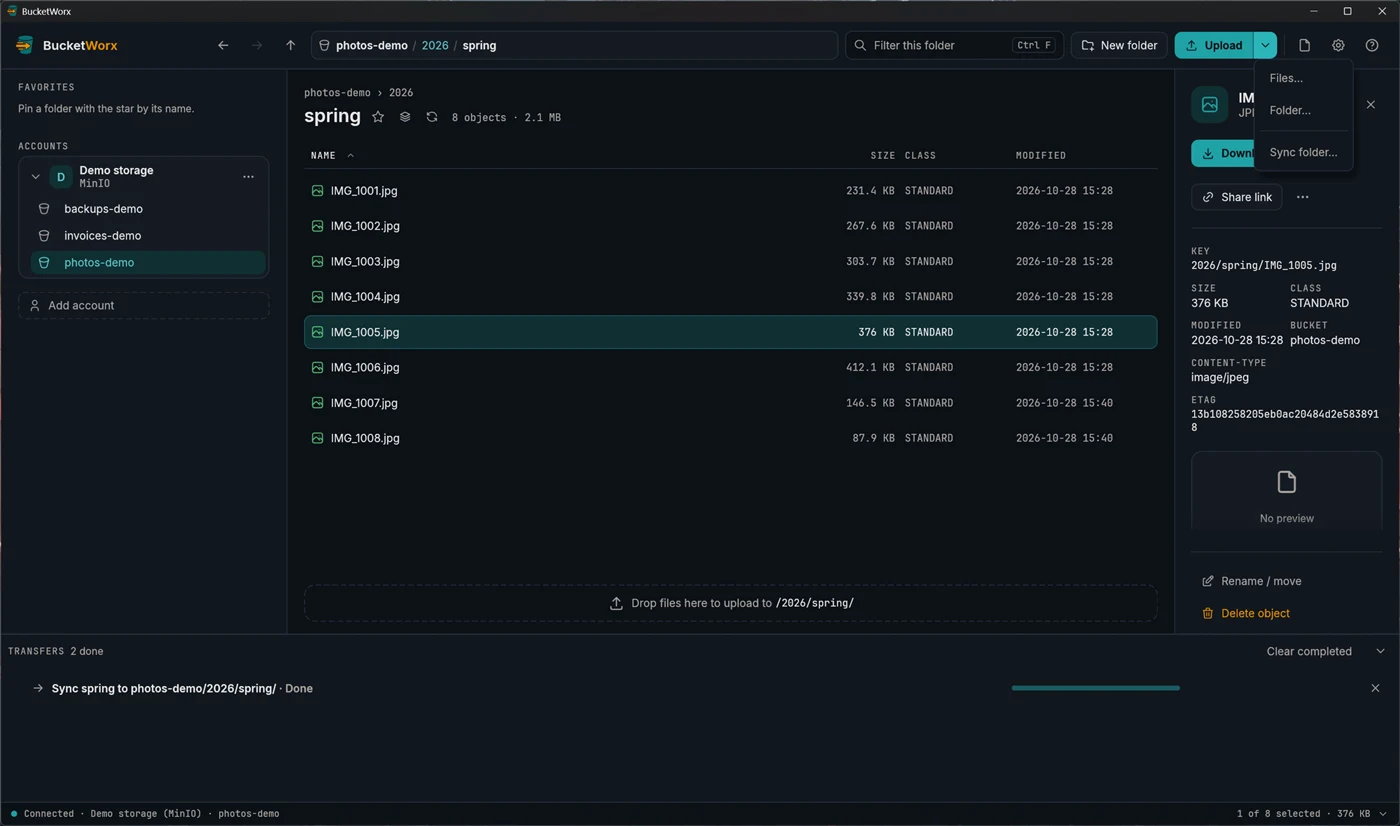
- Open the bucket folder you want to sync in BucketWorx.
- Open the Upload menu (the arrow beside the button) and choose Sync folder….
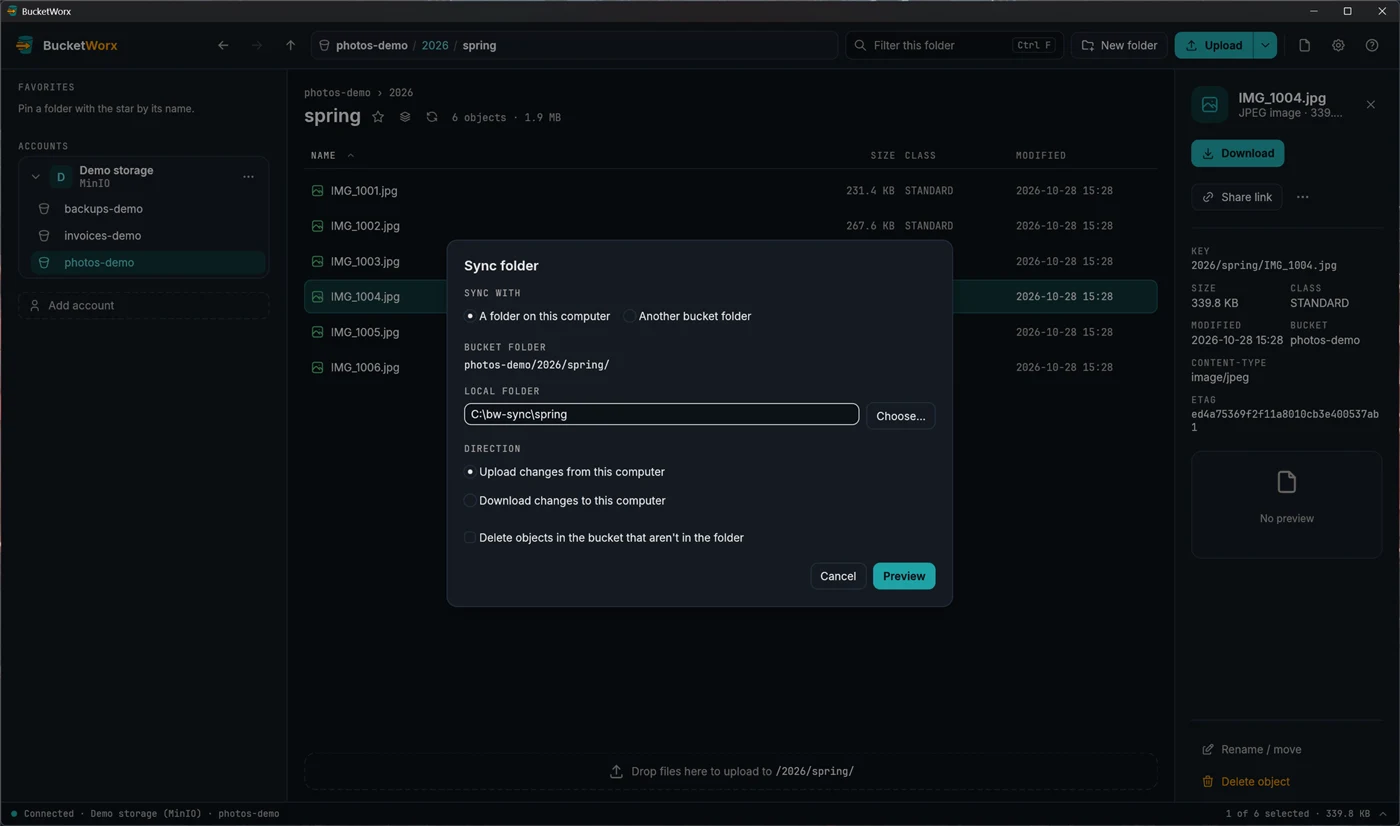
- Choose A folder on this computer, then type or pick the folder.
- Choose the direction: Upload changes from this computer or Download changes to this computer.
- Press Preview.
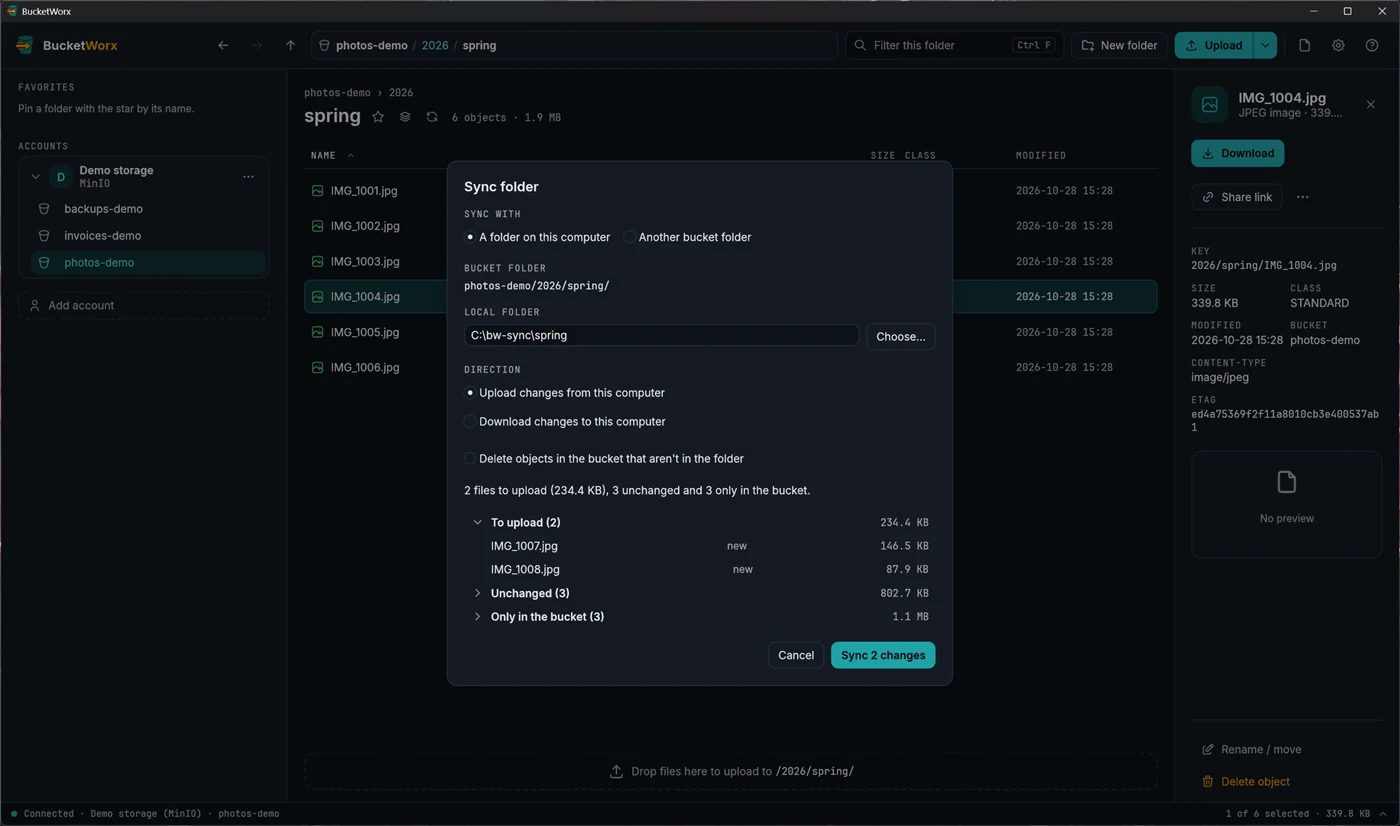
- Read the preview. If it looks right, press Sync N changes.
Read the preview
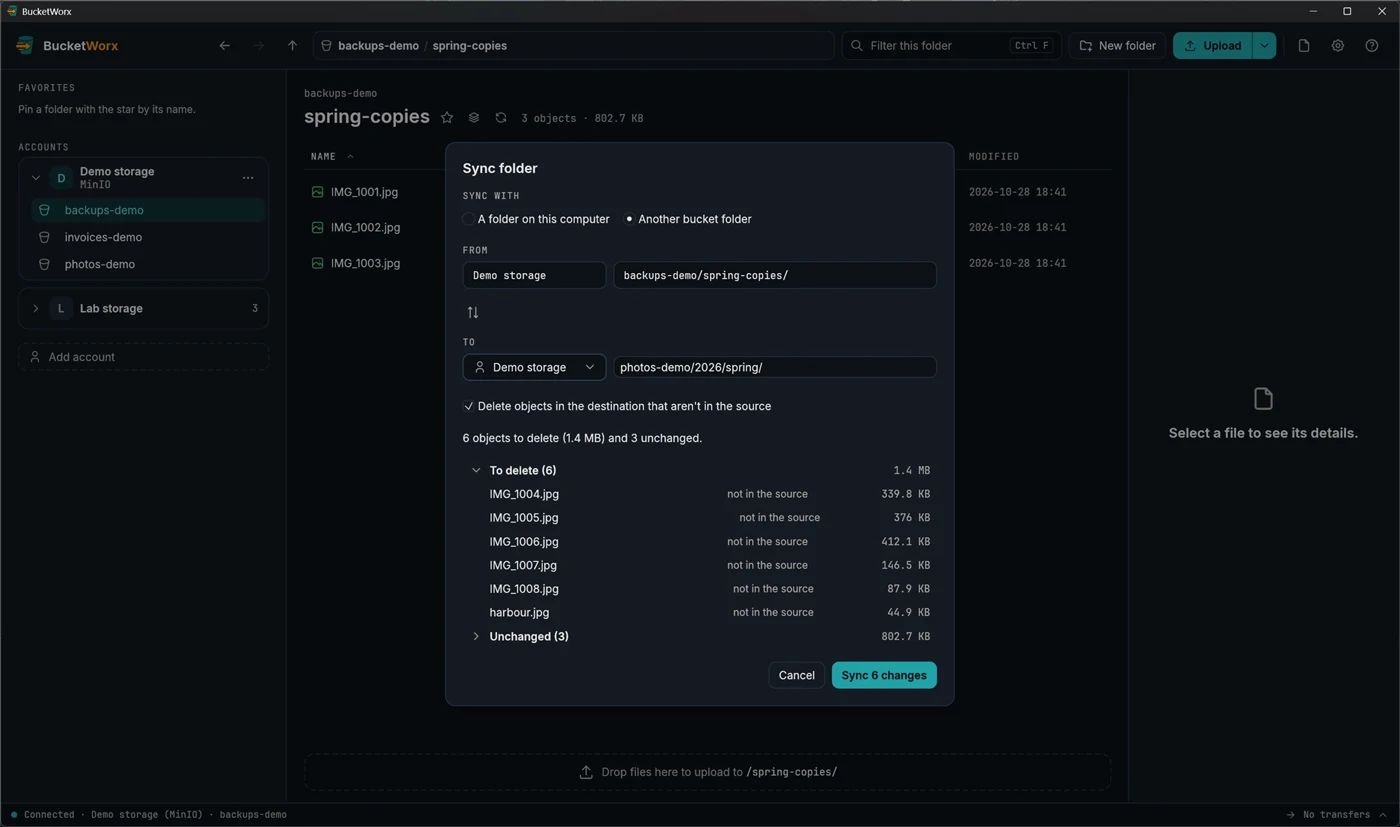
The preview lists exactly what would be copied and why: new, different size, different content, or newer. It also lists what would be deleted. Two groups stay closed until you open them: what is unchanged, and what exists only on the other side. Each group shows its count and total size. Notes say if anything was left out and why.
BucketWorx compares a file with an object by size first, then by modified time, then by MD5 checksum when both are known. That is why syncing the same folder twice copies nothing the second time.
Run it and watch it
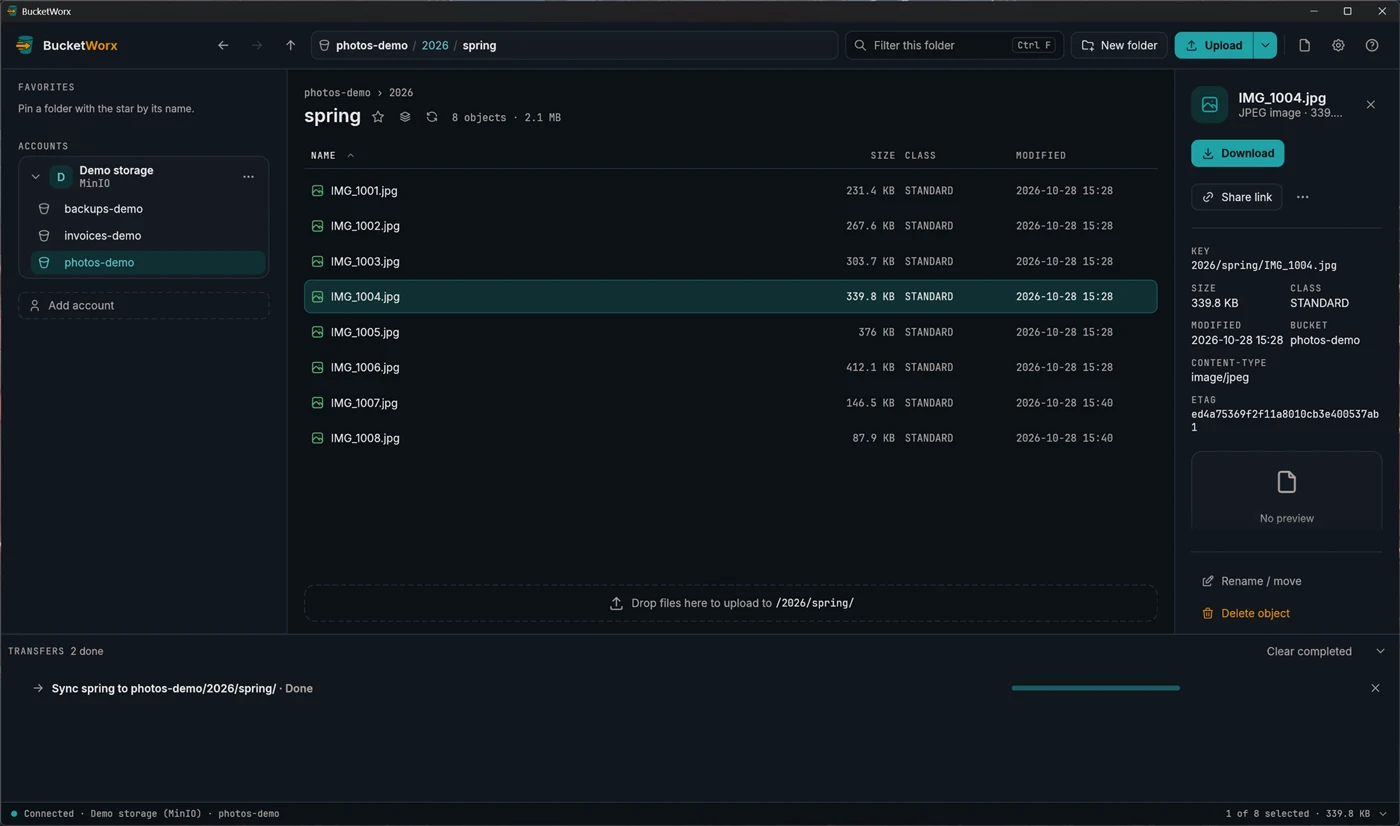
Sync N changes runs as an ordinary batch in the transfers drawer, which opens by itself. You can pause or cancel it like any other transfer. Each item is checked again just before it runs, and anything that changed since your preview is left alone, with a notice to preview again. A preview more than an hour old must be made again.
Deleting is optional, and guarded
By default a sync only copies. To also remove things that no longer exist in the source, tick Delete objects in the destination that aren't in the source (or, when syncing a local folder up, Delete objects in the bucket that aren't in the folder). The preview then lists what would be deleted, and BucketWorx asks one more time, for example "Delete 6 objects (1.4 MB)?", before it does anything.
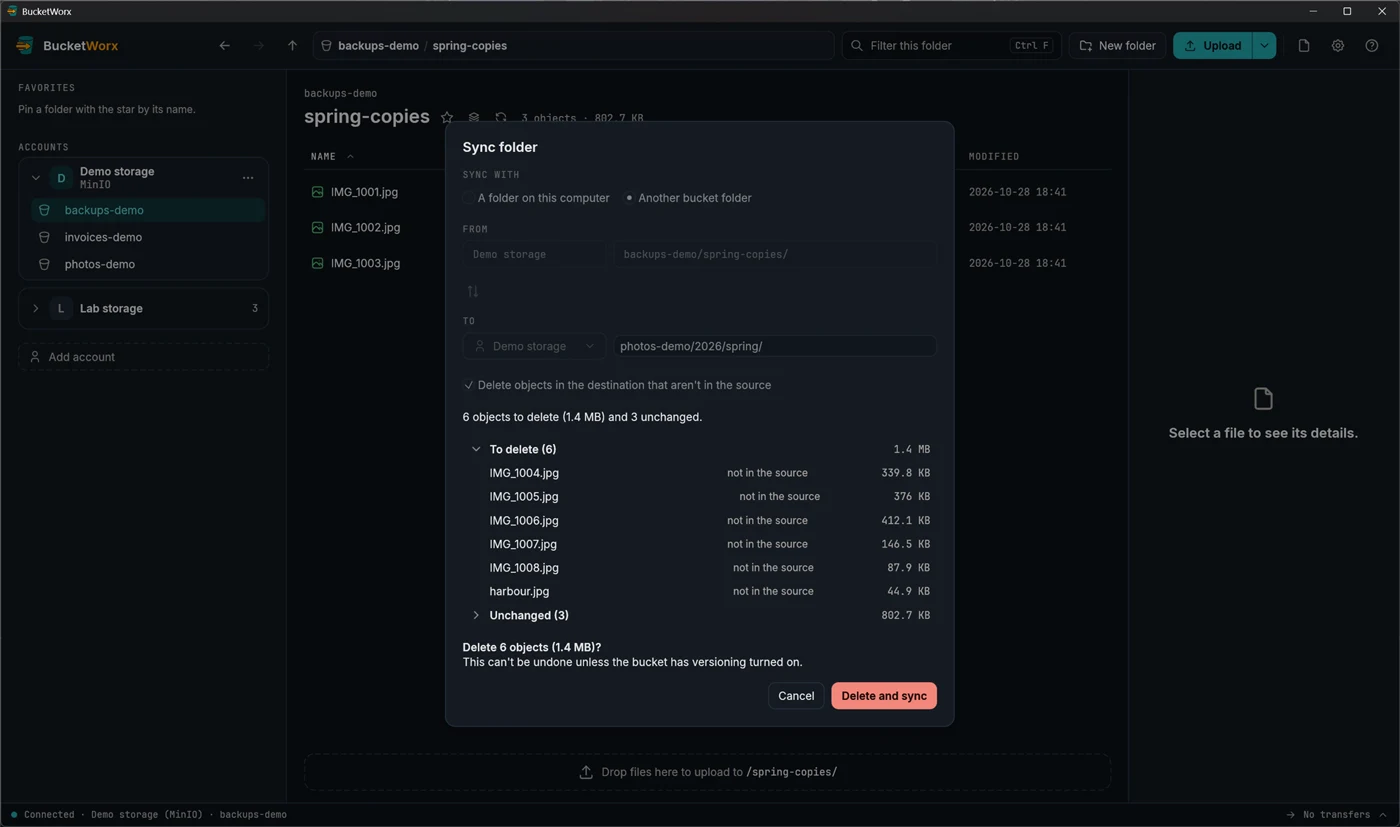
- Deletes only ever happen in the destination. The source is never changed.
- A download never deletes files on your computer. Files that exist only there are listed and left alone.
- A sync that would delete objects while the local folder has no files at all is refused, in case a drive isn't connected or the path is wrong.
Sync one bucket folder to another
In the Sync folder dialog choose Another bucket folder. The dialog then shows From and To, and a swap button to switch them. The To folder is made to match the From folder. Within one account the objects are copied inside the storage service. Between accounts they pass through your computer. Folders where one is inside the other are refused.
From the command line
bucketworx-cli sync ./spring s3://photos-demo/2026/spring/ --dry-run
bucketworx-cli sync ./spring s3://photos-demo/2026/spring/
bucketworx-cli sync s3://photos-demo/2026/spring/ ./spring-backup
--dry-run prints the plan and stops. Add --delete to remove extras in the destination. It asks first, or needs --yes in a script.
Free and Pro
Previewing a sync is free, in the app and on the command line. Running one needs BucketWorx Pro.