How to use BucketWorx
Last updated: October 28, 2026
This guide walks through the BucketWorx desktop app, one task at a time. Every screenshot comes from a practice server with made-up files and keys, so nothing here is a real account. Questions or something missing: hello@bucketworx.com.
Quick guides
- Connect Cloudflare R2
- Connect MinIO or another S3-compatible server
- Sync a folder to a bucket
- Share a file with a link
- Copy files between buckets and accounts
Everything, in order
- Install BucketWorx
- Add an account
- Manage your accounts
- Browse your buckets
- Select several items
- See a file's details and preview it
- Share a file with a link
- Upload and download
- Pause, resume and retry transfers
- When a file already exists
- Copy and move between places
- Sync a folder
- Rename, new folder and delete
- Create and manage buckets
- Favorites
- The command palette
- Settings
- Keyboard shortcuts
- Command line
- AI agents (MCP)
- Free and Pro, and your licence key
- When something goes wrong
- Where BucketWorx keeps things
Install BucketWorx
| Windows 10 or 11 | An MSI installer, or a portable zip you can unzip anywhere, a USB stick included. |
|---|---|
| macOS 12 or later | A zip holding BucketWorx.app and the command line tool. Apple silicon and Intel. |
| Linux (Debian, Ubuntu) | A .deb package. |
| Linux (other) | An AppImage. |
The Windows installer puts BucketWorx in Program Files for all users, adds a Start menu shortcut, and adds the command line tool to your PATH. Installing a newer one upgrades it in place and keeps your accounts and settings.
A warning on first launch. The downloads are not code-signed yet, so Windows SmartScreen and macOS Gatekeeper warn before the first run. That is expected. Every download comes with a SHA256SUMS.txt file so you can check it is the file we published.
Portable mode (Windows). The portable zip keeps your settings, accounts, licence key, logs and unfinished transfers in a config folder next to the program. Secret keys still go in Windows Credential Manager, never in that folder, so on another computer you enter each account's secret key again. Delete the file named portable to use your normal profile instead.
Add an account
An account is a connection to one storage provider: its address and your access keys. The first time you open BucketWorx the window is empty and asks you to add one.
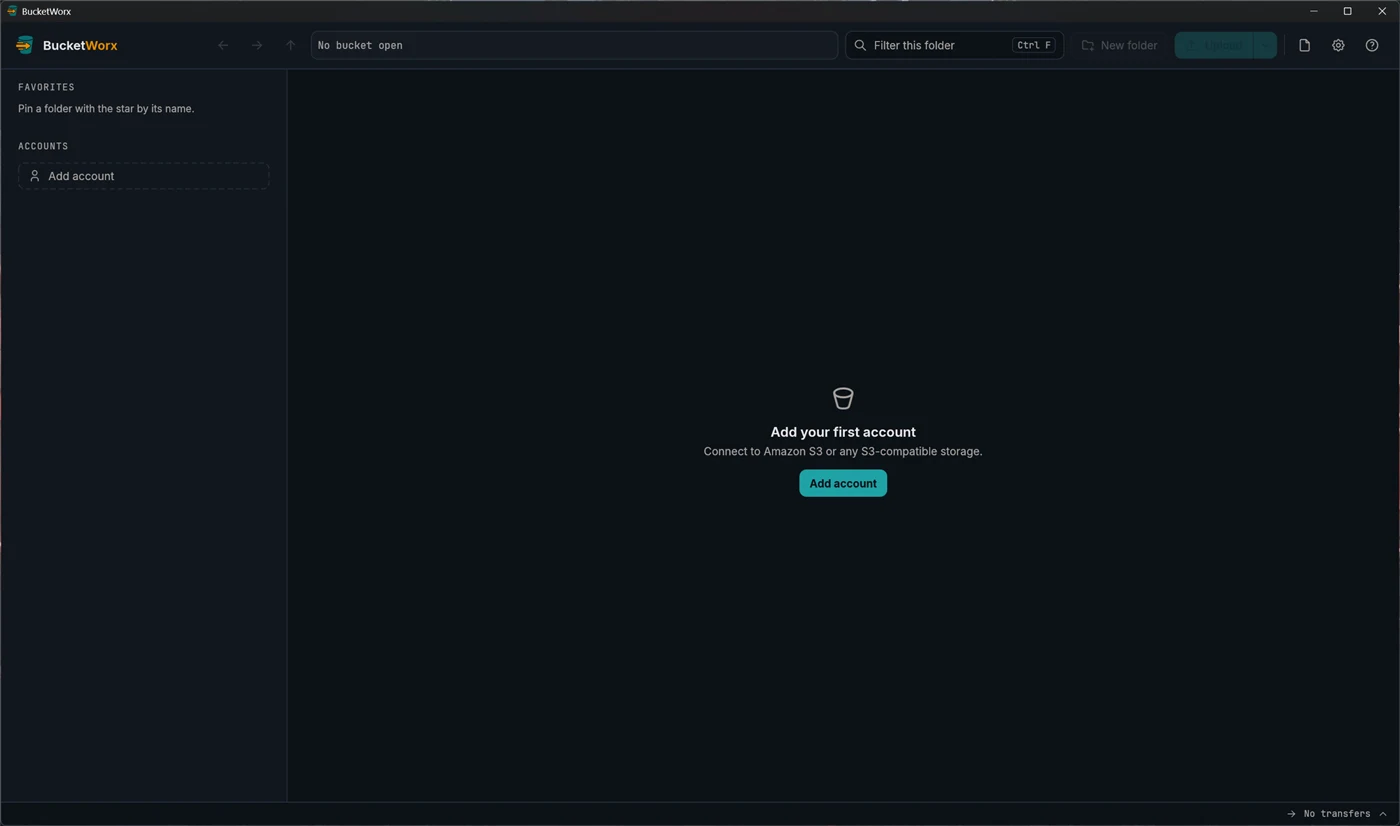
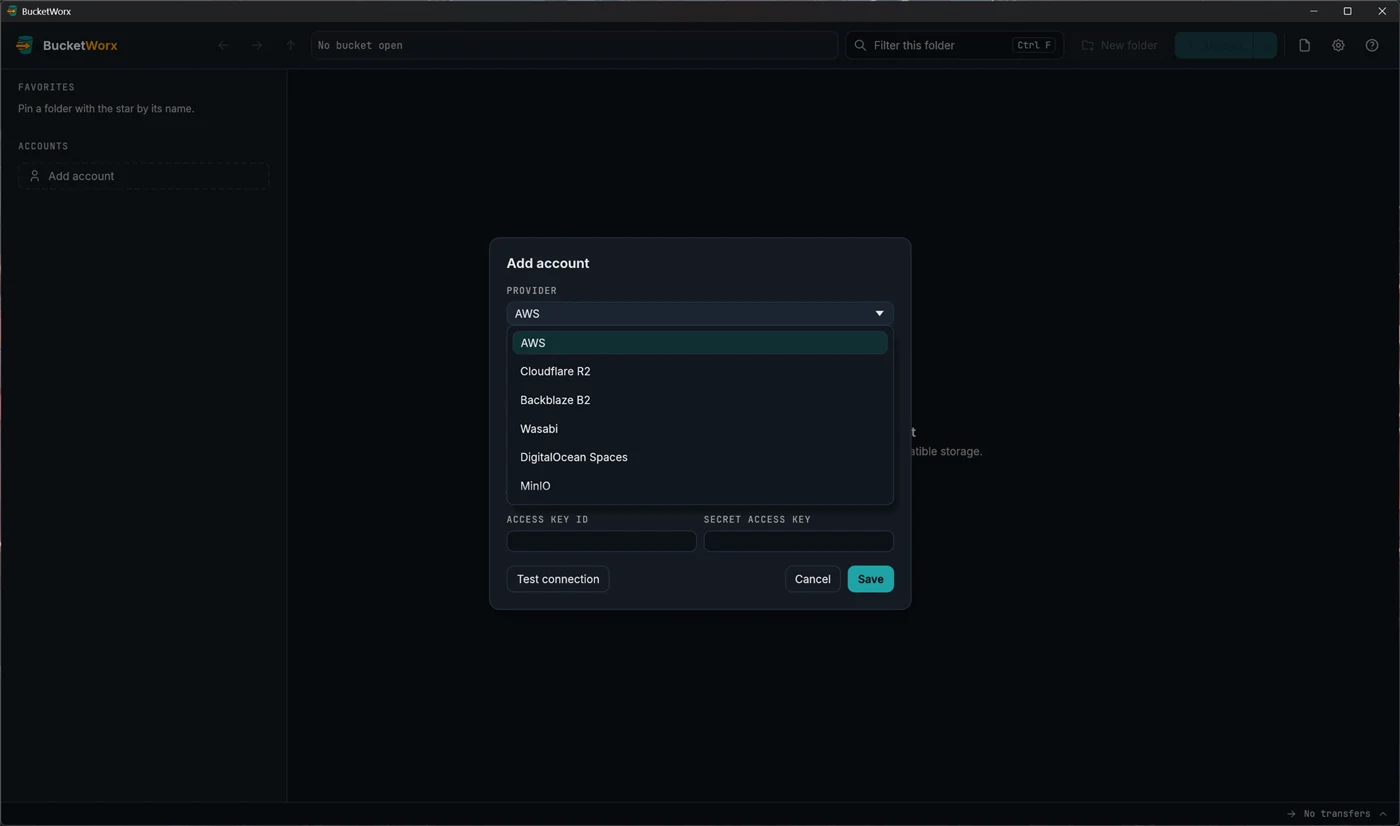
Pick your provider
BucketWorx works with AWS S3, Cloudflare R2, Backblaze B2, Wasabi, DigitalOcean Spaces and MinIO. Any other server that speaks the S3 protocol works too. Choosing a provider fills in the settings that provider needs.
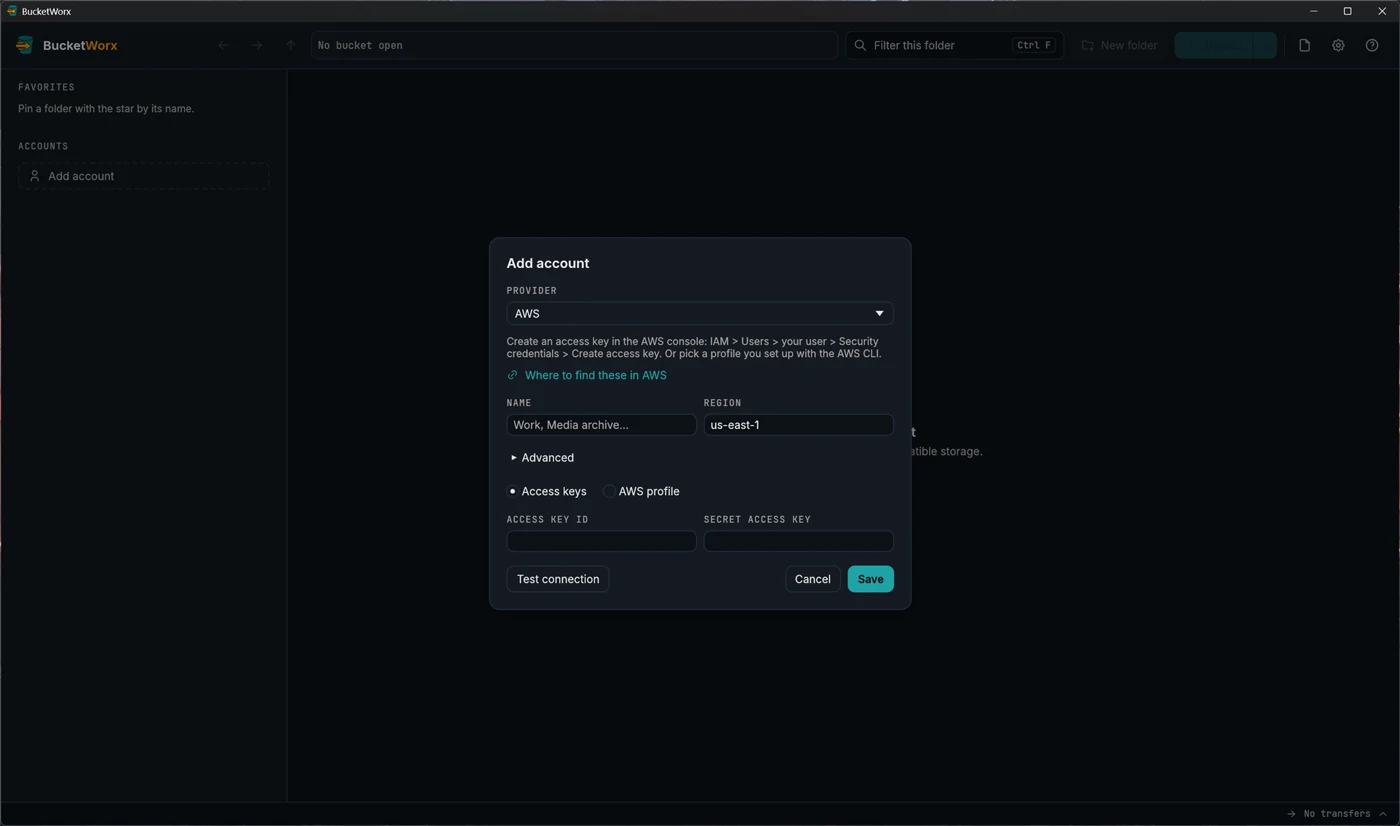
Amazon S3
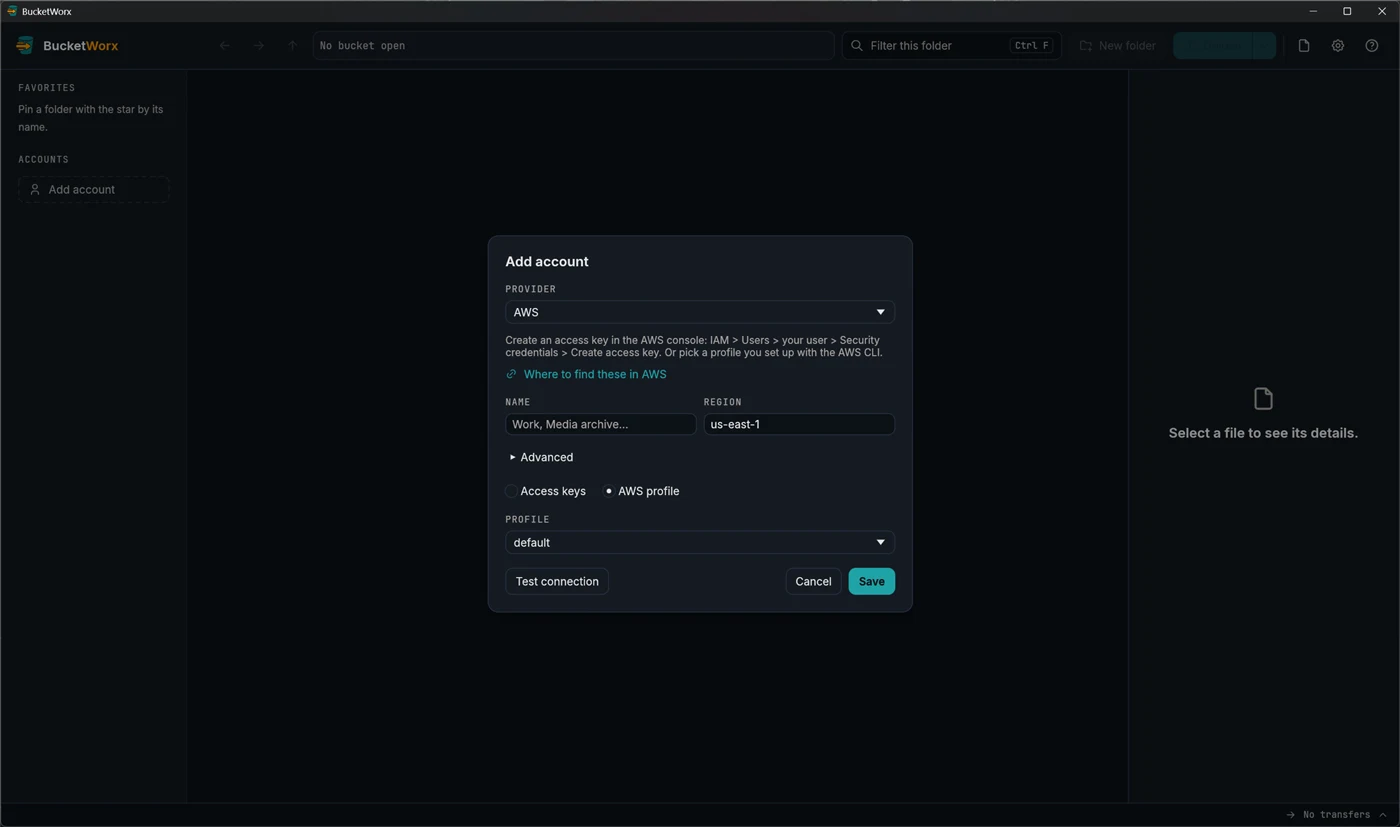
Give the account a name you will recognise (Work, Media archive), check the region, and paste an access key ID and secret access key. The form explains where to create a key in the AWS console and links to AWS's own guide. If you already use the AWS command line, choose AWS profile instead of access keys and pick a profile from your AWS files. BucketWorx only reads those files.
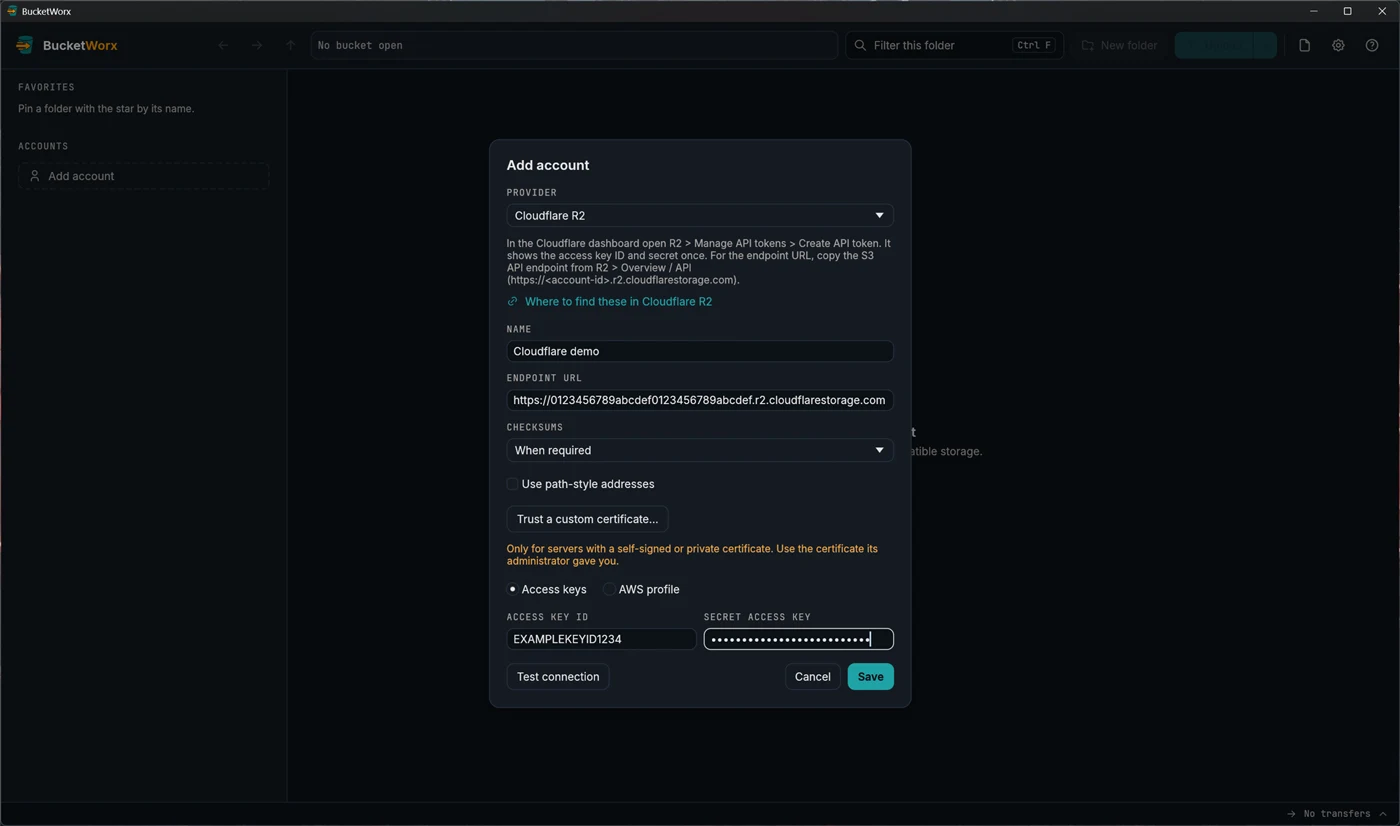
Cloudflare R2
R2 needs an endpoint URL as well as keys. In the Cloudflare dashboard open R2, then Manage API tokens, then Create API token. Cloudflare shows the access key ID and secret once, so copy them straight away. Copy the S3 API endpoint from the R2 overview page too. It looks like https://<account-id>.r2.cloudflarestorage.com.
MinIO and other S3-compatible servers
For MinIO, or any server you run yourself, enter the server's address as the endpoint (for example http://localhost:9000). A self-hosted server usually wants Use path-style addresses ticked. If it uses a self-signed certificate, use Trust a custom certificate… and choose the certificate file its administrator gave you.
Press Test connection before you save. It answers within about ten seconds with "Connected. Found 3 buckets.", or says what is wrong.
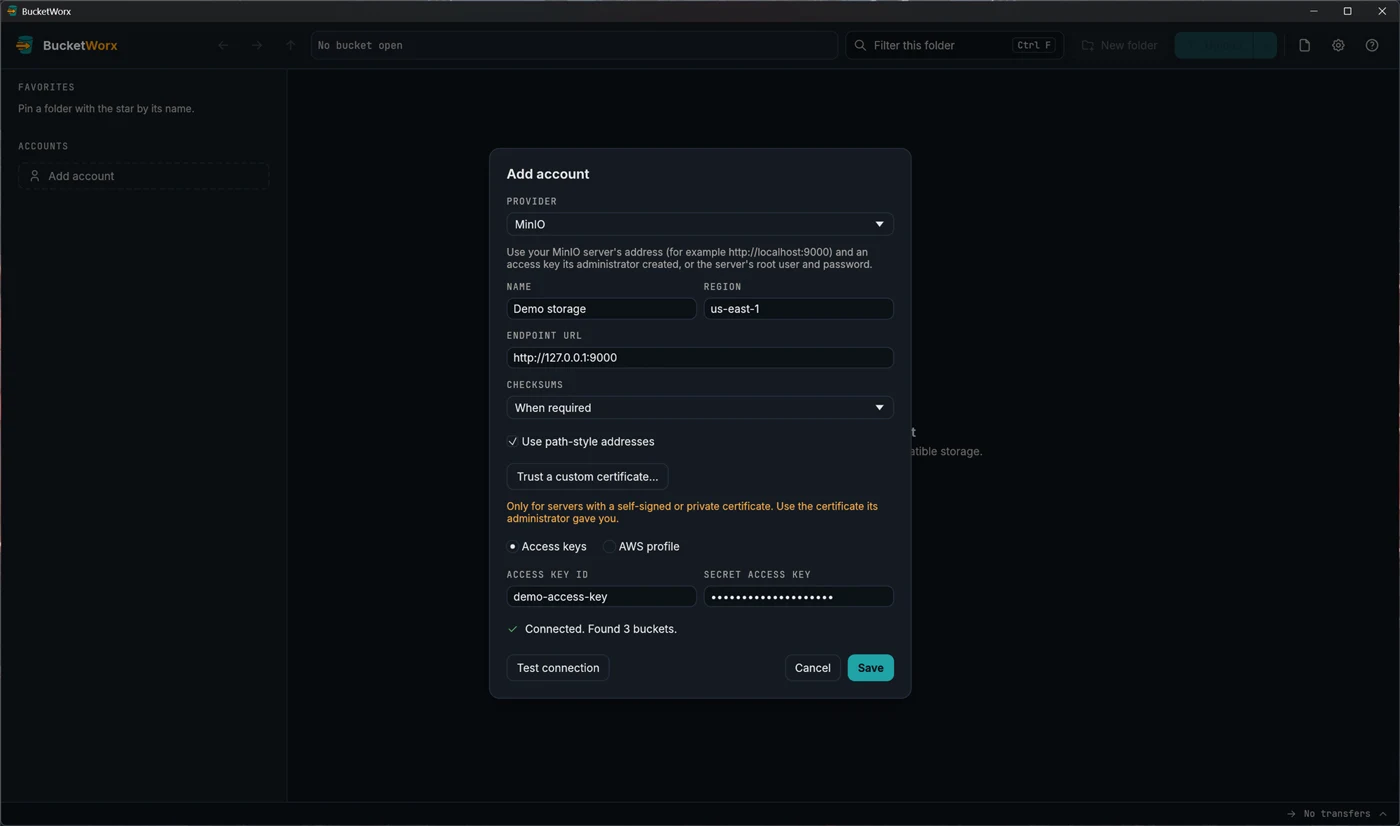
Where your secret key goes. BucketWorx stores secret keys in your operating system's keychain. They are never written to the settings file or to logs. If your system has no keychain you can use the key for this session only, or use an AWS profile.
Manage your accounts
Each account is a card in the sidebar showing a letter badge, its name and provider. Right-click the card, or use its "…" button, to Edit, Remove, refresh its bucket list, or move it up or down the list. The same actions are in Settings, Accounts.
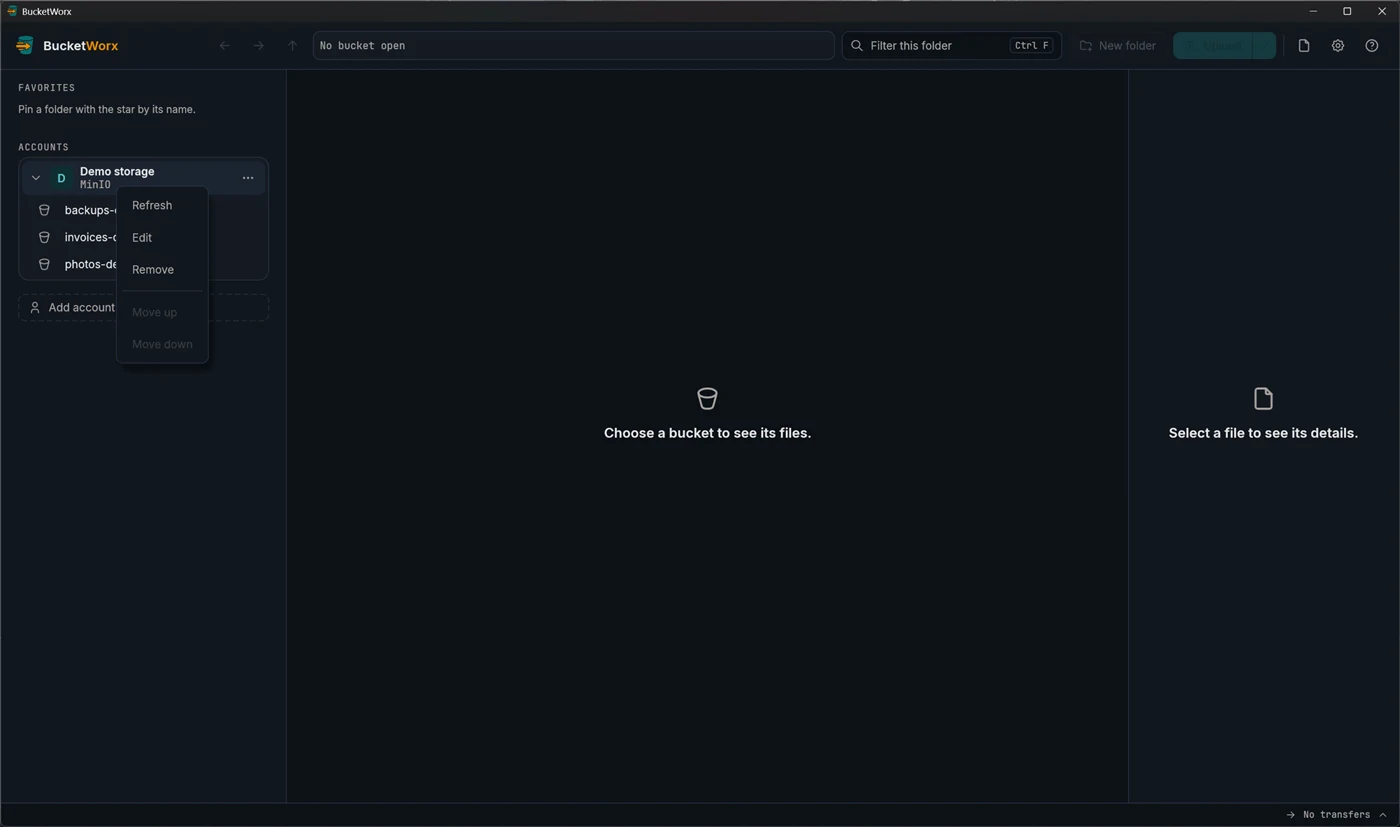
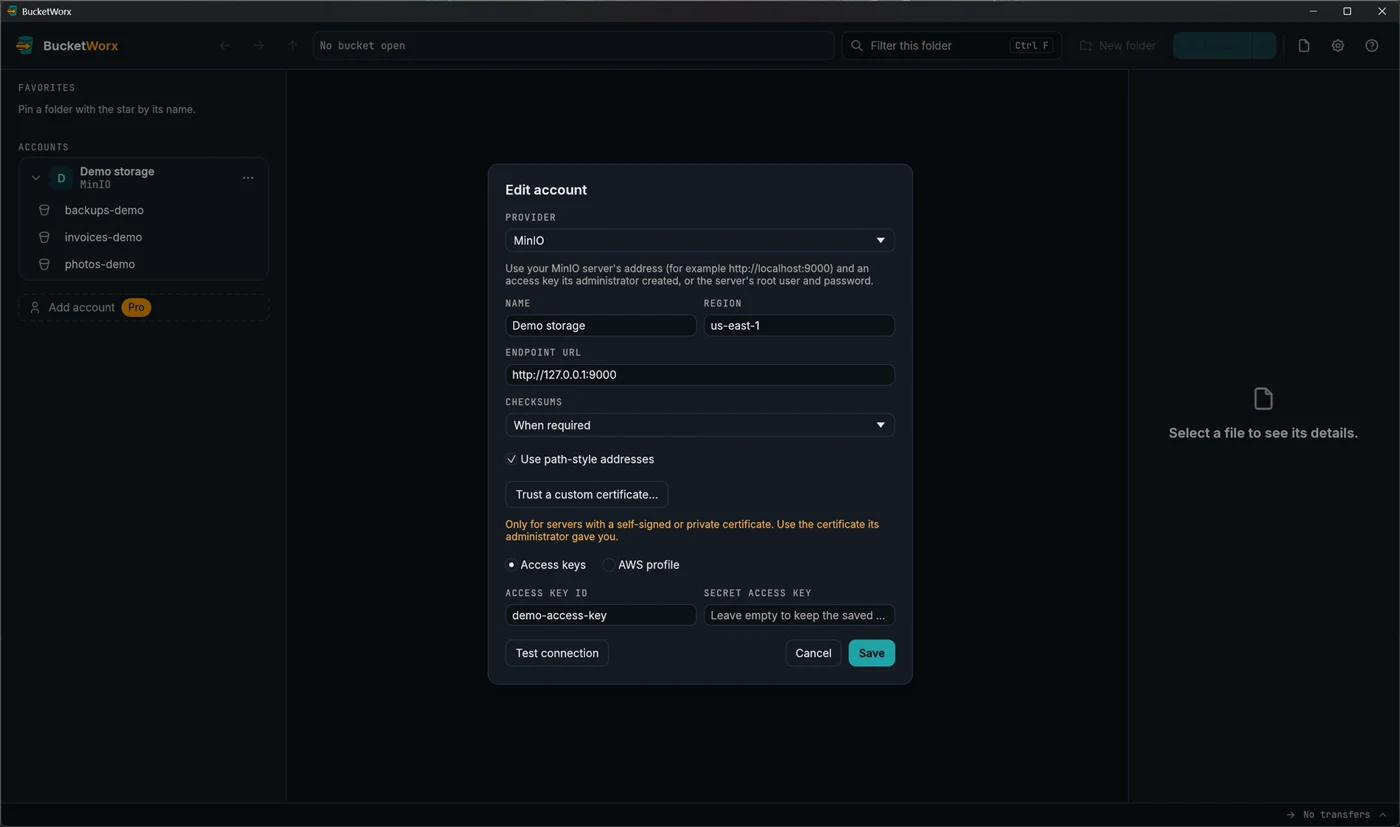
- Change keys. Edit the account and type the new secret. Leave the secret empty to keep the saved one.
- Remove an account. BucketWorx asks first, removes the key from this computer, and leaves your buckets alone.
- Use an AWS profile instead of keys. Pick a profile from ~/.aws/config and ~/.aws/credentials. SSO, assume-role and credential-process profiles work. The files are only read, never changed.
- No system keychain? Choose Use for this session only and the key is kept in memory until you close the app, or use an AWS profile.
- The key can't list buckets. Type the bucket names into the account's Bucket names field and they appear in the sidebar anyway. A bucket you create with such a key is added to that list for you.
- Mistakes are caught for you. If you paste a bucket's address as the endpoint, the form offers the right account endpoint and adds the bucket to Bucket names. An R2 account ID that isn't 32 letters and digits is flagged too. For Backblaze B2, Wasabi and DigitalOcean Spaces the endpoint is filled in from the region.
- Several accounts need Pro. The free edition uses one account. If you added more while Pro was on, they are kept but locked: they carry a Pro tag in the sidebar, and Settings, Accounts shows which one the free edition is using. Use this account (in Settings or on the card's right-click menu) changes which one that is. A licence key unlocks all of them at once.
Browse your buckets
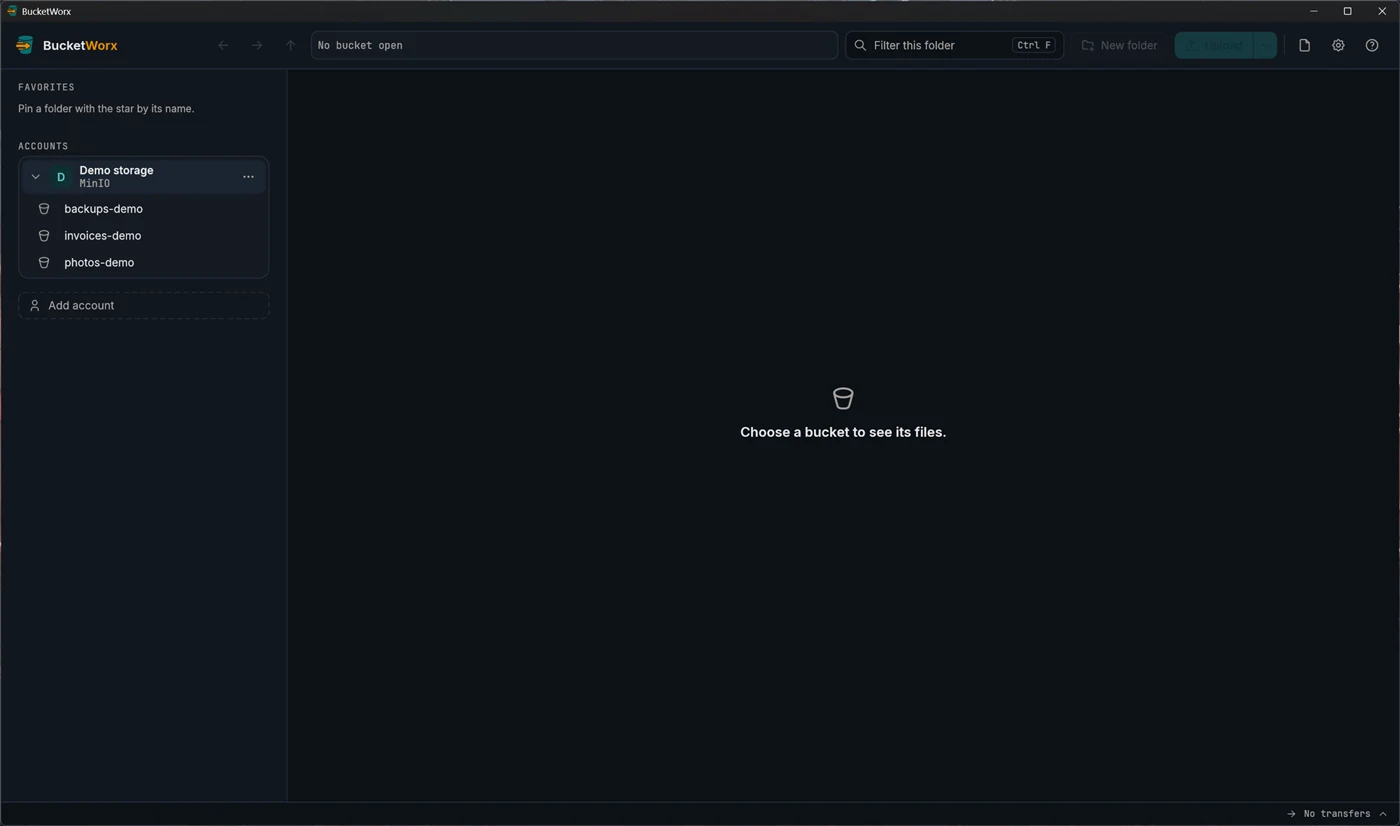
Once saved, the account appears in the sidebar as a card. Click it to open it and see its buckets. Click a bucket to see its files.
Double-click a folder (or press Enter) to go into it. The list shows each file's name, size, storage class and modified date, with folders first. Click a column heading to sort, and click again to reverse.
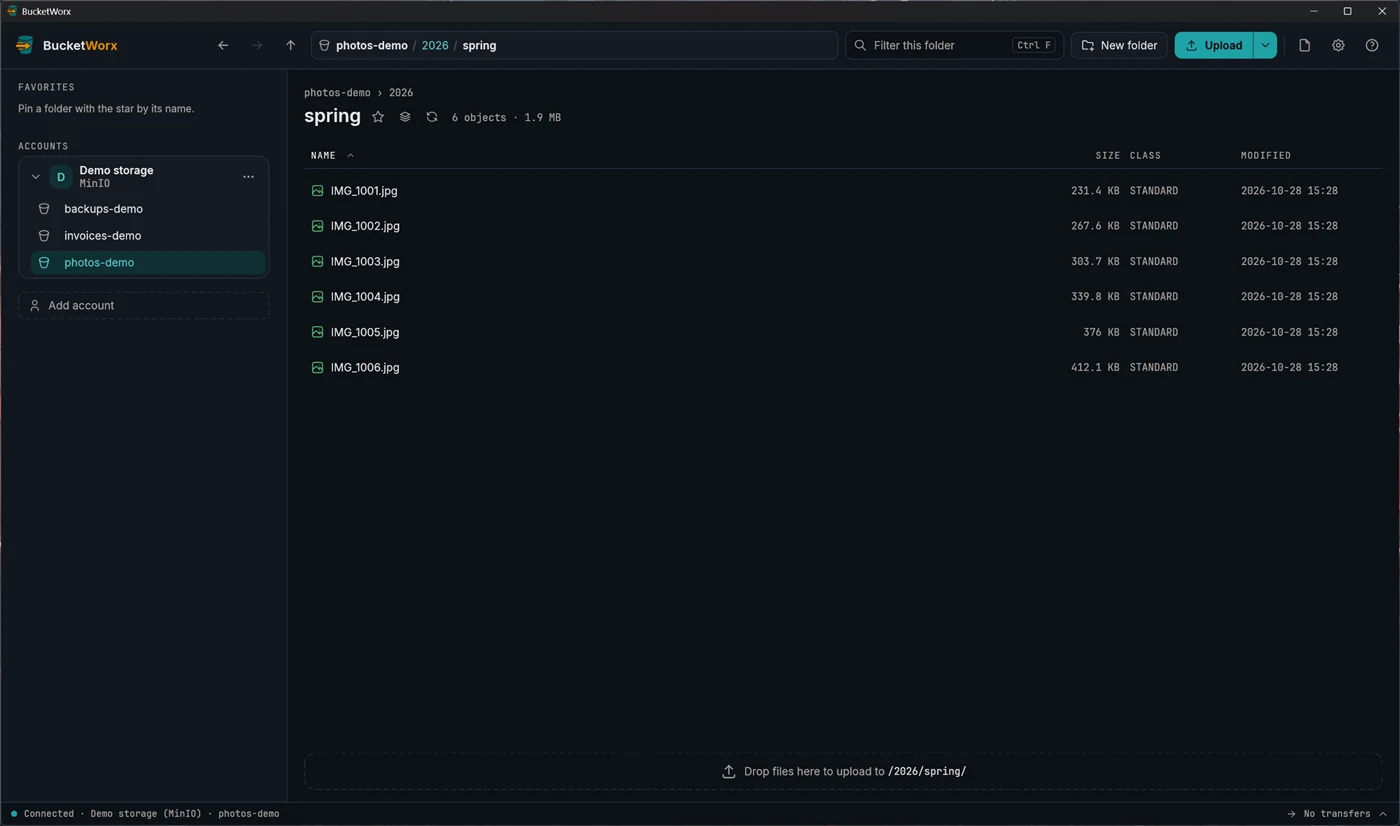
- Back, Forward and Up are the arrows at the left of the toolbar. The mouse's side buttons work too.
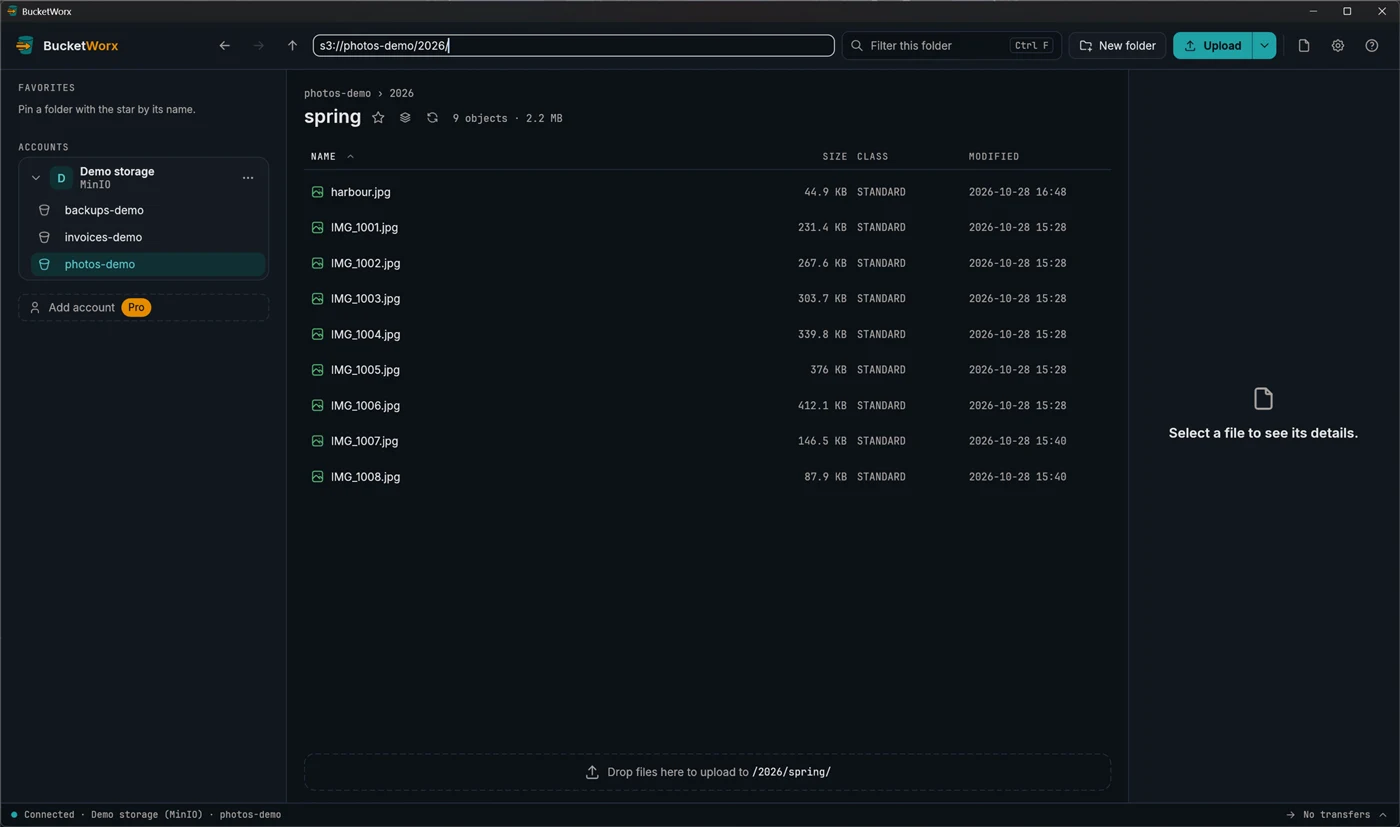
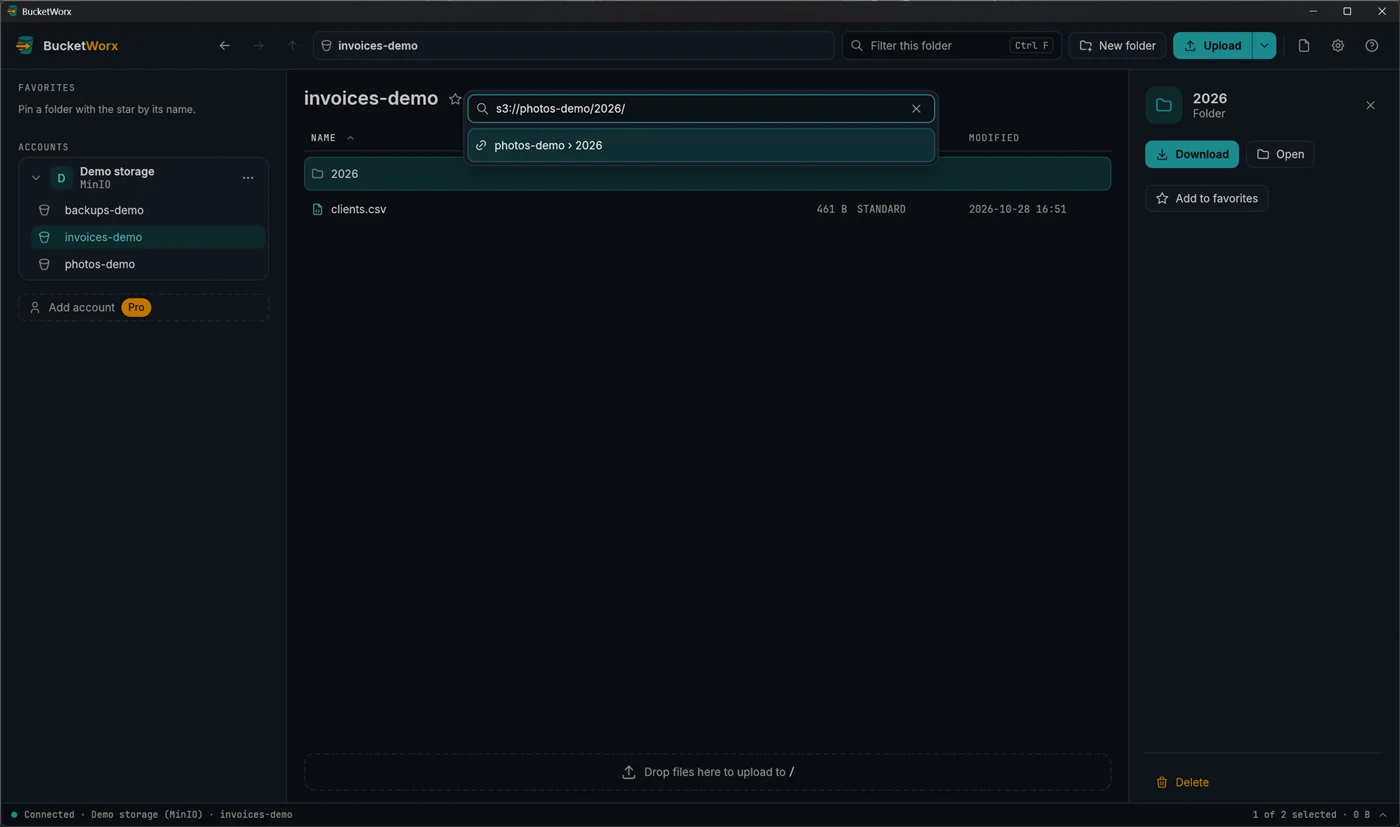
- Type a path. Click the empty part of the path bar, or press Ctrl+L (Cmd+L on a Mac), and enter s3://bucket/folder/ or paste a bucket's web address.
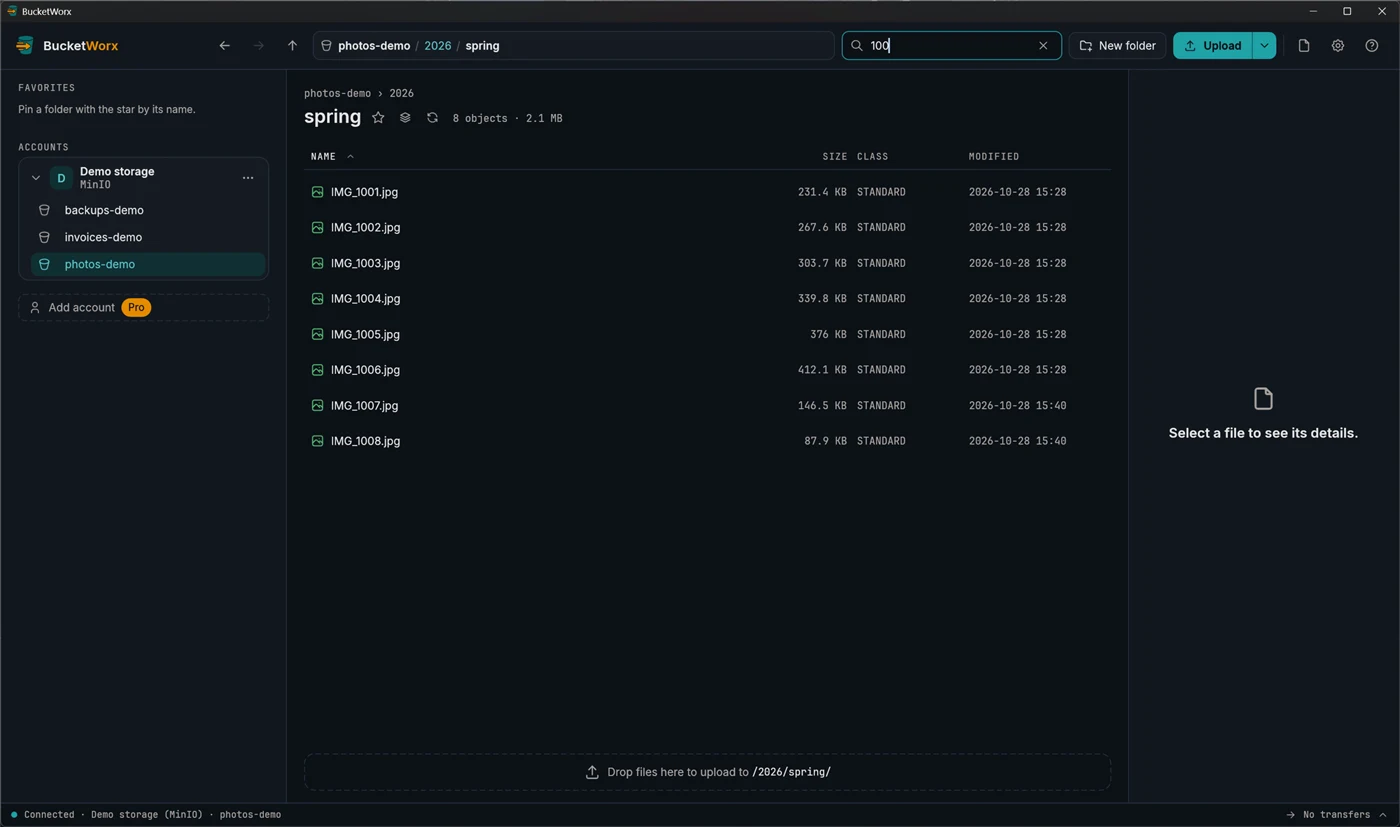
- Filter by name. Press Ctrl+F and type. It matches anywhere in the name and stays on as you move between folders until you clear it.
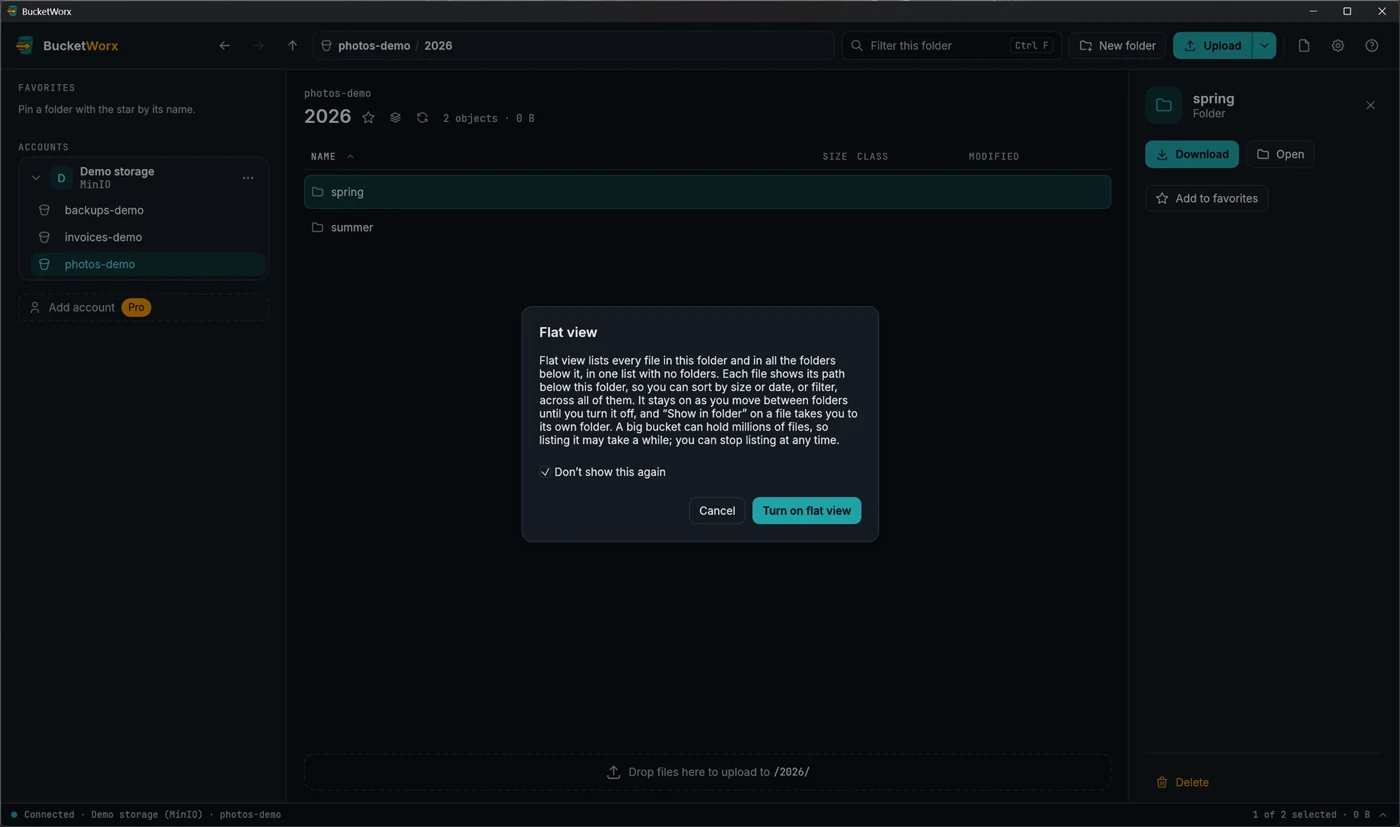
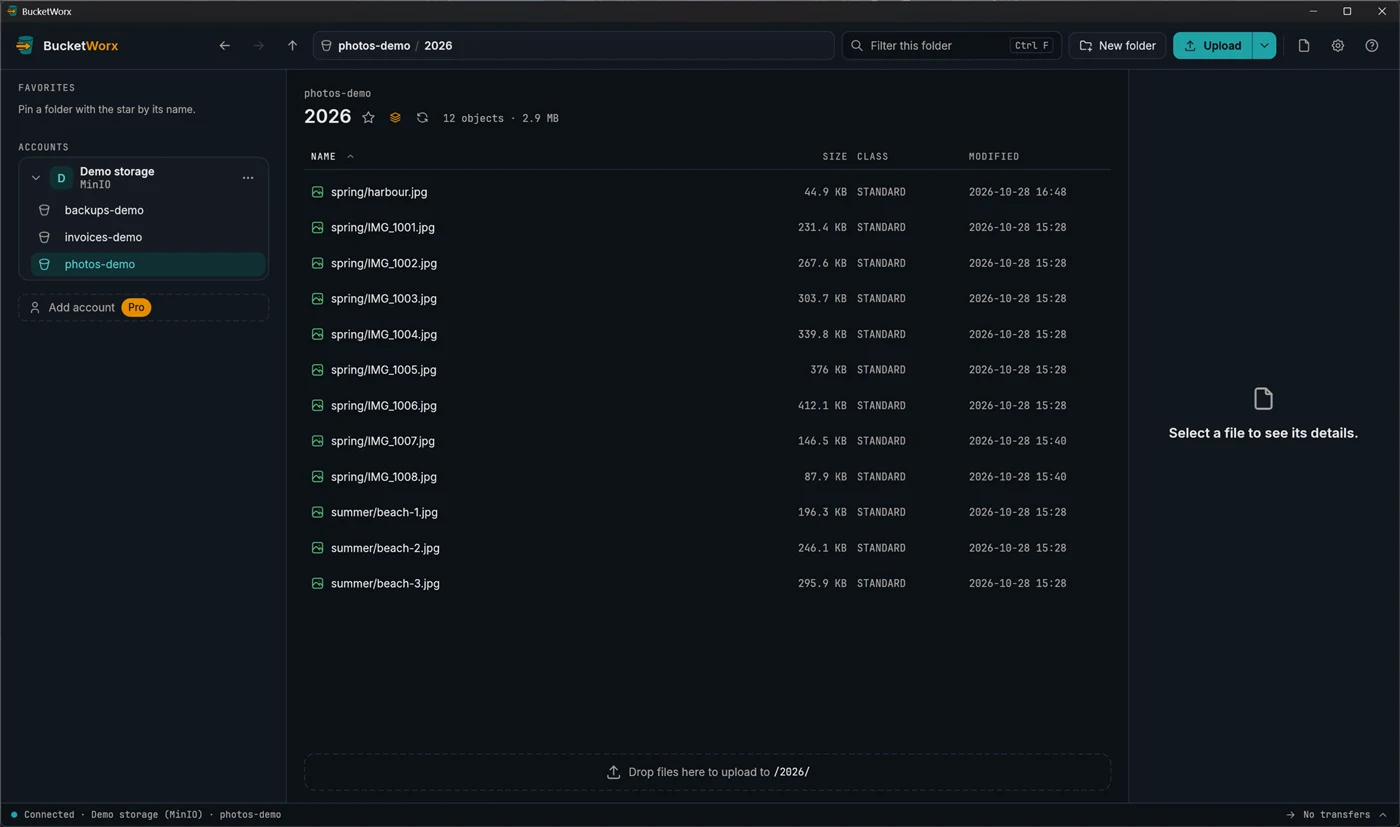
- Flat view. The stacked-layers button next to the folder's name lists every file below the folder in one list, at any depth. That makes it easy to sort a whole tree by size or date.
- Refresh with the circular arrow, F5 or Ctrl+R. In a very large folder, the stop button lets you stop listing and keep the rows loaded so far.
Select several items
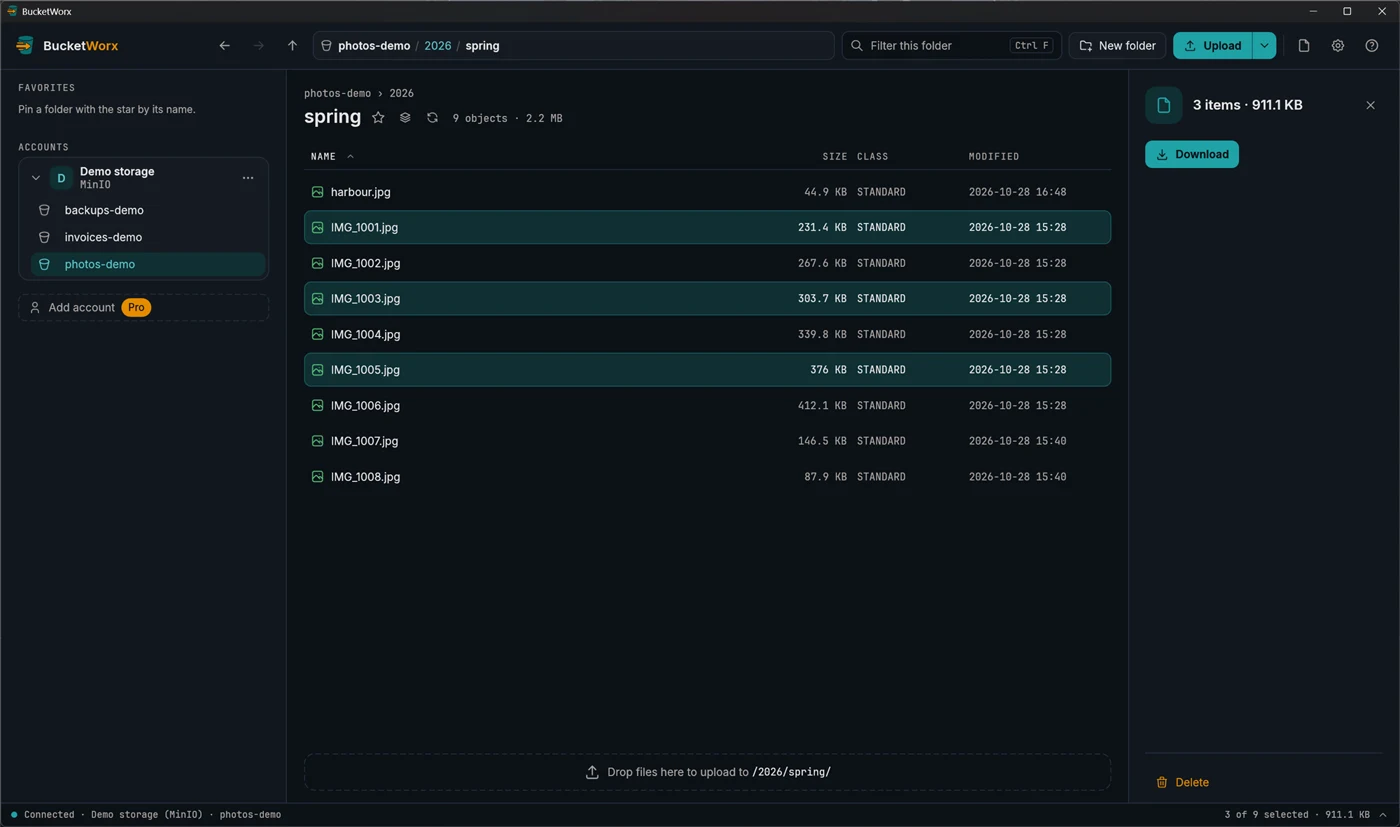
- Click a row to select it. Ctrl+click (Cmd+click) adds or removes one, and Shift+click selects a range.
- Ctrl+A selects everything in the list. Esc clears the selection.
- The arrow keys, Home, End, Page Up and Page Down move the selection. Add Shift to extend it.
- Right-clicking a row that isn't selected selects it first.
- The status bar at the bottom shows what you have, such as "2 of 12 selected · 3 KB".
With several items selected, the details panel shows the count and total size, with Download and Delete for all of them.
See a file's details and preview it
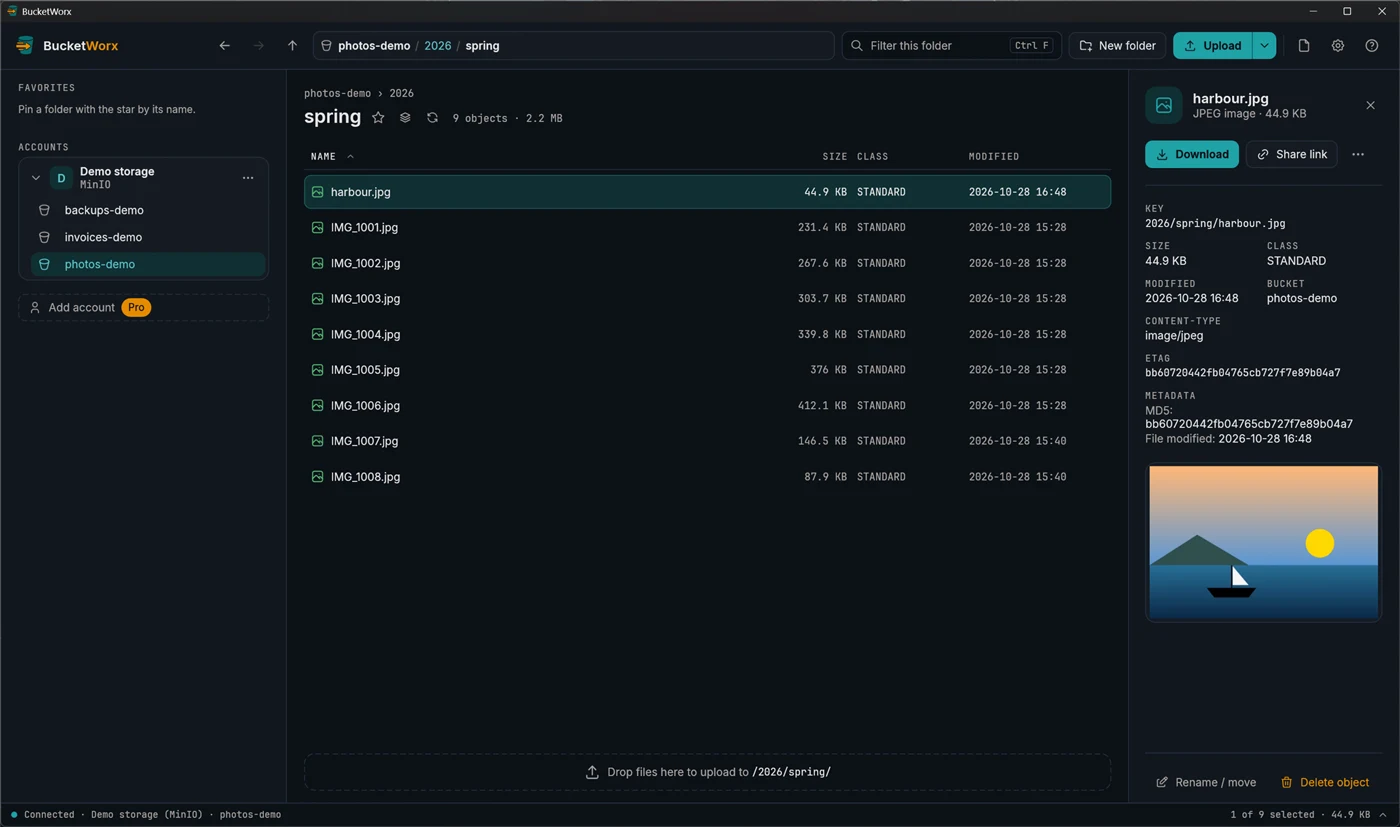
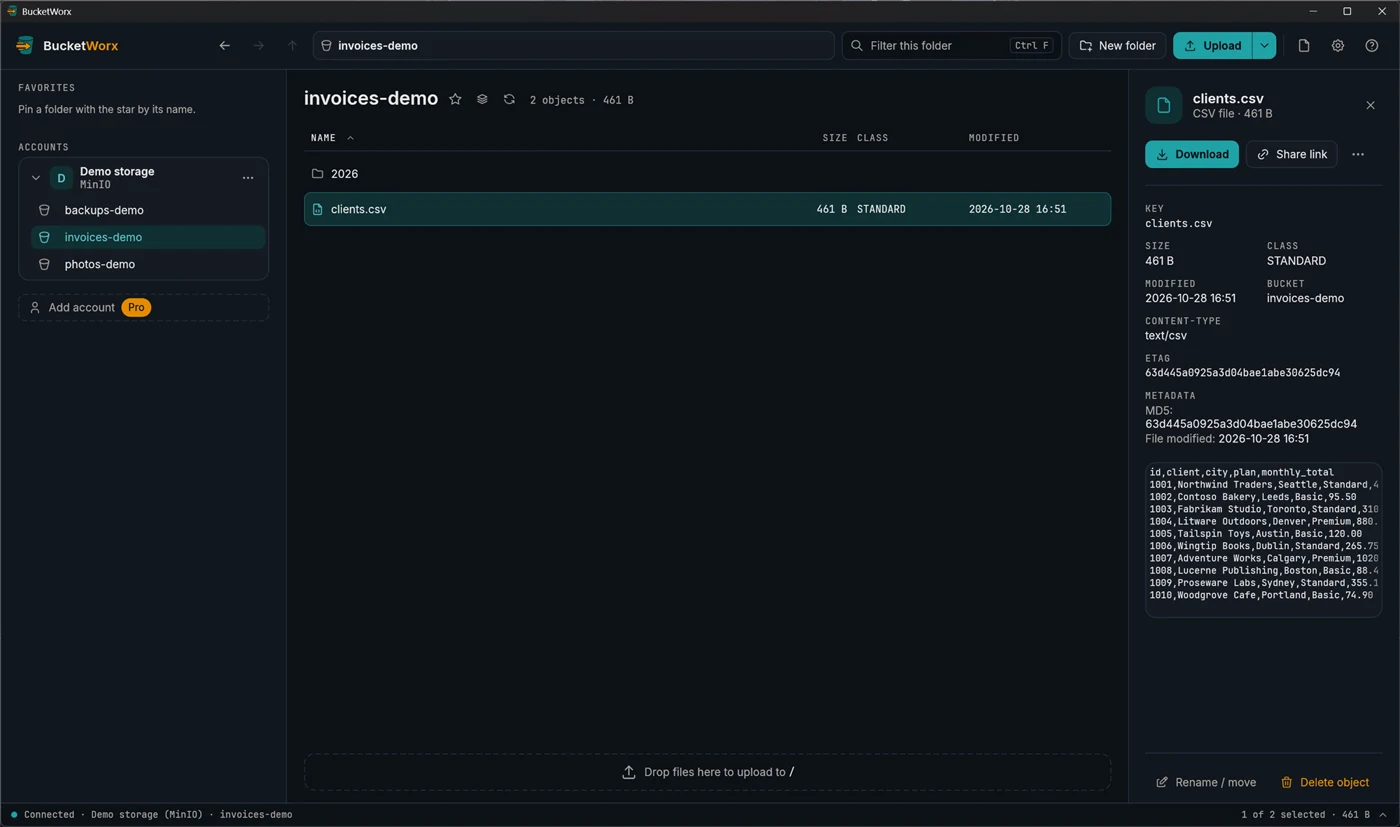
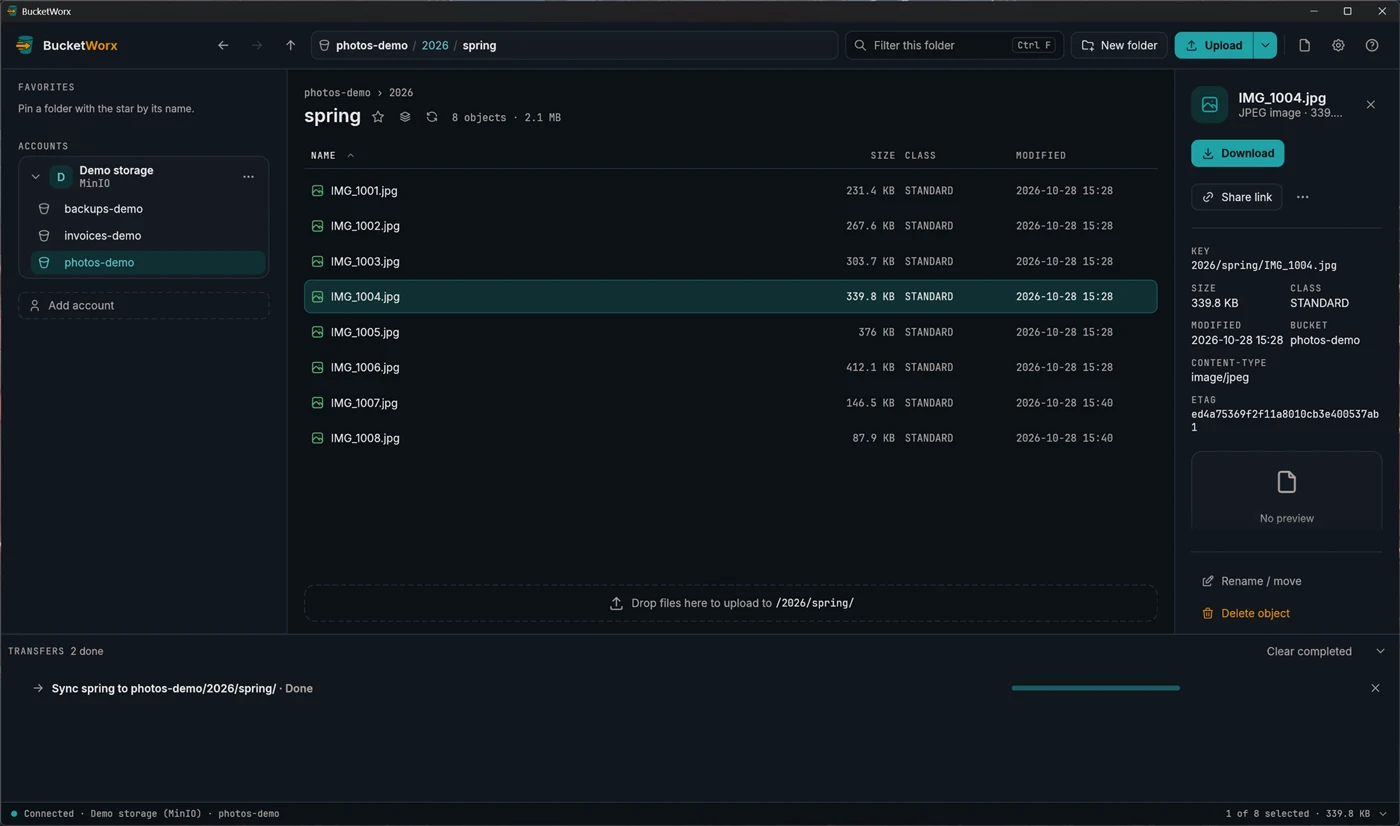
Click a file to open the details panel on the right. It shows the file's key (its full path in the bucket), size, storage class, content type, modified time and ETag, plus a preview where one is available. The same panel has the Download, Share link, Rename / move and Delete buttons.
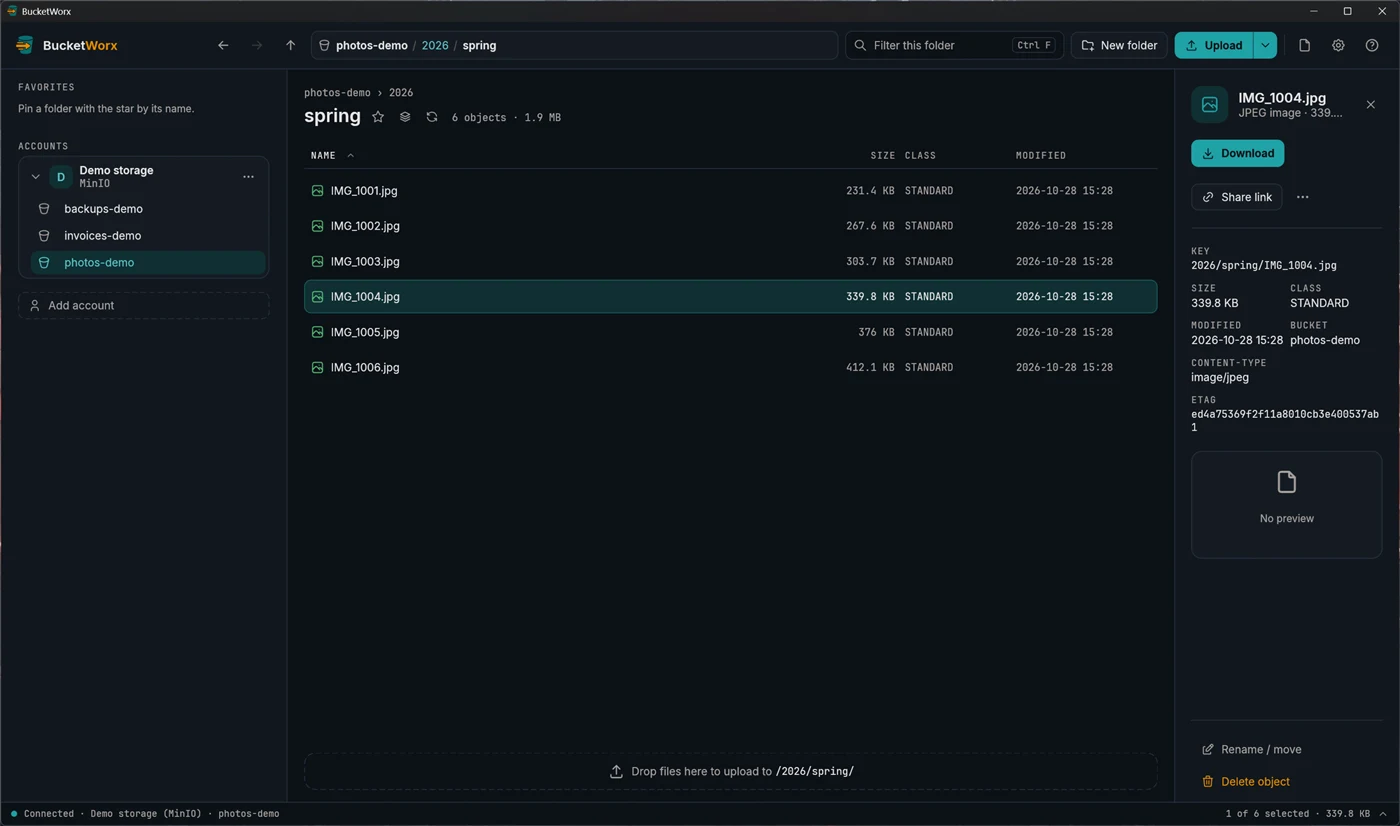
Below those, the panel shows anything else the object carries: Cache-Control, Content-Disposition, Content-Encoding, Content-Language, encryption, its checksum, and custom metadata, one row per key. Uploads made by BucketWorx store the file's modified time and, for files under 16 MiB, its MD5, and these show as "File modified" and "MD5". Values can be selected and copied.
- Previews. Pictures (up to 20 MB) show scaled to fit, the right way up. Text, JSON, XML and common code and data files (.md .txt .csv .log .yaml .toml .html .css .js .ts .py and more) show their first 200 lines. Previews only load once you stop on a file, so arrowing through a folder downloads nothing on the way.
- The "…" menu in the panel has Copy URL, Copy S3 URI, Copy key, Copy and Cut.
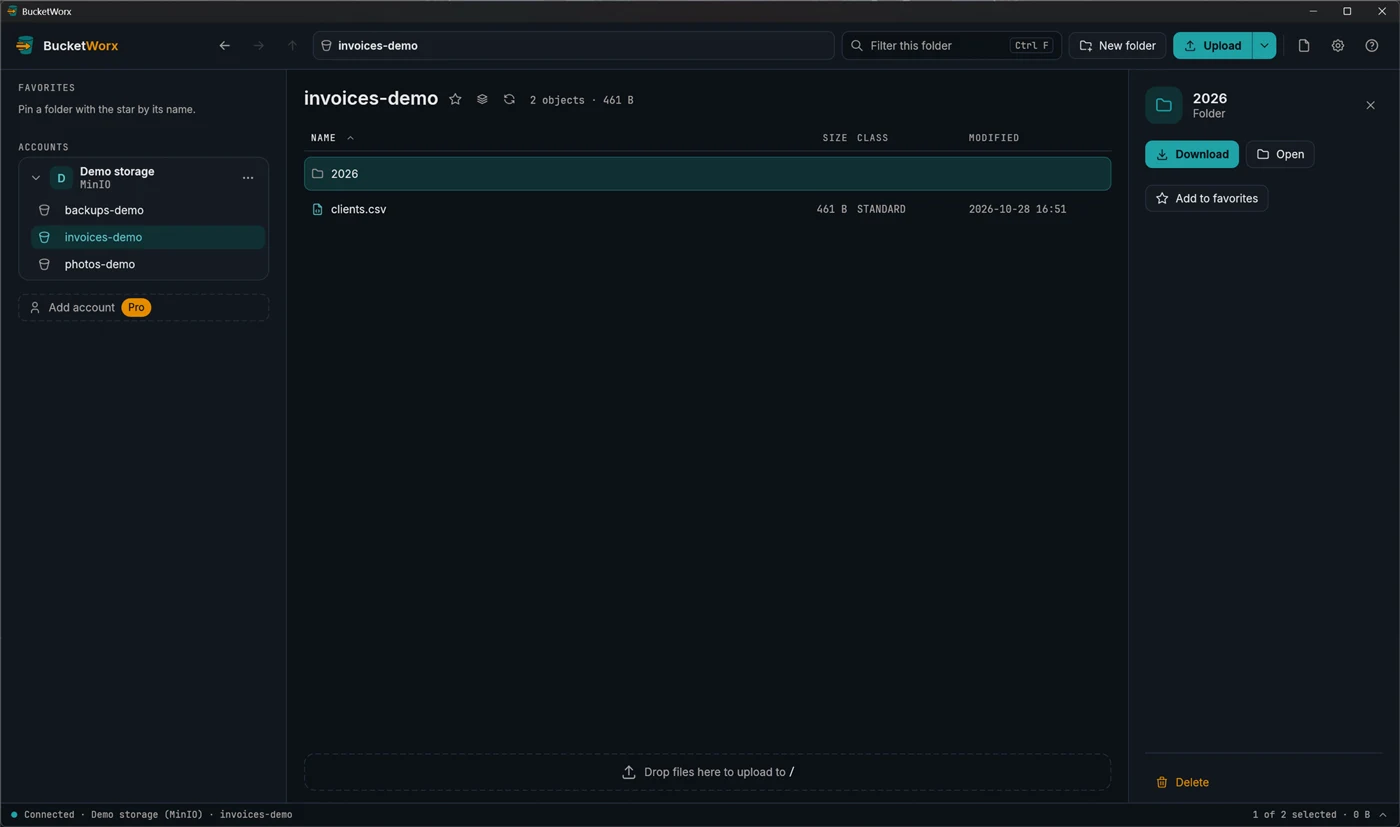
- A folder shows Download, Open, Add to favorites and Delete.
- Open or close the panel with the Details button in the toolbar or its × button. BucketWorx remembers which you chose.
Share a file with a link
A share link lets someone download one file without having an account or keys. Select the file, click Share link, choose how long the link should work (1 hour, 1 day, 7 days, or a date you pick), and press Copy.
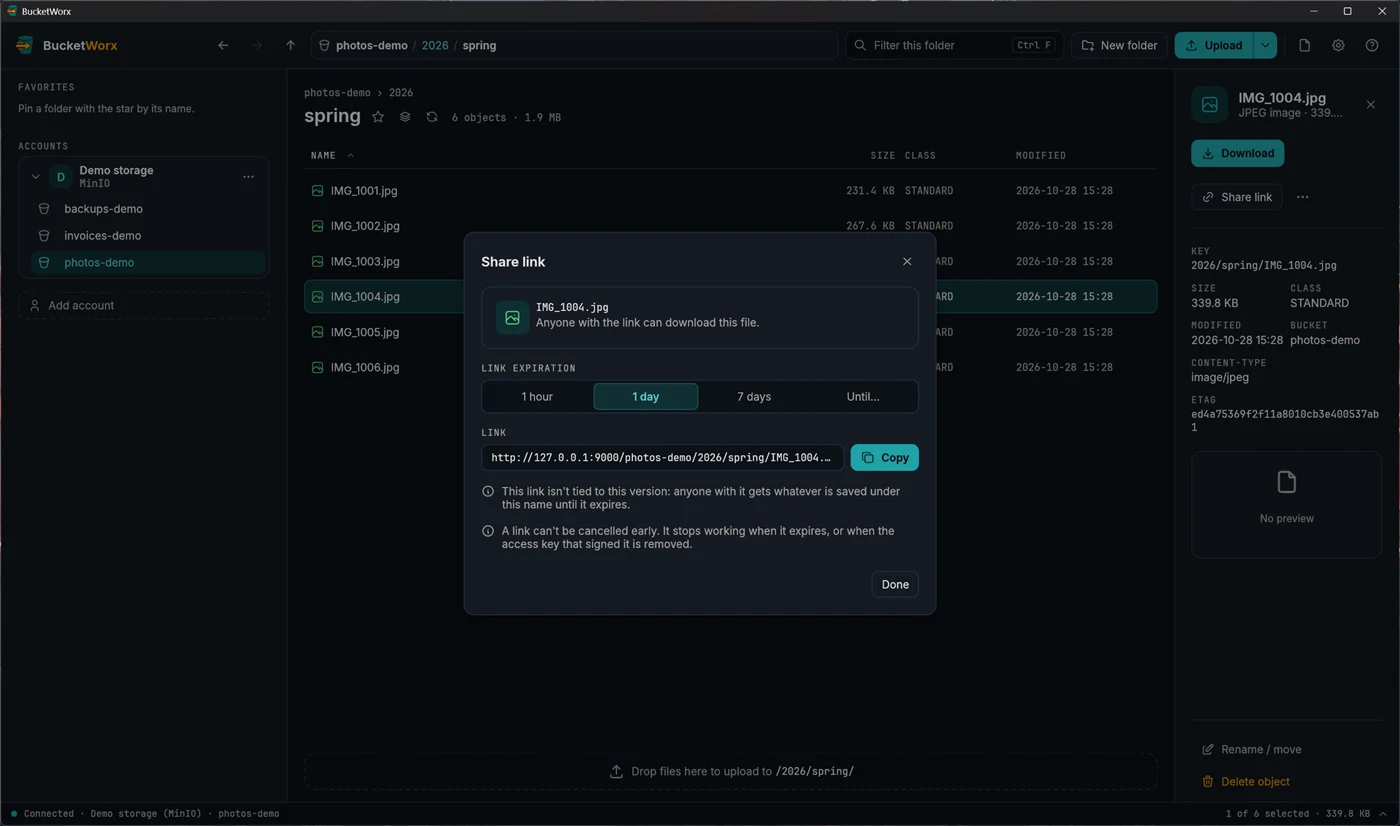
Two things to know. The link is not tied to one version of the file: whoever opens it gets whatever is saved under that name until it expires. And a link can't be cancelled early. It stops working when it expires, or when the access key that signed it is removed. Choose the shortest time that does the job.
Upload and download
Upload
The quickest way is to drag files or folders from your file manager onto the window. They upload to the folder you are looking at, or into a folder row if you drop them on it. The drop area at the bottom of the list always says where files will go.
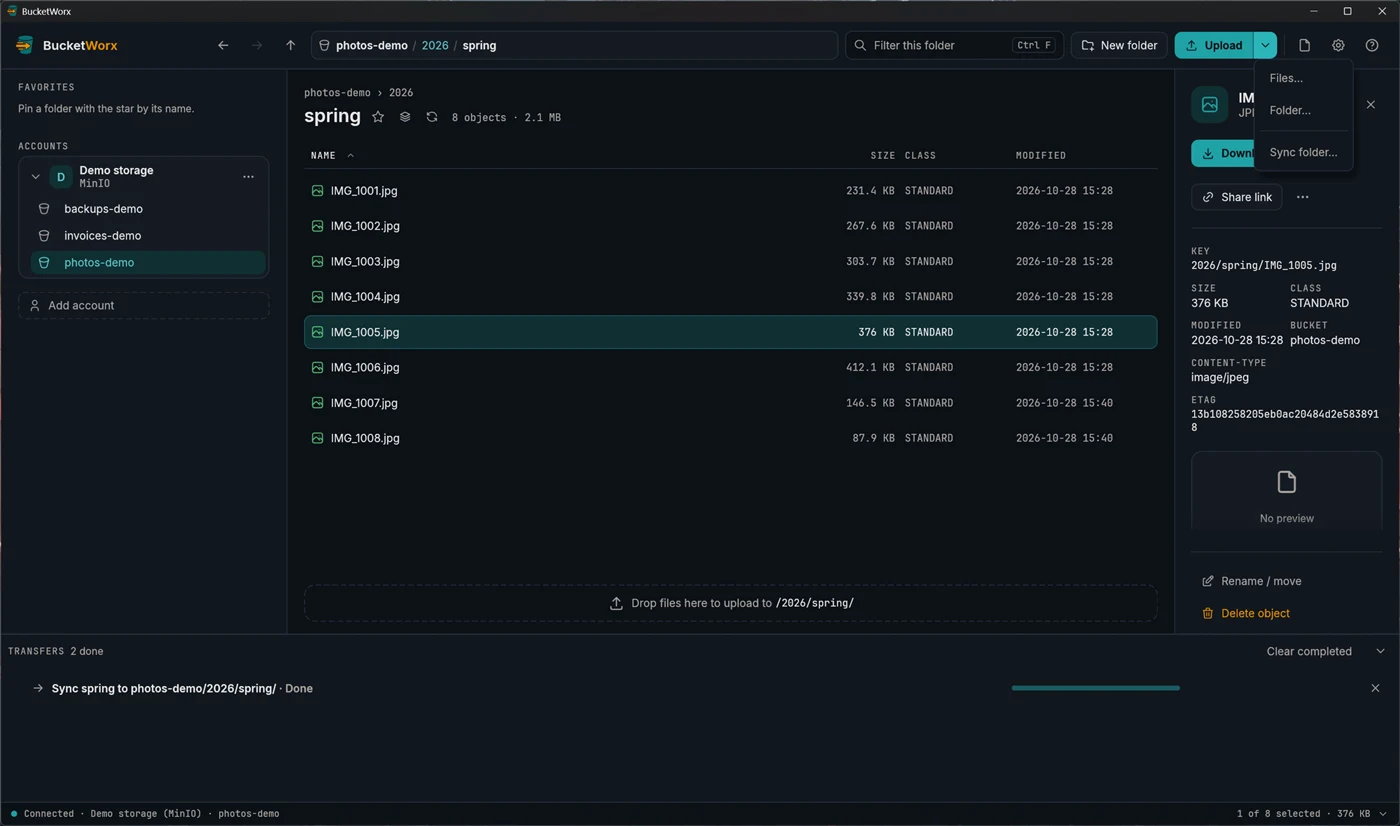
You can also use the Upload button, and its arrow opens a menu with Files…, Folder… and Sync folder….
Download
Select files or folders and press Download to save them to your Downloads folder. Use Download to… (right-click) to pick a folder instead. Folders download with everything inside them, and keep their paths. To save a whole bucket, right-click it in the sidebar and choose Download bucket. You can change the default download folder in Settings.
Watch progress
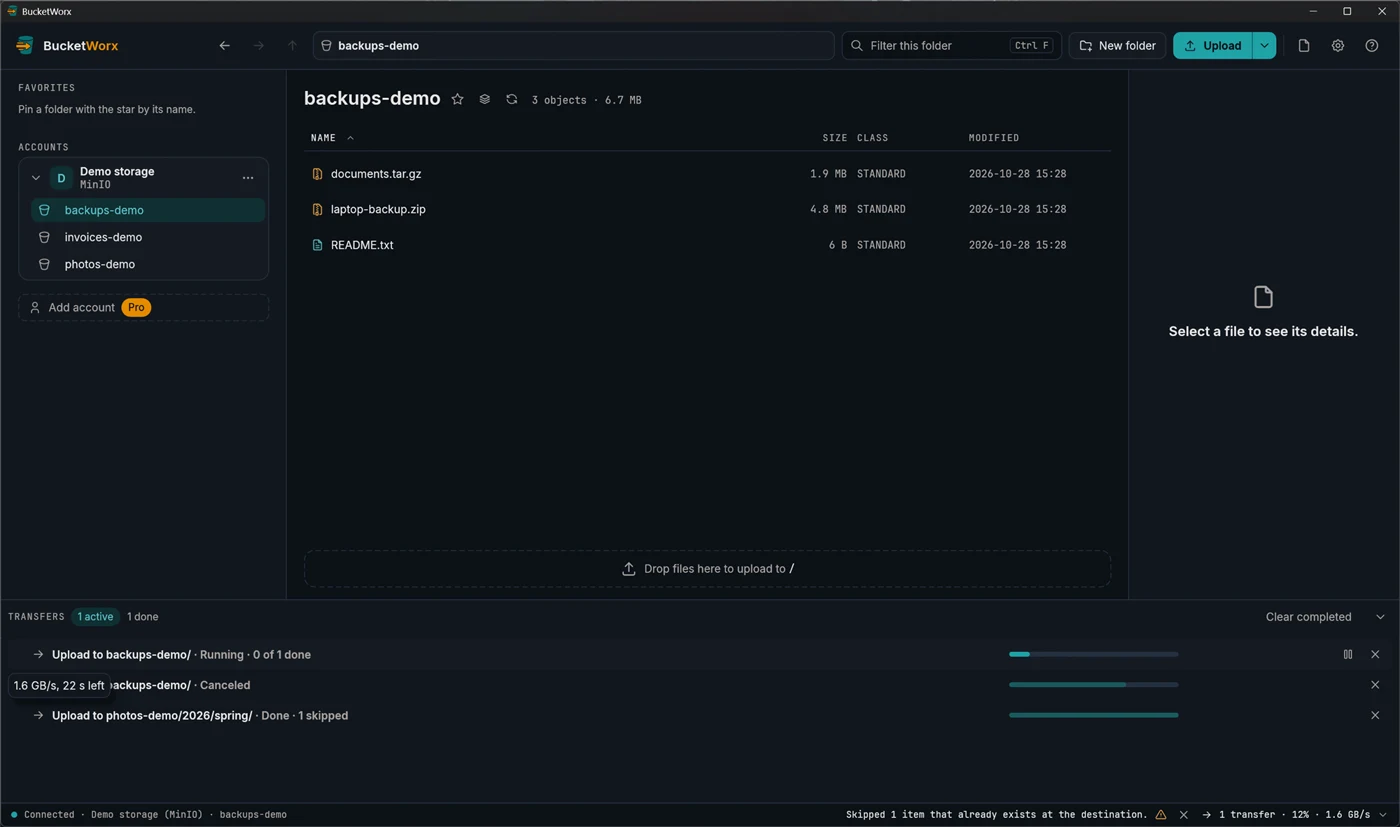
Transfers run in the drawer at the bottom of the window, and the status bar shows a summary. You can pause, resume or cancel one transfer or a whole batch. Big files are split into parts that move in parallel, and failed requests retry on their own. Anything unfinished when you close the app is still there next time.
Pause, resume and retry transfers
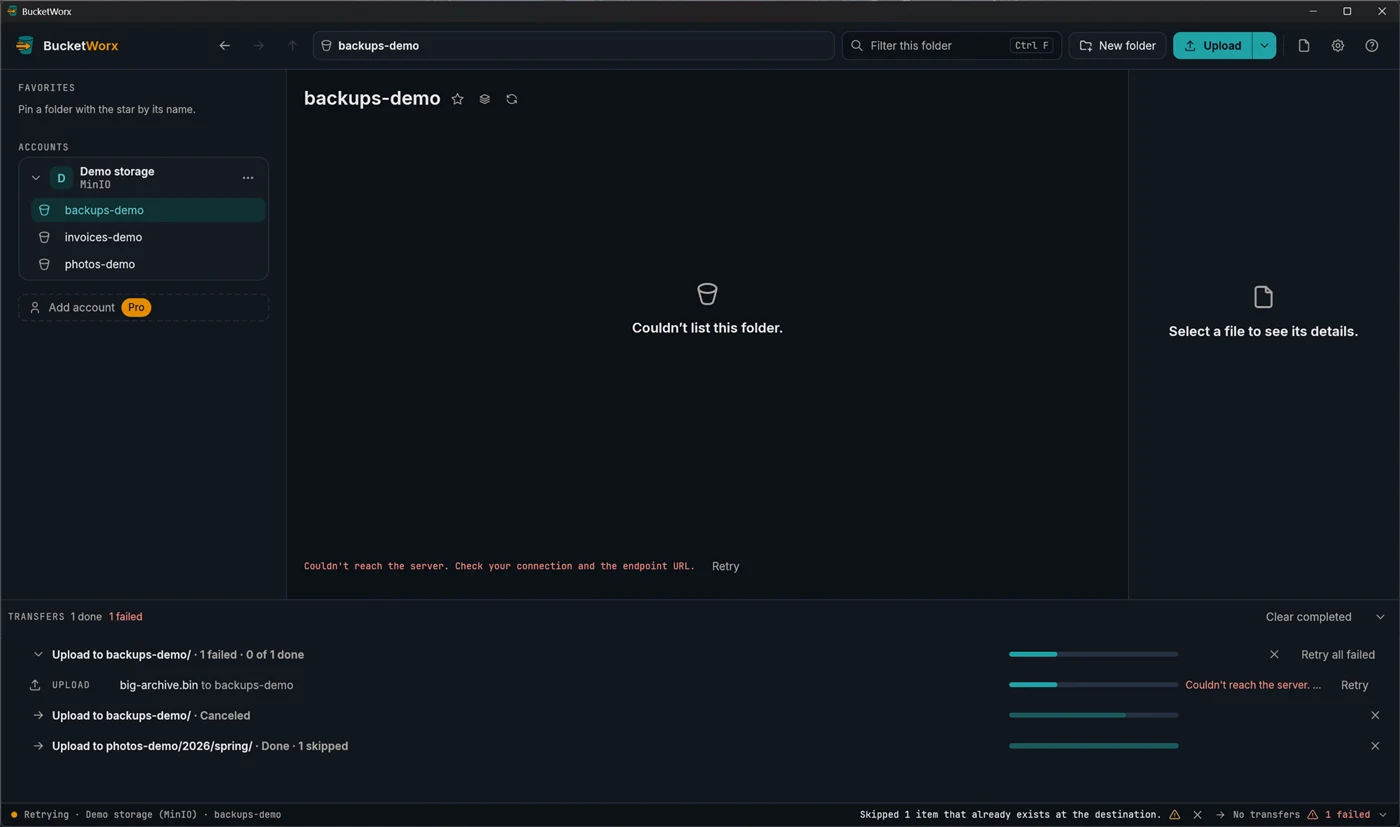
Click the transfer summary in the status bar (for example "2 transfers · 64% · 12 MB/s") to open the drawer, and drag its top edge to make it taller. There is one row for each batch (everything you started in one go), and clicking a batch shows the transfers inside it. Hover a running one to see its speed and time left.
- Pause, resume or cancel a single transfer or a whole batch with the buttons on its row.
- Retry. A failed or cancelled transfer has Retry. A batch has Retry all failed, and Retry failed in the palette retries every failed transfer.
- Clear the list. Remove from list clears one batch or transfer, and Clear completed clears everything finished. Failed ones stay so you can retry them.
- Open a download or show it in its folder from its row, or right-click it.
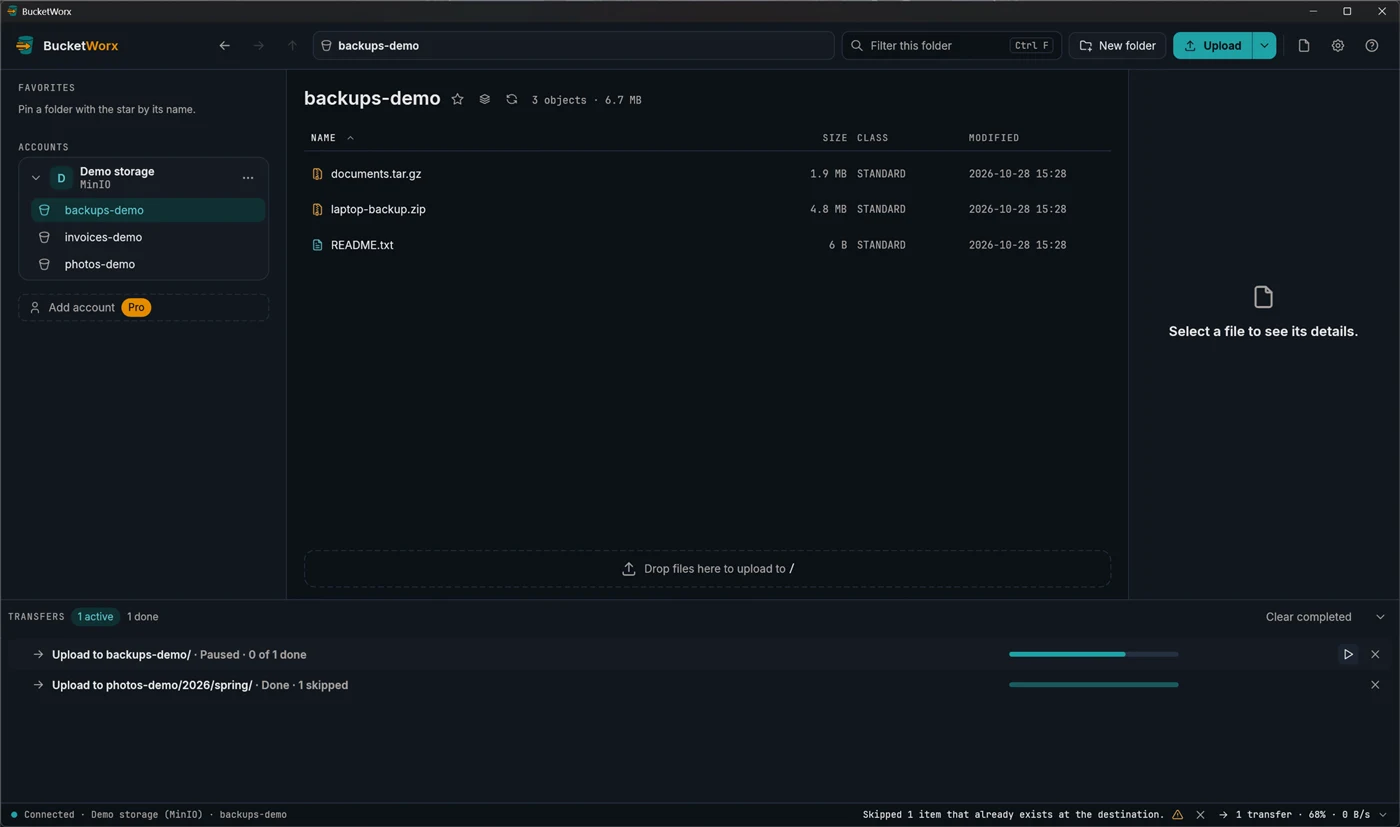
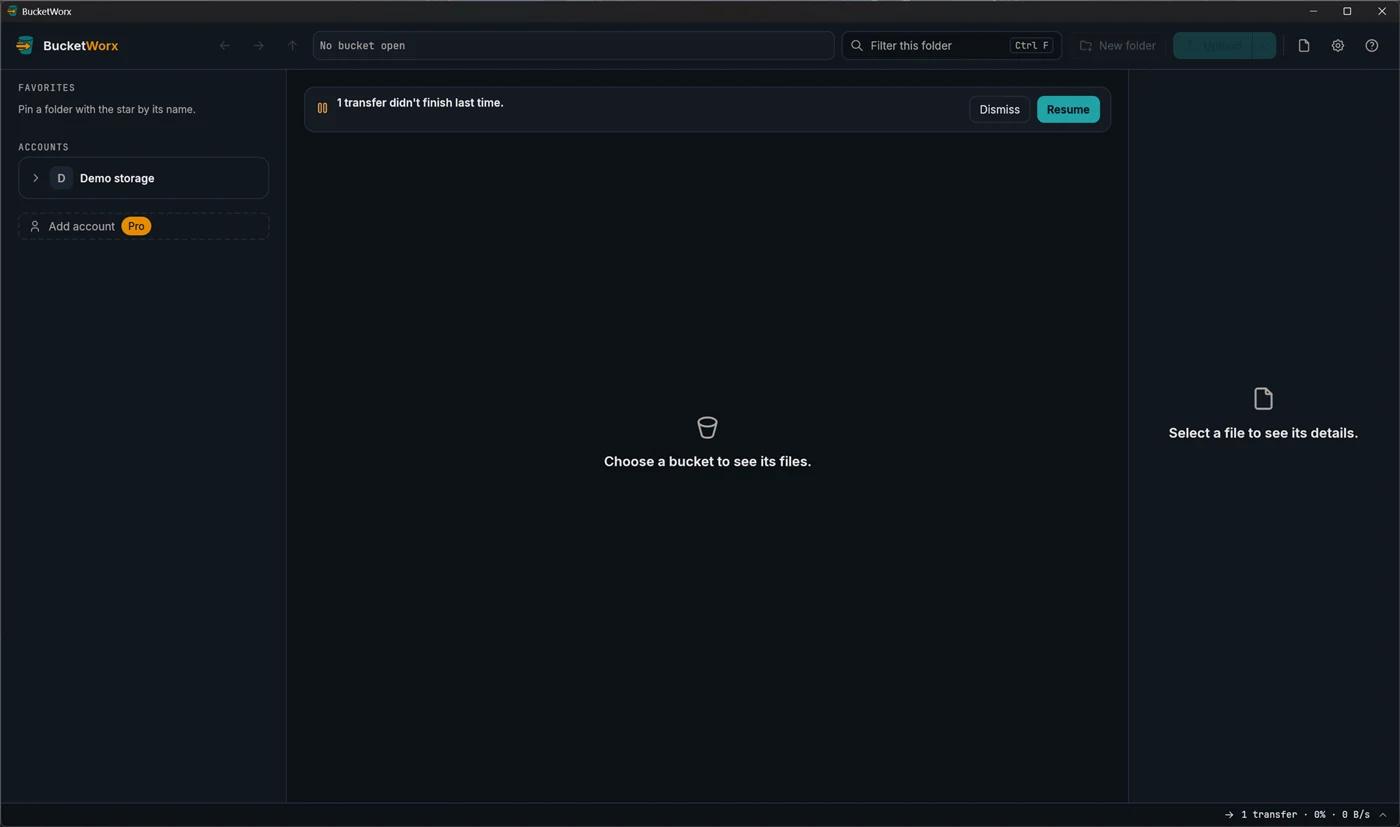
- If the app closes in the middle, or crashes, unfinished transfers come back paused, with a banner: "N transfers didn't finish last time." Resume carries on, and Dismiss cancels them. A resumed upload keeps the parts it already sent if the file hasn't changed, and a resumed download continues in its partial file.
- Cancelling an upload aborts it on the server, and cancelling a download removes its partial file.
- Failures retry themselves. Network errors and throttling are retried with growing waits (up to 5 attempts per request), and BucketWorx backs off when a server says it is busy.
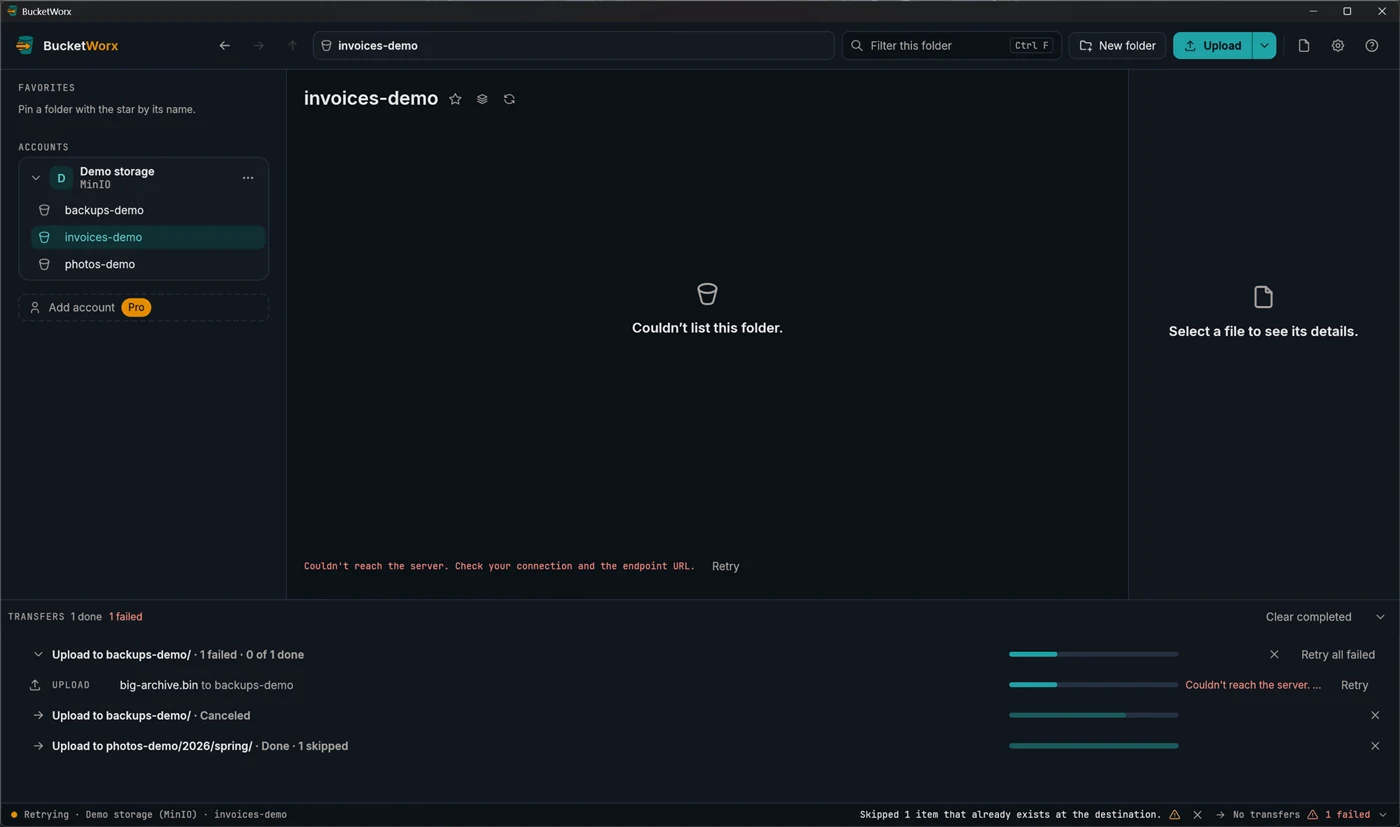
The dot at the left of the status bar shows the connection to the open bucket: Connected, Retrying or Can't connect.
File names Windows can't hold. An object whose name can't be a file name on your computer (reserved names, forbidden characters, too long) is saved under a safe name, and a notice tells you.
When a file already exists
If a transfer would replace a file that is already there, BucketWorx stops and asks. Your choices are Overwrite, Skip, Keep both (the new one gets a name like report (1).csv) and Overwrite if newer. The prompt shows the size and date of both files side by side and suggests the sensible choice. Nothing is overwritten without an answer.
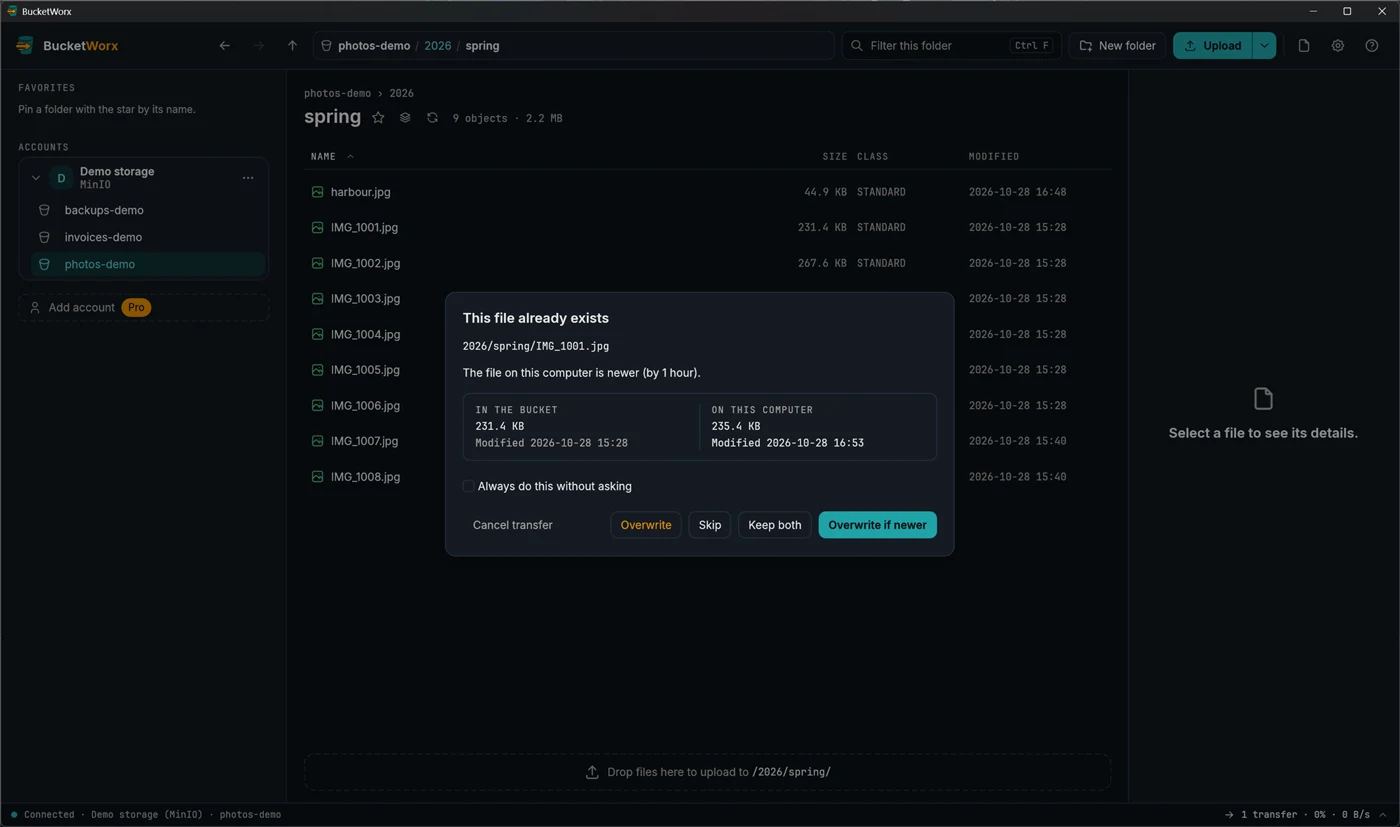
- Tick Apply to all to answer the rest of the batch at once.
- Files that are already identical (same size and checksum) are skipped without asking, so re-running an upload doesn't copy things twice.
- In Settings you can set a default so you are not asked: Ask, Overwrite, Skip, Keep both or Overwrite if newer.
- If a bucket has versioning turned on, uploads replace the object without asking, because the old one is kept as a version.
Copy and move between places
You can copy or move files and folders between folders, between buckets, and between accounts. There are three ways to do it.
Copy to… and Move to…
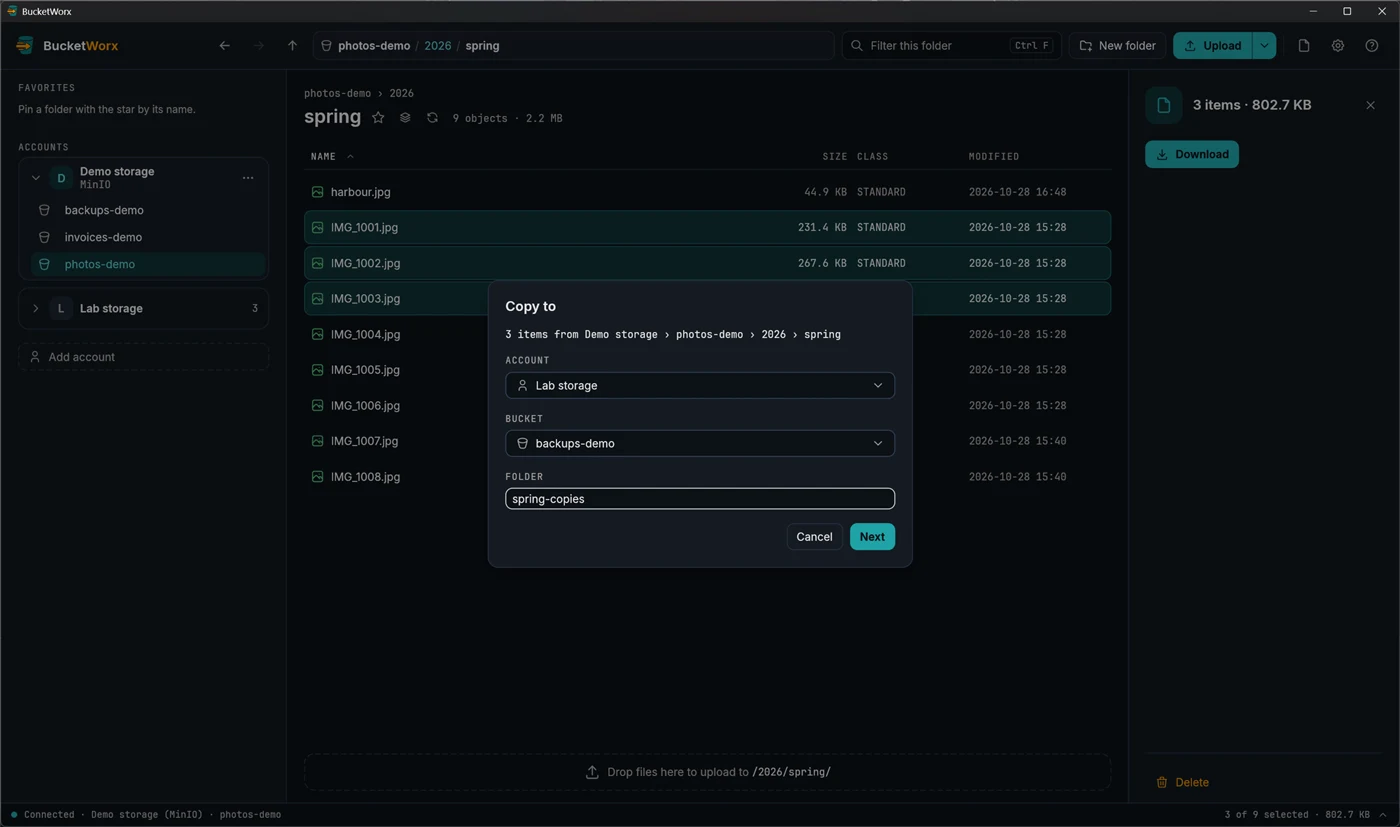
Right-click the selection (or use the "…" menu in the details panel, or the palette) and choose Copy to… or Move to…. The dialog names what you are copying (for example "3 items from Work › assets › docs"), then asks where it goes: an account, one of its buckets, and a folder in it. Leave the folder empty for the top level. A folder that doesn't exist yet is created.
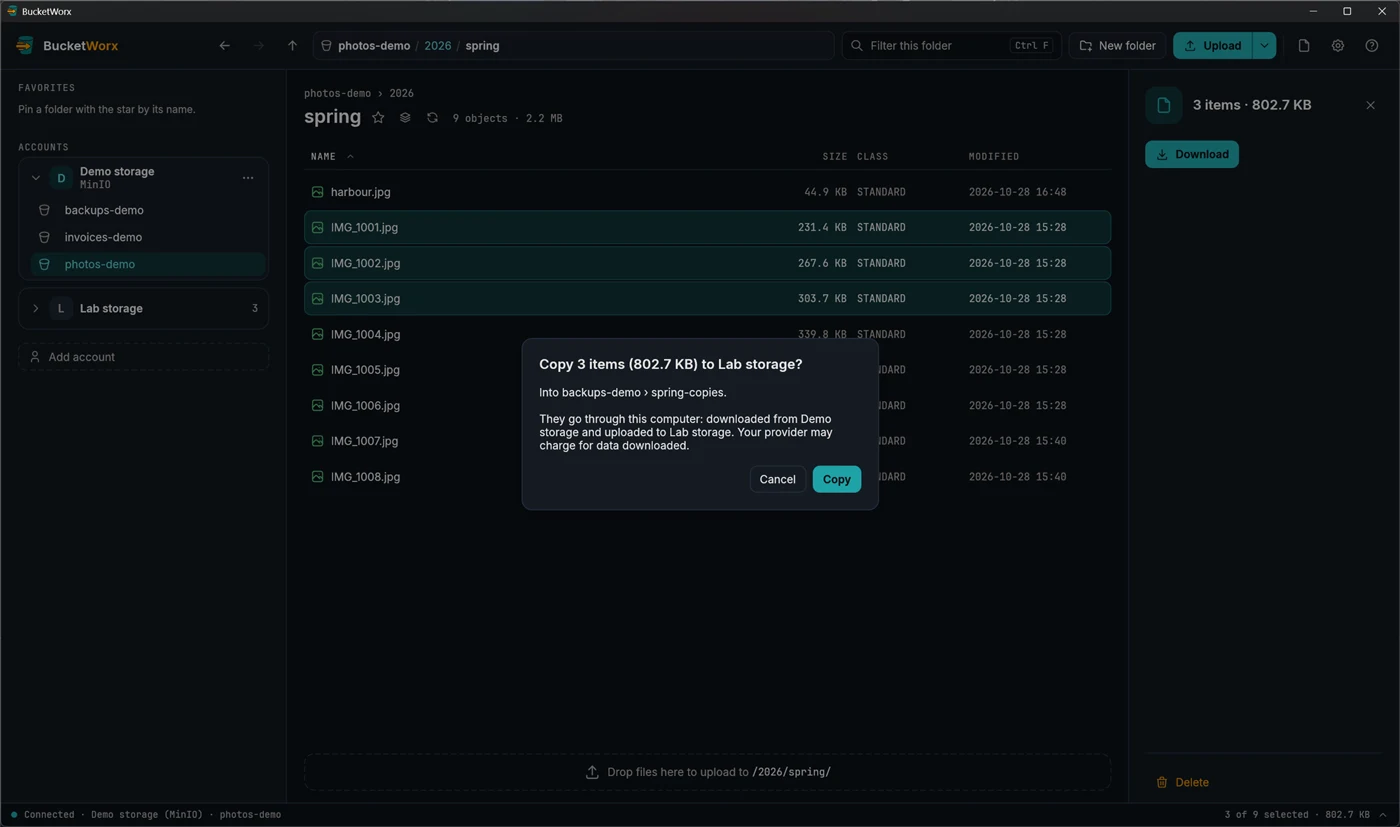
Press Next and BucketWorx lists what would be copied, then asks one last time, for example "Copy 6 items (44.2 KB) to assets › backup?". Nothing happens until you confirm, so a bucket with thousands of files is never sent by mistake.
Drag and drop
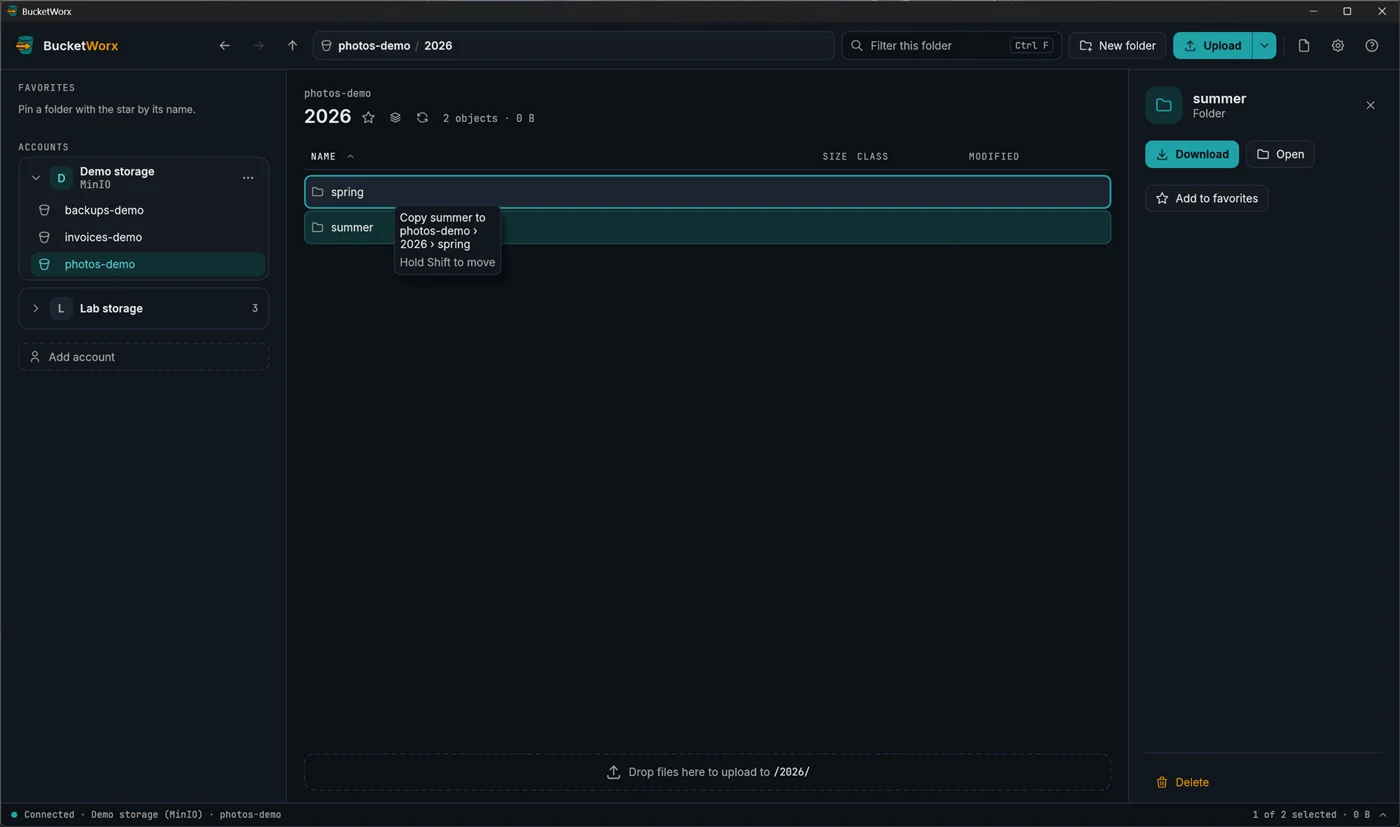
Drag rows from the list onto a folder row, or onto a bucket or favorite in the sidebar, to copy them there. Hold Shift as you let go to move them instead. A note by the pointer says what a drop would do, and the place under it is outlined. Dropping opens the same confirmation as Copy to…. Esc cancels the drag.
Copy, Cut and Paste
Select items, press Ctrl+C to copy or Ctrl+X to cut, open another folder, and press Ctrl+V. Copied items can be pasted again in as many places as you like. Cut items stay where they are until you paste them. A paste within one account starts straight away and shows in the transfers drawer.
A whole bucket
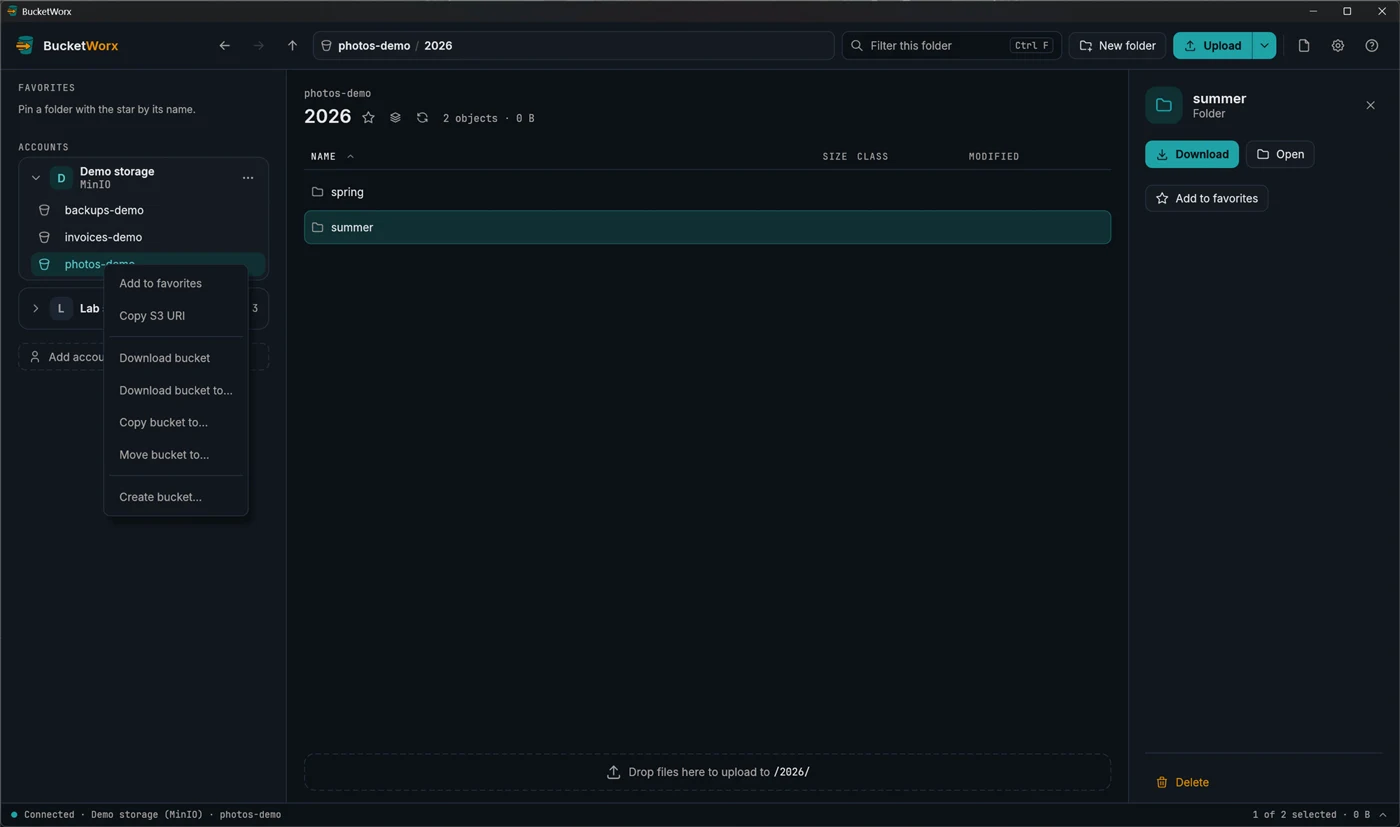
Right-click a bucket and choose Copy bucket to… or Move bucket to…. Everything goes straight into the folder you pick, keeping its paths. Moving empties the bucket but doesn't delete it.
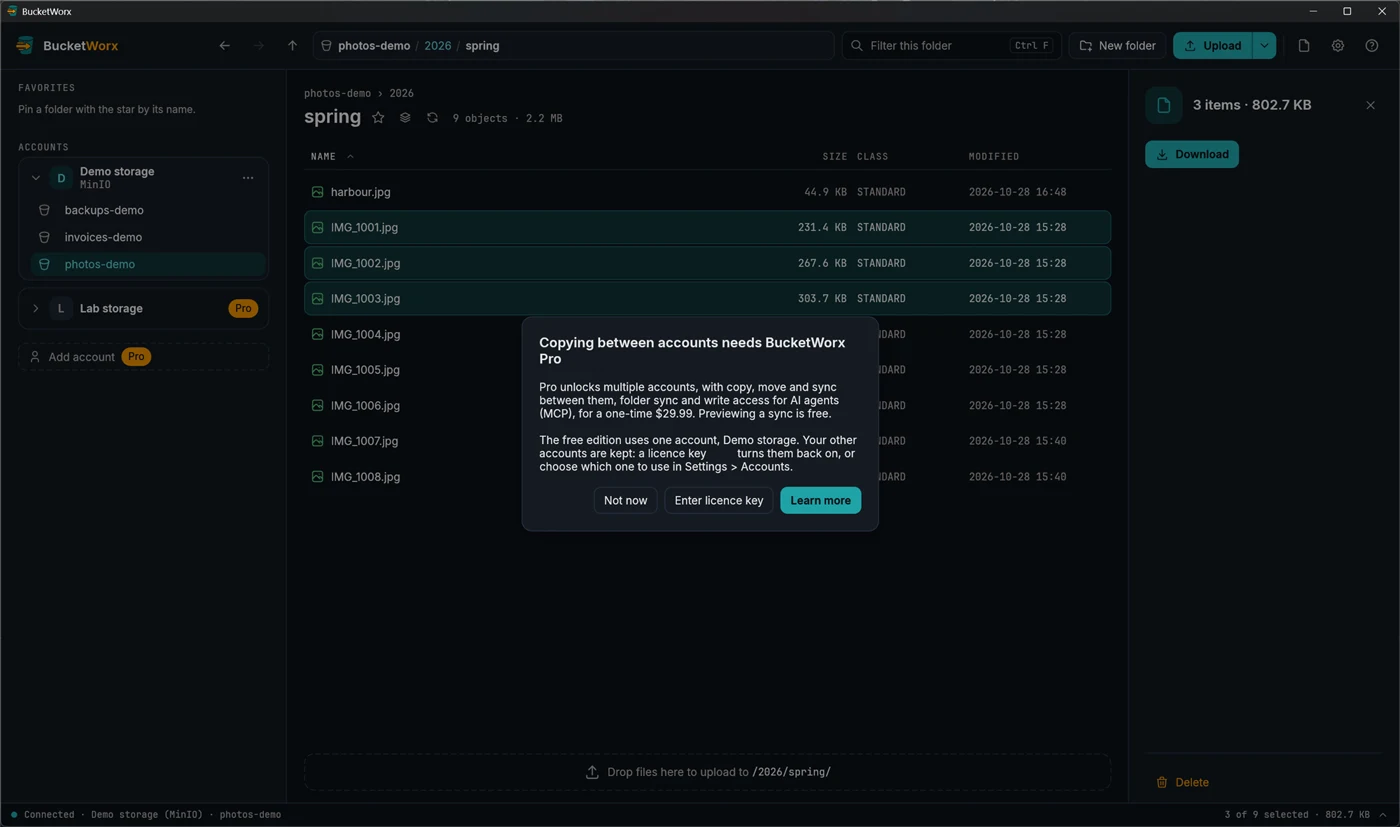
Between accounts needs Pro, because the data passes through your computer. Moving between accounts is careful: the original is deleted only once the copy is checked. If two accounts turn out to reach the same bucket, BucketWorx keeps the object rather than delete the only copy.
Sync a folder
Sync makes one folder match another, in one direction. It can compare a bucket folder with a folder on your computer, or with another bucket folder. Open the folder you want to sync, then choose Sync folder… from the Upload menu.
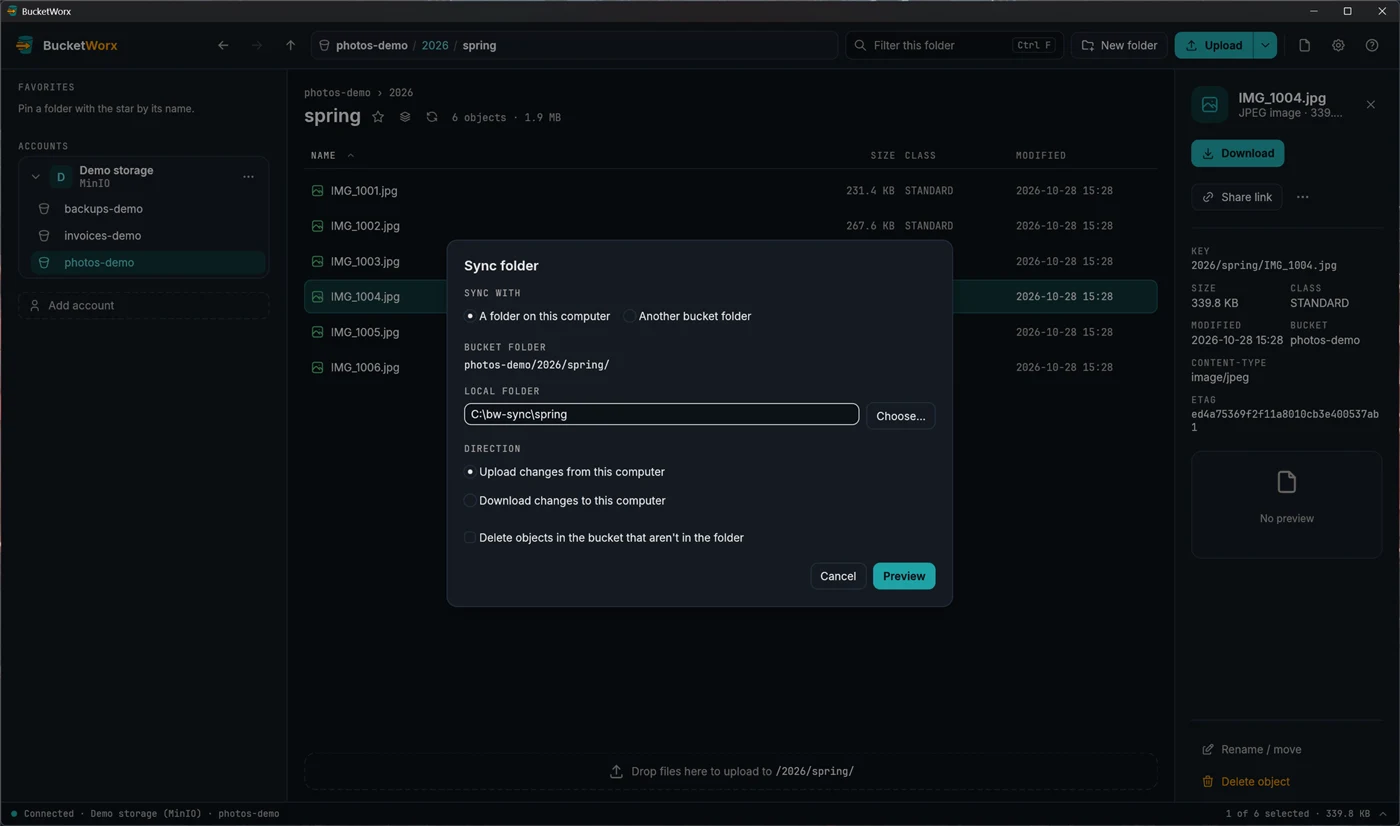
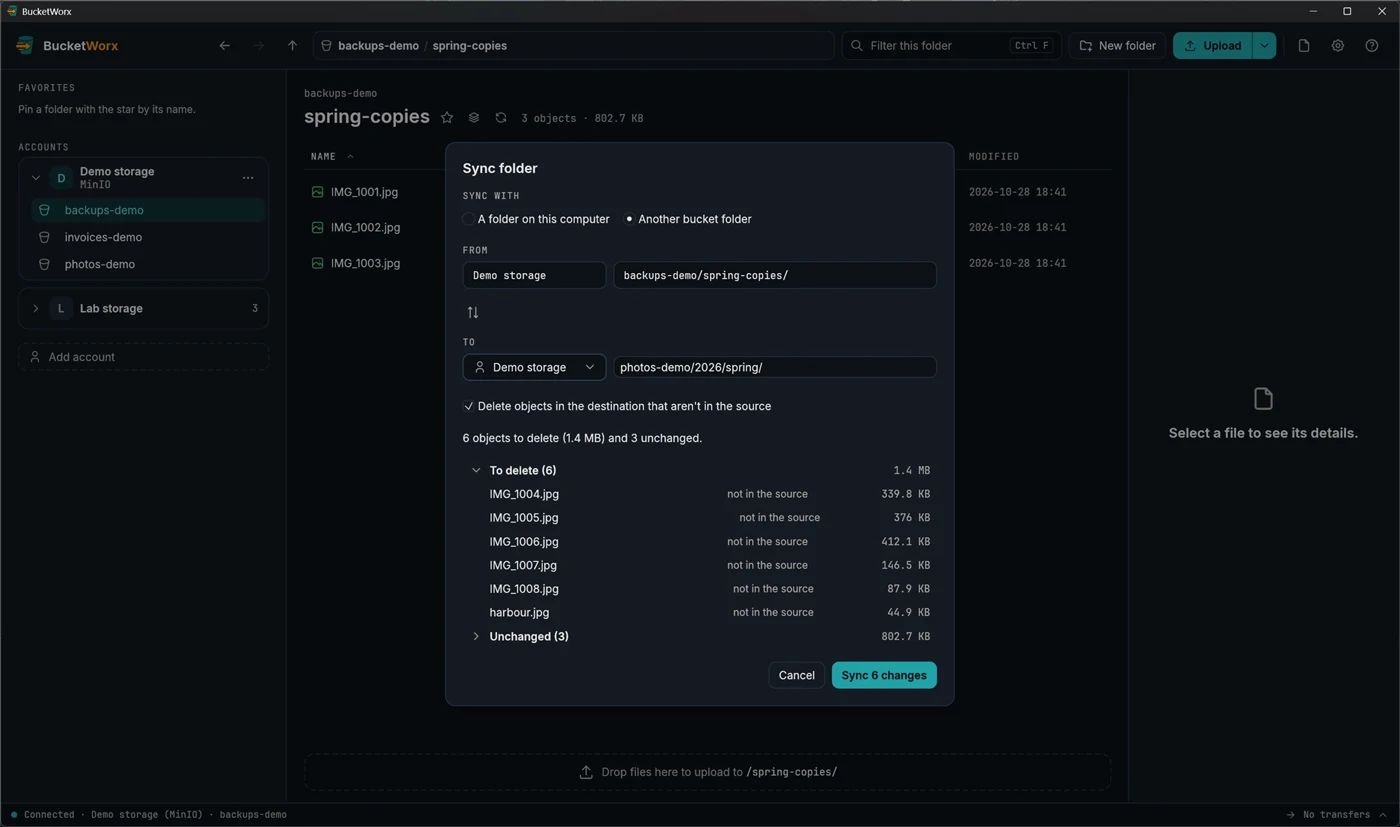
Preview always comes first. It lists exactly what would be copied and why, what would be deleted, and, closed until you open them, what is unchanged and what exists only on the other side.
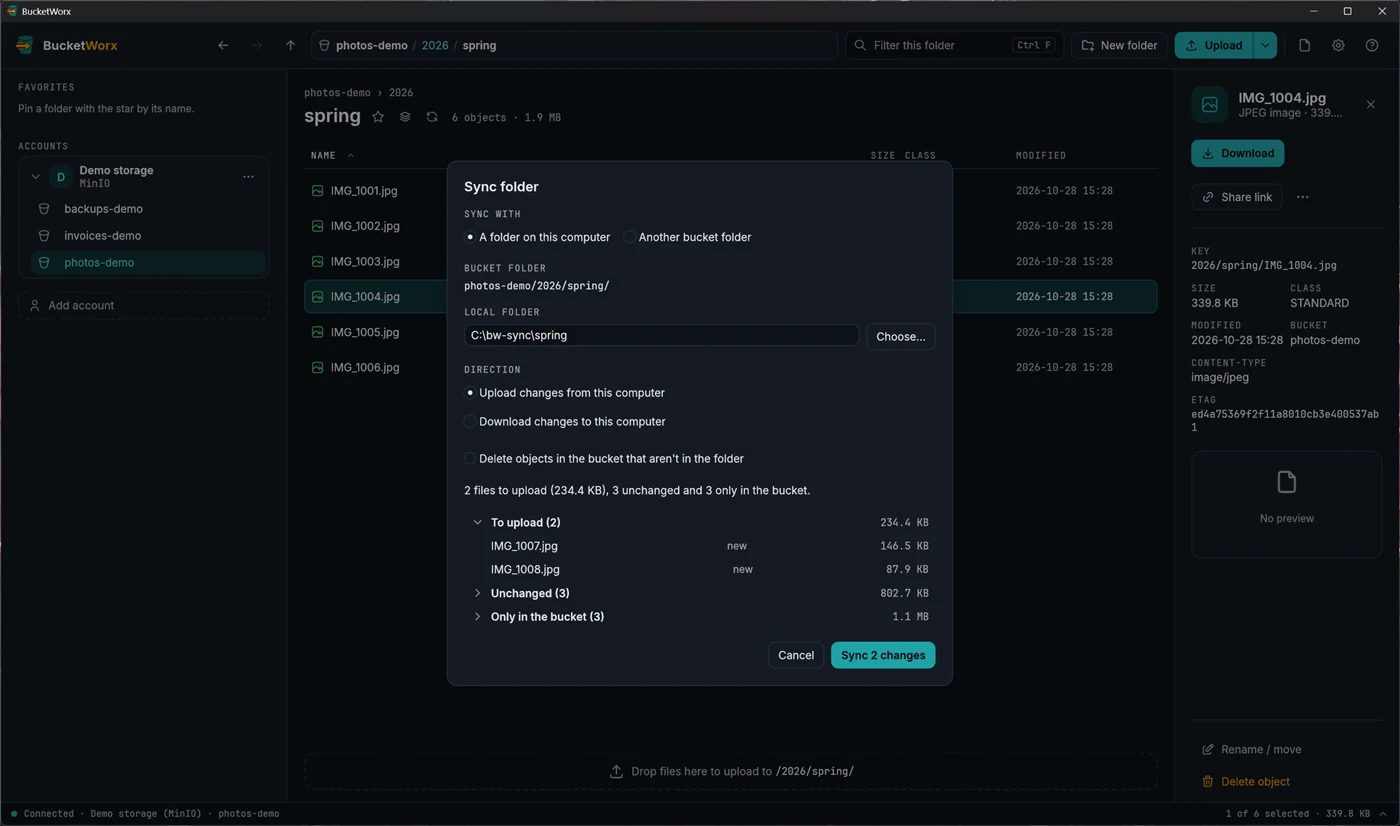
Press Sync N changes and the work runs as a normal batch in the transfers drawer, where you can pause or cancel it. Anything that changed after you previewed is left alone, with a notice to preview again.
Deleting is optional and guarded. "Delete objects in the bucket that aren't in the folder" is off by default, and BucketWorx asks again before it deletes anything. A download never deletes files on your computer. A sync that would delete objects while the local folder is empty is refused, in case a drive isn't connected or the path is wrong.
Previewing a sync is free. Running one needs BucketWorx Pro.
Sync between two bucket folders
In the Sync folder dialog choose Another bucket folder instead of a folder on this computer. Now the dialog shows From and To. The folder you are looking at starts as From, and the swap button switches the two. Pick the other side's account, bucket and folder, typed or pasted (s3://archive/2024/, archive/2024 or a bucket's web address). The To folder is made to match the From folder, and the From folder is never changed.
- Within one account, objects are copied inside the storage service. Between accounts they pass through your computer, which needs Pro even to preview.
- "Delete objects in the destination that aren't in the source" only ever deletes in the To folder, and asks first.
- Two folders where one is inside the other are refused ("These folders overlap"), and so is an empty source folder.
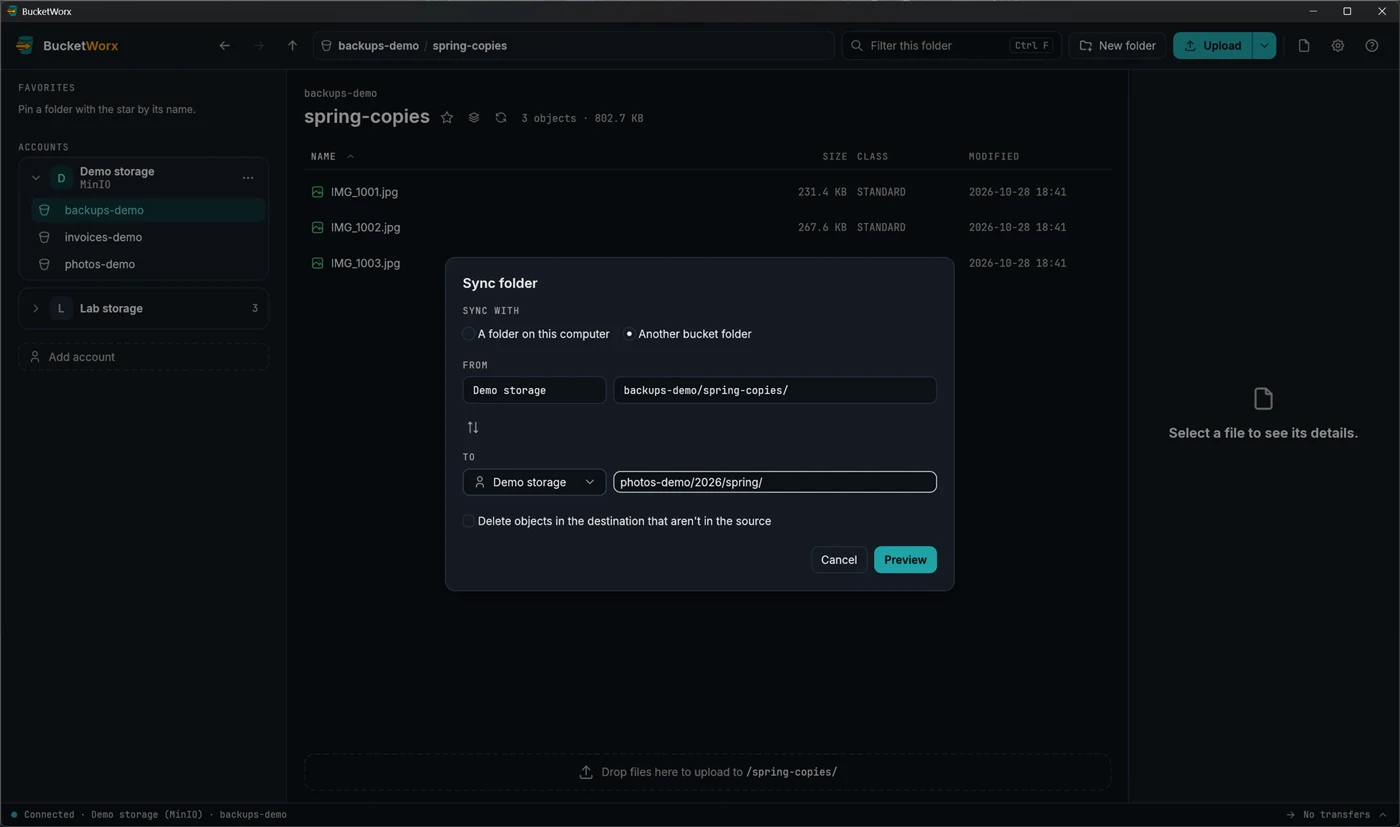
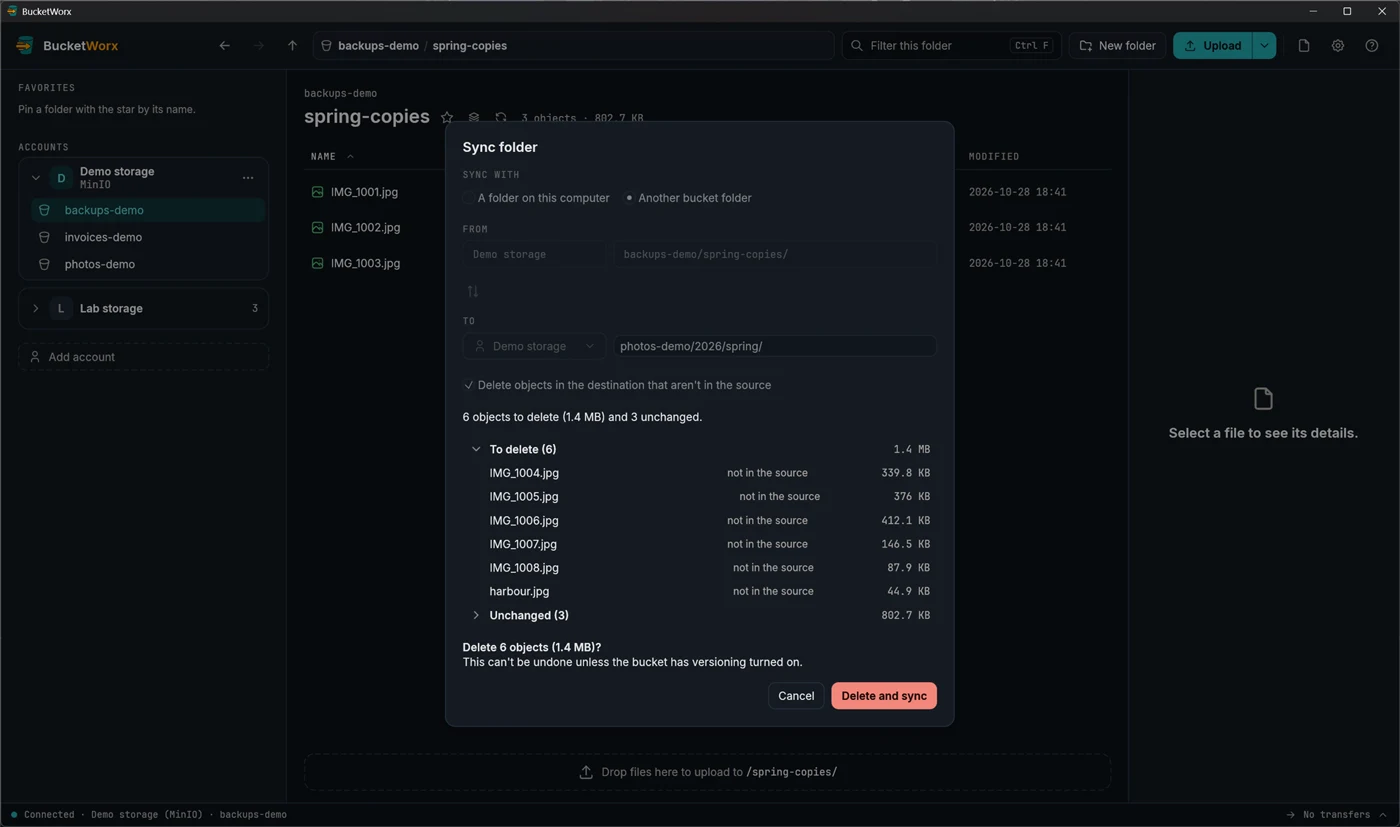
A preview more than an hour old must be made again. When you press Sync, each item is checked once more, and anything that changed since the preview is left alone with a notice to preview again.
Rename, new folder and delete
Right-click a file or folder for its menu, or select it and use the buttons in the details panel. To copy or move, see Copy and move between places.
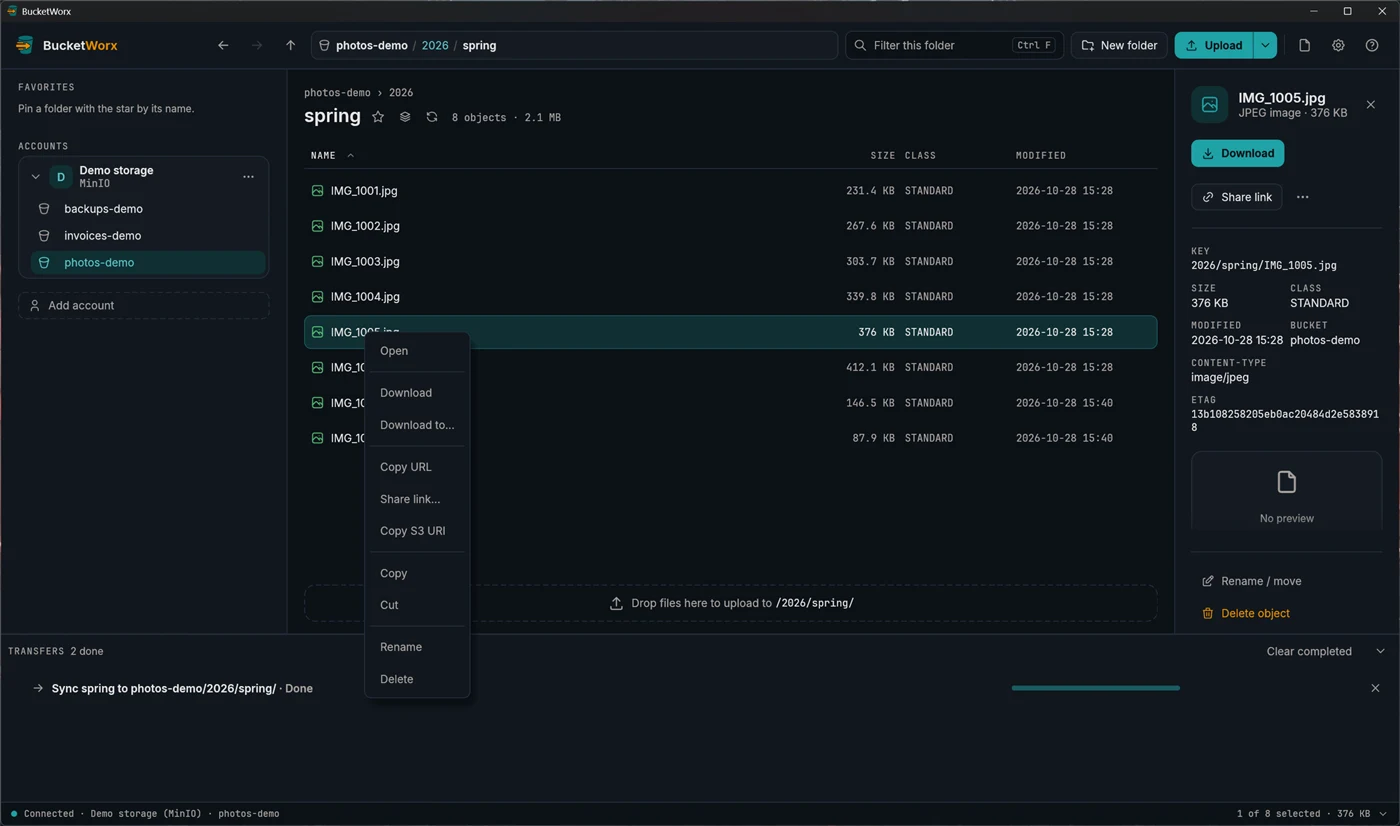
- Copy S3 URI copies s3://bucket/key. Copy URL copies the object's web address, which only opens for public objects. Use Share link for private ones.
- Copy or Cut, then Paste in another folder, copies or moves objects between folders and buckets (Ctrl+C, Ctrl+X, Ctrl+V). Pasting into a different account needs Pro.
- Rename (F2) renames a file, or a folder with everything in it. In object storage a rename is really a copy and a delete, so it can take a moment on a big folder.
New folder
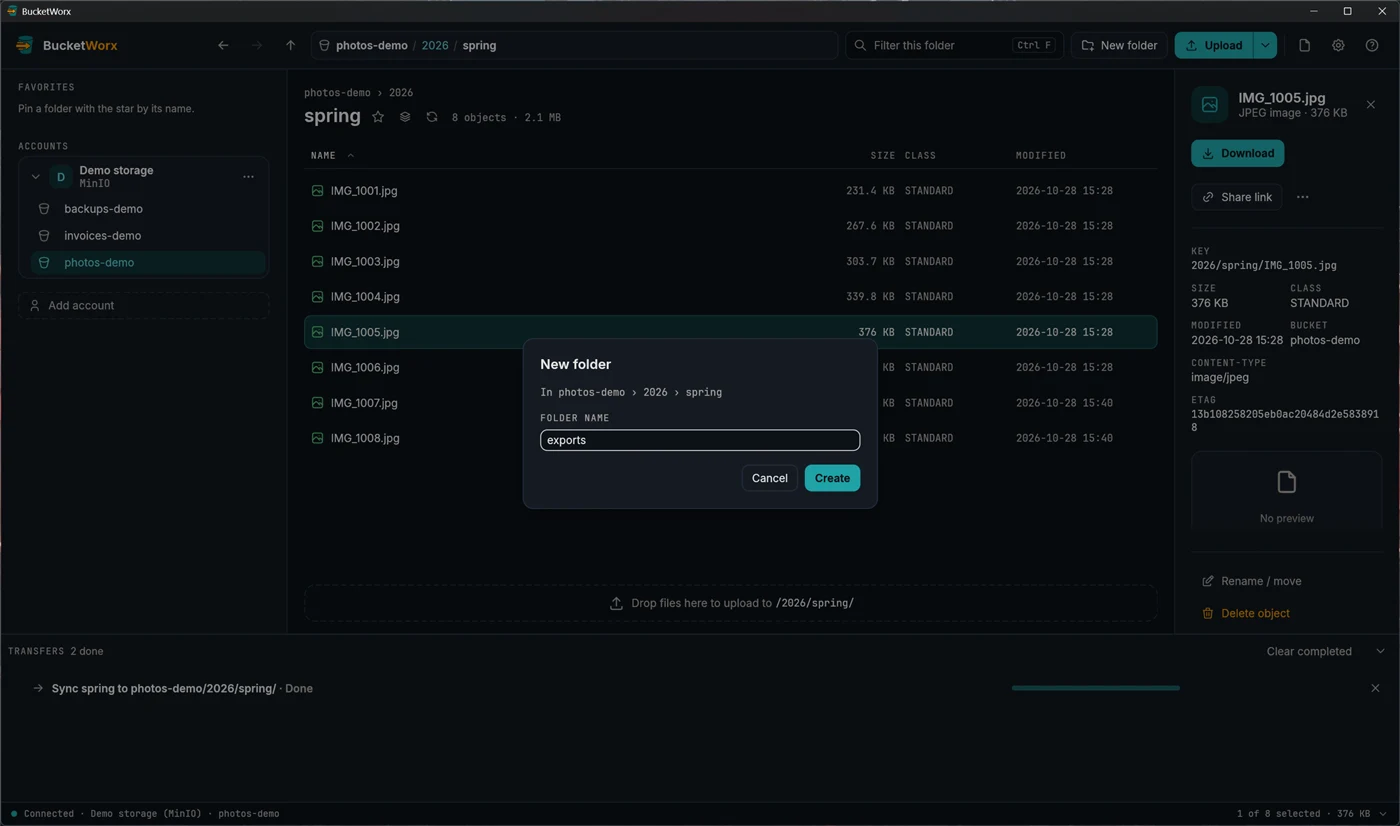
New folder in the toolbar asks for a name and says where it will be created. The name can't contain a slash.
Delete
Select files and press Delete, or choose Delete from the menu. BucketWorx always asks first.
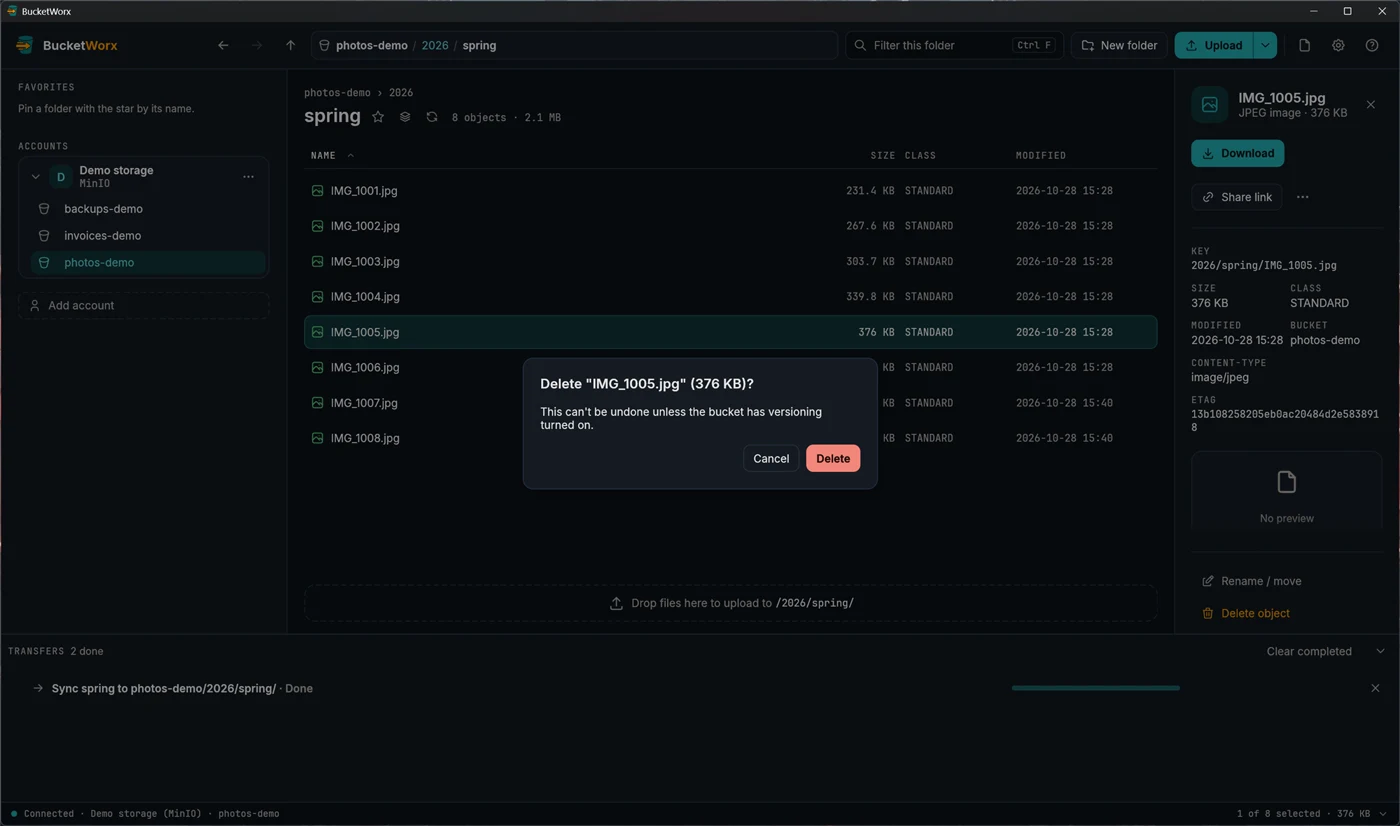
Deleting is permanent unless the bucket has versioning turned on at the provider. There is no recycle bin.
Create and manage buckets
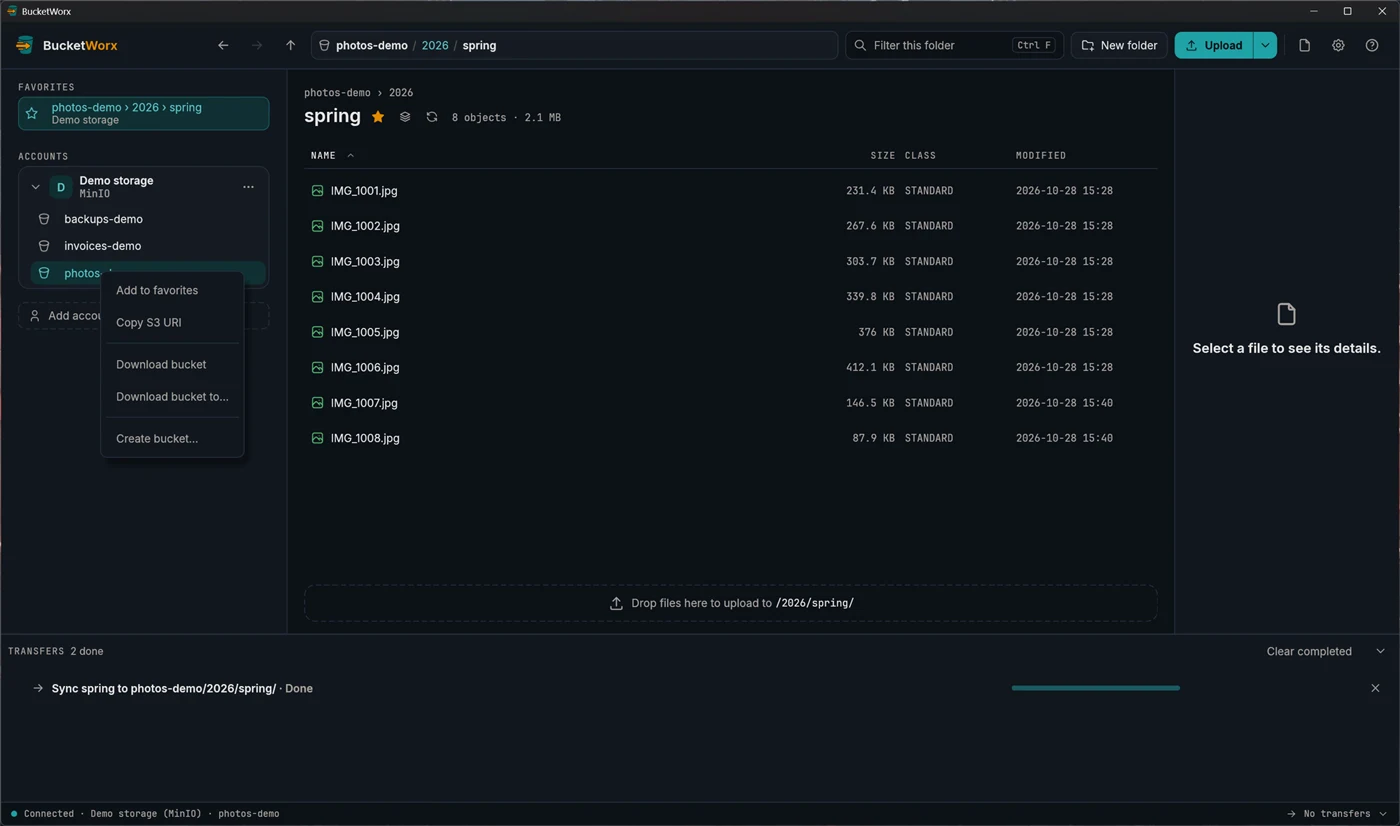
Right-click a bucket in the sidebar for its menu. You can add it to favorites, copy its S3 address, download the whole bucket, or create a new bucket in the same account. The account's "…" menu has Create bucket… too.
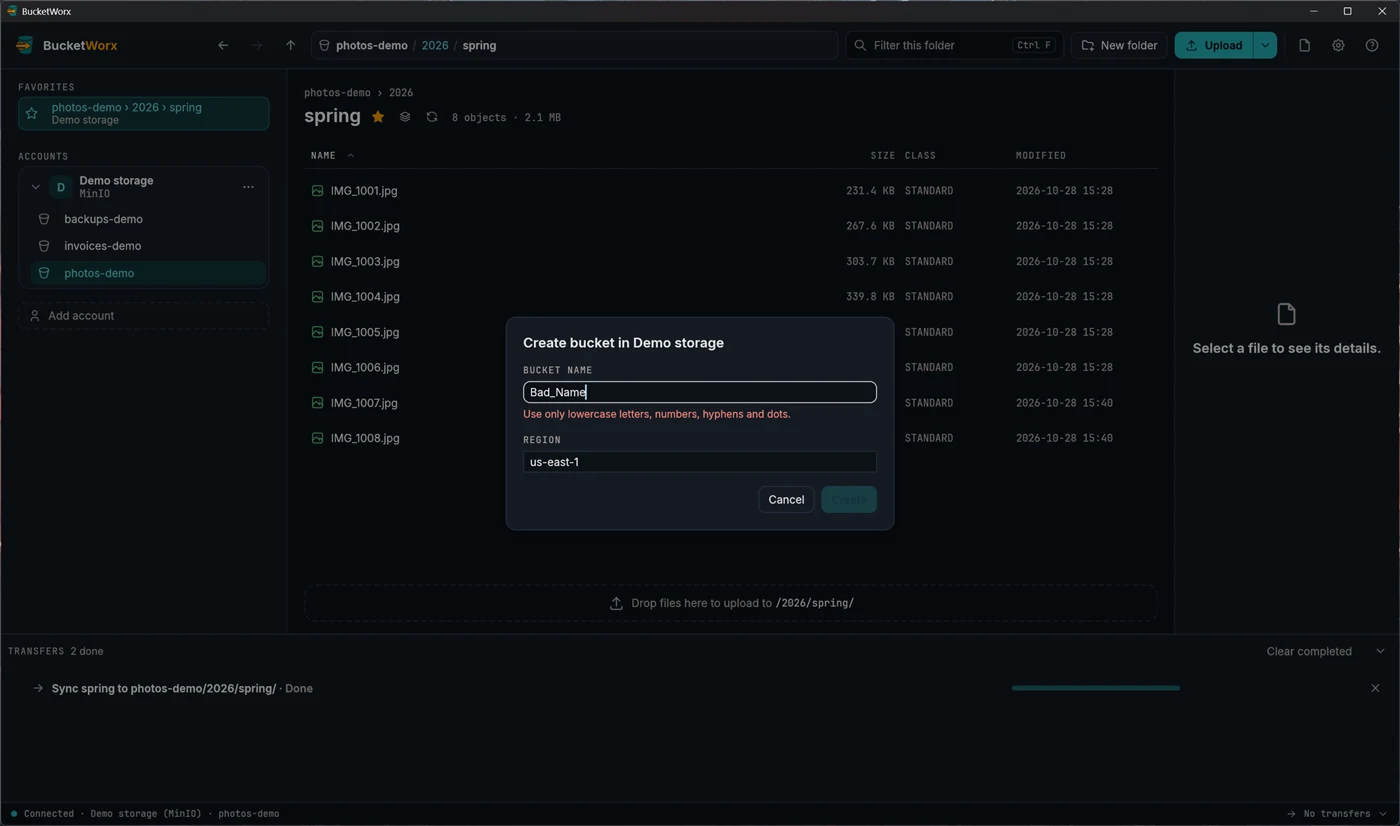
The bucket name is checked as you type, against the rules S3 uses: 3 to 63 lowercase letters, numbers, hyphens and dots. If the name isn't allowed, the reason shows under the field and Create stays greyed out.
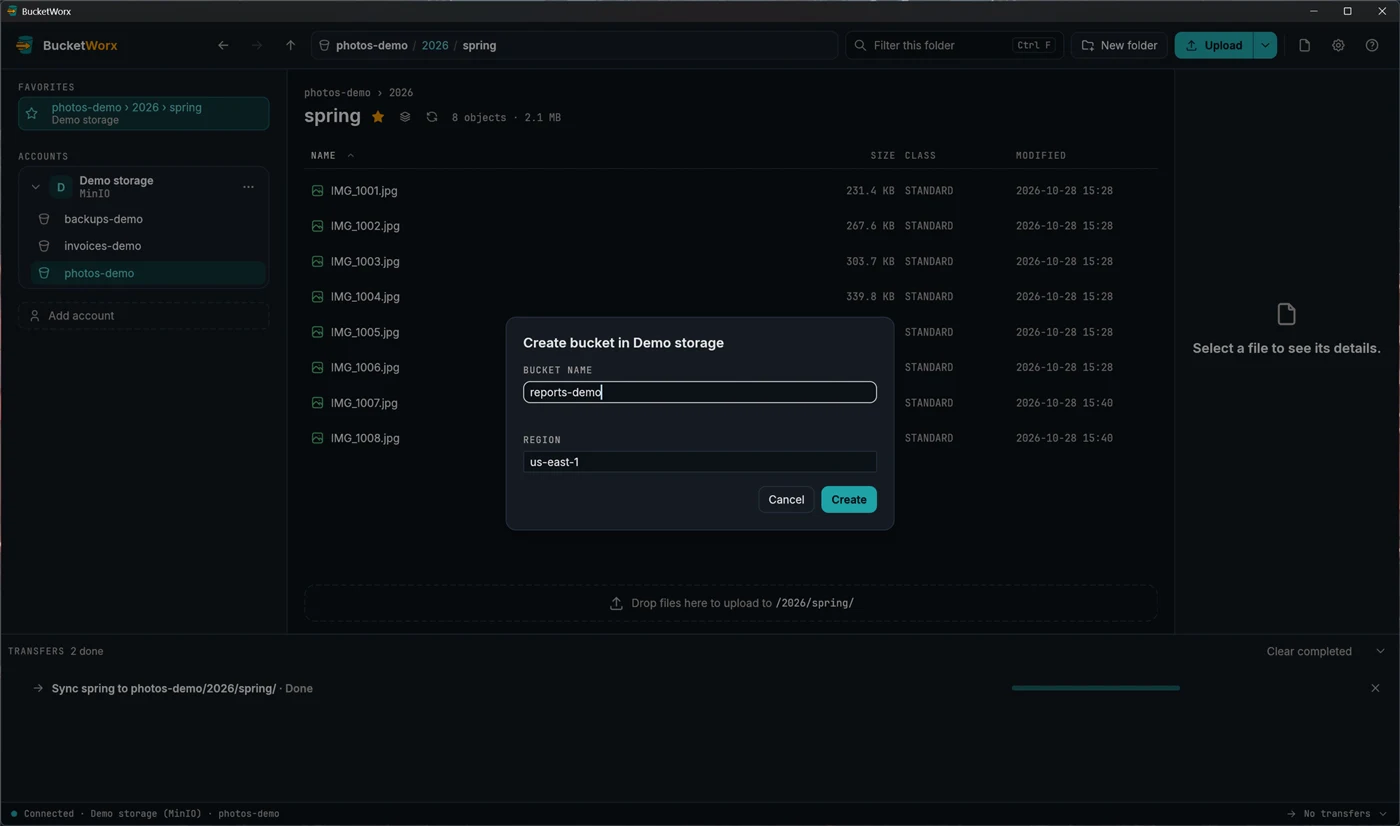
If your key isn't allowed to list buckets, you can type their names into the account (Bucket names) and BucketWorx will show them anyway.
Favorites
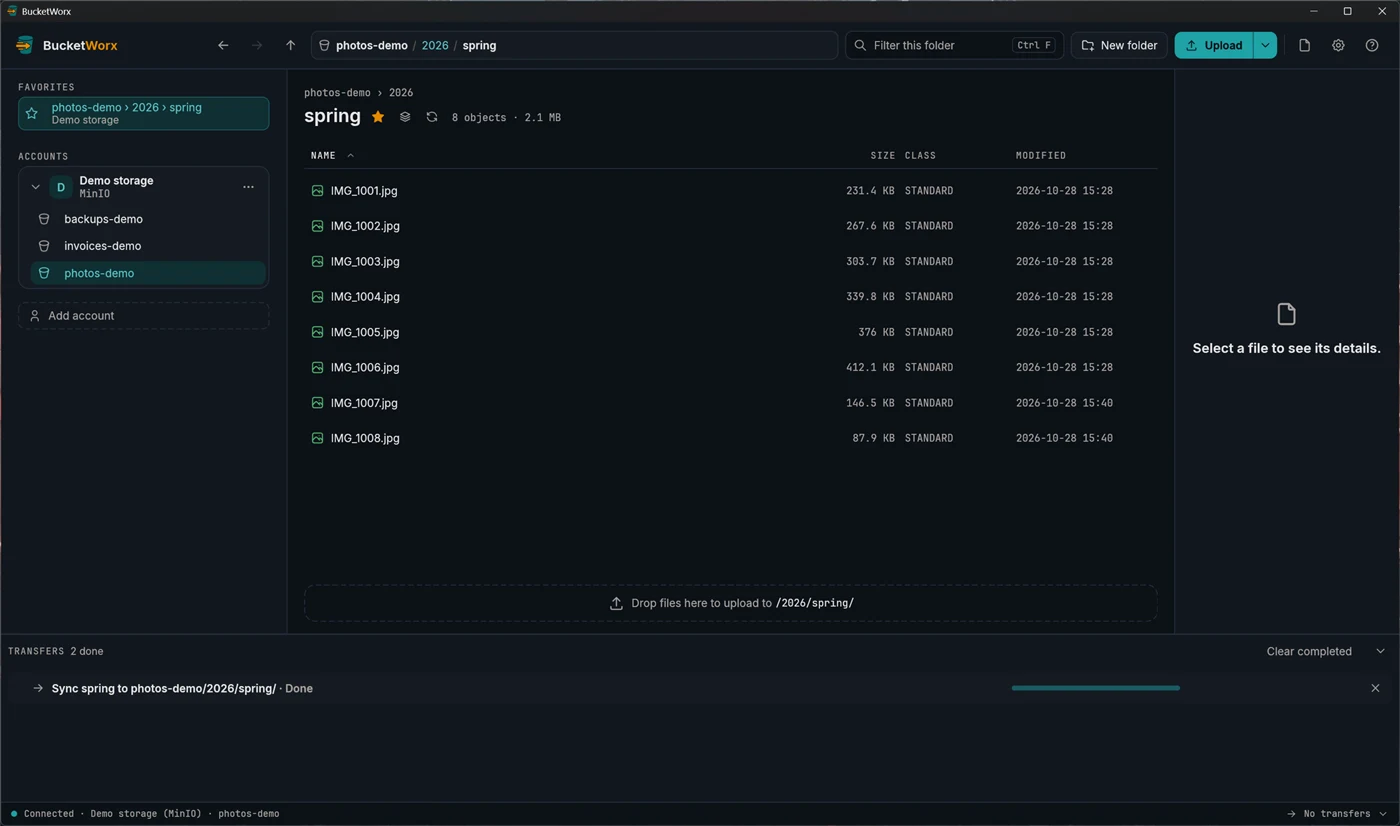
Click the star next to a folder's name to pin it. Favorites sit at the top of the sidebar with their account name under them, and one click opens the place. Click the star again, or right-click the favorite, to remove it. You can star a bucket too.
The command palette
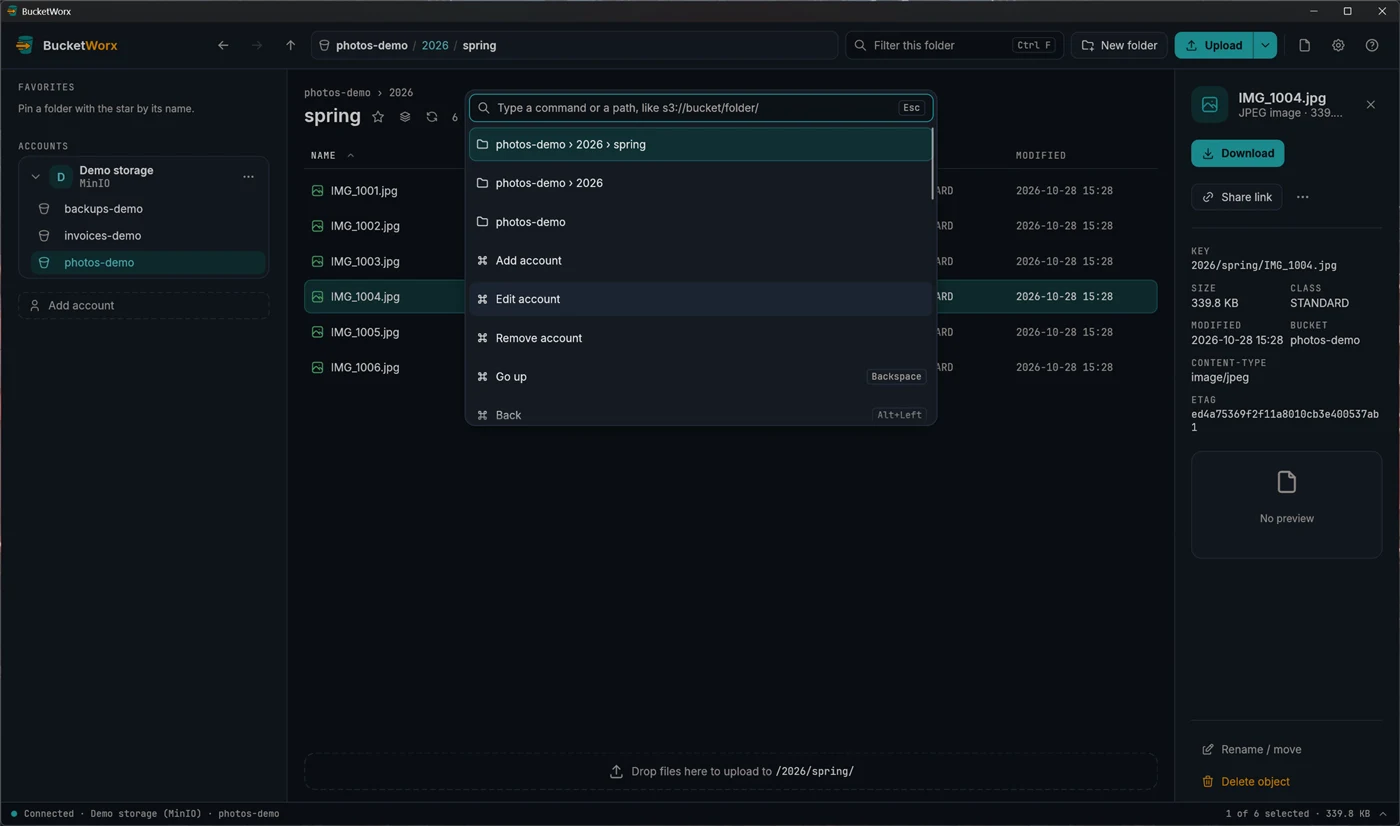
Press Ctrl+K (Cmd+K on a Mac) to search for any command or place. With nothing typed it lists your recent places, then every command. You can also paste an address such as s3://bucket/folder/ and press Enter to go straight there. Each command shows its keyboard shortcut, or says why it can't run right now.
Settings
Open Settings with the gear icon at the top right. Changes save automatically.
Transfers
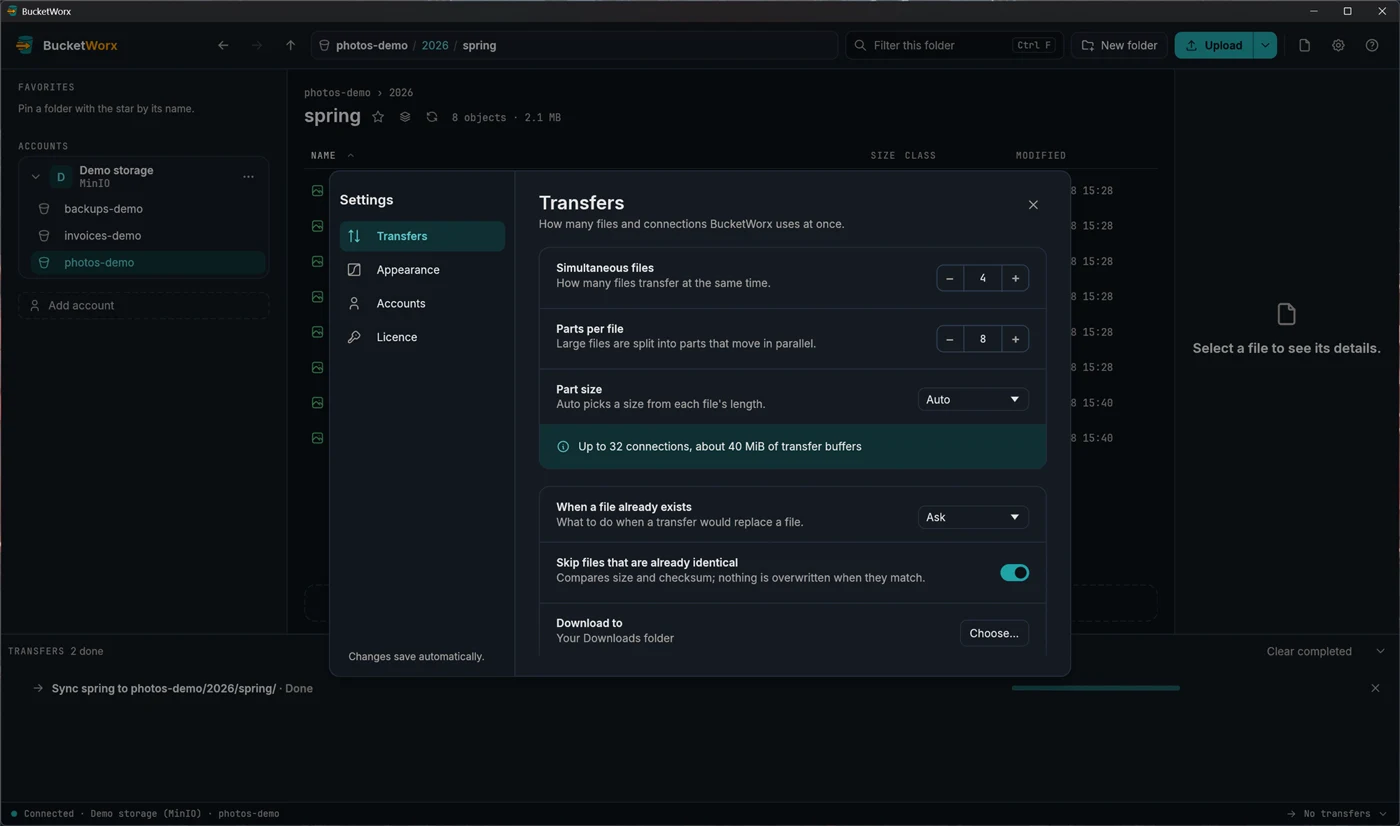
- Simultaneous files (1 to 32, default 4): how many files move at once.
- Parts per file (1 to 32, default 8): how many pieces of one large file move in parallel. The note under these settings tells you how many connections and how much memory they use.
- Part size: Auto picks a size from each file's length. You can also fix it between 8 and 512 MiB. Files under 16 MiB go in a single request.
- When a file already exists: the default answer for conflicts.
- Skip files that are already identical: on by default.
- Download to: the folder downloads go to. It starts as your Downloads folder.
Appearance
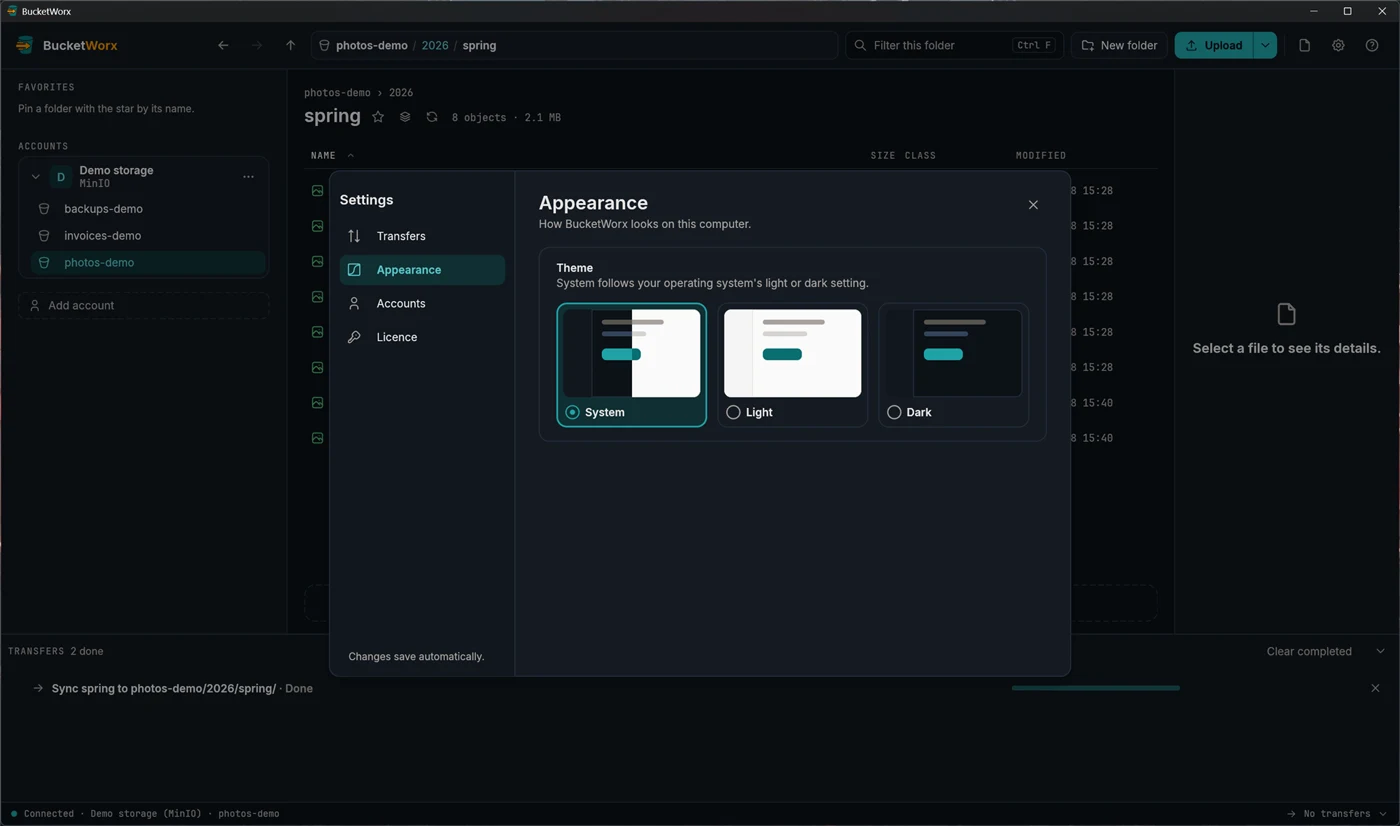
Choose System (follows your operating system), Light or Dark.
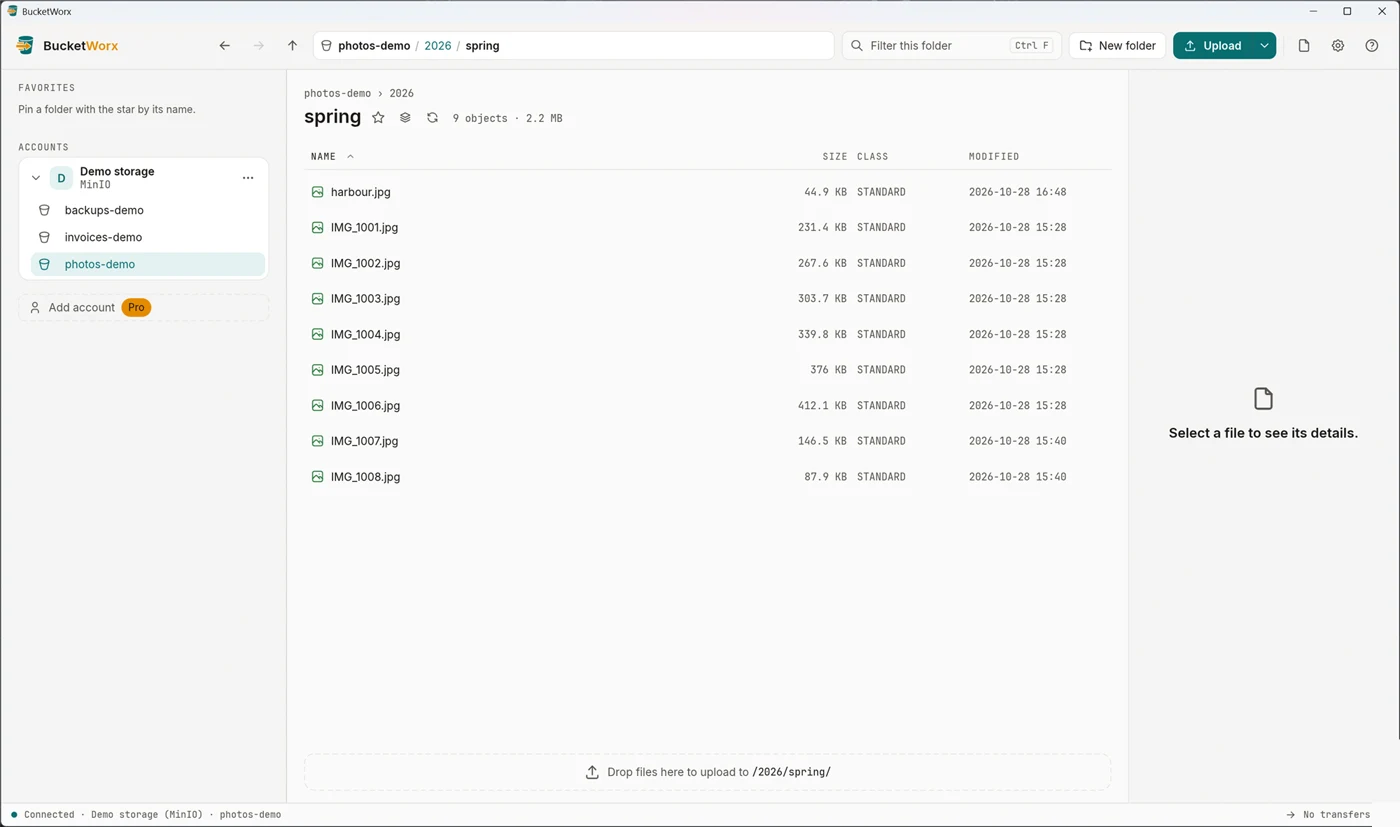
Accounts
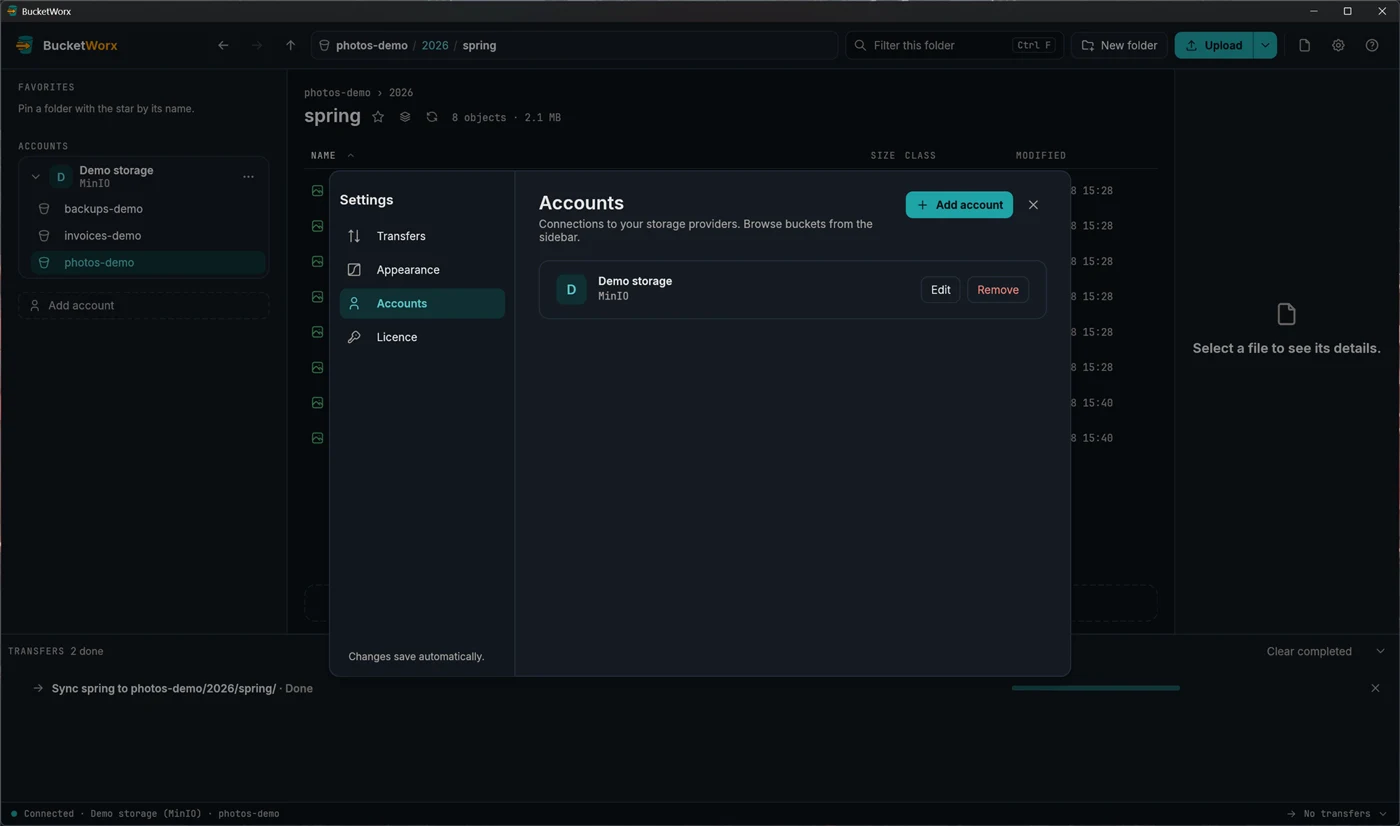
Add, edit or remove accounts here. To change an account's keys, edit it and type the new secret. Leave the secret empty to keep the saved one. Removing an account asks first, removes its key from your computer, and leaves your buckets alone.
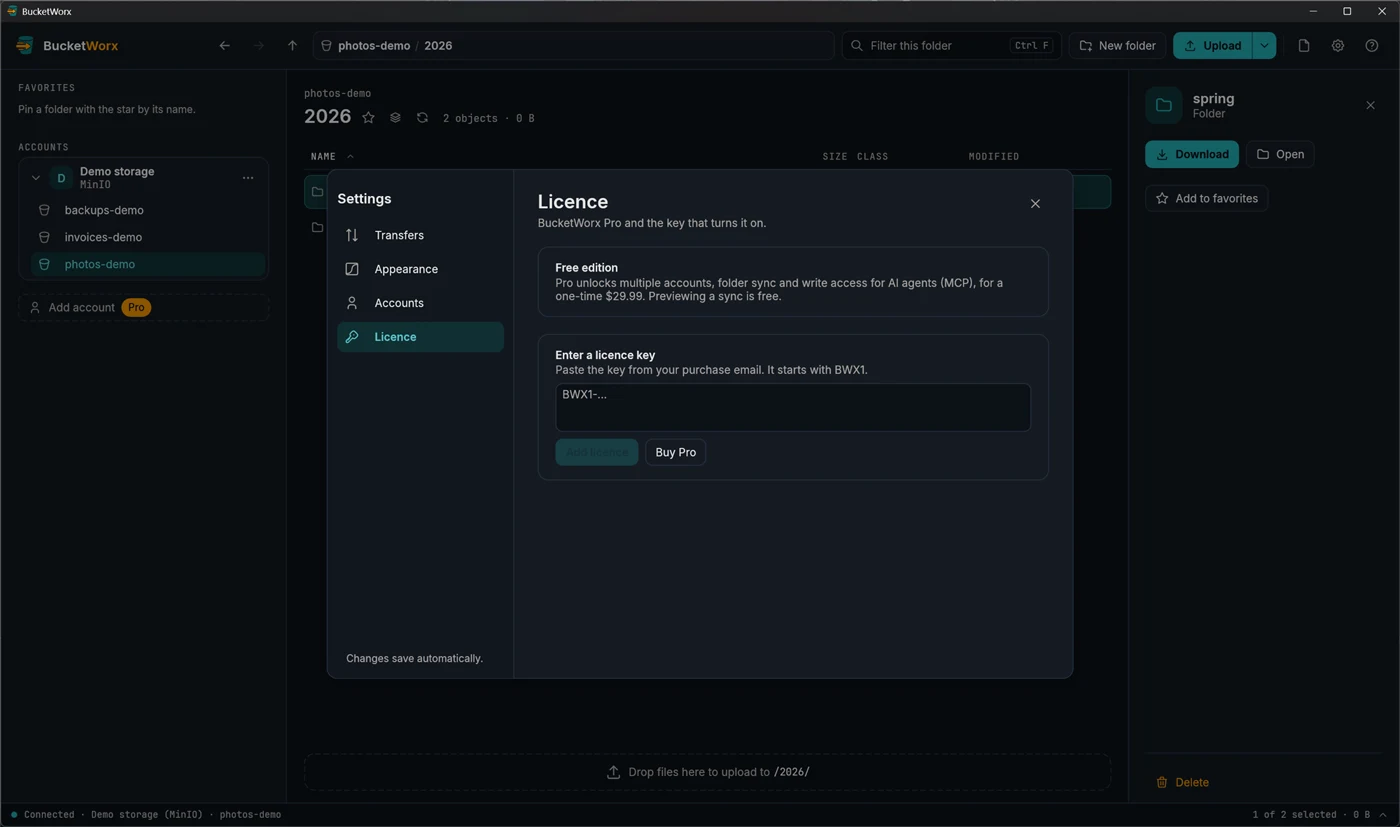
Licence
This page shows whether you are on the free edition or Pro, and lets you add or remove a licence key. See Free and Pro.
Keyboard shortcuts
On a Mac, use Cmd where this table says Ctrl.
| Ctrl+K | Command palette |
|---|---|
| Ctrl+F | Filter this folder |
| Ctrl+L | Type a path |
| F5 or Ctrl+R | Refresh |
| Alt+← / Alt+→ | Back and forward |
| Backspace | Up one folder |
| Enter | Open a folder, or show a file's details |
| F2 | Rename |
| Delete | Delete the selection, after asking |
| Ctrl+A | Select all |
| Ctrl+C / X / V | Copy, cut and paste |
| Arrow keys, Home, End | Move the selection (add Shift to extend it) |
| Esc | Close a dialog or the palette, or clear the selection |
Command line
bucketworx-cli does the same jobs without a window, and uses the same accounts and settings as the app. Add --account NAME to pick an account, and --json for machine-readable output.
| accounts list | Name, provider, region and endpoint of each account. |
|---|---|
| accounts add | Add an account. --provider is aws, cloudflare-r2, backblaze-b2, wasabi, do-spaces, minio or generic. Give --access-key-id or --profile. |
| accounts remove NAME | Remove an account and its stored secret. |
| accounts use NAME | Choose the account the free edition uses. |
| ls [s3://bucket/path] | List an account's buckets, or a folder's contents. |
| mb BUCKET | Create a bucket, checking the name first. |
| cp SRC DEST [-r] | Upload, download or copy. One side must be an s3:// path. -r copies a folder. |
| mv SRC DEST [-r] | Move within S3. --to-account NAME moves to another account (Pro). |
| rename s3://bucket/old NEW | Rename an object, or a folder and everything in it. |
| rm s3://bucket/key [-r] | Delete an object, or a folder with -r. |
| share s3://bucket/key | Print a download link. --expires takes 90s, 30m, 1h or 7d, up to 7 days; the default is 1 day. |
| sync SRC DEST | Make one folder match another: local to bucket, bucket to local, or bucket to bucket. |
| palette QUERY | Search commands and places. |
| transfers list | resume | clear | See, resume or cancel transfers an earlier run didn't finish. |
| licence show | add | remove | See, add or remove a Pro licence key. |
bucketworx-cli ls s3://photos-demo/2026/
bucketworx-cli cp ./report.pdf s3://invoices-demo/2026/
bucketworx-cli share s3://photos-demo/2026/spring/IMG_1004.jpg --expires 1d
bucketworx-cli sync ./spring s3://photos-demo/2026/spring/ --dry-run- Keys. accounts add asks for the secret key on the terminal and never takes it as an argument. In scripts, add --secret-from-env and put the key in the BUCKETWORX_SECRET variable.
- Sync safely. sync prints a plan first: each file it would upload, download or delete and why, then totals, or "Already in sync." --dry-run stops there, --verbose also lists unchanged files, and --delete removes what is only in the destination. Before deleting it asks "Delete 2 objects (1.1 MiB)? [y/N]". In a script you need --yes. A sync that would delete everything because the source is empty is refused. Running a sync needs Pro. --dry-run works in both editions.
- Settings somewhere else. --config-dir DIR keeps settings in another folder.
AI agents (MCP)
bucketworx-cli mcp runs an MCP server, so an AI assistant can work with your buckets. Point your MCP client at it, for example:
{ "mcpServers": { "bucketworx": { "command": "bucketworx-cli", "args": ["mcp"] } } }It is read-only by default. These tools are always on:
- list_accounts, list_buckets and list_objects (a page of up to 1,000 at a time).
- object_info (size, ETag, type, modified time, storage class, encryption) and object_url.
- download into an absolute local folder. Existing files are skipped unless you allow writes.
- transfer_status for a transfer or batch.
Start it with --allow-writes and these are added: sync_plan (a preview that changes nothing), sync_apply, upload, copy, move, create_folder and create_bucket. Deleting needs --allow-delete as well. Every write tool needs Pro.
Free and Pro, and your licence key
The free edition costs nothing and can be used for personal or commercial work. It includes:
- one account, with browsing, uploads, downloads, renames, deletes and share links;
- previewing a sync (running one needs Pro);
- the command line, and read-only access for AI agents.
Pro ($29.99, one time) adds more than one account, with copy, move and sync between accounts; running folder syncs; and write tools for AI agents. Details are in the terms and the refund policy.
Add your licence key
- Open Settings, then Licence.
- Paste your key. It starts with BWX1- and is about 160 characters. Capital letters, spaces and line breaks don't matter.
- Choose Add licence.
You can also press Enter licence key on the Pro prompt that appears when you try a Pro feature. When you add a key there, you go straight back to what you were doing. From the command line use bucketworx-cli licence add KEY. The app, the command line and the agent server all use the same key.
- The Licence page says where you stand ("BucketWorx Pro, licensed to …", or "Free edition"), shows the licence number, and has Remove licence.
- Keys are checked on your computer. BucketWorx never contacts a server to check one, so it works offline.
- If a key can't be used, the page says why in plain words: not valid, expired, for a later version, or turned off (refunded or shared). BucketWorx then runs as the free edition.
- A key covers every 1.x release and the 0.x releases before it.
- The key is a file named licence.key in your settings folder. Copying that folder to another computer takes the key with it.
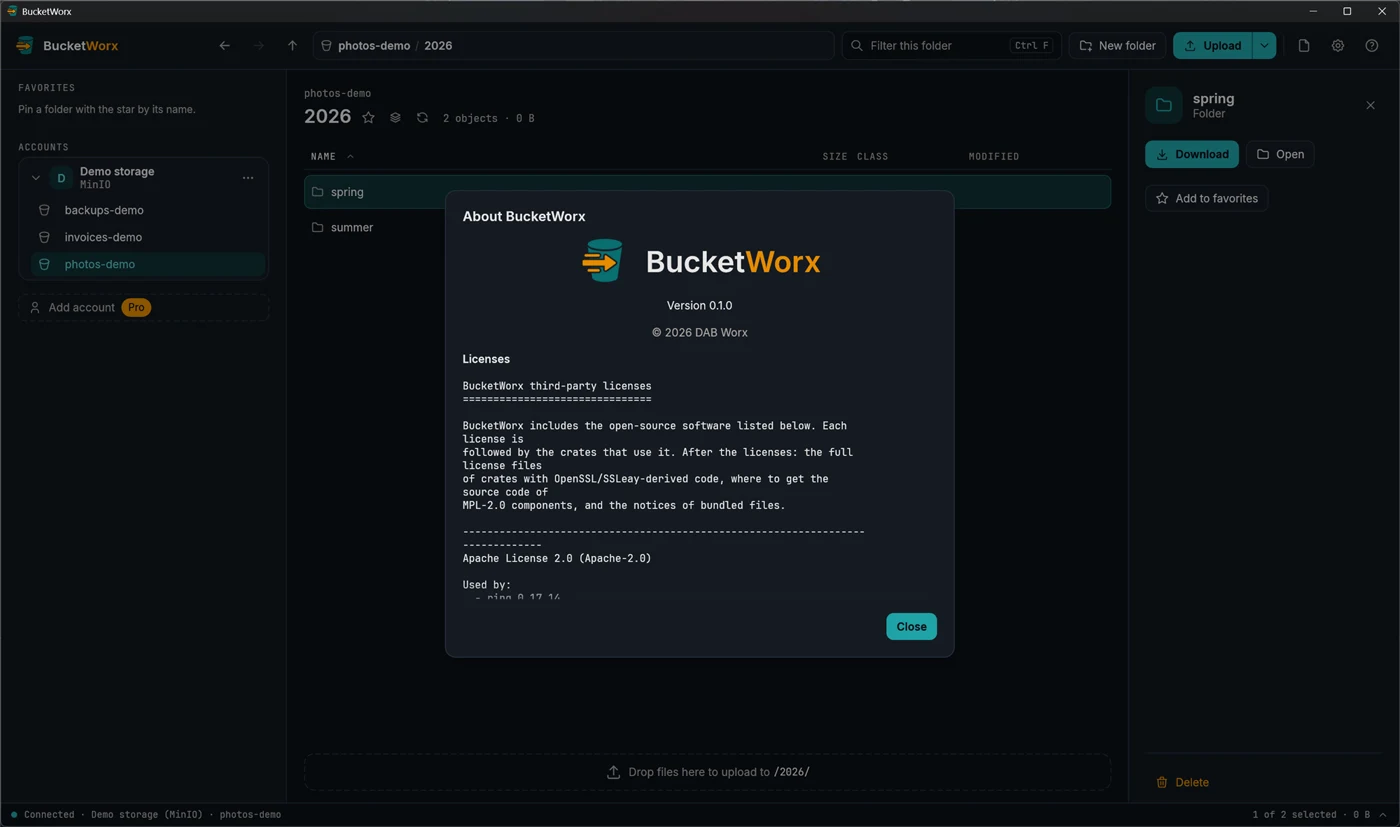
Beta builds run with every Pro feature on for 30 days from the day they were built, then stop. The About window shows the last day.
When something goes wrong
| "Can't connect" in the status bar | Check the endpoint address and your network. In Settings, Accounts press Edit, then Test connection. It answers within about ten seconds and says what is wrong. |
|---|---|
| The key can't list buckets | The key works but isn't allowed to list. Type the bucket names into the account's Bucket names field. |
| "Access denied" on a share link | In a bucket with versioning on, the link is pinned to one version, and the key must be allowed s3:GetObjectVersion as well as s3:GetObject. |
| A share link stopped working | It expired, or the key that signed it was removed. With a temporary sign-in (SSO or an assumed role) it also stops when that session ends. |
| A certificate error on a server you run | Use Trust a custom certificate… in the account form and choose the certificate its administrator gave you. |
| "Copying between accounts needs BucketWorx Pro" | That is the Pro prompt. See Free and Pro. |
| "This changed since the sync preview" | A file or object changed after you previewed. Preview the sync again. |
| "N transfers didn't finish last time" | The app closed in the middle of a transfer. Choose Resume to carry on, or Dismiss to cancel them. |
| A banner says your settings file was damaged | BucketWorx set the damaged file aside (named config.broken-<time>.toml) and is using defaults. Your last good copy is config.toml.bak. |
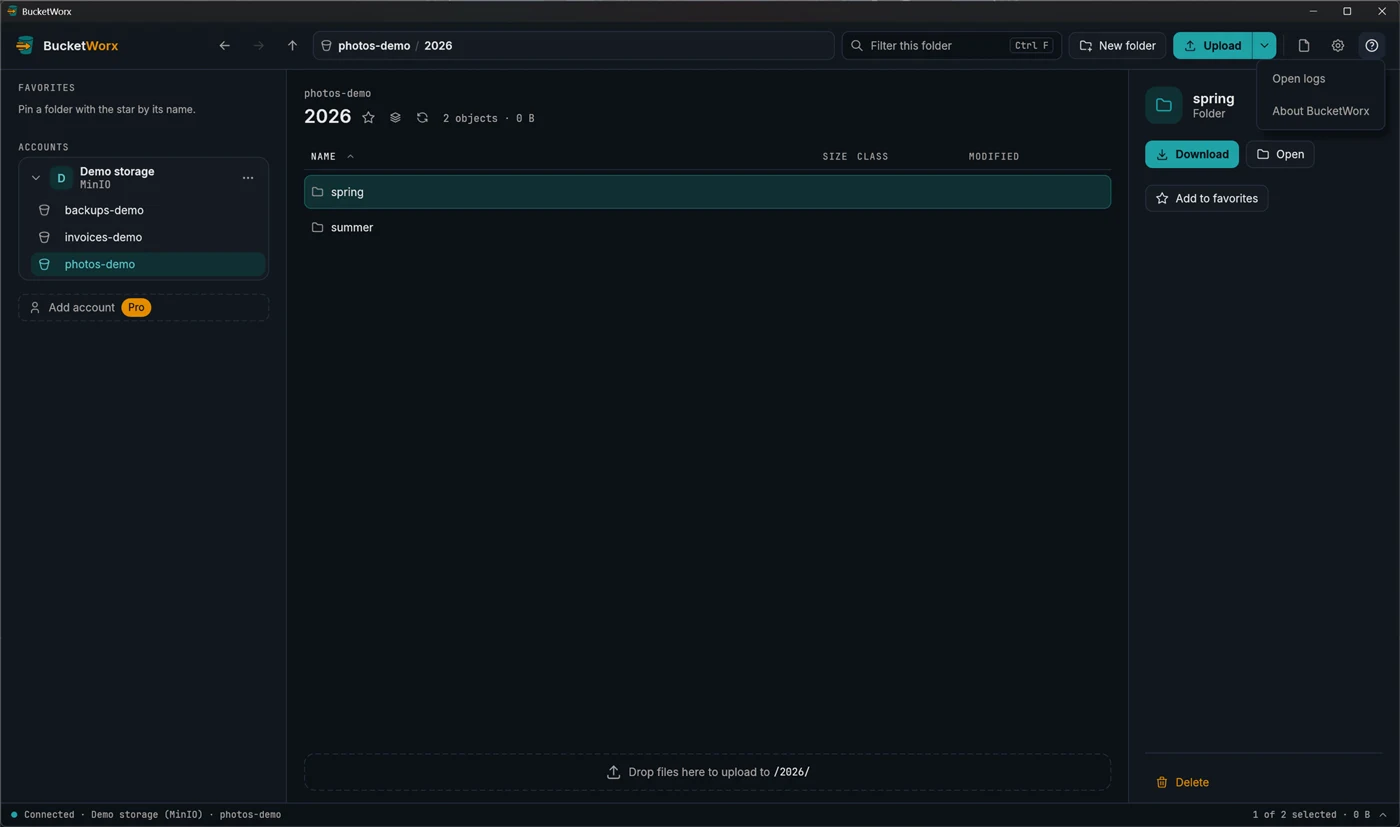
The help button (the "?" at the top right) opens the logs folder and the About window, which shows the version and every third-party licence. Logs hide signatures, credentials and secret keys. If you write to hello@bucketworx.com, include the version from About and what the message said.
Where BucketWorx keeps things
- Secret keys: in your operating system's keychain.
- Settings: a config.toml file in your system's config folder.
- Unfinished transfers and logs: in your system's data folder.
To keep settings somewhere else, such as a USB stick, set the BUCKETWORX_CONFIG_DIR variable to a folder, or run the command line with --config-dir.