Buckets
Last updated: November 9, 2026
Creating and managing buckets: properties and settings, counting everything in one, the security scan, and the CORS, policy, website and lifecycle editors.
Create and delete buckets
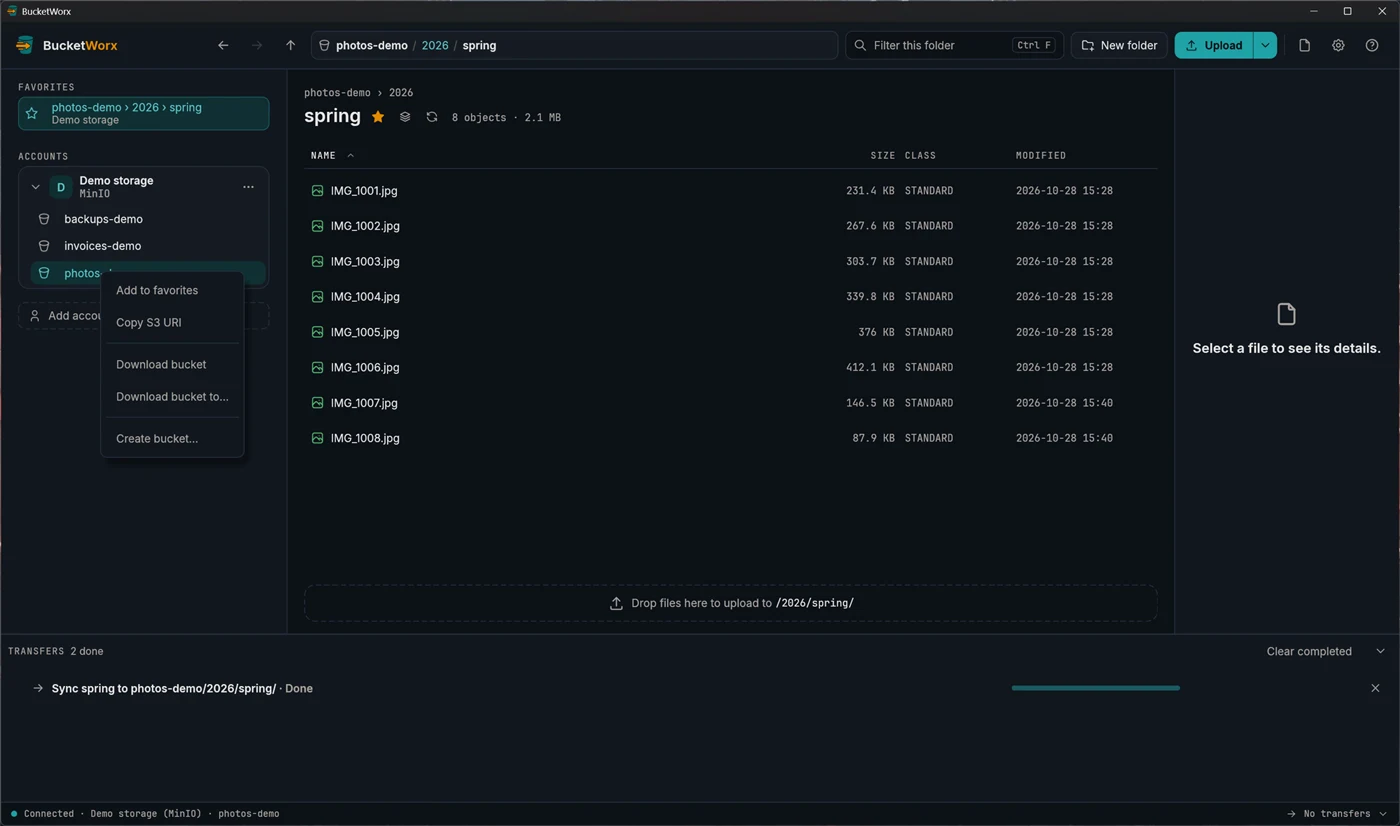
Right-click a bucket in the sidebar for its menu. You can add it to favorites, copy its S3 address, download the whole bucket, or create a new bucket in the same account. The account's "…" menu has Create bucket… too.
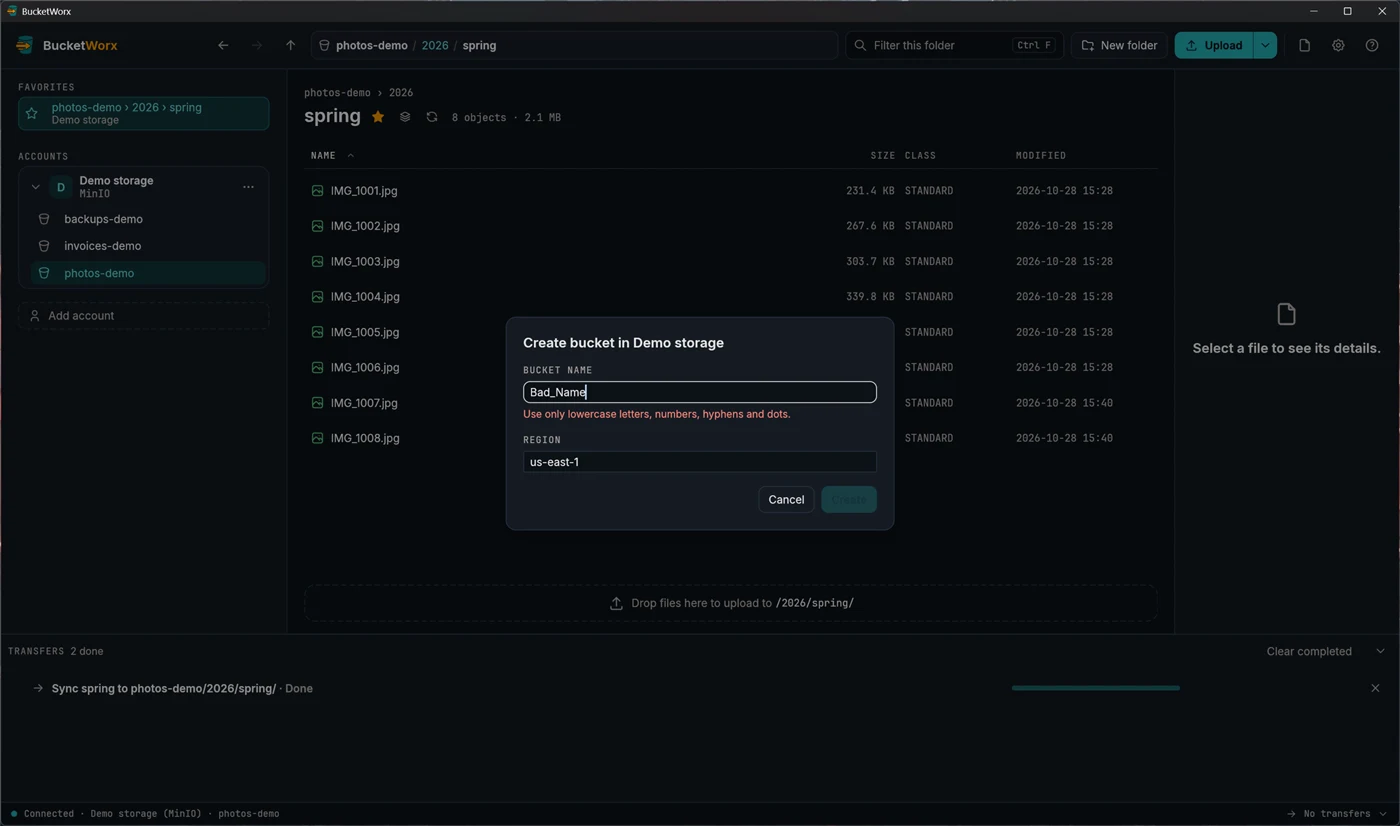
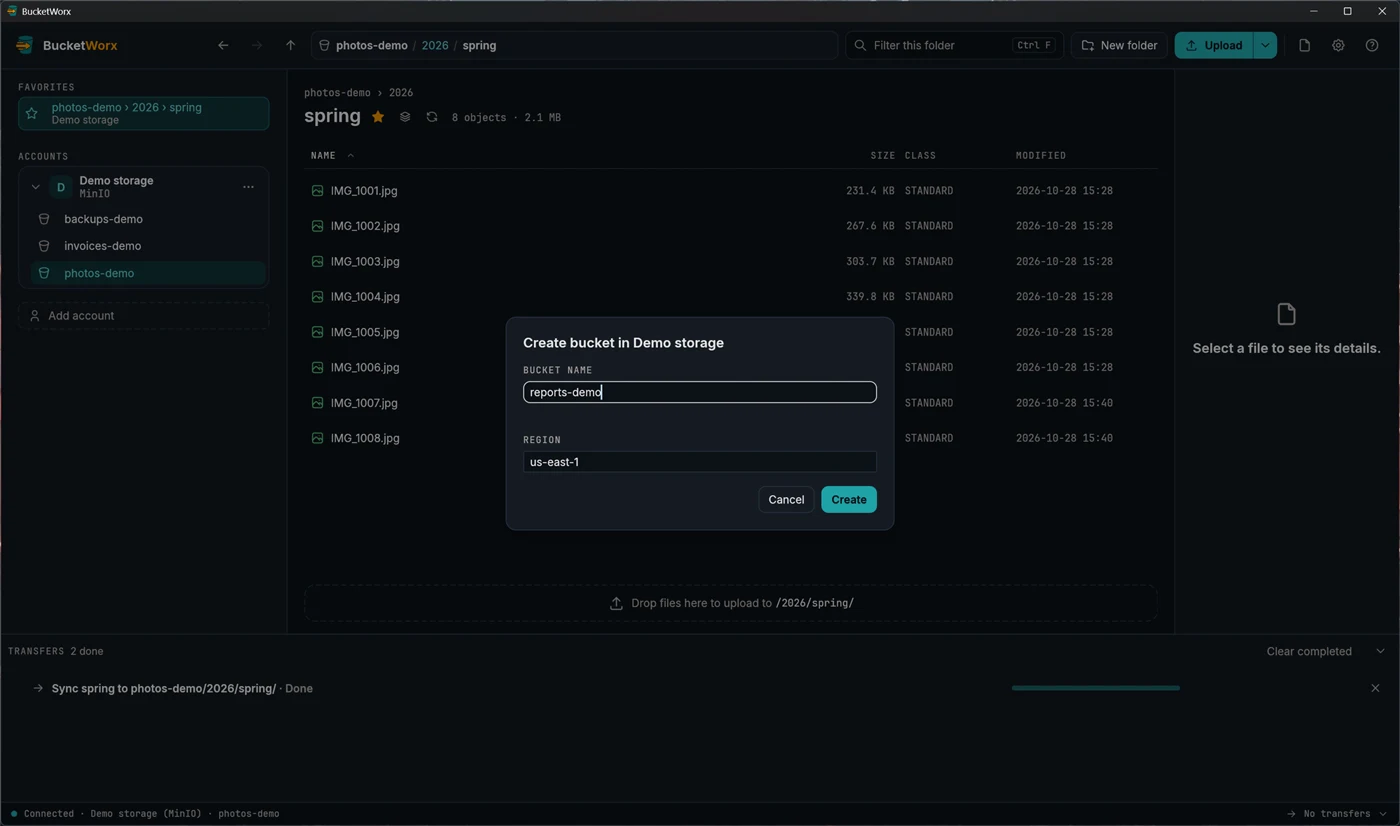
The bucket name is checked as you type, against the rules S3 uses: 3 to 63 lowercase letters, numbers, hyphens and dots. If the name isn't allowed, the reason shows under the field and Create stays greyed out.
If your key isn't allowed to list buckets, you can type their names into the account (Bucket names) and BucketWorx will show them anyway.
Delete bucket… (on a bucket's right-click menu) deletes an empty bucket. You type the bucket's name to confirm. BucketWorx never empties a bucket to delete it: a bucket with files in it is refused, and the message says how to empty it first. A bucket an unfinished transfer is using isn't deleted either.
From beta 4, a bucket that still holds old versions or deleted files is refused too, even if it looks empty, and so is one where BucketWorx can't check. Remove the old versions first with Delete permanently. Some providers would otherwise delete such a bucket, old versions and all.
Bucket and folder properties
Right-click a bucket or folder and choose Properties…. A bucket shows its region, creation date, versioning, Object Lock, encryption, public access settings, logging, replication, website hosting, CORS, lifecycle rules and how many incomplete uploads it has, with a button to review and remove them. A folder shows how many folders and files are directly inside it. Anything the key isn't allowed to read says so, with the permission it would need.
Full count adds up the whole bucket or folder: files, folders, total size, the most common file types, storage classes, and the oldest and newest dates. It lists everything, so it only runs when you ask, with a Stop button. On Amazon S3 that costs about $0.06 per 12 million files.
Change… next to Versioning, Public Access Block and Object Ownership changes that setting, where the provider has it. Each dialog says what the change does first.
Security scan
Security scan… (on an account's "…" menu, or in the command palette) checks who can reach each of the account's buckets. Each bucket gets one result, worst first:
| Public | Anyone can get in, and it says how, such as "Everyone can list objects (ACL)" or "Public bucket policy". |
|---|---|
| Any AWS account | Anyone signed in to any AWS account can get in. |
| Couldn't check | The key isn't allowed to read something the check needs, or reading it failed. It says which. It never counts as "Not public". |
| Blocked | Something public exists, but a Public Access Block stops it, and it says which. |
| Not public | Nothing public found. |
| No public settings on this provider | The provider has none of these settings (Cloudflare R2), so its own console is the place to check. |
It checks buckets, not single files: a private bucket can still hold public files. Tick Expected on a bucket that's public on purpose, such as an image host, and it shows muted from then on. The scan is in the free edition.
Fixing what it finds
The scan itself changes nothing. From beta 5, each finding offers the fix that suits it, and the bucket is checked again afterwards:
- A public ACL grant ("Everyone" or "Any AWS account"): Remove this grant… shows what the grant lets in and the bucket's permissions now and after, and warns that a website or links that rely on it will stop working. Only that one grant is removed. BucketWorx reads the permissions again just before writing and stops if they changed in the meantime. On AWS, DigitalOcean Spaces, Wasabi, Backblaze B2 and other S3-compatible servers.
- A public bucket policy: Open in policy editor. A policy can't be fixed safely with one button, so you edit it yourself; the editor says whether the result is still public.
- A Public Access Block that's off: Public Access Block… opens the bucket's setting with just the block that would stop it turned on. The others keep their values, and nothing changes until you save.
If the bucket's Object Ownership is "Bucket owner enforced", ACLs are already switched off and the scan says so instead of offering to remove a grant.
CORS rules
From beta 4, a bucket's Properties has a CORS row ("No CORS rules" or how many there are) with Edit…. CORS rules decide which websites may use the bucket's files from a browser, for example a web app that uploads straight to the bucket.
- The editor takes the rules as JSON, in the same shape as the AWS console (a list of rules, or {"CORSRules": [...]}).
- Mistakes show as you type, with the line and column: bad JSON, an unknown field, a method other than GET, PUT, POST, DELETE or HEAD, a rule with no origin or method, more than one * in an origin or header, more than 100 rules.
- Save works only when the rules are valid and changed. Revert goes back to what the bucket has, and Remove all rules asks first.
- If someone changed the rules after you opened the editor, BucketWorx won't overwrite them. After saving it reads the rules back and shows what the provider kept: Backblaze B2, for example, drops rule IDs and lower-cases exposed headers.
- It's in the free edition. Supabase Storage has no CORS rules, so the row isn't shown there.
Bucket policy
From beta 4, a bucket's Properties has a Bucket policy row ("No bucket policy" or how many statements it has) with Edit…. A bucket policy decides who can do what in the bucket, and it's how most buckets are made public today.
- It's the same editor as CORS: the policy as JSON, with mistakes shown as you type, line and column included. A statement about something outside this bucket gets an amber note.
- Save always asks first, and the question says whether the policy makes the bucket public (in red), can't be judged (amber), or doesn't. On Amazon S3, a Public Access Block that blocks public policies makes AWS refuse a public one, and BucketWorx explains the refusal in plain words.
- A policy that would stop everyone, you included, from reading or changing the policy itself is flagged in red. Saving it needs you to tick "I understand this can lock everyone out of the bucket's policy".
- Remove policy asks first. As with CORS, someone else's change made after you opened the editor isn't overwritten.
- It's in the free edition. You can edit policies on Amazon S3, Wasabi, DigitalOcean Spaces, MinIO, and Backblaze B2 on Enterprise accounts. On Neon you can view the policy but not change it. Cloudflare R2 and Supabase Storage have no bucket policies, so the row isn't shown there.
Website hosting
From beta 4, the Website hosting row in a bucket's Properties has Edit…, in the same editor as CORS and the bucket policy. It turns a bucket into a static website: which page is the index, which is the error page, and any redirects.
- The settings are JSON in the same shape as the AWS command line: IndexDocument, ErrorDocument, RedirectAllRequestsTo and RoutingRules. Mistakes show as you type, with the line and column.
- The row sums it up, for example "Index page index.html, error page error.html, 1 routing rule", or "Redirects every request to …". Remove website asks first.
- While a website is set, BucketWorx shows its address on Amazon S3 and DigitalOcean Spaces. It doesn't tell you whether visitors can read the pages: that depends on the bucket policy and permissions.
- It's in the free edition, on Amazon S3, DigitalOcean Spaces and "Other S3-compatible". Cloudflare R2, Backblaze B2, Wasabi, MinIO, Neon and Supabase Storage have no website settings, so the row isn't shown there.
Lifecycle rules
From beta 4, the Lifecycle row in a bucket's Properties has Edit…, in the same editor. Lifecycle rules make the provider act on files by age: delete them, delete old versions or leftover delete markers, clean up incomplete uploads, or move them to a cheaper storage class.
- The Rules tab (from beta 5, where the editor opens) builds rules with a form, no JSON needed. Add abort-uploads rule adds the rule most buckets should have: clean up uploads left unfinished for 7 days, which otherwise keep costing storage. Add rule starts a rule for a folder (prefix), files with certain tags, or both, or the whole bucket. Each rule can delete files after a number of days, delete old versions after a number of days while keeping the newest few, remove leftover delete markers, abort unfinished uploads, and on AWS move files to a cheaper storage class. Mistakes show under the field, and Save stays off until they're fixed.
- The JSON tab shows the same rules as JSON in the shape the AWS command line uses, and every change on one tab shows on the other. Mistakes show as you type, with the line and column, checked against Amazon's rules and against what each provider documents it supports. Rules the form can't show (date-based rules, size filters, old-version class changes) are listed read-only on the Rules tab and saved back exactly as they were.
- Save always asks first, and the question names which rules delete current files, old versions or delete markers, and where: a rule with an empty filter covers the whole bucket.
- What you can use depends on the provider. Amazon S3 has everything. Wasabi has everything but storage class changes. Cloudflare R2, Backblaze B2 and DigitalOcean Spaces each support part of it, and BucketWorx refuses what they would reject or misread; the provider notes say what. On MinIO, class changes go to a tier name. Neon stores rules but never runs them, so its rules are view-only. Supabase Storage and Storj have no lifecycle rules, so the row isn't shown.
- It's in the free edition.
The CORS, bucket policy, website and lifecycle editors, and the matching commands, show hidden characters (such as invisible direction marks or zero-width spaces) as \uXXXX, so nothing can hide in a rule.
More help
Topics
- Accounts and providers
- Browsing your buckets
- Uploads, downloads and transfers
- Managing files
- Old versions, deleted files and undelete
- Settings and keyboard shortcuts
- The BucketWorx command line (CLI)
- AI agents (MCP)
- Free and Pro, and your licence key
- When something goes wrong
Step-by-step guides
- Connect Cloudflare R2
- Connect Backblaze B2
- Connect Wasabi
- Connect MinIO or another S3-compatible server
- Sync a folder to a bucket
- Share a file with a link
- Copy files between buckets and accounts
- How providers differ, and what BucketWorx does about it
All help, including installing BucketWorx.