Browsing your buckets
Last updated: November 10, 2026
Getting around your buckets: opening folders, finding files, selecting several at once, seeing a file's details and preview, and the shortcuts that save time.
Browse your buckets
Once saved, the account appears in the sidebar as a card. Click it to open it and see its buckets. Click a bucket to see its files.
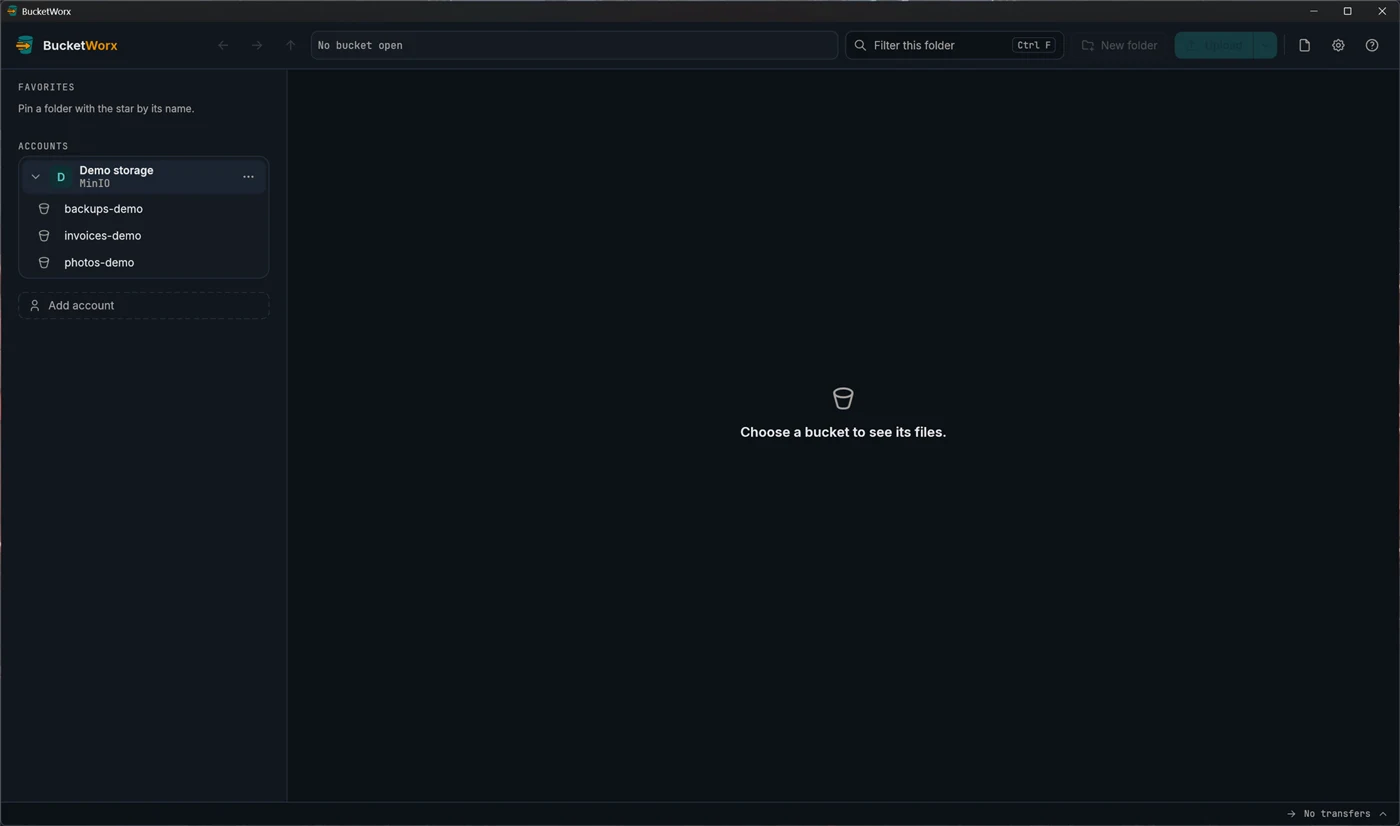
Double-click a folder (or press Enter) to go into it. The list shows each file's name, size, storage class and modified date, with folders first. Click a column heading to sort, and click again to reverse.
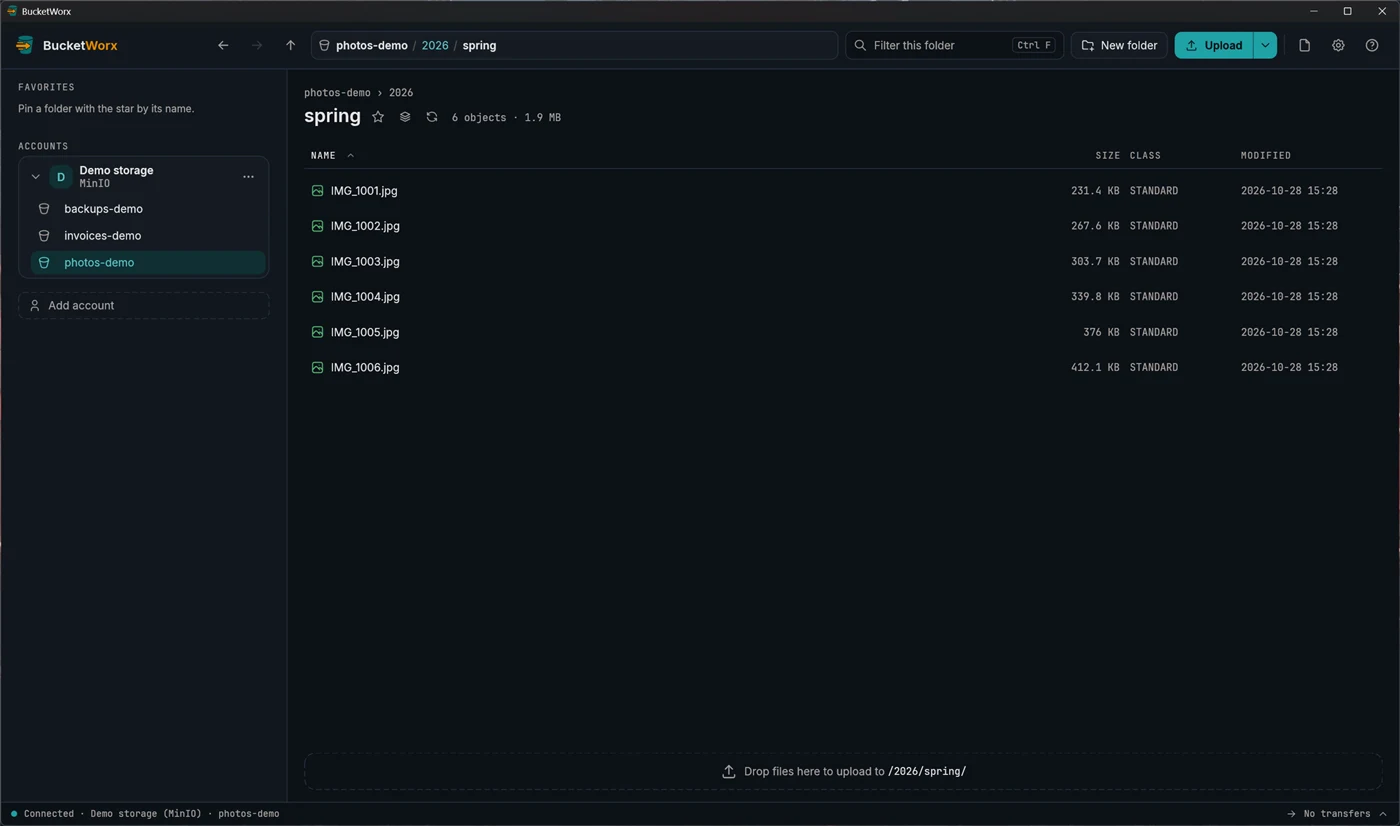
- Back, Forward and Up are the arrows at the left of the toolbar. The mouse's side buttons work too.
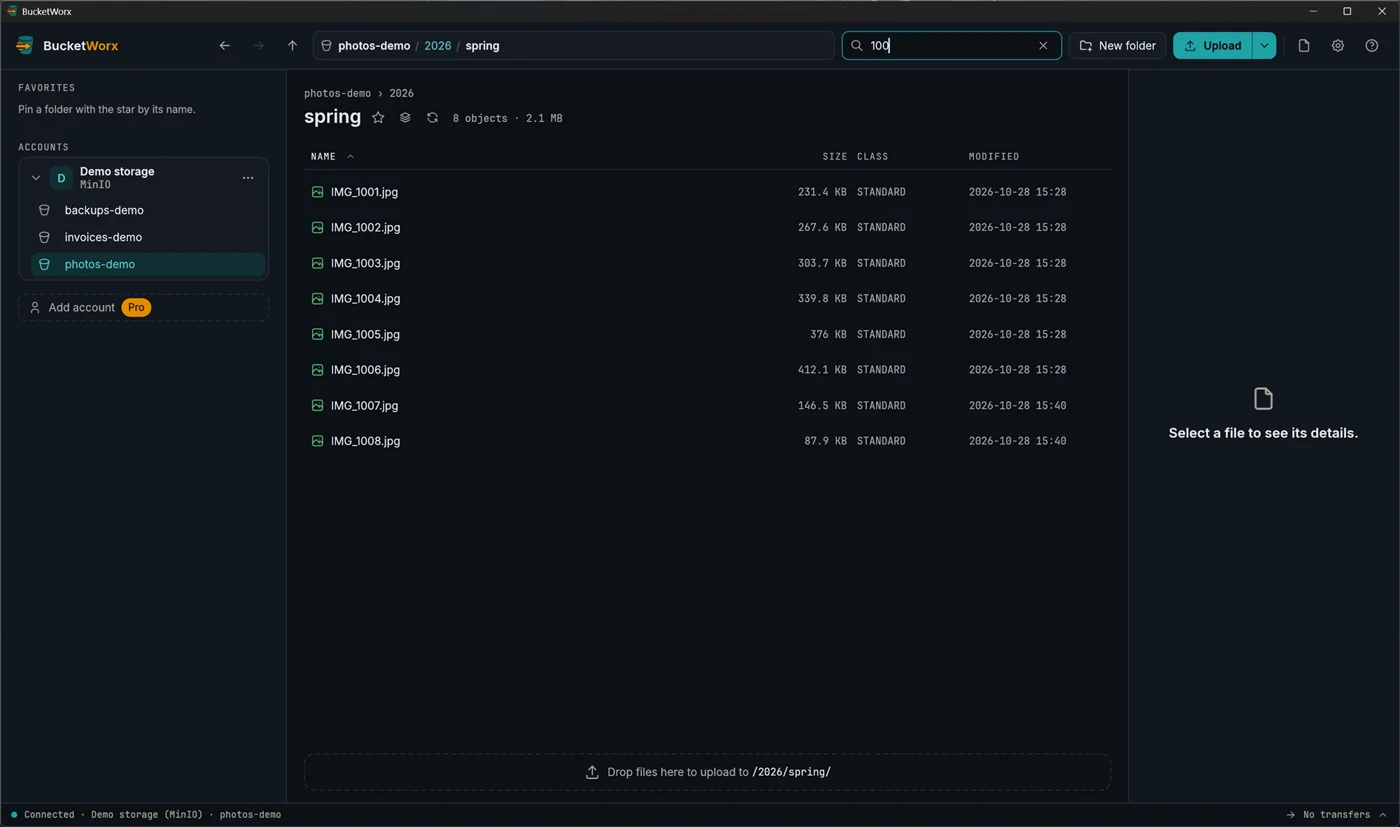
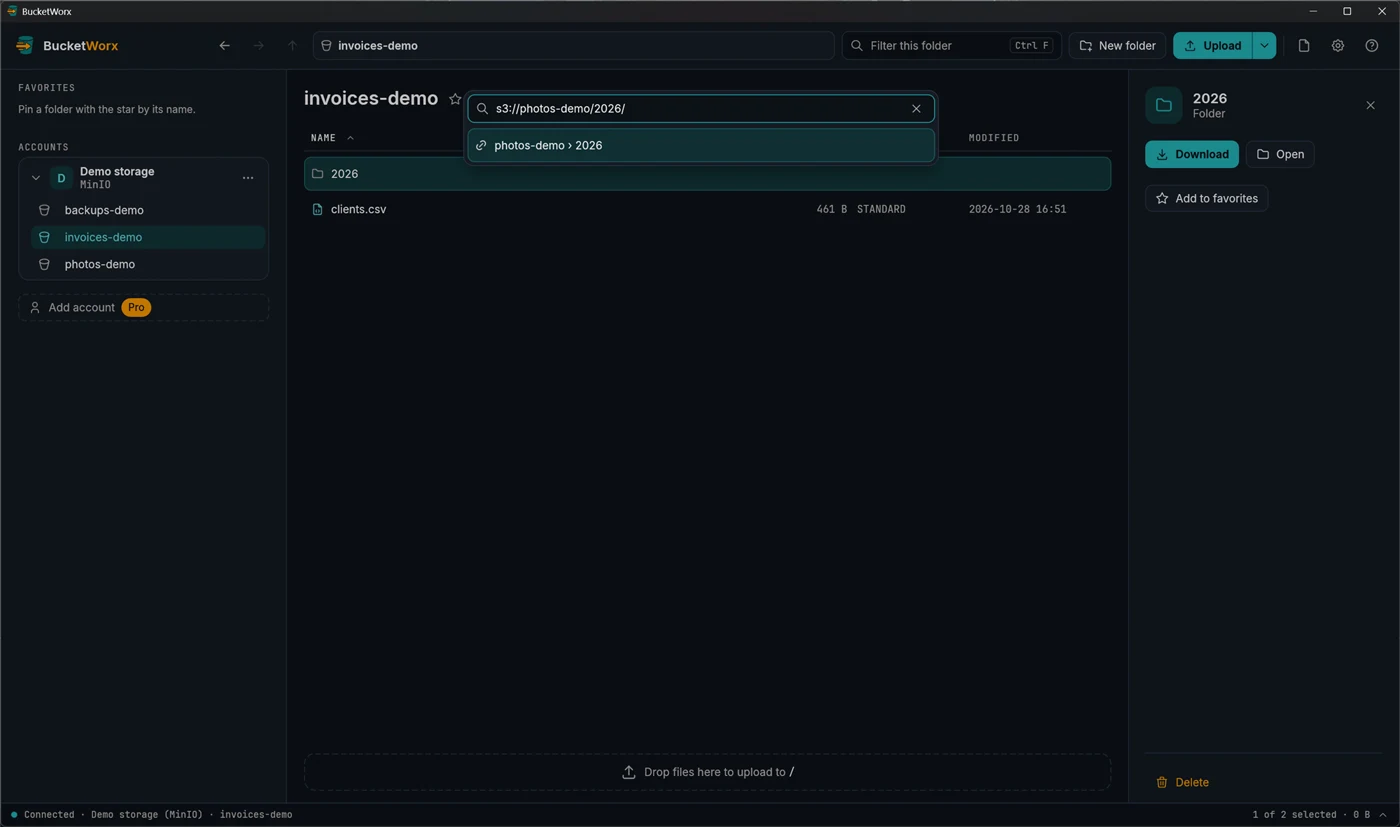
- Type a path. Click the empty part of the path bar, or press Ctrl+L (Cmd+L on a Mac), and enter s3://bucket/folder/ or paste a bucket's web address.
- Filter by name. Press Ctrl+F and type. It matches anywhere in the name and stays on as you move between folders until you clear it.
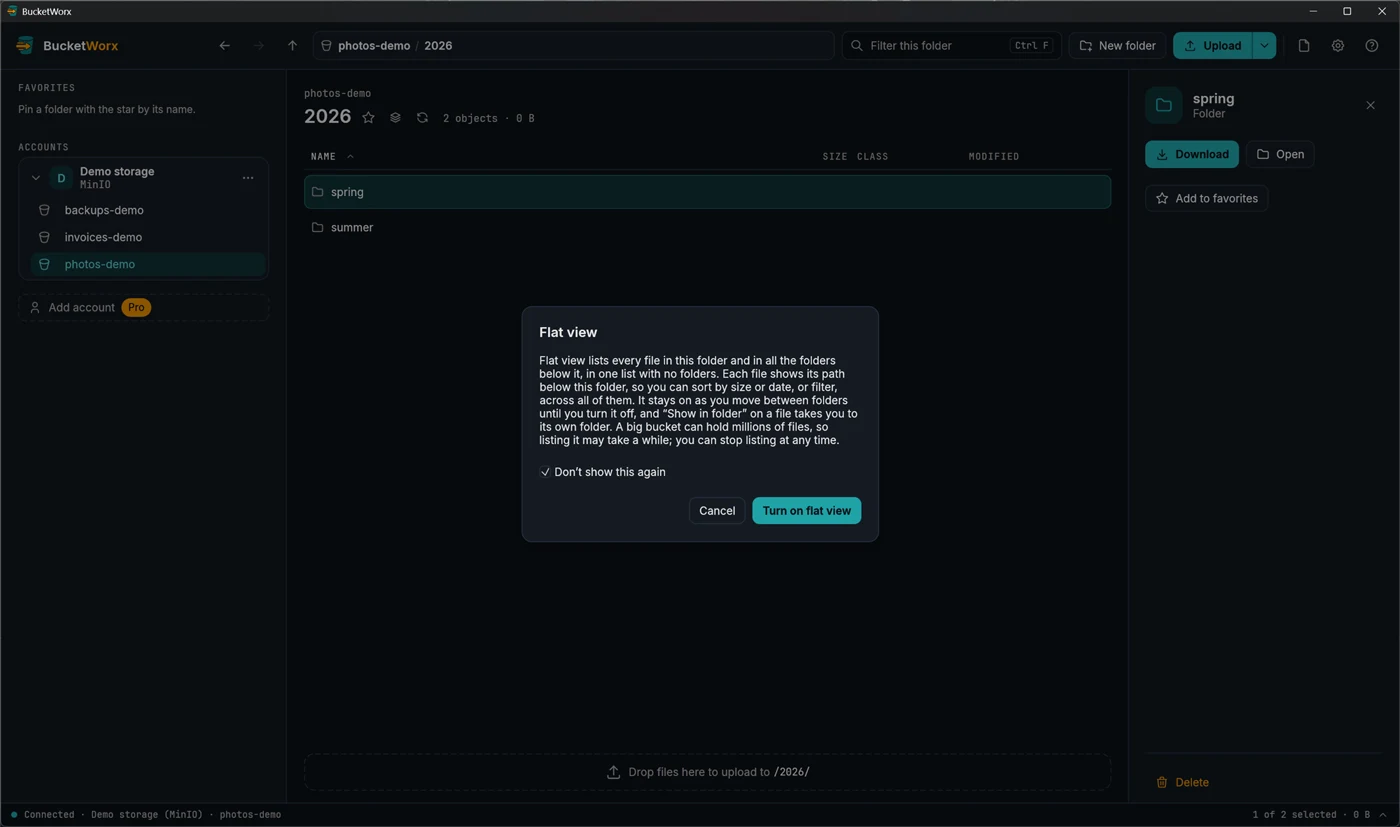
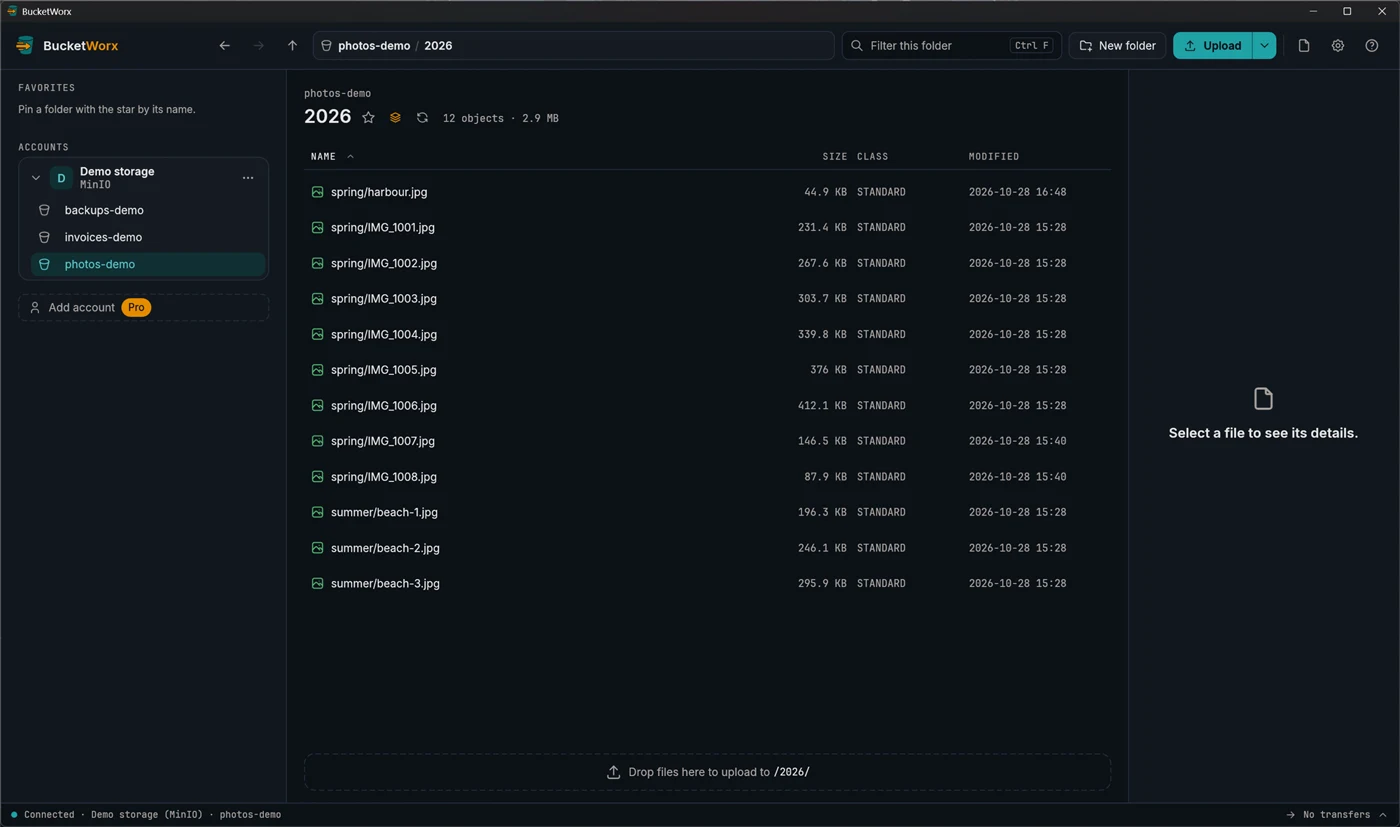
- Flat view. The stacked-layers button next to the folder's name lists every file below the folder in one list, at any depth. That makes it easy to sort a whole tree by size or date.
- Refresh with the circular arrow, F5 or Ctrl+R. In a very large folder, the stop button lets you stop listing and keep the rows loaded so far.
Select several items
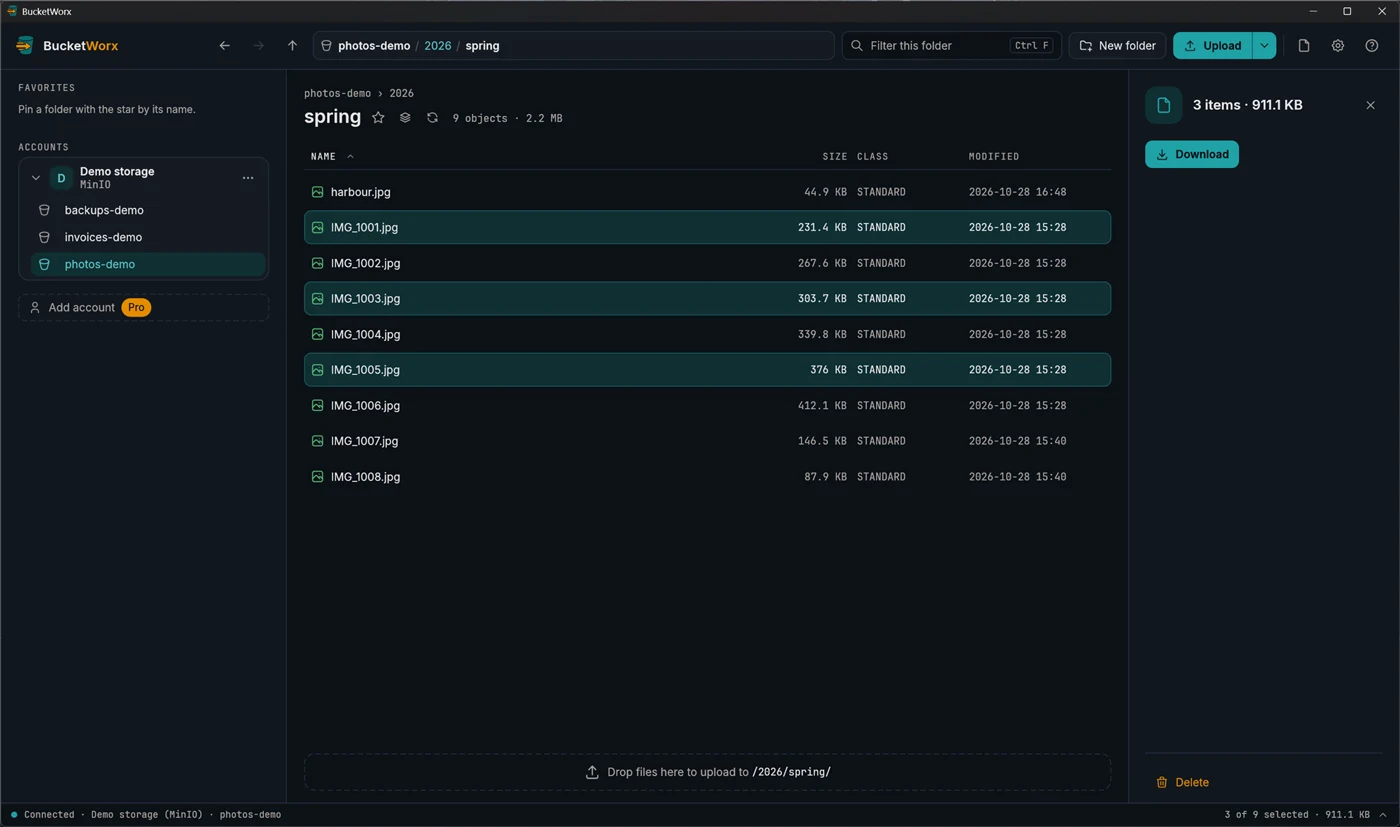
- Click a row to select it. Ctrl+click (Cmd+click) adds or removes one, and Shift+click selects a range.
- Ctrl+A selects everything in the list. Esc clears the selection.
- Ctrl+Shift+I inverts the selection: what was selected isn't, and everything else in the list is (from beta 4). Like select all, it only counts rows you can see with the current filter.
- The arrow keys, Home, End, Page Up and Page Down move the selection. Add Shift to extend it.
- Right-clicking a row that isn't selected selects it first.
- The status bar at the bottom shows what you have, such as "2 of 12 selected · 3 KB".
With several items selected, the details panel shows the count and total size, with Download and Delete for all of them.
See a file's details and preview it
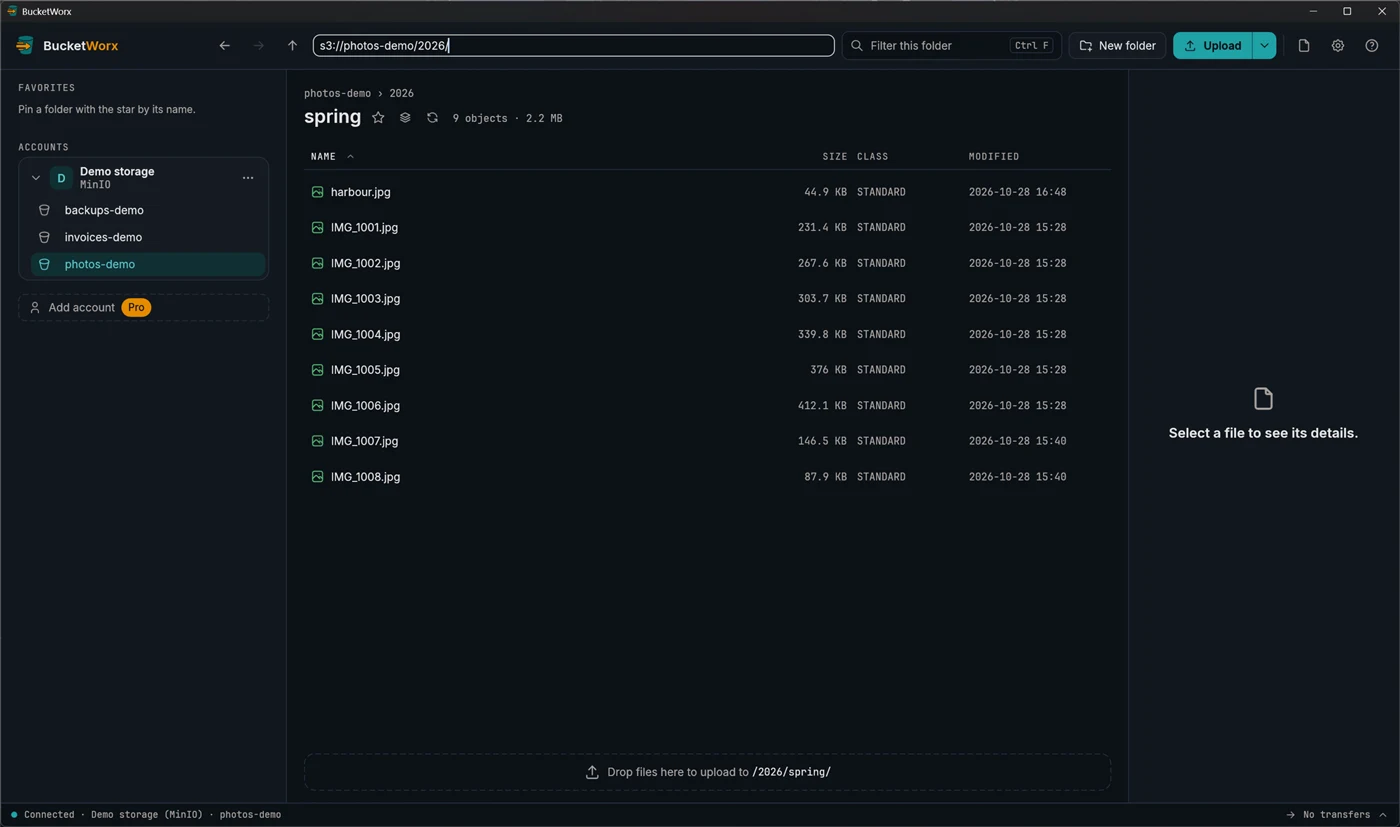
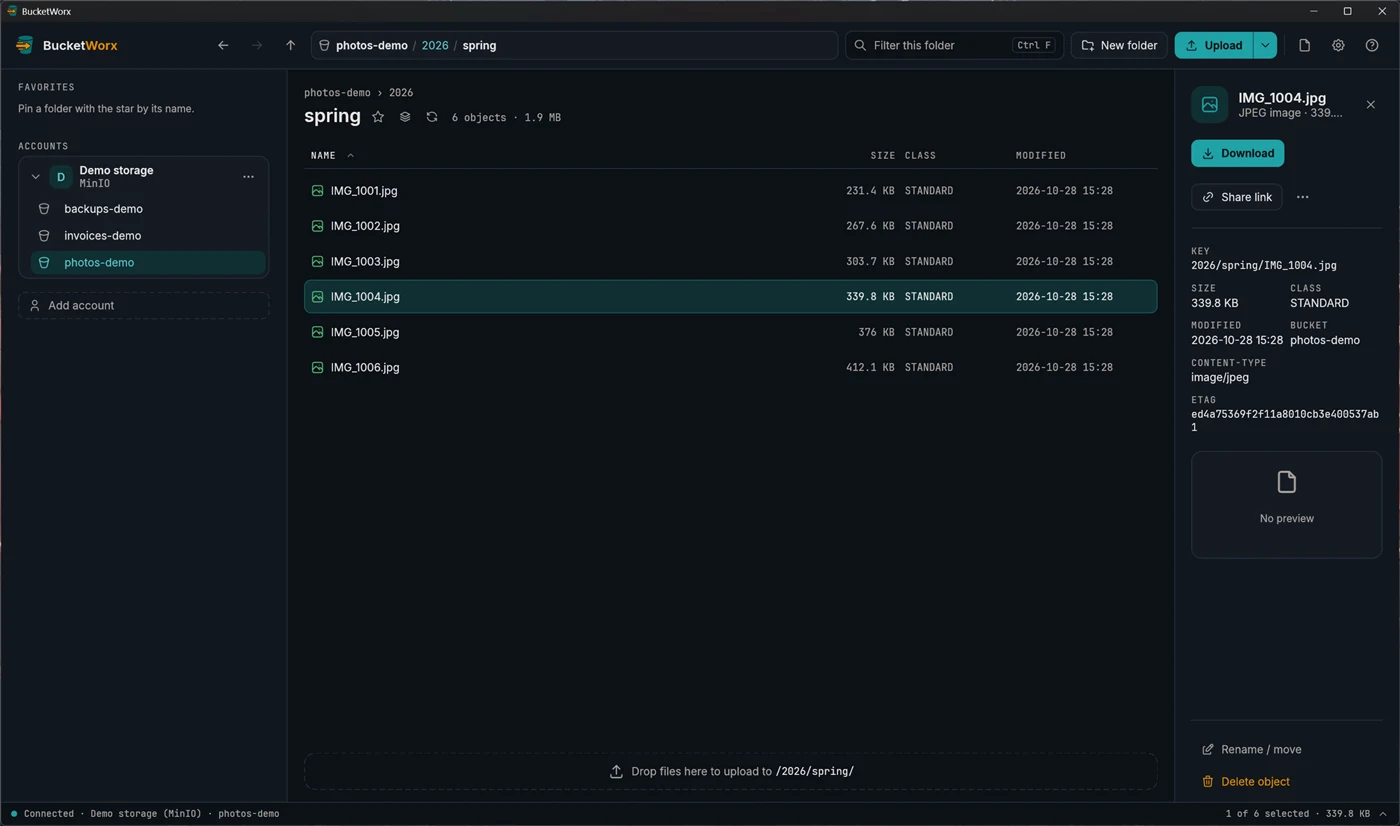
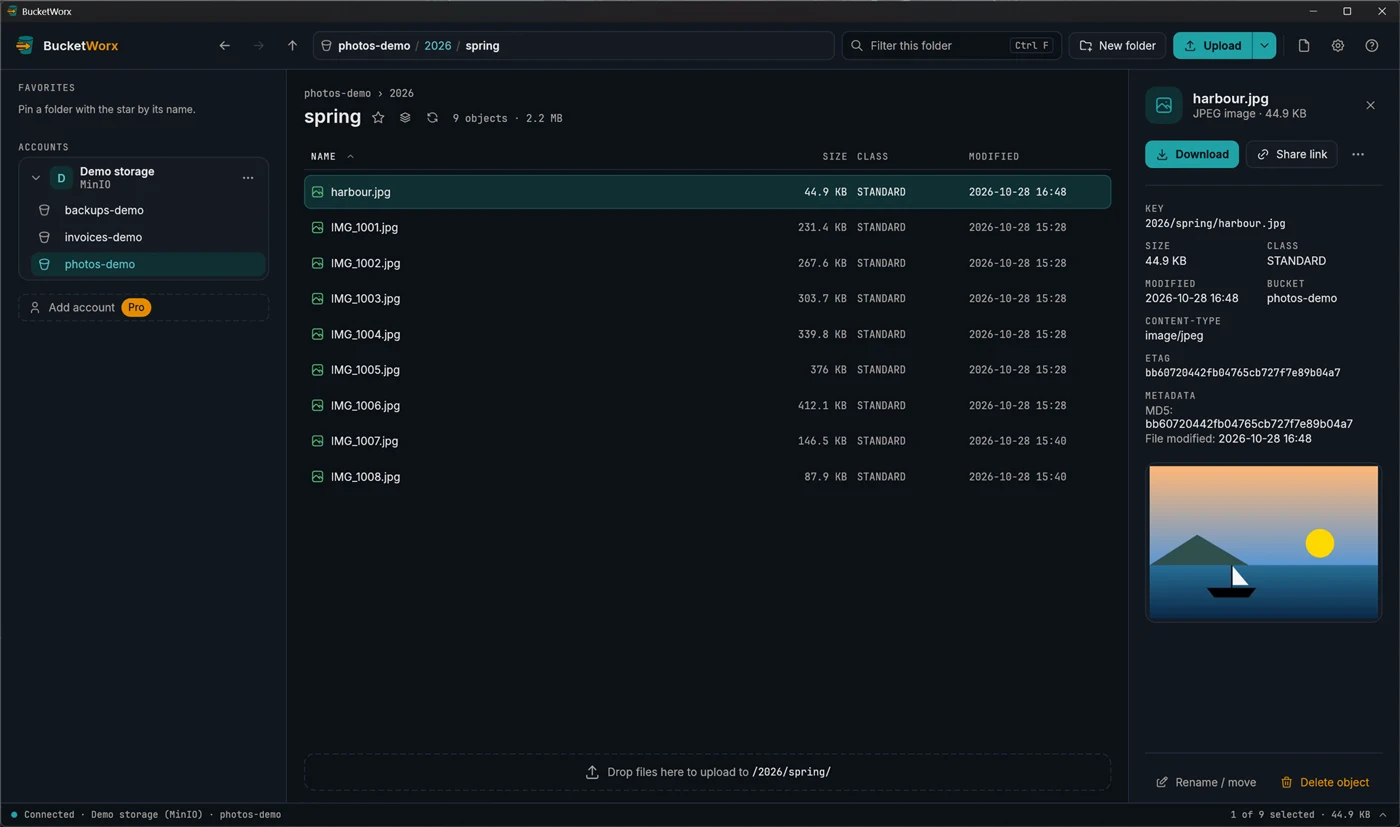
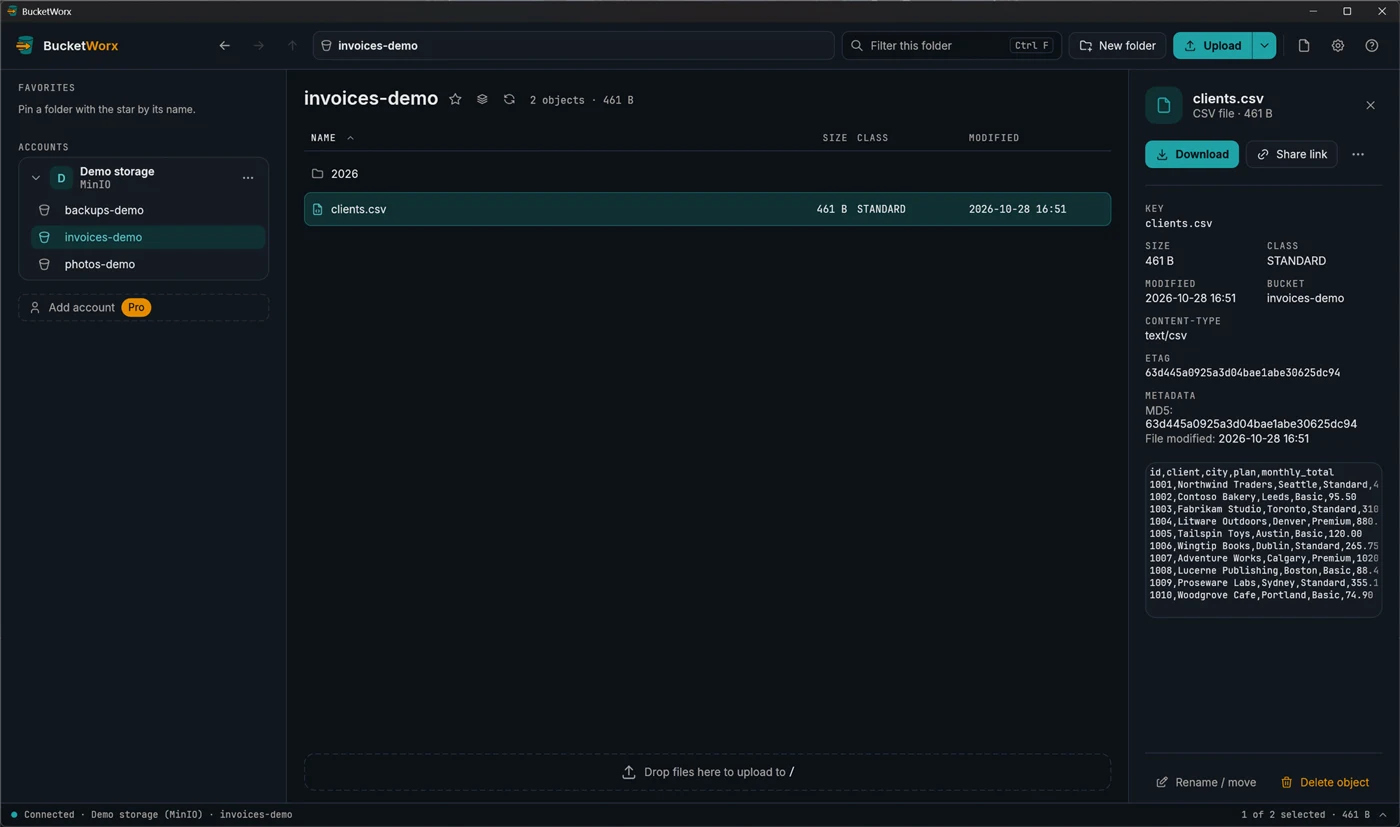
Click a file to open the details panel on the right. It shows the file's key (its full path in the bucket), size, storage class, content type, modified time and ETag, plus a preview where one is available. The same panel has the Download, Share link, Rename / move and Delete buttons.
Below those, the panel shows anything else the object carries: Cache-Control, Content-Disposition, Content-Encoding, Content-Language, encryption, its checksum, and custom metadata, one row per key. Uploads made by BucketWorx store the file's modified time and, for files under 16 MiB, its MD5, and these show as "File modified" and "MD5". Values can be selected and copied.
- Previews. Pictures (up to 20 MB) show scaled to fit, the right way up. Text, JSON, XML and common code and data files (.md .txt .csv .log .yaml .toml .html .css .js .ts .py and more) show their first 200 lines. Previews only load once you stop on a file, so arrowing through a folder downloads nothing on the way. From beta 5 many more code and config files preview as text (.php .cfm .tsx .sql .sh, Dockerfile and the like), and a text file can be edited in place. From beta 6 the preview has a Preview heading with a wrap button beside it that folds long lines instead of scrolling sideways (also in Settings, Appearance). Text stored gzipped (Content-Encoding gzip, as compressed JSON often is) previews what's inside, and a file that isn't really text shows no preview instead of garbage.
- After a download. From beta 6, once the selected file has finished downloading, the panel says which folder it went to and has Open file and Open folder.
- The "…" menu in the panel has Copy URL, Copy S3 URI, Copy key, Copy and Cut.
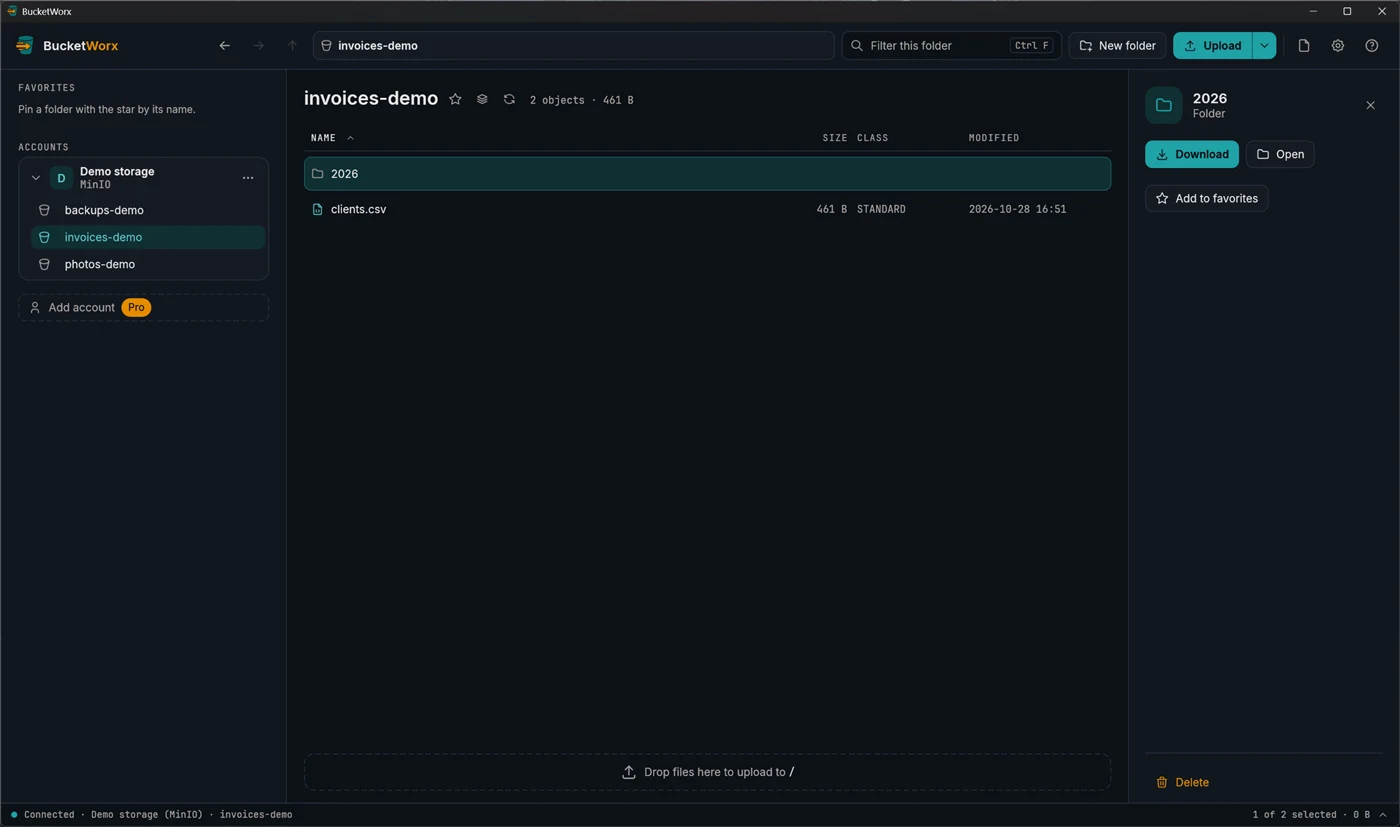
- A folder shows Download, Open, Add to favorites and Delete.
- Open or close the panel with the Details button in the toolbar or its × button. BucketWorx remembers which you chose.
Favorites
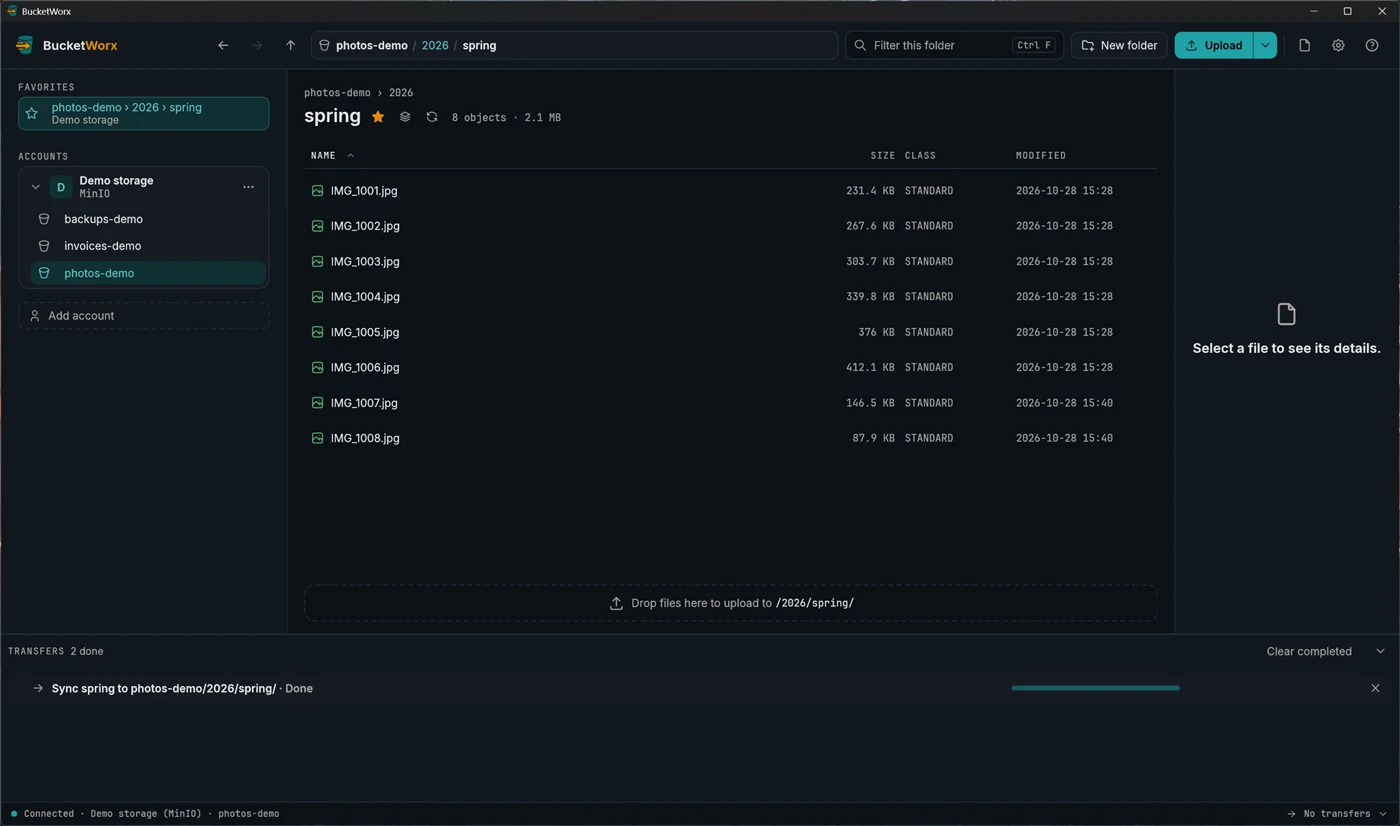
Click the star next to a folder's name to pin it. Favorites sit at the top of the sidebar with their account name under them, and one click opens the place. Click the star again, or right-click the favorite, to remove it. You can star a bucket too.
The command palette
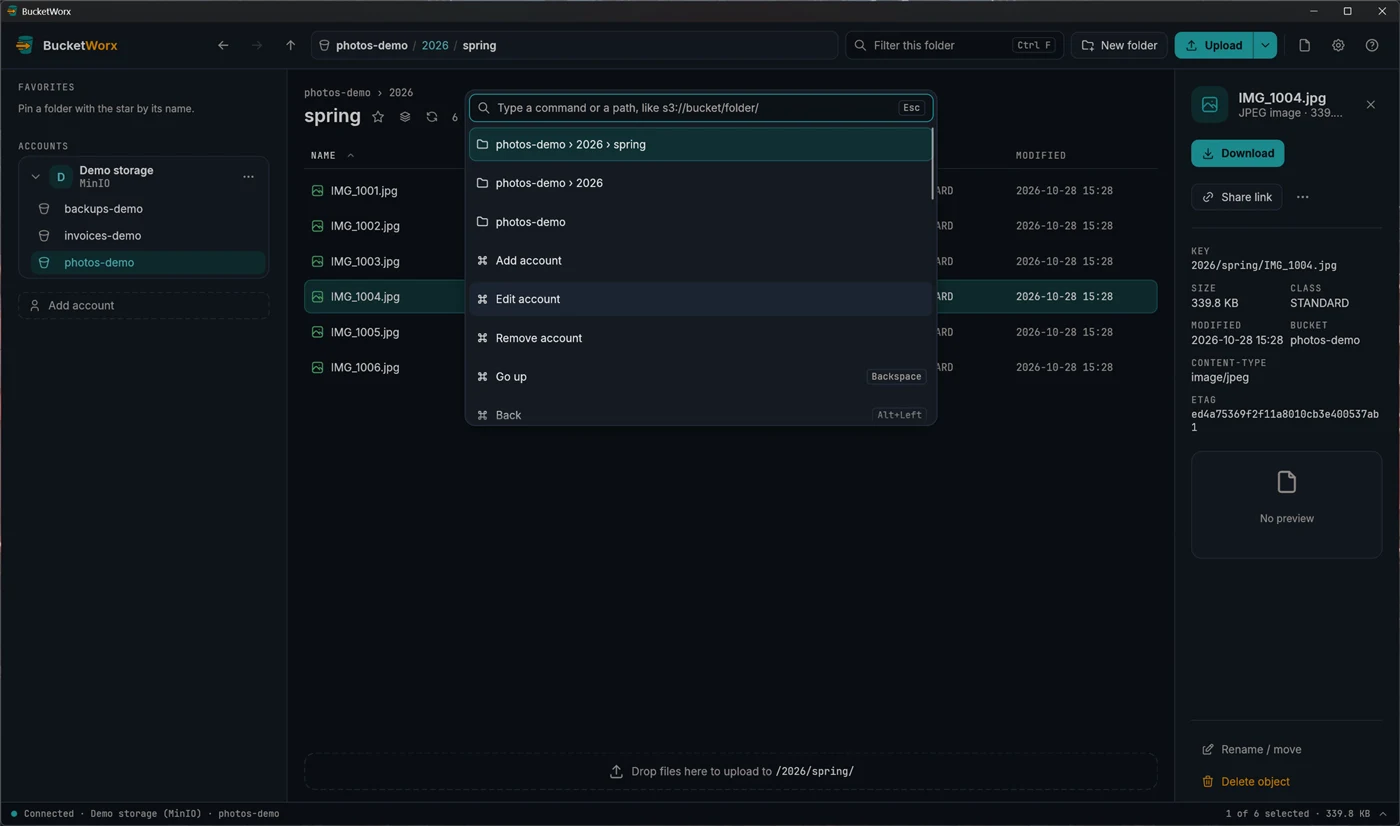
Press Ctrl+K (Cmd+K on a Mac) to search for any command or place. With nothing typed it lists your recent places, then every command. You can also paste an address such as s3://bucket/folder/ and press Enter to go straight there. Each command shows its keyboard shortcut, or says why it can't run right now.
More help
Topics
- Accounts and providers
- Uploads, downloads and transfers
- Managing files
- Old versions, deleted files and undelete
- Buckets
- Settings and keyboard shortcuts
- The BucketWorx command line (CLI)
- AI agents (MCP)
- Free and Pro, and your licence key
- When something goes wrong
Step-by-step guides
- Connect Cloudflare R2
- Connect Backblaze B2
- Connect Wasabi
- Connect MinIO or another S3-compatible server
- Sync a folder to a bucket
- Share a file with a link
- Copy files between buckets and accounts
- How providers differ, and what BucketWorx does about it
All help, including installing BucketWorx.