Managing files
Last updated: November 10, 2026
Everything you can do to the files themselves: rename, new folders, delete, share links, editing a text file, headers and metadata, tags, and who can see a file.
Rename, new folder and delete
Right-click a file or folder for its menu, or select it and use the buttons in the details panel. To copy or move, see Copy and move between places.
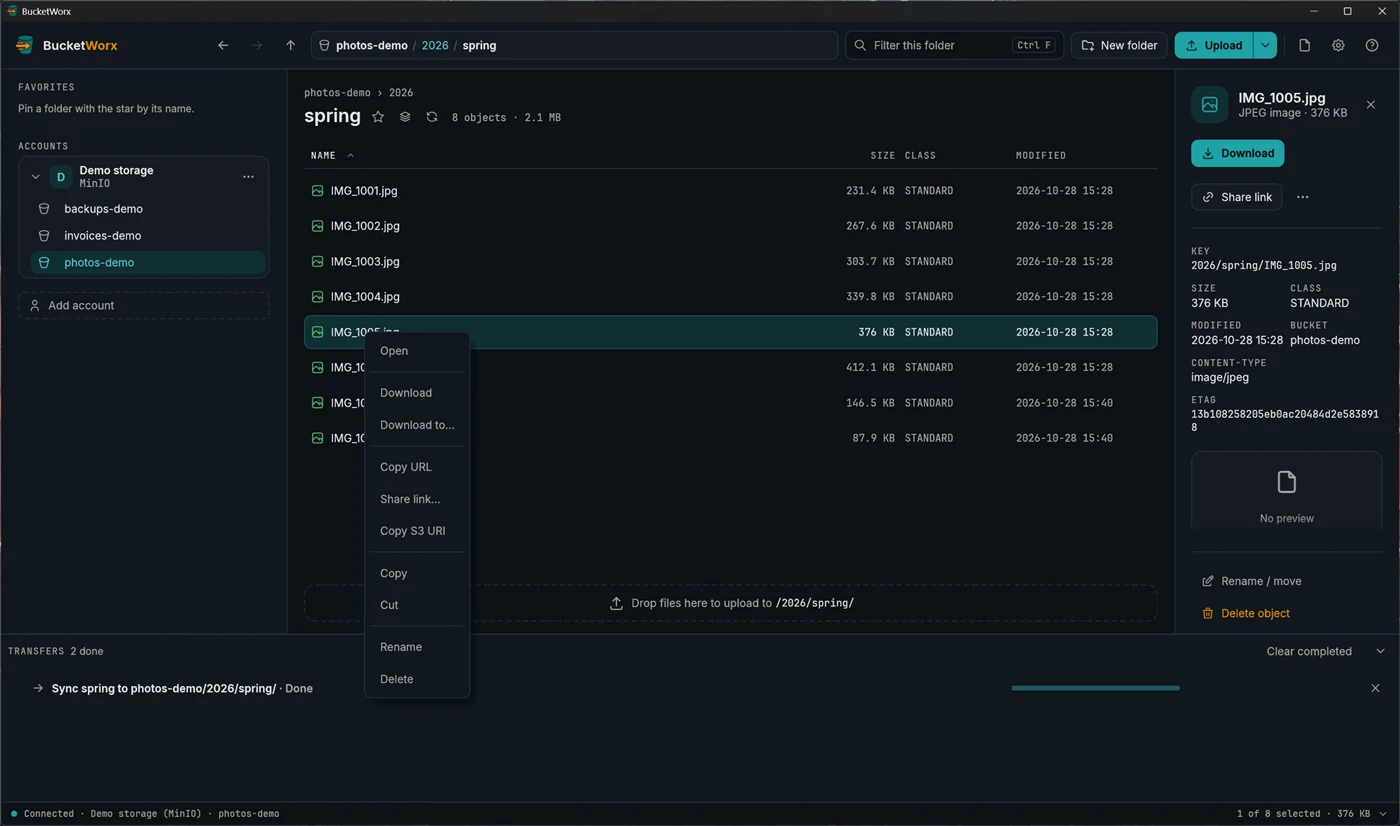
- Copy S3 URI copies s3://bucket/key. Copy URL copies the object's web address, which only opens for public objects. Use Share link for private ones.
- Copy or Cut, then Paste in another folder, copies or moves objects between folders and buckets (Ctrl+C, Ctrl+X, Ctrl+V). Pasting into a different account needs Pro.
- Rename (F2) renames a file, or a folder with everything in it. In object storage a rename is really a copy and a delete, so it can take a moment on a big folder.
New folder
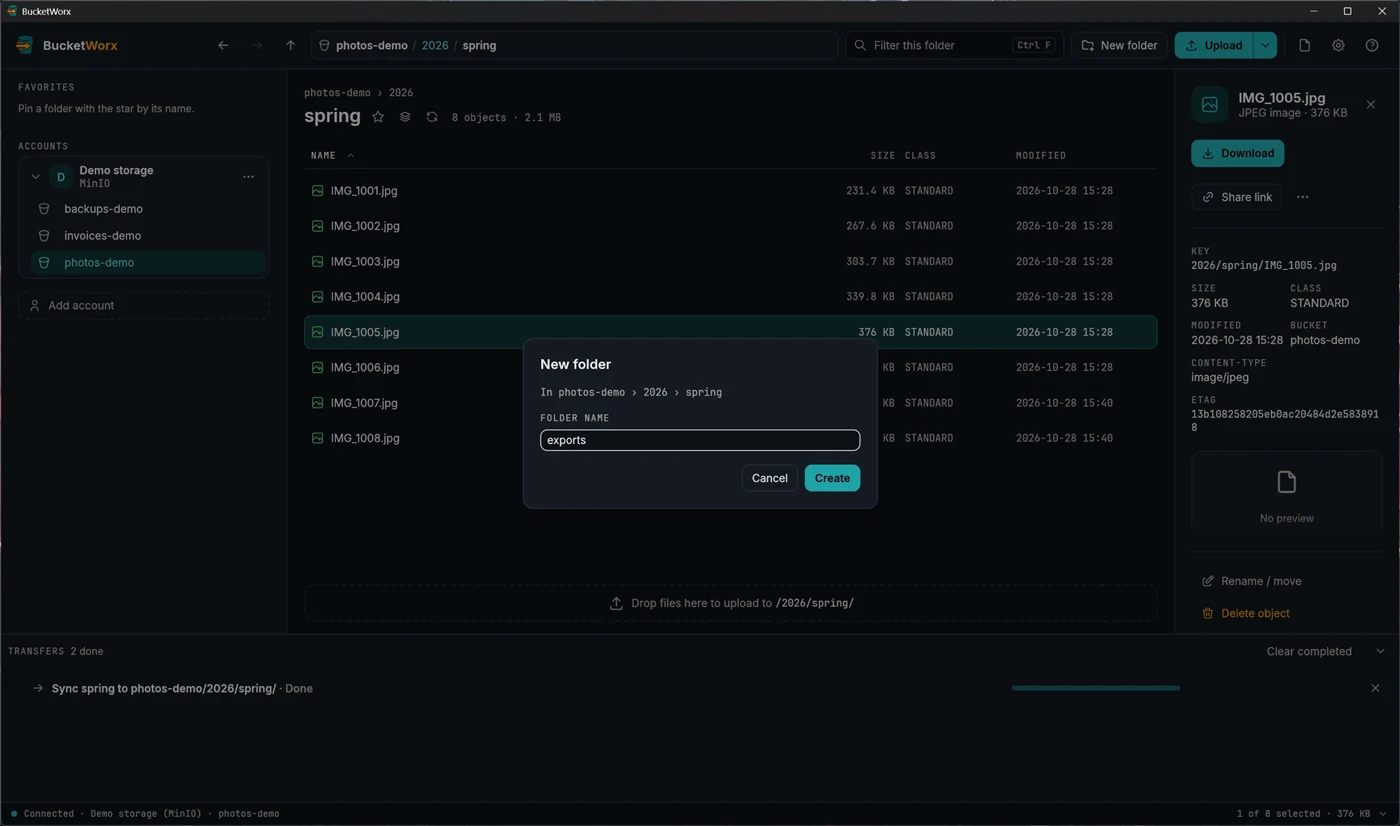
New folder in the toolbar asks for a name and says where it will be created. The name can't contain a slash.
Delete
Select files and press Delete, or choose Delete from the menu. BucketWorx always asks first.
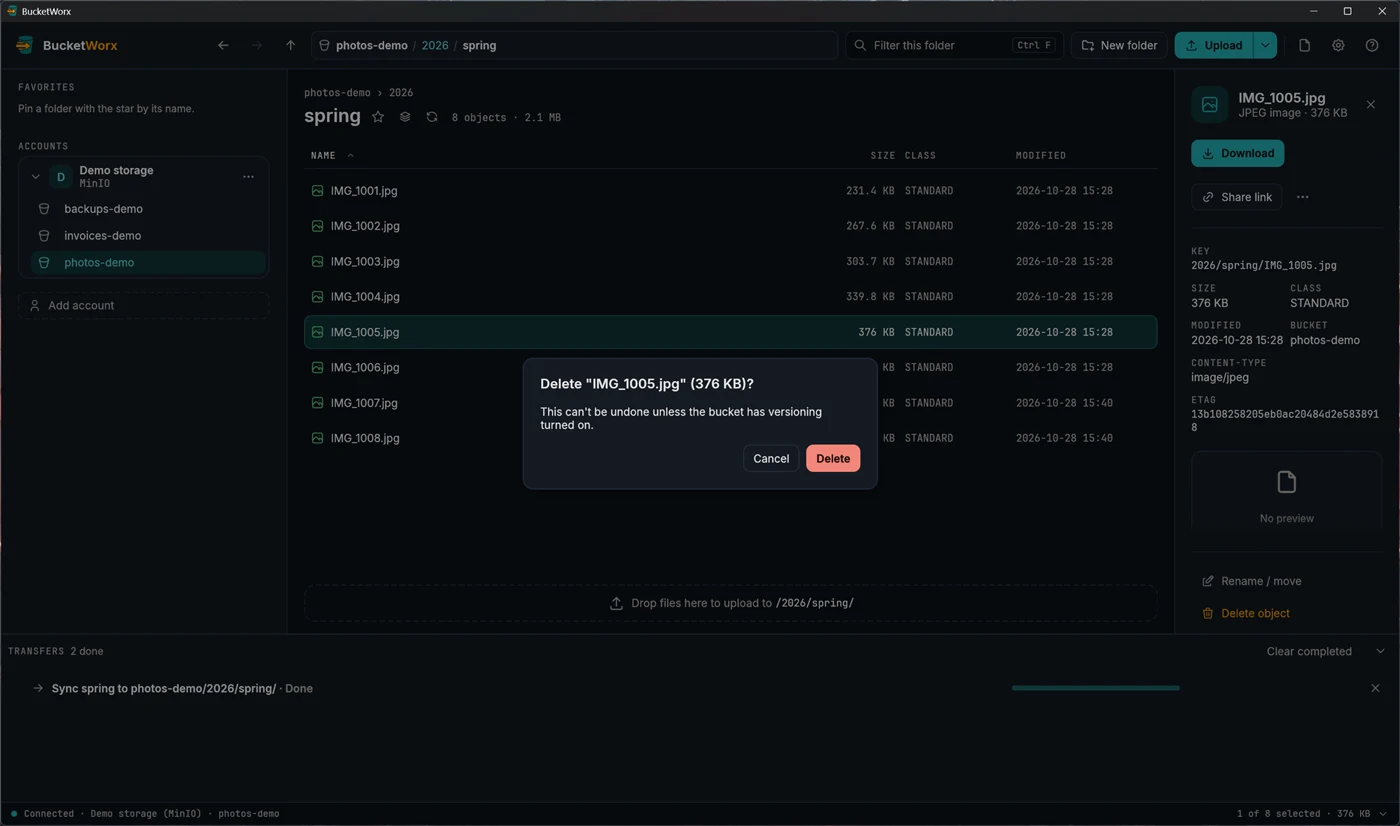
Deleting is permanent unless the bucket has versioning turned on at the provider. There is no recycle bin.
Share a file with a link
A share link lets someone download one file without having an account or keys. Select the file, click Share link, choose how long the link should work (1 hour, 1 day, 7 days, or a date you pick), and press Copy.
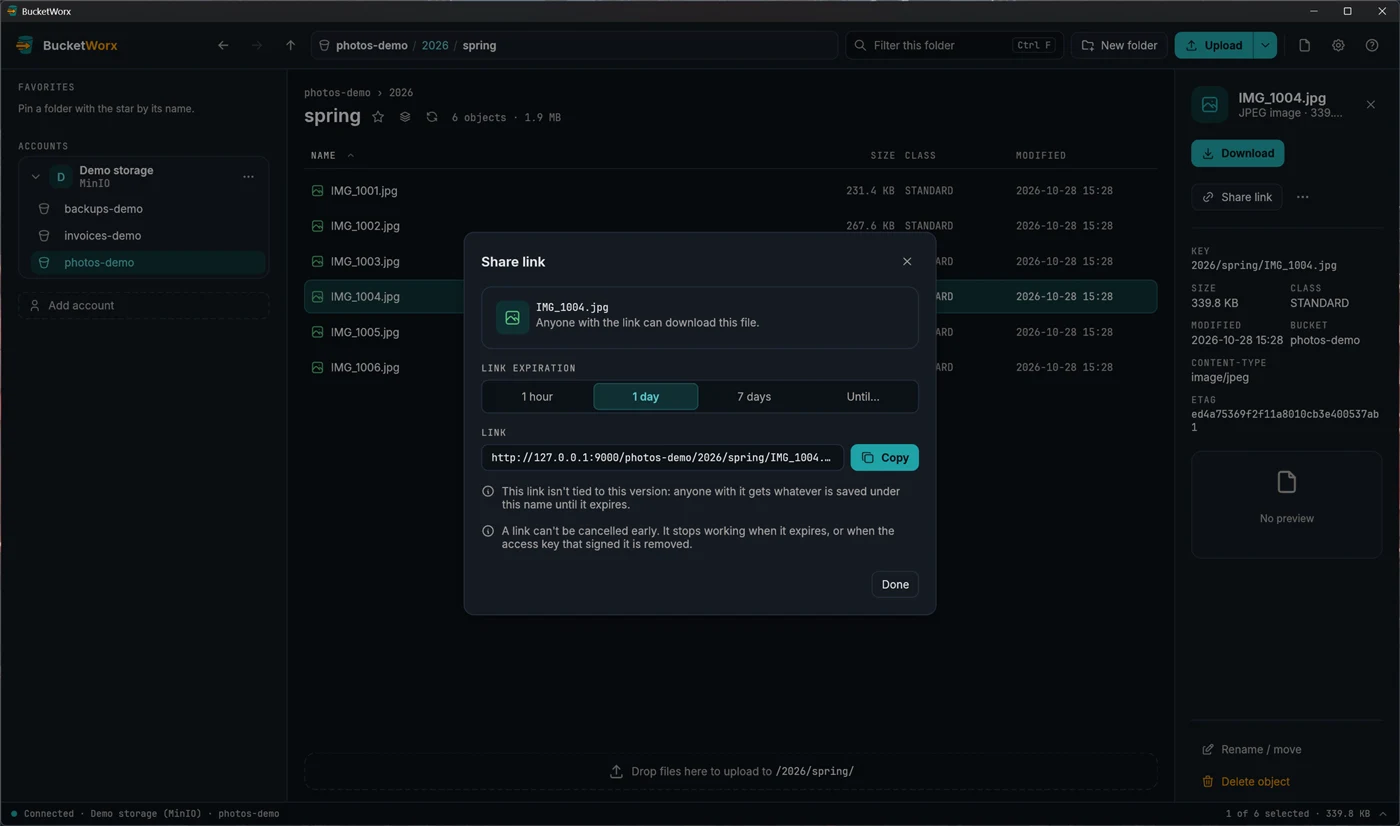
Two things to know. A link for one file is not tied to one version of it: whoever opens it gets whatever is saved under that name until it expires. And a link can't be cancelled early. It stops working when it expires, or when the access key that signed it is removed. Choose the shortest time that does the job.
Links and URLs for several files
From beta 5, select several files and right-click: Copy URL, Copy S3 URI and Share link… work on all of them, one line per file in the order shown. Share link asks for one expiry for the lot ("12 files, links expire in 7 days"), and each link is tied to the version each file has now, so a later upload doesn't change what it gives. Folders are skipped: for everything in a folder, use Export list… with Include URLs, which is also the way past 1,000 files. To share an older version, see old versions.
Upload links: let someone send you a file
From beta 5, Upload link… on a folder's right-click menu (or in the command palette) makes a link that lets someone upload one file into that folder, without an account or keys: a share link in reverse. Choose the file name it will be saved as, how long the link works (the same choices as Share link) and, if you like, a Content-Type. Make link shows the link and a ready-made upload command to send with it, for macOS and Linux or for Windows PowerShell.
Anyone with the link can upload until it expires. An upload replaces a file already saved under that name, or adds a new version if the bucket has versioning on, and the link sets no size limit. Send it only to the person who needs it, with the shortest time that does the job. If you set a Content-Type, an upload of a different type is refused.
Edit a text file in the bucket
From beta 5, Edit text… opens a text file in an editor and saves it back to the bucket, with no download and upload in between. It's on a file's right-click menu, in the … menu of the details panel, and in the command palette.
- Any text file works, code included: index.php, app.ts, page.cfm, styles.scss, Dockerfile and .env, as well as JSON, XML, Markdown, CSV and log files. What counts is what's in the file, not its name or Content-Type. A file opens if it is UTF-8 text. A binary file, or text in another encoding such as UTF-16, isn't opened, and the editor says why.
- Files up to 1 MB. A bigger file isn't downloaded, and the editor says so. Download it, edit it and upload it again instead.
- Save (or Ctrl+S, Cmd+S on a Mac) writes your text back. The file keeps its line endings, Content-Type, headers, metadata, tags, storage class and who can see it. In a bucket with versioning each save makes a new version, and the editor tells you, so the text you replaced can be brought back.
- Closing asks first when there is text you haven't saved. That goes for closing the editor and for closing the BucketWorx window.
- Syntax highlighting colours comments, strings and keywords. Turn it on or off with the checkbox in the editor or in Settings, Appearance; the choice is remembered. Colouring is exact for Rust, Python, TOML and C or C++, approximate for other code, and off for files over 128 KB.
If the file changed in the bucket after you opened it, Save writes nothing and tells you. Someone else's change is never overwritten. Your text stays in the editor: Copy text keeps it on the clipboard, and Reload fetches the newer file so you can paste your changes in and save.
Headers, tags and who can see a file
Edit headers
Edit headers… (in a file's details or its right-click menu) changes Content-Type, Cache-Control, Content-Disposition, Content-Encoding, Content-Language, Expires, a website redirect and your own metadata. What you type is checked as you type, and an emptied field removes that header. For several files or a whole folder, tick only the fields you want to change: everything else stays as each file has it.
S3 can't change headers in place, so each file is copied onto itself. Its modified date changes, and in a bucket with versioning it gets a new version and the old one stays.
Tags
A file's tags are under its details: click a value to edit it, × to remove one, or Add tag. Changing tags doesn't copy the file, so its date stays. Cloudflare R2, Backblaze B2 and Supabase Storage have no tags, so the section isn't shown there.
From beta 5, Edit tags… (on the right-click menu, or in the command palette) changes tags on many files at once: a selection, whole folders, or both. Add rows of tags to set (a key you already have gets the new value) and keys to remove; everything else each file has stays. BucketWorx counts the files first ("2 objects, at least 120 in folders" while it's still listing), then Change tags queues one job per file in the transfer drawer, where you can pause, resume after a restart, cancel or retry.
- A file that changed is left alone. If a file was replaced after you started, it's reported as changed instead of getting tags meant for the old one. In a bucket with versioning, only the version you saw is tagged.
- Limits are checked per file. S3 allows 10 tags on a file: one that would go over keeps its tags and is reported. A file that already has exactly what you asked for is skipped and counted.
- Tags can matter. A lifecycle rule or a bucket policy can act on tags, so changing them can decide when files are deleted or who can read them. The dialog says so.
Make public and make private
Make public… and Make private… (on the right-click menu of files, selections and folders) change who can read files through their permissions. Make public asks first, in red, because anyone on the internet will be able to read them. For a folder, it changes the files there now; new files don't follow it. If the bucket is set up to refuse it (permissions turned off, or a block on public access), BucketWorx says why and offers the bucket's Properties instead. Cloudflare R2, Backblaze B2, MinIO, Neon and Supabase Storage don't have permissions on single files, so these aren't offered there. A file's details show who can reach it under Access.
More help
Topics
- Accounts and providers
- Browsing your buckets
- Uploads, downloads and transfers
- Old versions, deleted files and undelete
- Buckets
- Settings and keyboard shortcuts
- The BucketWorx command line (CLI)
- AI agents (MCP)
- Free and Pro, and your licence key
- When something goes wrong
Step-by-step guides
- Connect Cloudflare R2
- Connect Backblaze B2
- Connect Wasabi
- Connect MinIO or another S3-compatible server
- Sync a folder to a bucket
- Share a file with a link
- Copy files between buckets and accounts
- How providers differ, and what BucketWorx does about it
All help, including installing BucketWorx.