Settings and keyboard shortcuts
Last updated: November 10, 2026
What each settings page does, and the keyboard shortcuts for the things you do most.
Settings
Open Settings with the gear icon at the top right. Changes save automatically.
Transfers
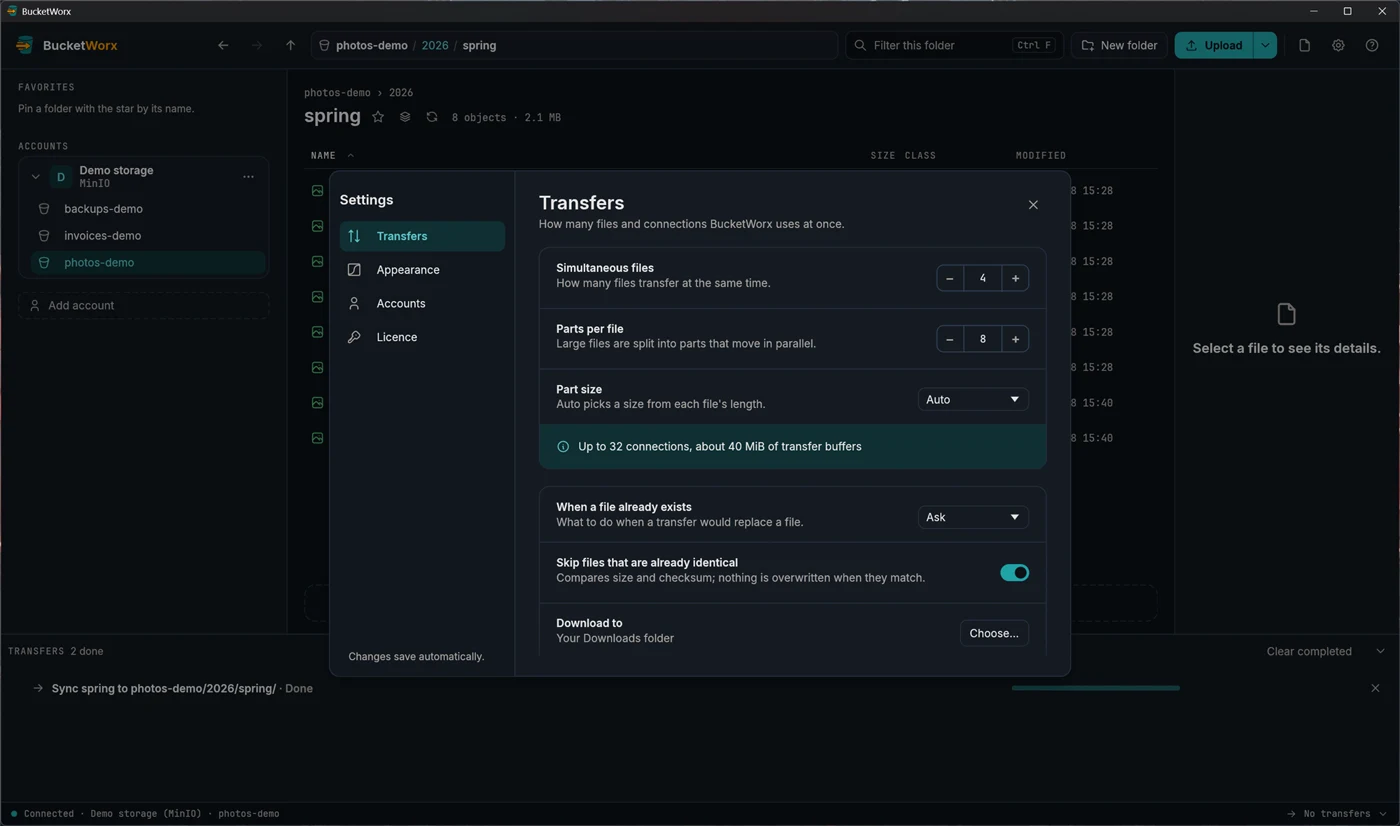
- Simultaneous files (1 to 32, default 4): how many files move at once.
- Parts per file (1 to 32, default 8): how many pieces of one large file move in parallel. The note under these settings tells you how many connections and how much memory they use.
- Part size: Auto picks a size from each file's length. You can also fix it between 8 and 512 MiB. Files under 16 MiB go in a single request.
- When a file already exists: the default answer for conflicts.
- Skip files that are already identical: on by default.
- Download to: the folder downloads go to. It starts as your Downloads folder.
Uploads: rules for new uploads
From beta 5, Settings, Uploads holds rules that set headers, metadata, tags or a storage class on files as they're uploaded, so you don't have to set them each time. For example, a rule for *.css can give every stylesheet a long Cache-Control.
- What a rule matches: a bucket name (it can use *, and can be limited to one account) and a file mask. *.css matches at any depth; assets/**/*.js counts from the top of the bucket.
- What it sets: Cache-Control, Content-Type, Content-Disposition, Content-Encoding, Content-Language, Expires, your own metadata, tags and a storage class.
- Several rules can match. They apply in list order: a later rule's value wins for the same field, and metadata and tags combine key by key. Anything you choose for one upload beats every rule.
- Where they apply: every new upload of a file from your computer, from the window, the command line or an AI agent, including folder sync. Not copies, moves, renames or Edit headers. A paused upload resumes with the values it started with.
- Providers that can't take something just don't get it: tags aren't sent to Cloudflare R2, Backblaze B2 or Supabase Storage, and a storage class only to AWS. The rule editor lists which accounts skip what, and the transfer notes it.
- A rule with a mistake is kept as you wrote it but not used, and BucketWorx names it when it starts.
Appearance
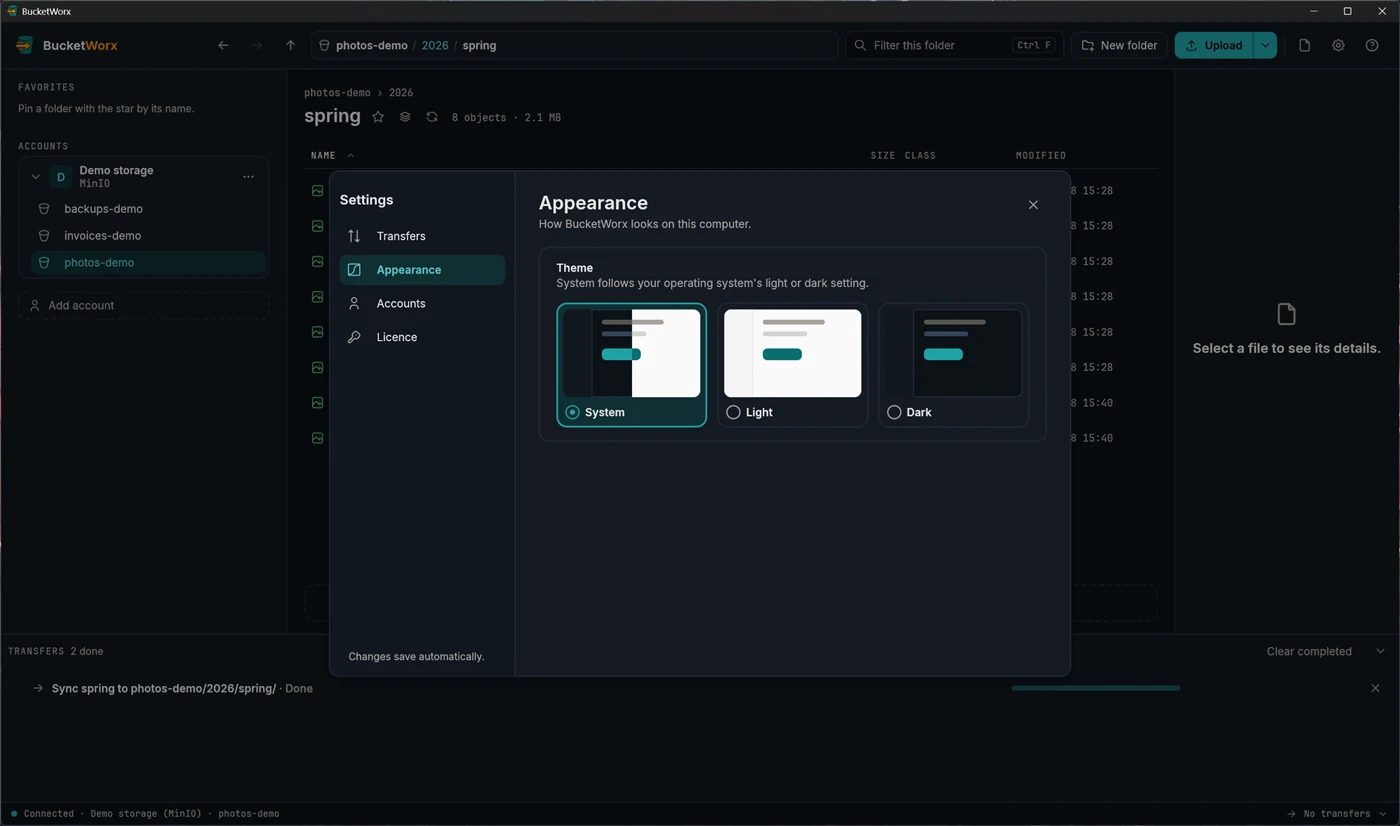
Choose System (follows your operating system), Light or Dark. From beta 5, Syntax highlighting turns the colouring in the text editor on or off. From beta 6, Wrap text previews folds long lines in the details panel's text preview instead of scrolling sideways; the button beside the preview changes the same setting.
Accounts
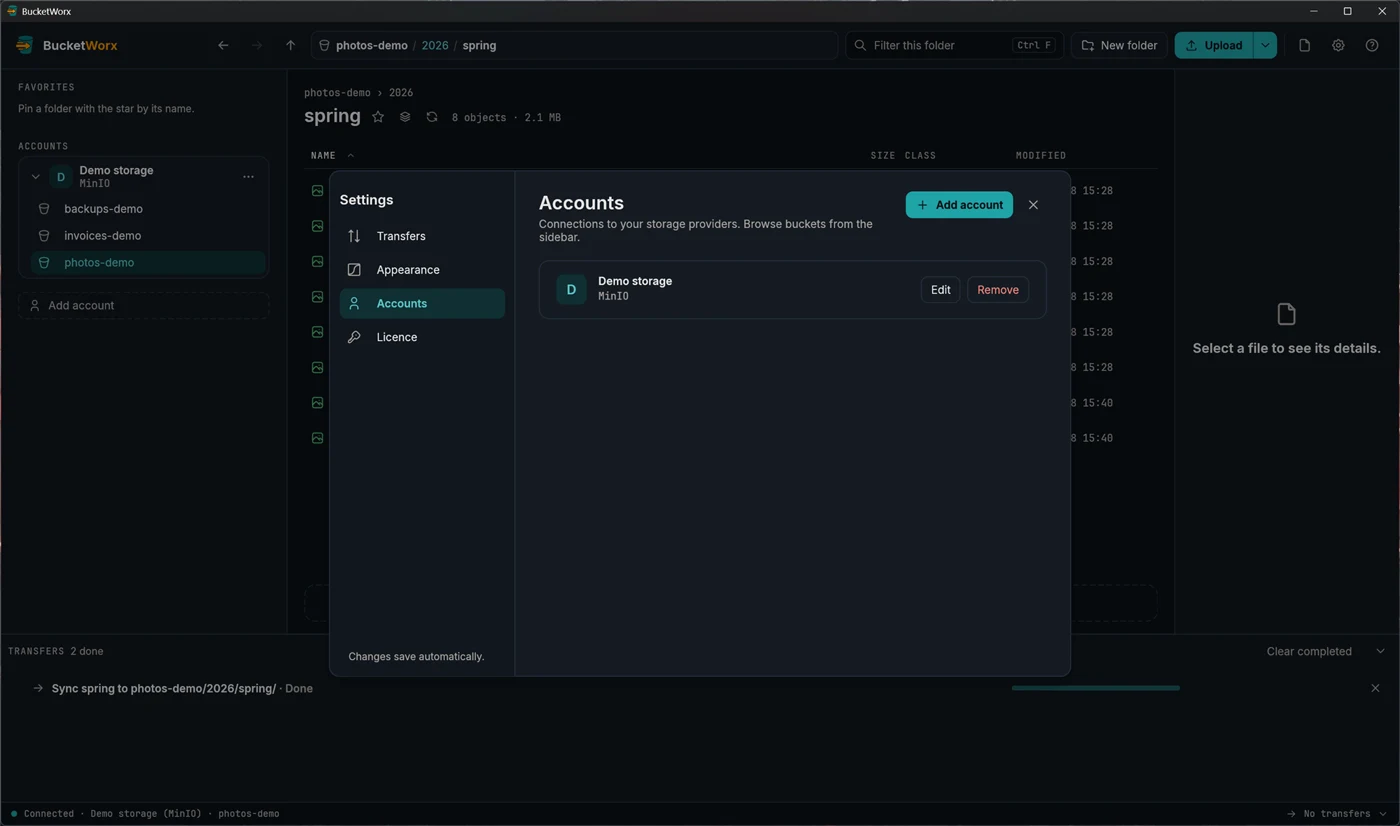
Add, edit or remove accounts here. To change an account's keys, edit it and type the new secret. Leave the secret empty to keep the saved one. Removing an account asks first, removes its key from your computer, and leaves your buckets alone.
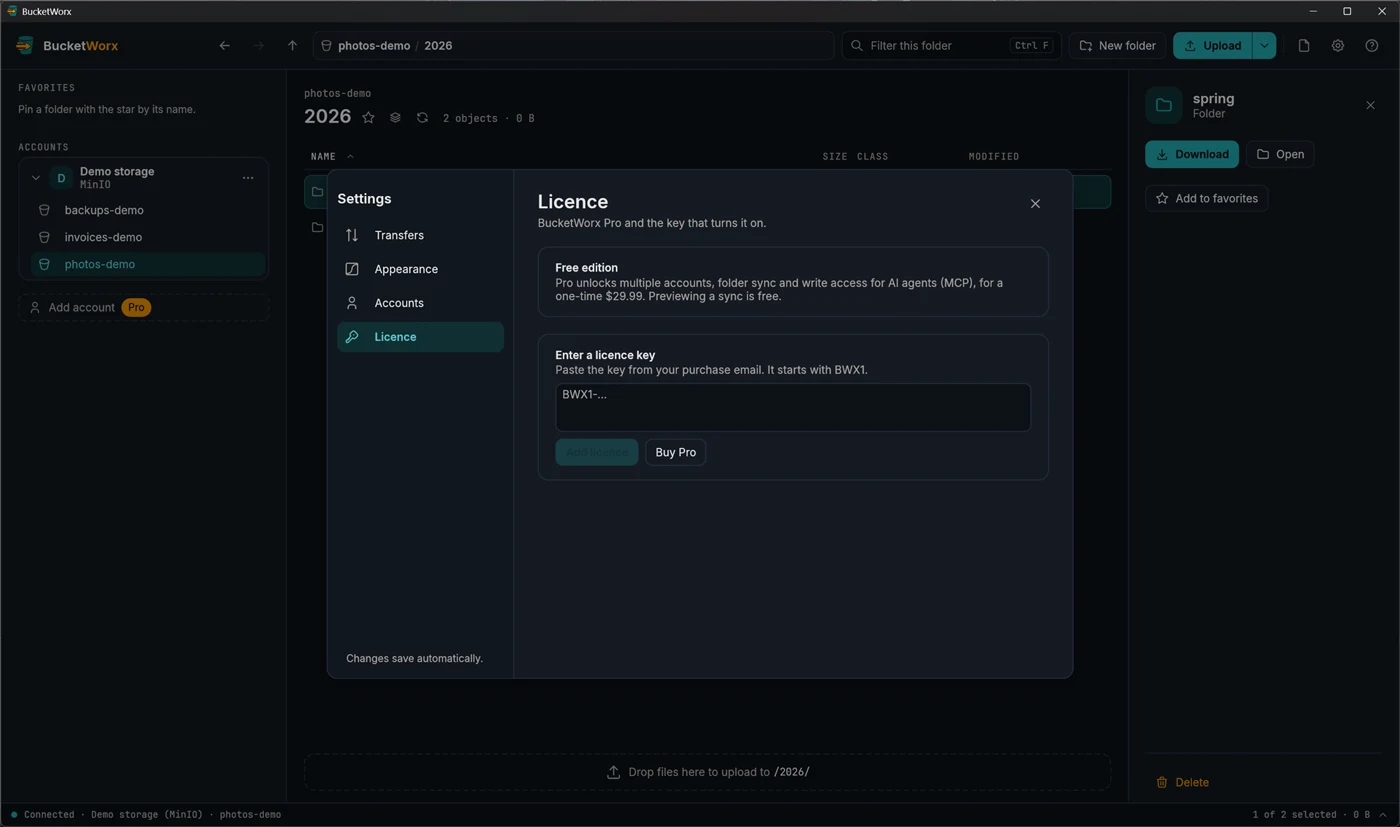
Licence
This page shows whether you are on the free edition or Pro, and lets you add or remove a licence key. See Free and Pro.
Updates
BucketWorx asks bucketworx.com for the newest version when it starts, and once a day while it stays open. When there's a newer one, a banner says so with a Download button that opens its download page. BucketWorx never downloads or installs anything by itself. Turn the automatic check off here if you'd rather not.
From beta 4, Check now looks straight away, even with the automatic check off. It says "You have the latest version", offers the newer one, or tells you it couldn't reach bucketworx.com. The command palette has Check for updates too.
Keyboard shortcuts
On a Mac, use Cmd where this table says Ctrl.
| Ctrl+K | Command palette |
|---|---|
| Ctrl+F | Filter this folder |
| Ctrl+L | Type a path |
| F5 or Ctrl+R | Refresh |
| Alt+← / Alt+→ | Back and forward |
| Backspace | Up one folder |
| Enter | Open a folder, or show a file's details |
| F2 | Rename |
| Delete | Delete the selection, after asking |
| Ctrl+A | Select all |
| Ctrl+Shift+I | Invert the selection (from beta 4) |
| Ctrl+C / X / V | Copy, cut and paste |
| Arrow keys, Home, End | Move the selection (add Shift to extend it) |
| Esc | Close a dialog or the palette, or clear the selection |
More help
Topics
- Accounts and providers
- Browsing your buckets
- Uploads, downloads and transfers
- Managing files
- Old versions, deleted files and undelete
- Buckets
- The BucketWorx command line (CLI)
- AI agents (MCP)
- Free and Pro, and your licence key
- When something goes wrong
Step-by-step guides
- Connect Cloudflare R2
- Connect Backblaze B2
- Connect Wasabi
- Connect MinIO or another S3-compatible server
- Sync a folder to a bucket
- Share a file with a link
- Copy files between buckets and accounts
- How providers differ, and what BucketWorx does about it
All help, including installing BucketWorx.