Uploads, downloads and transfers
Last updated: November 10, 2026
Moving files: uploading and downloading, pausing and resuming, what BucketWorx does when a file is already there, and copying or moving between folders, buckets and accounts.
Upload and download
Upload
The quickest way is to drag files or folders from your file manager onto the window. They upload to the folder you are looking at, or into a folder row if you drop them on it. The drop area at the bottom of the list always says where files will go.
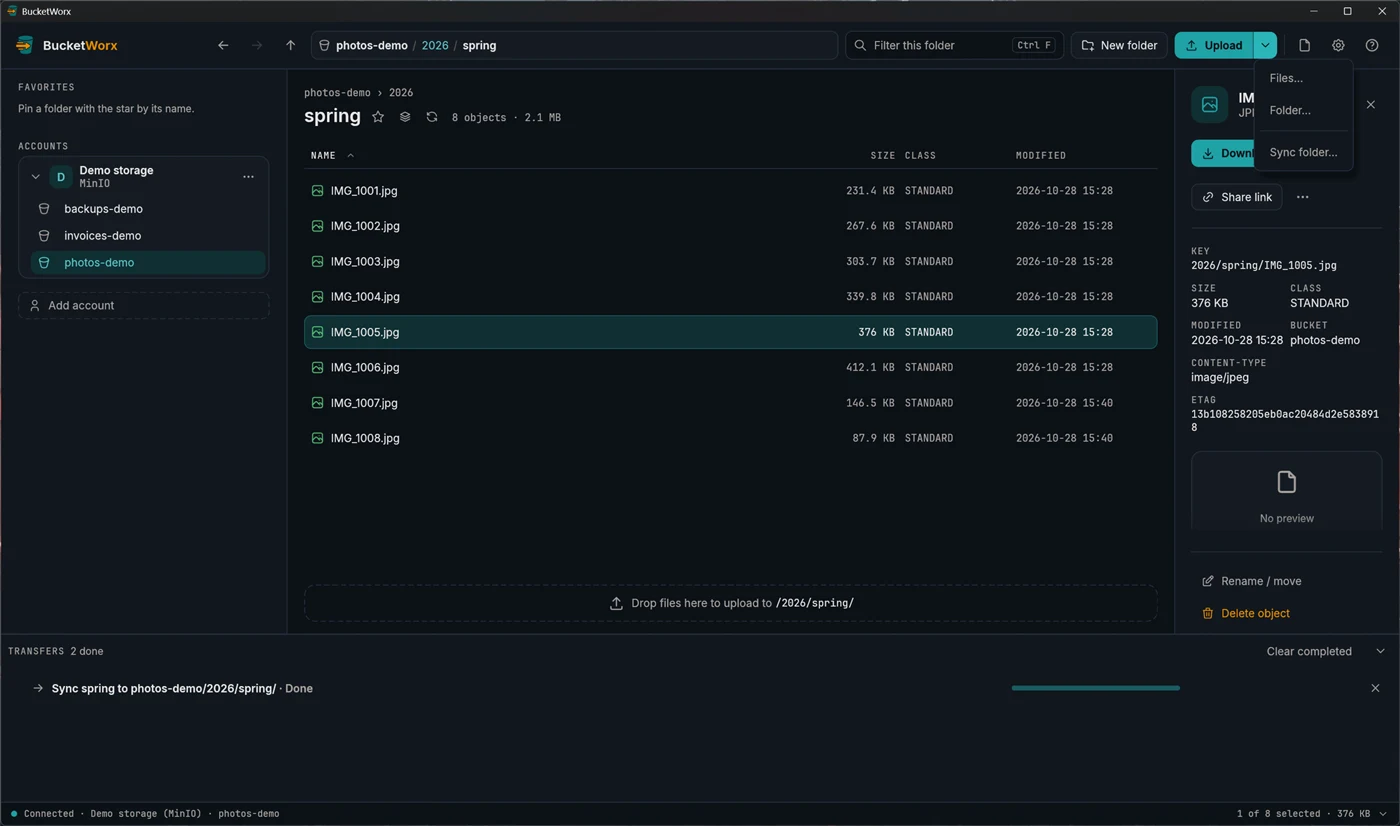
You can also use the Upload button, and its arrow opens a menu with Files…, Folder… and Sync folder….
To give uploads the same headers, tags or storage class every time (a long cache time for *.css, say), set up upload rules (from beta 5).
Download
Select files or folders and press Download to save them to your Downloads folder. Use Download to… (right-click) to pick a folder instead. Folders download with everything inside them, and keep their paths. To save a whole bucket, right-click it in the sidebar and choose Download bucket. You can change the default download folder in Settings. From beta 6 the transfers drawer opens when a download starts, and once a file is done its details panel has Open file and Open folder.
Watch progress
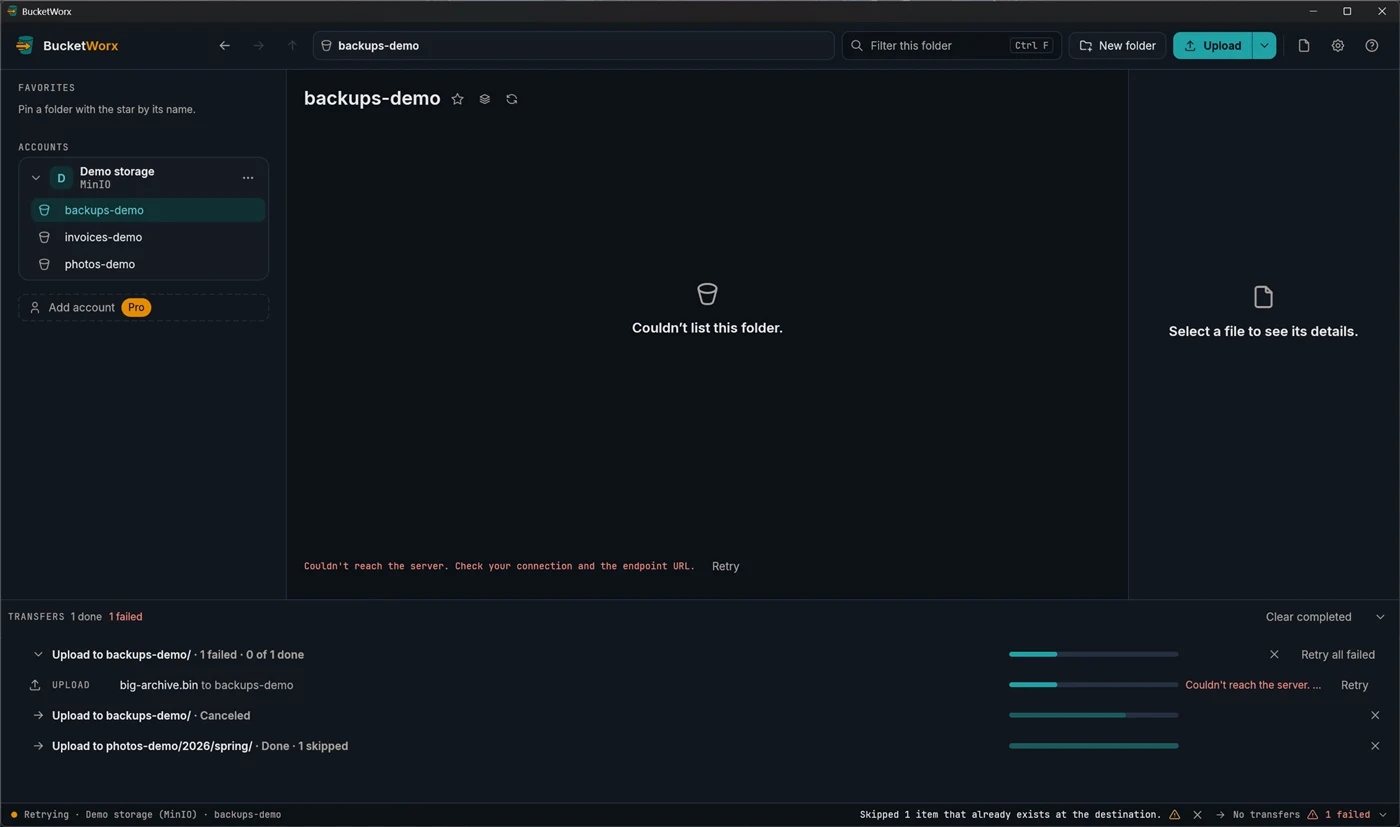
Transfers run in the drawer at the bottom of the window, and the status bar shows a summary. You can pause, resume or cancel one transfer or a whole batch. Big files are split into parts that move in parallel, and failed requests retry on their own. Anything unfinished when you close the app is still there next time.
Pause, resume and retry transfers
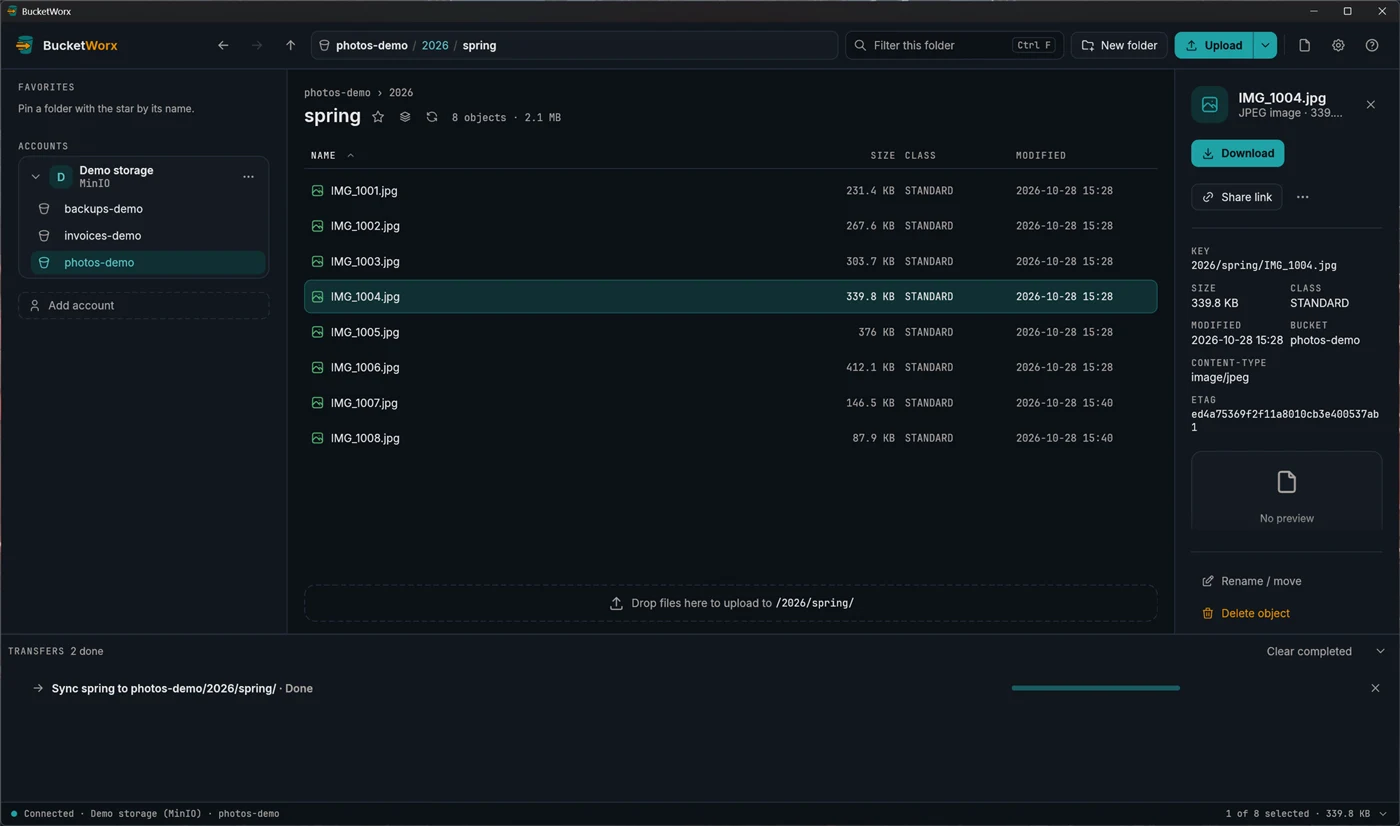
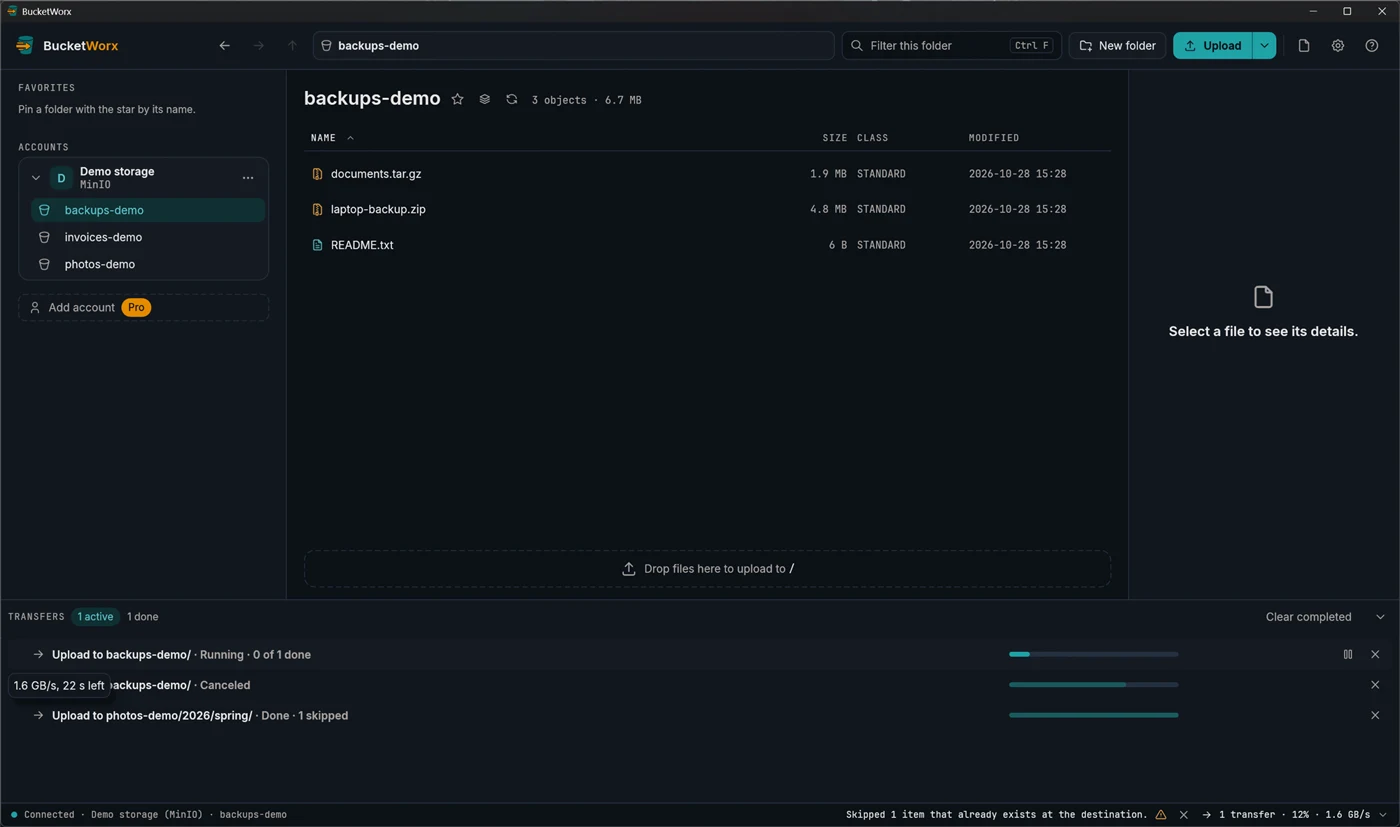
Click the transfer summary in the status bar (for example "2 transfers · 64% · 12 MB/s") to open the drawer, and drag its top edge to make it taller. There is one row for each batch (everything you started in one go), and clicking a batch shows the transfers inside it. Hover a running one to see its speed and time left.
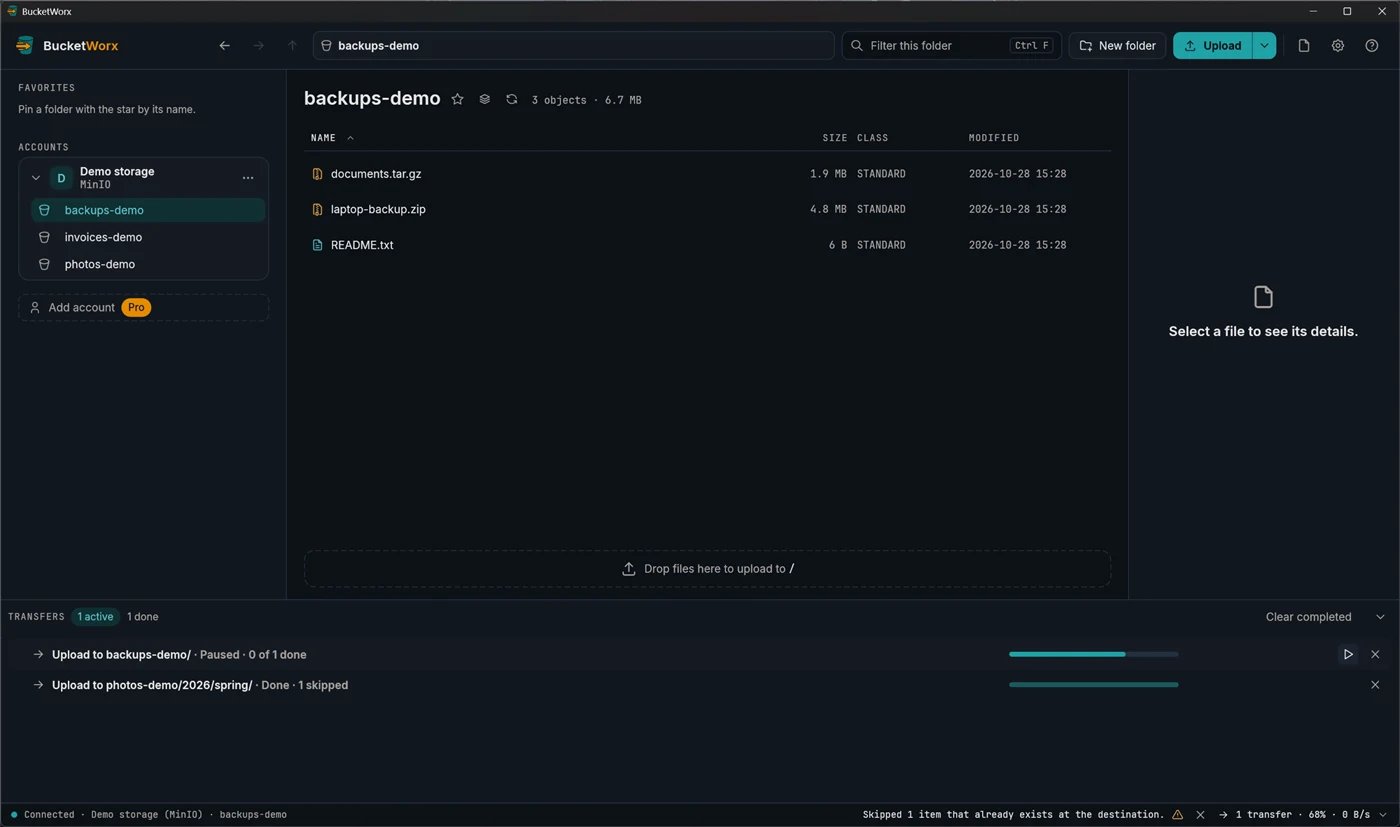
- Pause, resume or cancel a single transfer or a whole batch with the buttons on its row.
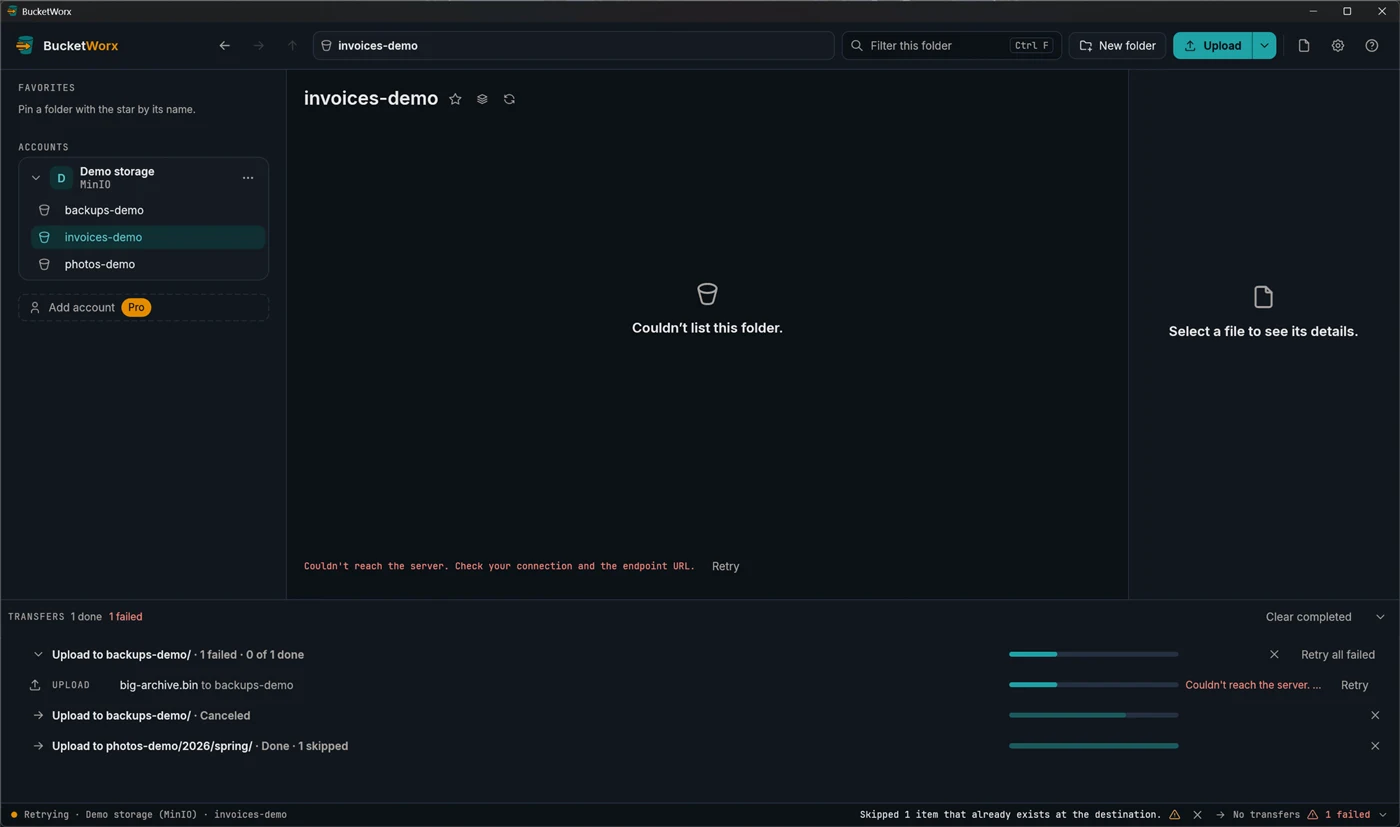
- Retry. A failed or cancelled transfer has Retry. A batch has Retry all failed, and Retry failed in the palette retries every failed transfer.
- Clear the list. Remove from list clears one batch or transfer, and Clear completed clears everything finished. Failed ones stay so you can retry them.
- Open a download or show it in its folder from its row, or right-click it.
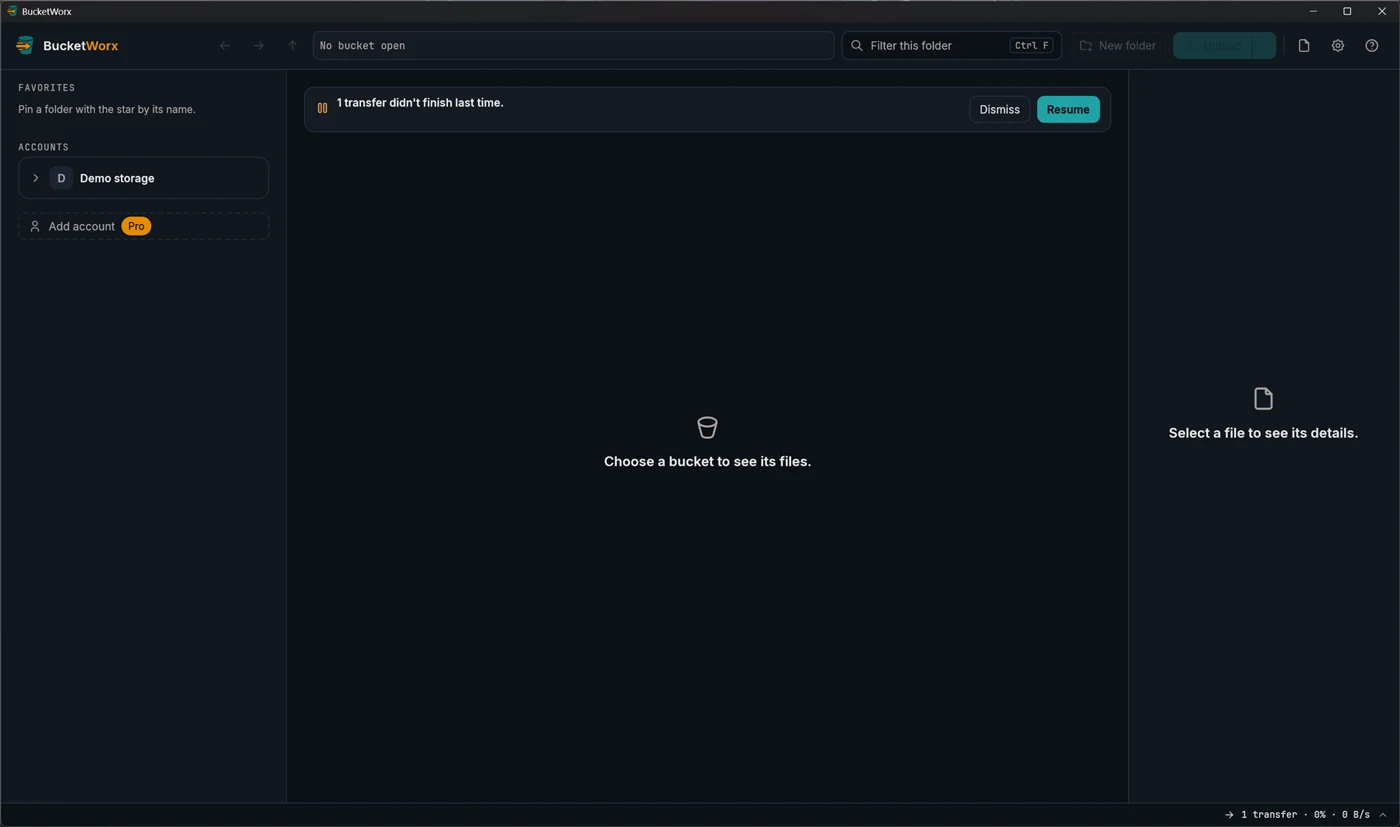
- If the app closes in the middle, or crashes, unfinished transfers come back paused, with a banner: "N transfers didn't finish last time." Resume carries on, and Dismiss cancels them. A resumed upload keeps the parts it already sent if the file hasn't changed, and a resumed download continues in its partial file.
- Cancelling an upload aborts it on the server, and cancelling a download removes its partial file.
- Failures retry themselves. Network errors and throttling are retried with growing waits (up to 5 attempts per request), and BucketWorx backs off when a server says it is busy.
The dot at the left of the status bar shows the connection to the open bucket: Connected, Retrying or Can't connect.
File names Windows can't hold. An object whose name can't be a file name on your computer (reserved names, forbidden characters, too long) is saved under a safe name, and a notice tells you.
When a file already exists
If a transfer would replace a file that is already there, BucketWorx stops and asks. Your choices are Overwrite, Skip, Keep both (the new one gets a name like report (1).csv) and Overwrite if newer. The prompt shows the size and date of both files side by side and suggests the sensible choice. Nothing is overwritten without an answer.
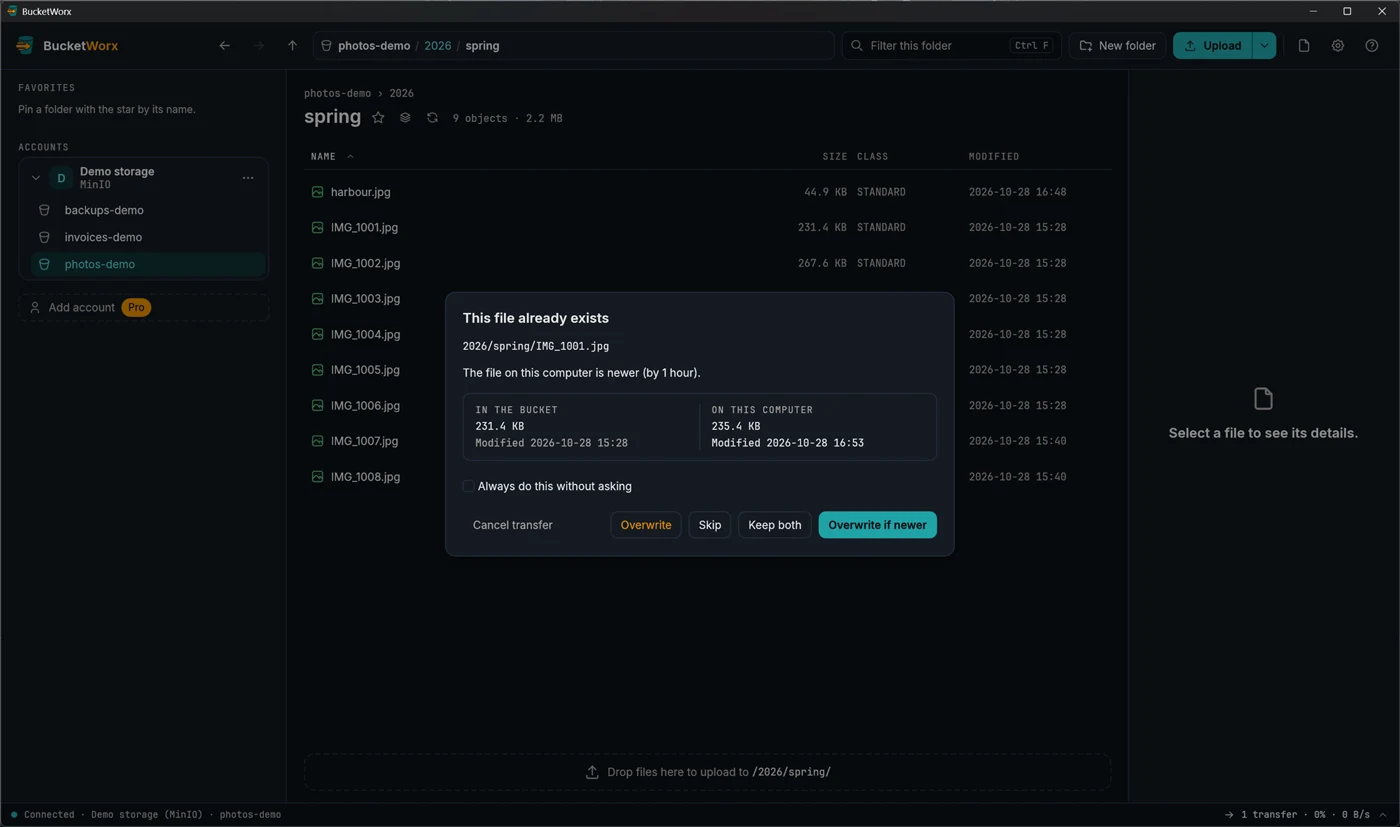
- Tick Apply to all to answer the rest of the batch at once.
- Files that are already identical (same size and checksum) are skipped without asking, so re-running an upload doesn't copy things twice.
- In Settings you can set a default so you are not asked: Ask, Overwrite, Skip, Keep both or Overwrite if newer.
- If a bucket has versioning turned on, uploads replace the object without asking, because the old one is kept as a version.
Copy and move between places
You can copy or move files and folders between folders, between buckets, and between accounts. There are three ways to do it.
Copy to… and Move to…
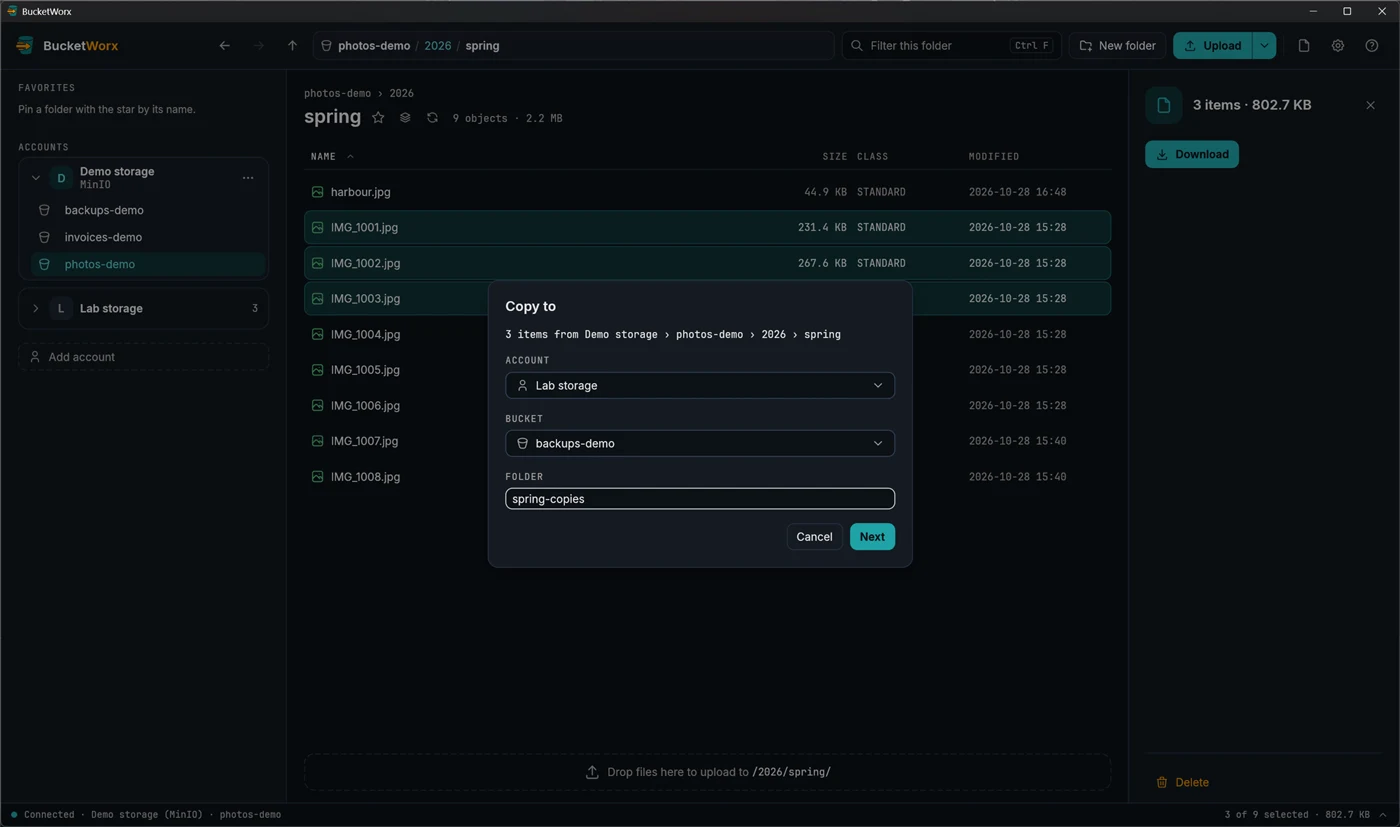
Right-click the selection (or use the "…" menu in the details panel, or the palette) and choose Copy to… or Move to…. The dialog names what you are copying (for example "3 items from Work › assets › docs"), then asks where it goes: an account, one of its buckets, and a folder in it. Leave the folder empty for the top level. A folder that doesn't exist yet is created.
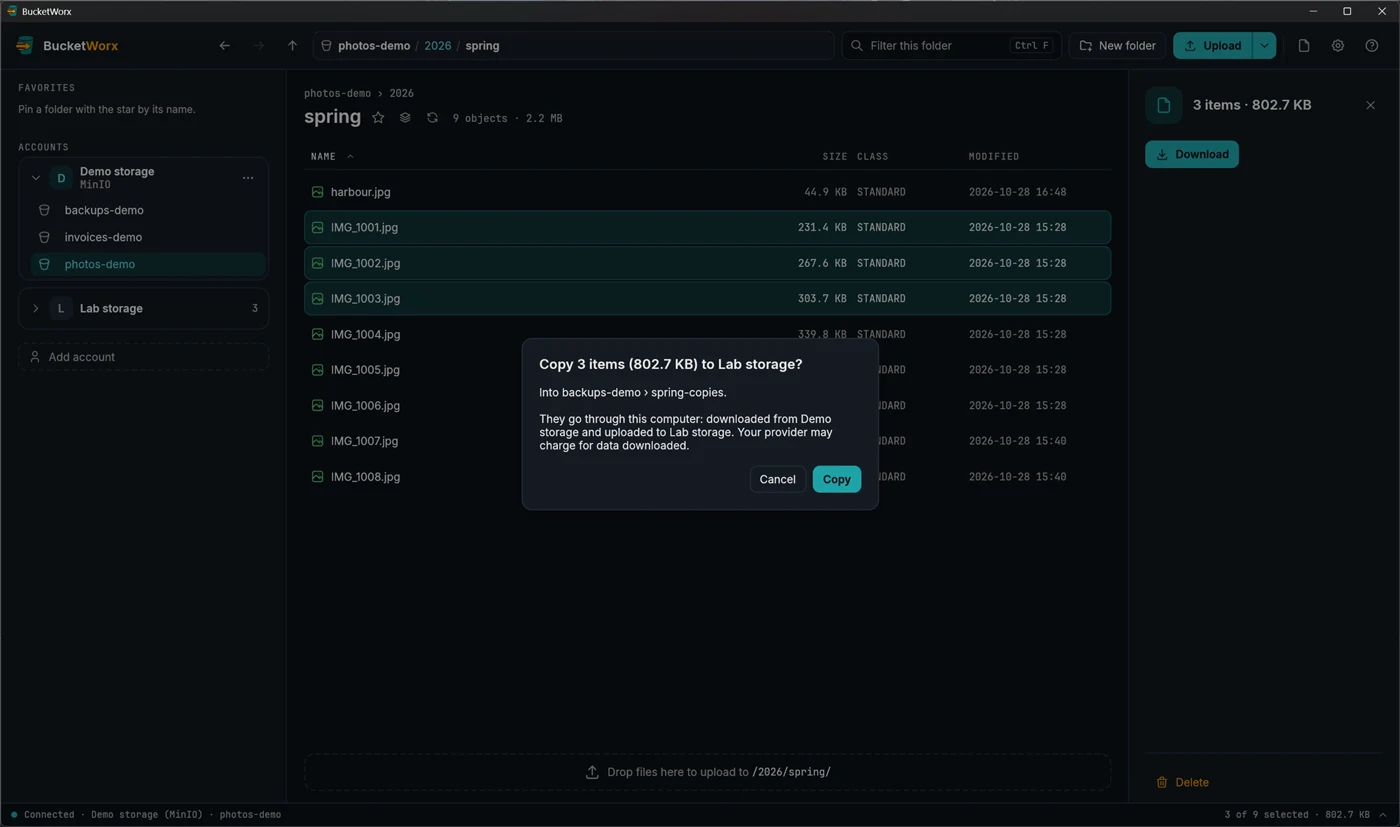
Press Next and BucketWorx lists what would be copied, then asks one last time, for example "Copy 6 items (44.2 KB) to assets › backup?". Nothing happens until you confirm, so a bucket with thousands of files is never sent by mistake.
Drag and drop
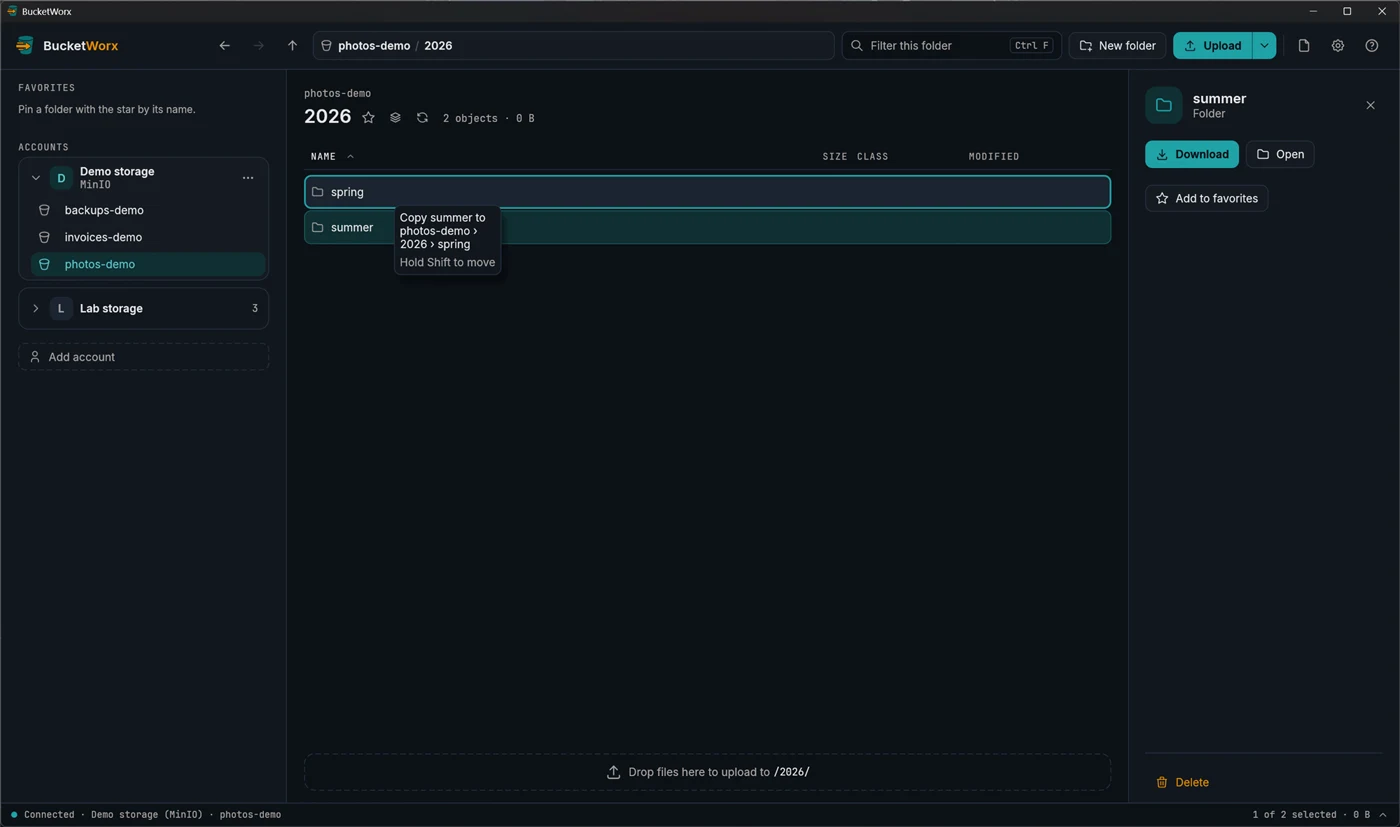
Drag rows from the list onto a folder row, or onto a bucket or favorite in the sidebar, to copy them there. Hold Shift as you let go to move them instead. A note by the pointer says what a drop would do, and the place under it is outlined. Dropping opens the same confirmation as Copy to…. Esc cancels the drag.
Copy, Cut and Paste
Select items, press Ctrl+C to copy or Ctrl+X to cut, open another folder, and press Ctrl+V. Copied items can be pasted again in as many places as you like. Cut items stay where they are until you paste them. A paste within one account starts straight away and shows in the transfers drawer.
A whole bucket
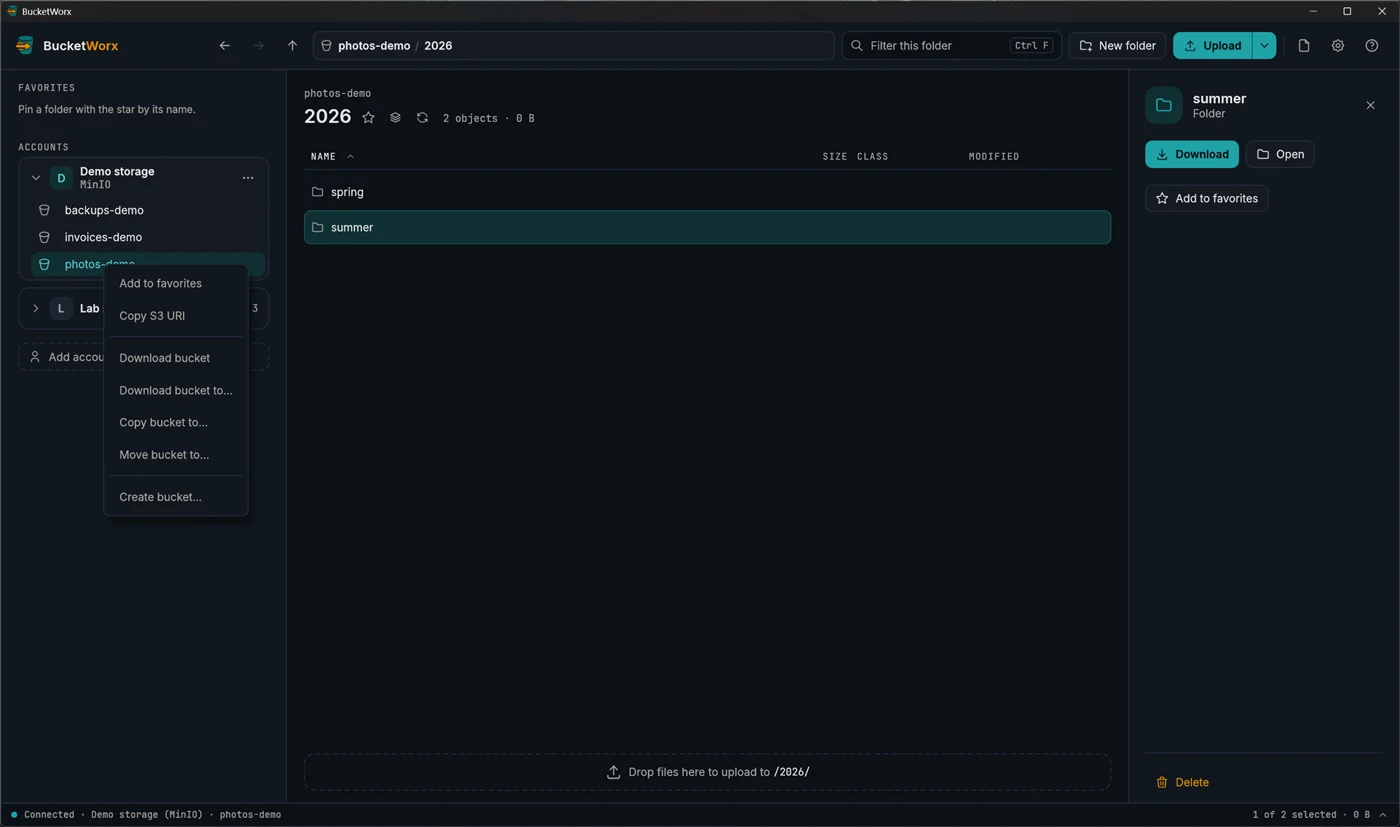
Right-click a bucket and choose Copy bucket to… or Move bucket to…. Everything goes straight into the folder you pick, keeping its paths. Moving empties the bucket but doesn't delete it.
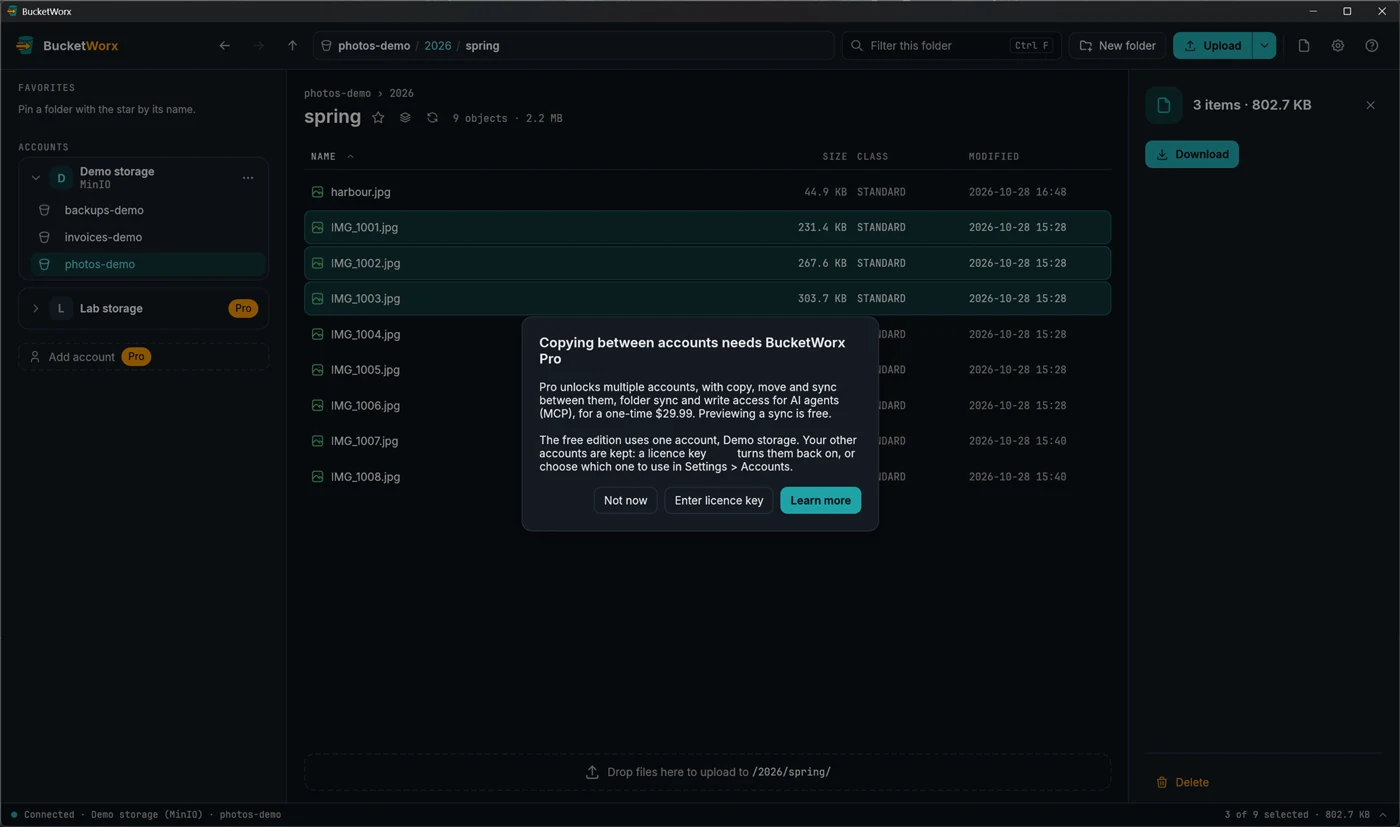
Between accounts needs Pro, because the data passes through your computer. Moving between accounts is careful: the original is deleted only once the copy is checked. If two accounts turn out to reach the same bucket, BucketWorx keeps the object rather than delete the only copy.
More help
Topics
- Accounts and providers
- Browsing your buckets
- Managing files
- Old versions, deleted files and undelete
- Buckets
- Settings and keyboard shortcuts
- The BucketWorx command line (CLI)
- AI agents (MCP)
- Free and Pro, and your licence key
- When something goes wrong
Step-by-step guides
- Connect Cloudflare R2
- Connect Backblaze B2
- Connect Wasabi
- Connect MinIO or another S3-compatible server
- Sync a folder to a bucket
- Share a file with a link
- Copy files between buckets and accounts
- How providers differ, and what BucketWorx does about it
All help, including installing BucketWorx.